Take a SQL Server database online and offline
You can take a SQL Server database offline to temporarily remove it from use while keeping it registered on the server. Bringing the database online returns it to normal operation after maintenance or troubleshooting.
In dbForge Studio for SQL Server, you can change the database state either through the graphical interface or by running a T-SQL command.
Take a database offline using the Studio interface
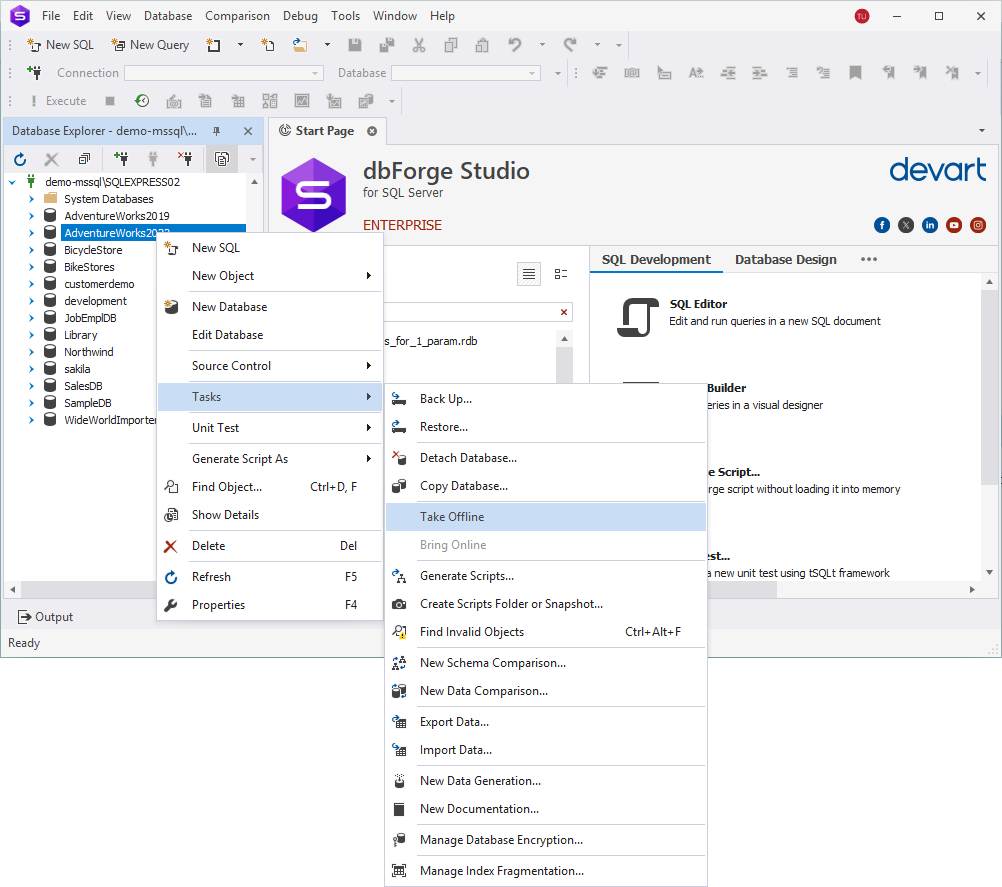
To take a database offline, in Database Explorer, right-click the database that you want to take offline, then select Tasks > Take Offline.
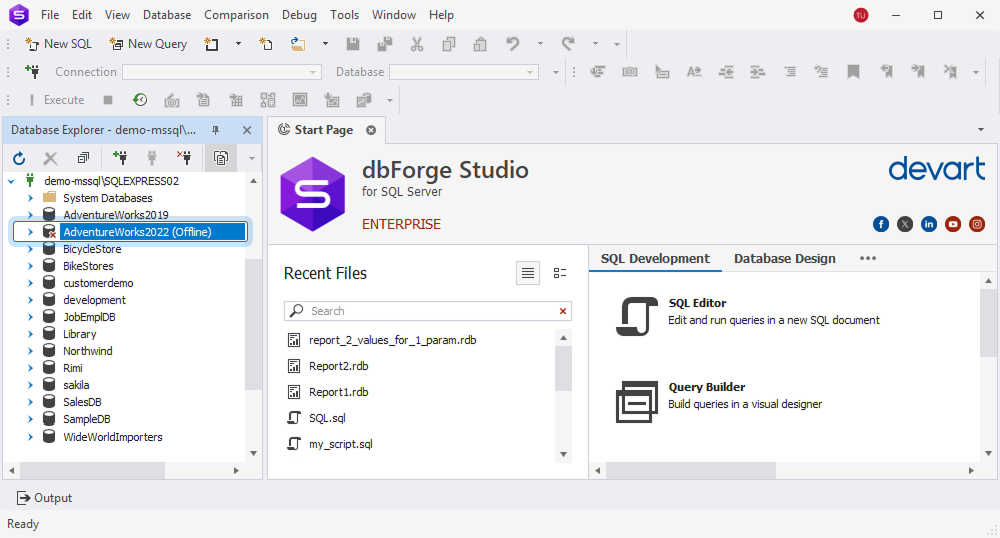
When the database is taken offline, the  icon appears next to its name, and the word (Offline) is displayed in parentheses.
Note
When you take a database offline, all objects that depend on it also become unavailable.
Offline databases do not appear in the Database list on the SQL toolbar.
Bring a database online using the Studio interface
To take a database online, in Database Explorer, right-click the database that you want to take online, then select Tasks > Bring Online.
Tip
If the database fails to go offline, make sure there are no active user sessions.
Take a database offline using T-SQL
To take a database offline using T-SQL, open SQL Editor, then execute the following command.
ALTER DATABASE [your-db-name]
SET OFFLINE WITH ROLLBACK IMMEDIATE;
Note
The
WITH ROLLBACK IMMEDIATEclause disconnects all active sessions to prevent blocking.You must have the
ALTER DATABASEpermission or be a member of the sysadmin or dbcreator fixed server roles.The master, model, and tempdb databases cannot be taken offline.
Bring a database online using T-SQL
To bring a database online using T-SQL, open SQL Editor, then execute the following command.
ALTER DATABASE [your-db-name] SET ONLINE;
Verify the database state
In Database Explorer, offline databases are marked with the icon next to their name, and the word (Offline) is displayed in parentheses.
You can also verify the database state by running the following T-SQL query.
SELECT name, state_desc
FROM sys.databases
WHERE name = 'your-db-name';
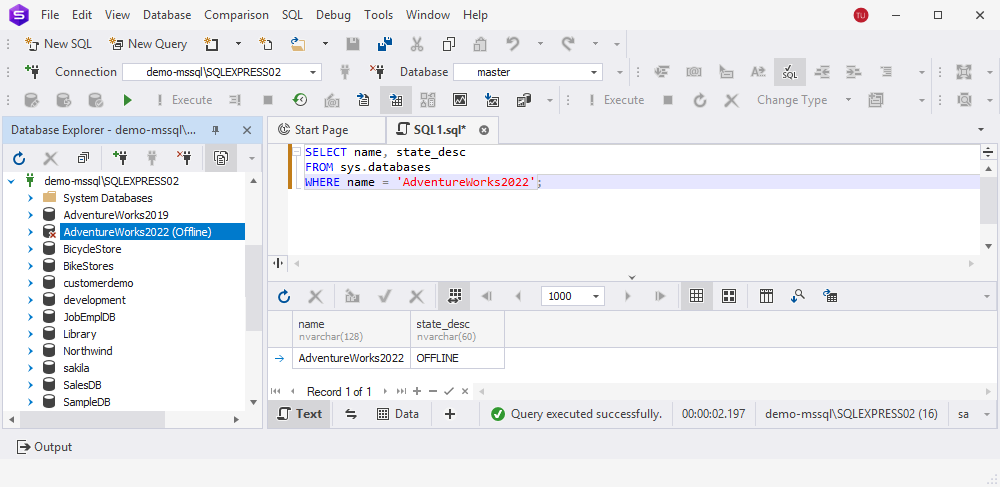
The state_desc column shows the current database state, such as ONLINE or OFFLINE.