Share custom formatting profiles
In dbForge Studio for SQL Server, you can share custom formatting profiles with other dbForge Studio users by saving them to a shared network folder or a shared Dropbox folder. You can also export profile settings, enabling other users to import them into their instance of dbForge Studio.
Note
To share a profile through Dropbox, you need a Dropbox account and the Dropbox desktop application installed on your computer.
Upload a profile to a shared folder
1. Select Tools > Options.
2. Select Text Editor > Formatting > Profiles.
3. Right-click the profile, then select Show in Folder.
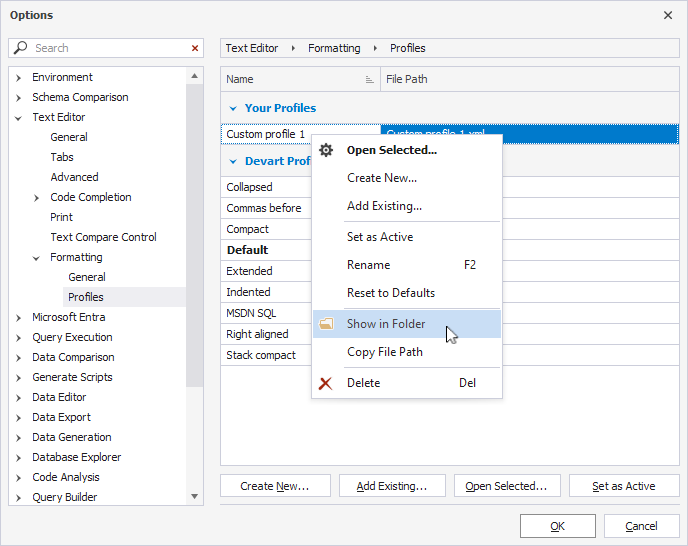
4. Copy the profile file and paste it into a shared network folder or Dropbox folder.
After the file is uploaded to the shared folder, other users can add the profile to their instance of dbForge Studio.
Add a profile from a shared folder
1. Select Tools > Options.
2. Select Text Editor > Formatting > Profiles.
3. Click Add Existing.
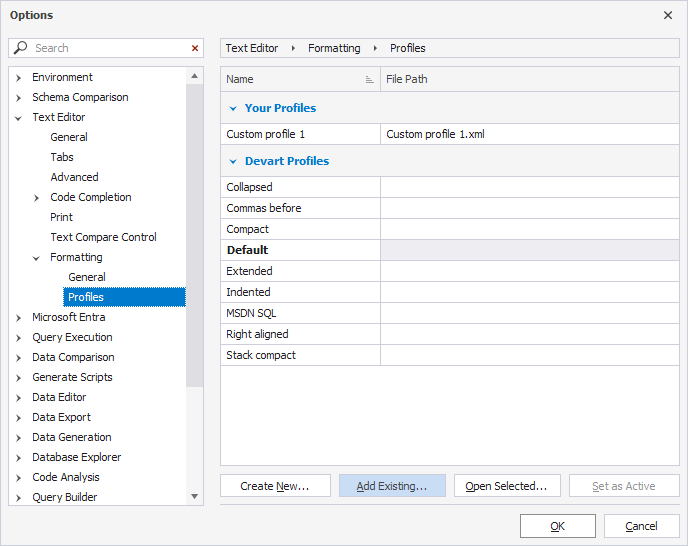
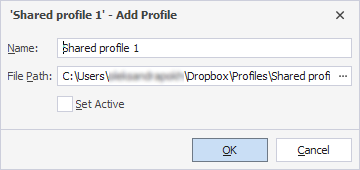
4. In the shared network folder or Dropbox folder, select the file you want to add, then click Open.
5. Optional: Change the profile name according to your preferences.
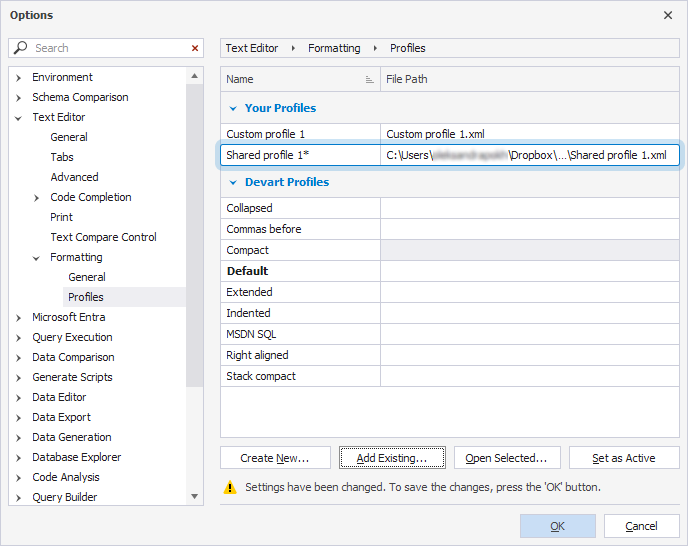
6. Click OK.
The profile appears under Your Profiles.
7. Click OK to save the changes.
Export profile settings
1. Select Tools > Import and Export Settings.
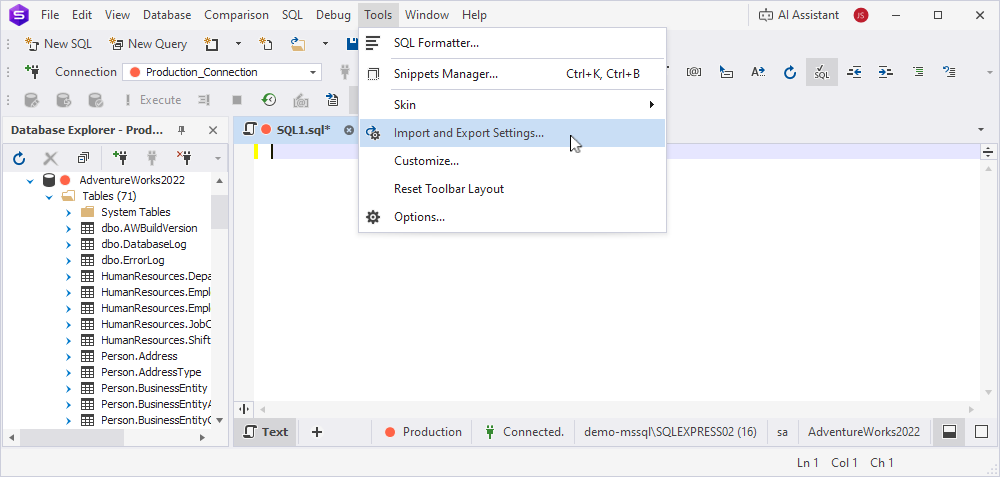
2. Select Export selected environment settings, then click Next.
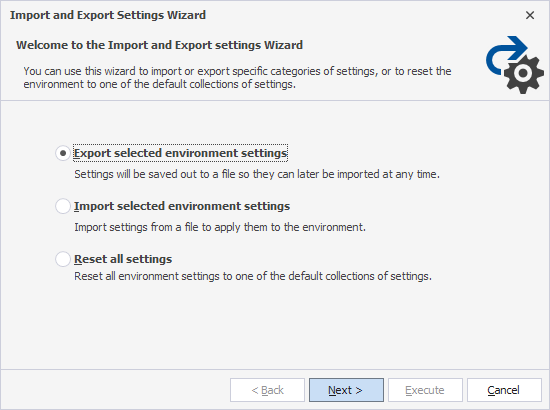
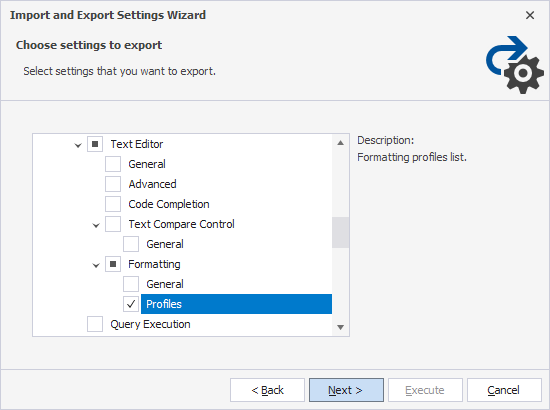
3. Clear the All Settings checkbox.
4. Under All Settings > Options > Text Editor > Formatting, select Profiles.
5. Click Next.
6. Under Settings file name, enter a name for the settings file.
7. Under Store my settings in this directory, specify the shared folder where you want to save the settings file.
8. Click Execute.
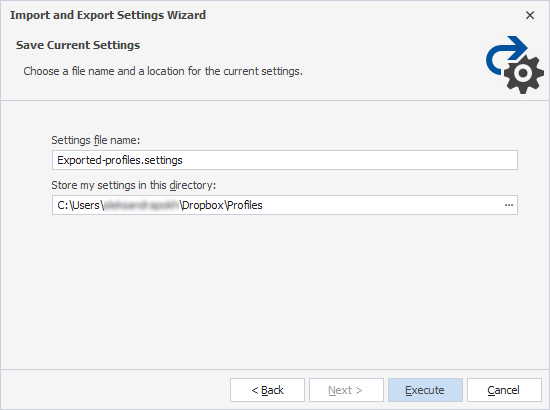
The profile settings have been exported to the shared folder.
9. Click Finish to close the wizard.
Other users can now import the settings file from the shared folder into their dbForge Studio.
Import profile settings
1. Select Tools > Import and Export Settings.
2. Select Import selected environment settings, then click Next.
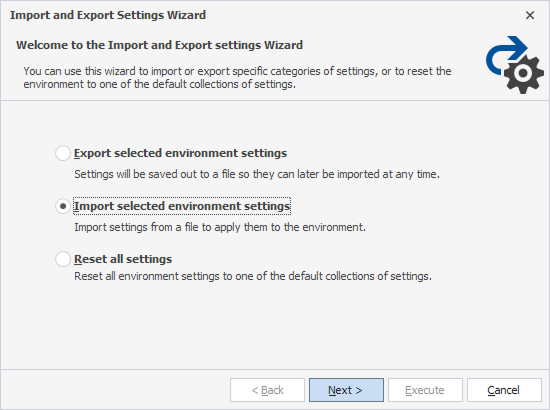
3. Select No, just import settings, overwriting my current settings, then click Next.
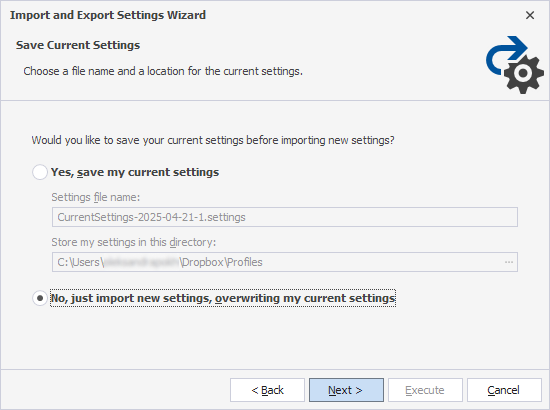
4. Click Browse and select the profile settings file from the shared network folder or Dropbox folder.
5. Click Execute.
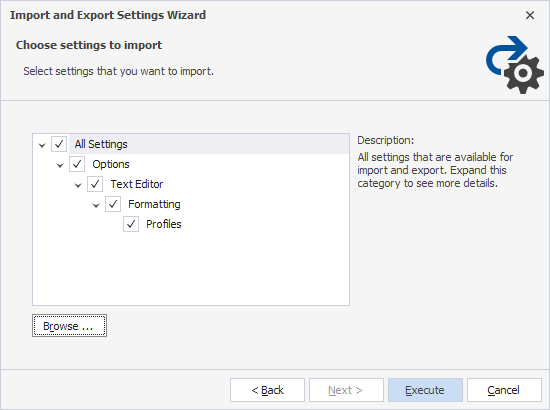
The profile settings are now imported into dbForge Studio.
6. Click Finish to close the wizard.
You can now apply the imported profile.