Save and restore a diagram
You can save and restore database diagrams to preserve database design layouts or share them across environments.
Save diagrams
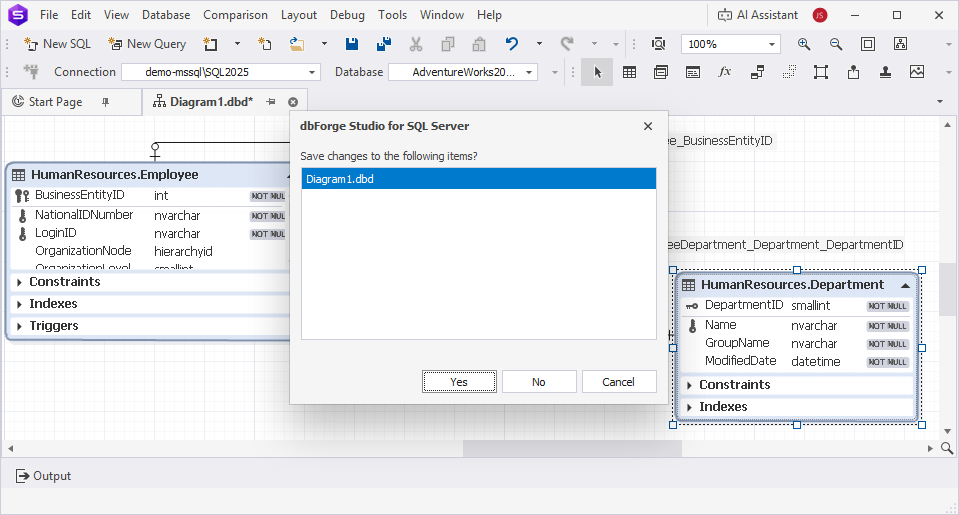
By default, database diagrams are not saved automatically. When you close a diagram or exit the Studio, you are prompted to save any unsaved changes. Click Yes to save the changes.
Tip
An asterisk (*) on the document tab indicates unsaved changes.
Configure automatic diagram restore
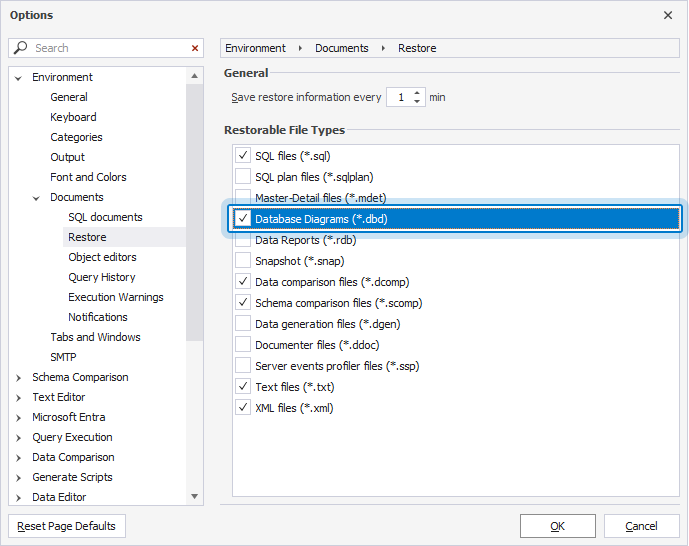
1. On the menu bar, select Tools > Options.
2. On the Environment > Documents > Restore page, select Database Diagrams (*.dbd).
3. Click OK.
The diagram is saved as a .dbd file. The file stores diagram metadata and layout information, including:
- Server connection details
- Database object names and owners
- Foreign key names used for relation lines
- Virtual relations
- Containers, notes, and stamps
- Diagram configuration options
- Layout settings
Save a diagram manually
You can save the diagram in one of these ways:
- On the SQL toolbar:
- Click
 or press Ctrl+S to save changes to the current diagram.
- Click
 or press Ctrl+Shift+S to save all open diagrams and other documents with unsaved changes.
- Click
- On the menu bar, select File, then select one of the following options:
- Save – Saves changes to the current diagram.
- Save As – Saves the current diagram as a new file with a different name.
- Save All – Saves all open diagrams and other documents with unsaved changes.
Note
When you open a diagram after the database has changed, the diagram reflects changes to the displayed database objects. New objects aren’t added automatically, and deleted objects are removed from the diagram.
Restore a diagram
A diagram stores layout and object references, but it doesn’t store full database object definitions locally. Therefore, restoring a diagram depends on the availability of the database and the objects referenced by the diagram.
Manually saved diagrams
When you reopen a manually saved diagram, dbForge Studio for SQL Server tries to connect to the SQL Server database that contains the diagram objects.
- The diagram cannot be restored:
- If the original database is unavailable.
- If the original database is available, but none of the objects referenced by the diagram exist.
- The diagram can be partially restored:
- If the original database is available and only some of the referenced objects exist, the diagram can be restored with the available objects only.
- The diagram is restored completely:
- If the original database is available and all referenced objects exist.
Automatically saved diagrams
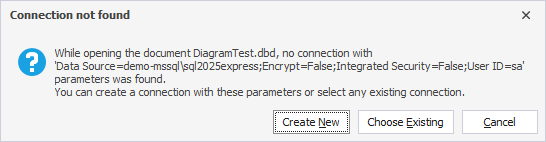
Automatically saved diagrams, however, can be opened without the associated connection. If the original connection is unavailable, dbForge Studio prompts you to create a new connection or select an existing one to open the diagram.
Restore diagrams
You can restore a diagram in one of these ways:
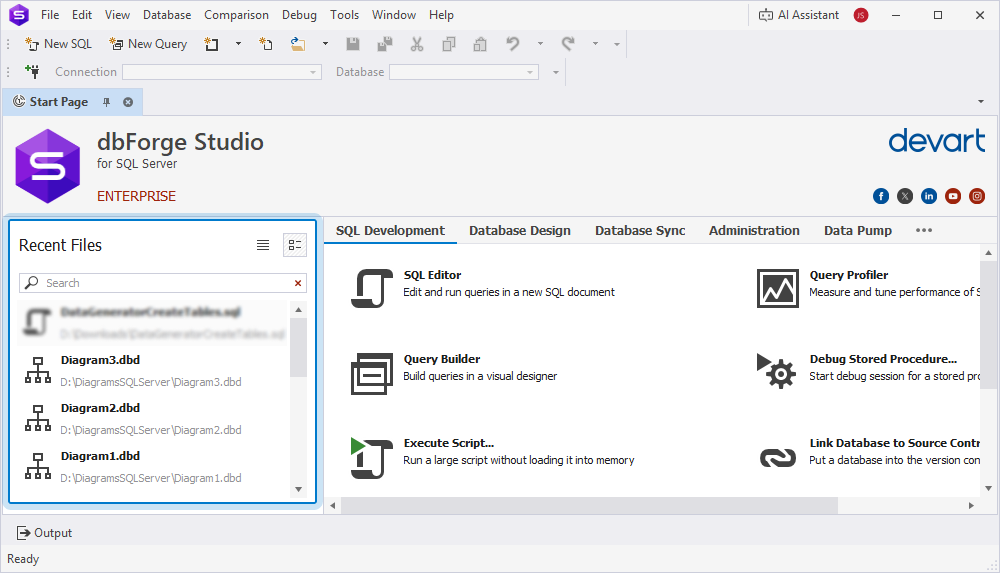
- On the Start Page, in the Recent Files section, click the diagram you want to restore.
- On the menu bar, select File > Recent Files, then select a file from the list.
Note
The Recent Files section contains only files that were saved manually. It doesn’t include automatically saved files.
Warning
If the connection used by the file has been deleted, restoring the file from the Recent Files section displays a message that the connection cannot be found. You can then create a new connection or select an existing one.
Open a diagram
You can open database diagrams to view or edit the diagram structure in one of these ways:
-
On the SQL toolbar, click
 or press Ctrl+O. In the Open File dialog, select the file and click Open.
-
On the SQL toolbar, click arrow next to
and select one of the recent files. -
On the menu bar, select File > Open File. In the Open File dialog, select the file and click Open.