Select data sources for comparison
dbForge Studio for SQL Server enables you to compare and synchronize different data sources, such as databases, backups, snapshots, scripts folders, and source control repository revisions.
Note
You can compare any combination of data sources within your project, even if they are of different types.
To start a new schema comparison project, specify two data sources you want to compare using the New Schema Comparison wizard.
Open the New Schema Comparison wizard
Open the New Schema Comparison wizard in one of these ways:
- In the top menu, select Comparison > New Schema Comparison.
- On the Start Page, select Database Design > New Schema Comparison.
- In Database Explorer, right-click the server connection or database and select Tasks > New Schema Comparison.
Tip
When you select two databases in Database Explorer for schema comparison, dbForge Studio automatically assigns one as the source and the other as the target in the New Schema Comparison wizard.
Select source and target data sources
On the Source and Target page of the New Schema Comparison wizard, select the source and target data sources and server connections you want to compare.
Note
The Source is the data source that remains unchanged, while the Target is the data source that will be updated to match the source.
Database
1. In Type, select Database as the source, target, or both.
2. In Connection, select the server connections or create a new one.
3. In Database, select the database you want to compare.
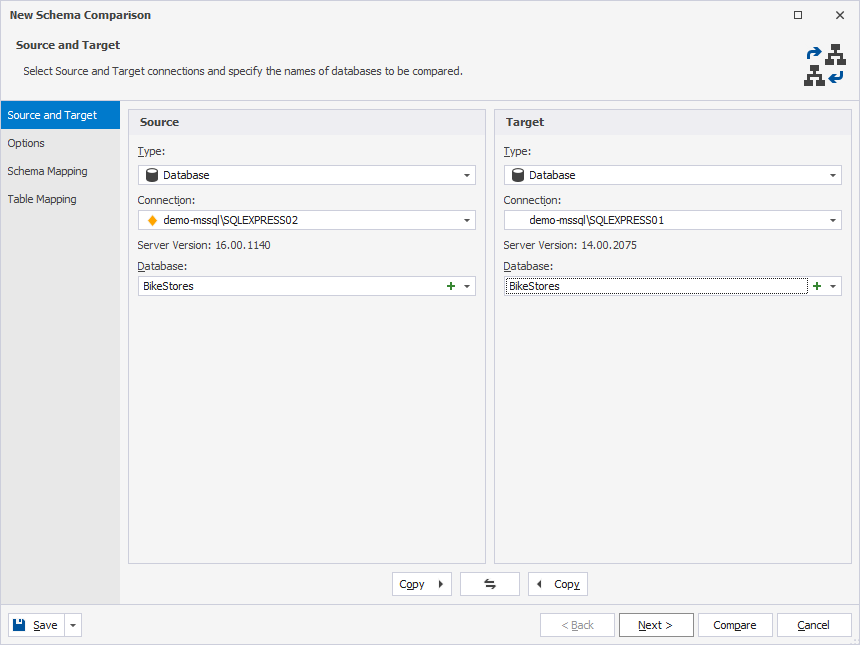
Tip
To refresh the list of databases, in Database, click < Refresh >.
To create a new database, in Database, click
. For instructions, see Create a new database.
Backup
dbForge Studio supports native SQL Server backups: full and differential backup files. When you select a differential backup that is part of a backup set, the tool compares all changes recorded up to that backup, including modifications from earlier backups, but excluding changes from later backups.
Warning
Partial backups are not supported. If you use a differential backup, you must also add the associated full backup.
To add a backup as a data source:
1. In Type, select Backup as the source, target, or both.
2. Click Add and select the backup file.
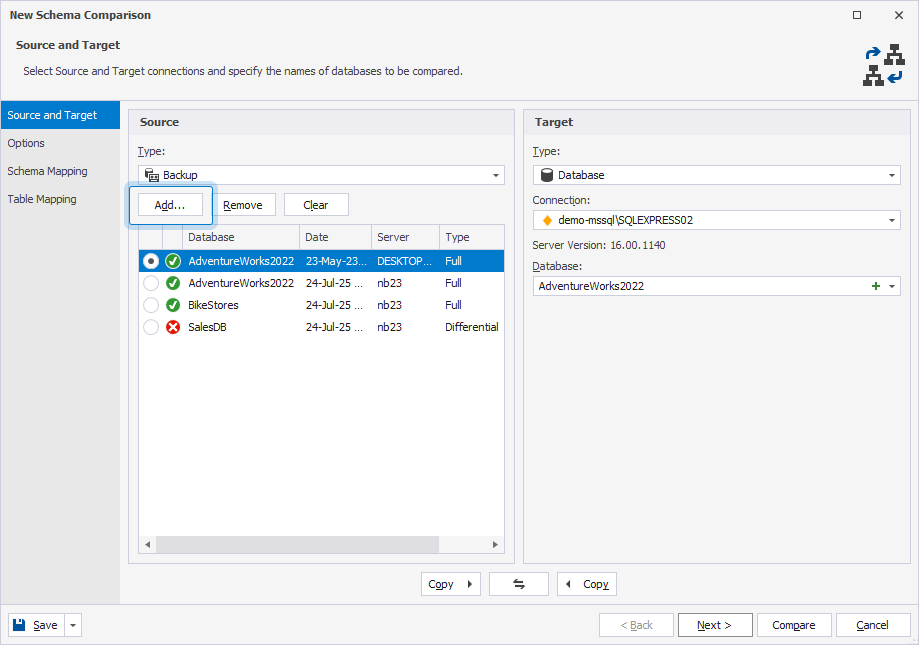
You can add multiple backup files. Each file is marked with one of the following icons:
-
 – The backup set is valid and complete.
 -
 – The backup set can’t be used as a data source.
To remove a backup file, click Remove, then click Yes to confirm. The associated files from the set will also be removed.
To remove all backup files, click Clear.
Scripts folder
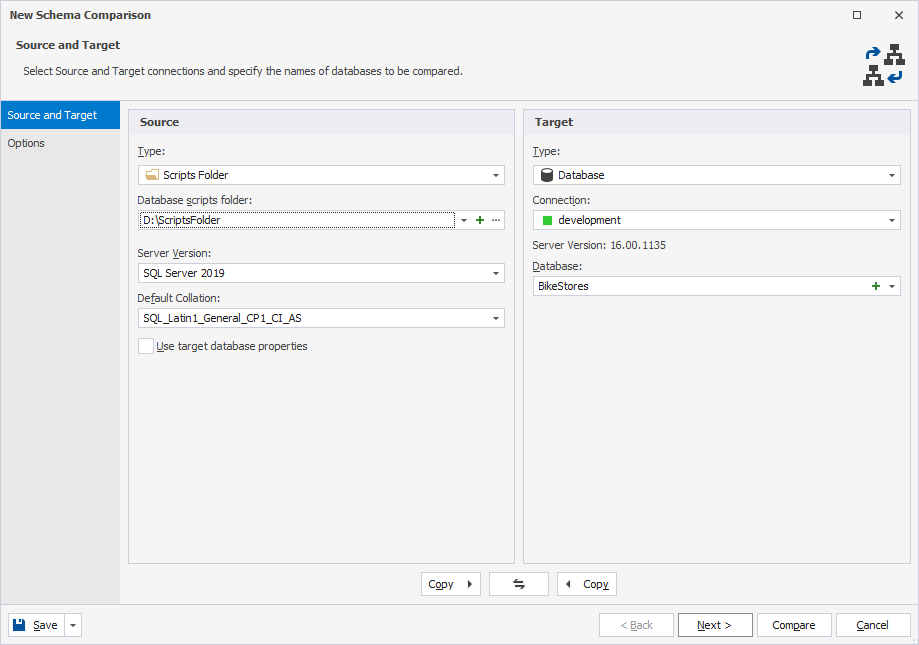
To add a scripts folder as a data source:
1. In Type, select Scripts Folder as the source, target, or both.
2. In Database scripts folder, select one of the following options:
-
Select a scripts folder from the list.
-
Click
to create a scripts folder and add it as a data source. -
Click the ellipsis (…) to browse for and select the folder.
Source control repository revision
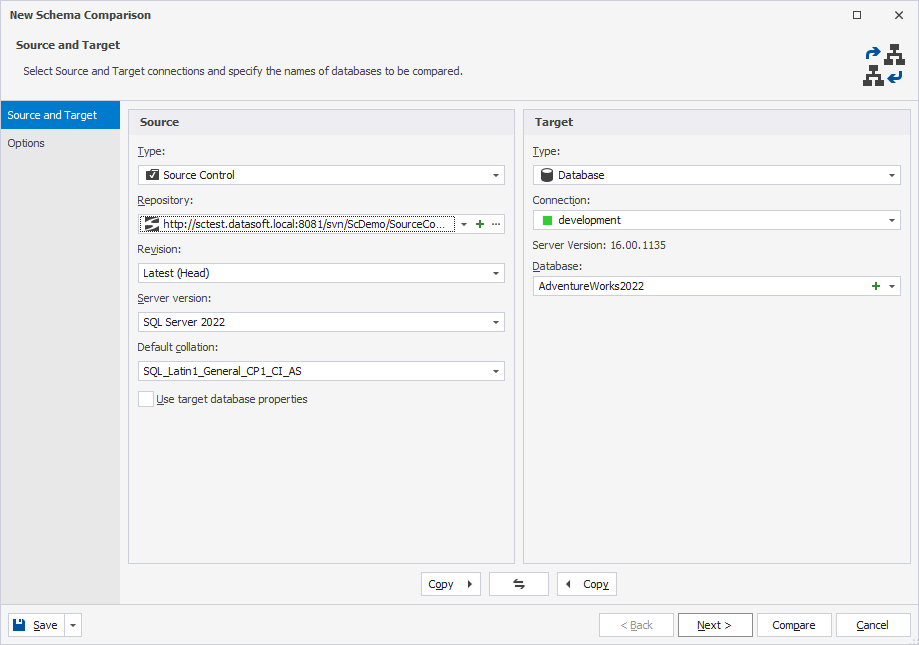
To add a source control revision as a data source:
1. In Type, select Source Control as the source, target, or both.
2. In Repository, select one of the following options:
-
Select a source control repository from the list.
-
Click
to add a repository, choose the source control system, and enter the repository name. -
Click the ellipsis (…) to edit repository properties.
-
Click Manage to add or edit repositories.
For instructions, see:
- Link a database to Git
- Link a database to a Git repository in GitHub
- Link a database to a Git repository in GitLab
- Link a database to a Git repository in Bitbucket
- Link a database to a Git repository in Azure DevOps
- Link a database to TFVC
- Link a database to SVN
- Link a database to Mercurial
- Link a database to Perforce
- Link a database to Plastic SCM and other systems
- Link a database to SourceGear Vault
Warning
Comparing working folders isn’t supported. Use a scripts folder for comparison instead.
3. In Revision, keep the default revision (Latest (Head)) or select a different one.
To select a different revision, click Select a specified revision, select a revision in the Revision history dialog, then click Select.
For more information, see View changes history.
4. Optional: Select Use target database properties to overwrite the source database properties and apply the properties of the target database.
Snapshot
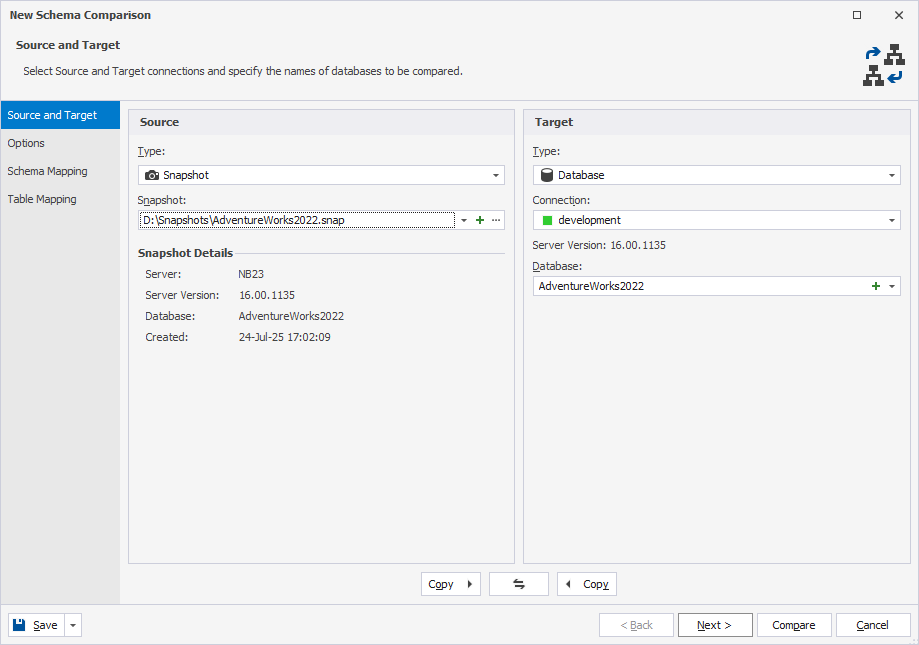
To add a snapshot as a data source:
1. In Type, select Snapshot as the source, target, or both.
2. In Snapshot, use one of the following options:
-
Choose a snapshot from the list.
-
Click
to create a snapshot and add it as a data source. -
Click the ellipsis (…) to browse for and select a schema snapshot file (.snap).
Create a new connection
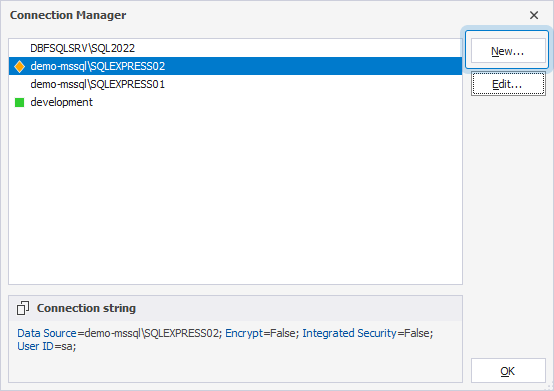
1. In Connection, select < Manage >.
2. In the Connection Manager dialog, click New.
Tip
To edit the connection, select the required connection, then click Edit.
3. In the Database Connection Properties dialog, specify the connection settings, then click Connect to establish a connection.
4. In the Connection Manager dialog, select the created connection.
5. Click OK.
Swap source and target settings
To swap source and target settings, click  .
.
Copy source and target settings
To copy source settings to the target, click  .
.
To copy target settings to the source, click  .
.
Save command-line settings to a file
You can save command-line settings to a .bat or a .scomp file for automating or scheduling schema comparison tasks.
Save command-line settings to a .bat file
1. In the Schema Comparison wizard, select source and target data sources you want to compare.
2. Optional: Configure the schema comparison options.
3. In the lower-left corner of the wizard, click Save > Save Command Line.
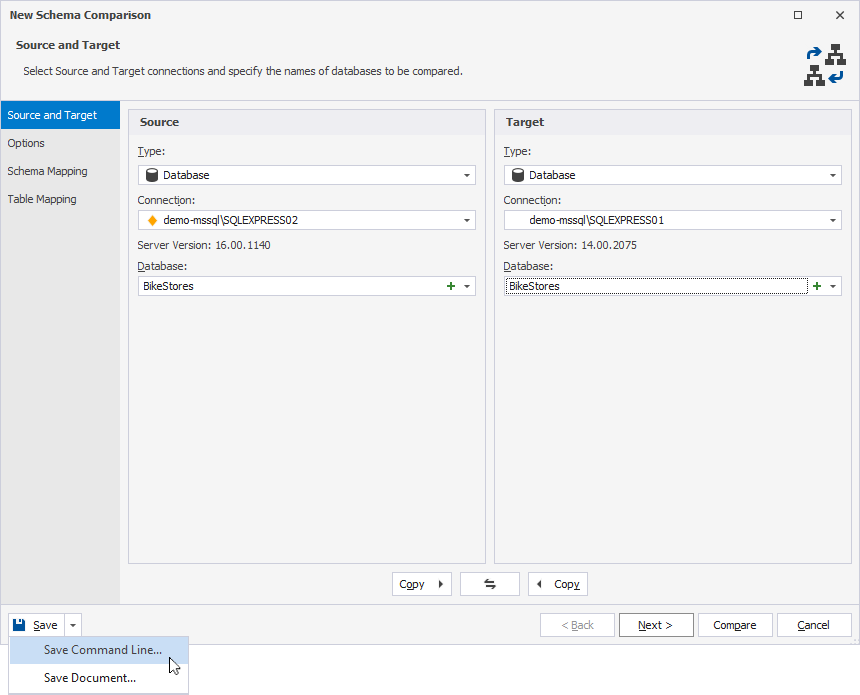
4. In the Command line execution settings dialog, configure the command-line settings.
5. To verify the settings, click Validate.
6. Click Save to save the file.
7. In the Save As dialog, specify the file name and path to store the .bat file, then click Save.
Note
You can create an executable file on any page of the wizard.
Save command-line settings to a .scomp file
1. In the Schema Comparison wizard, select the source and target data sources you want to compare.
2. Optional: Configure the schema comparison options.
3. In the lower-left corner of the wizard, click Save > Save Document.
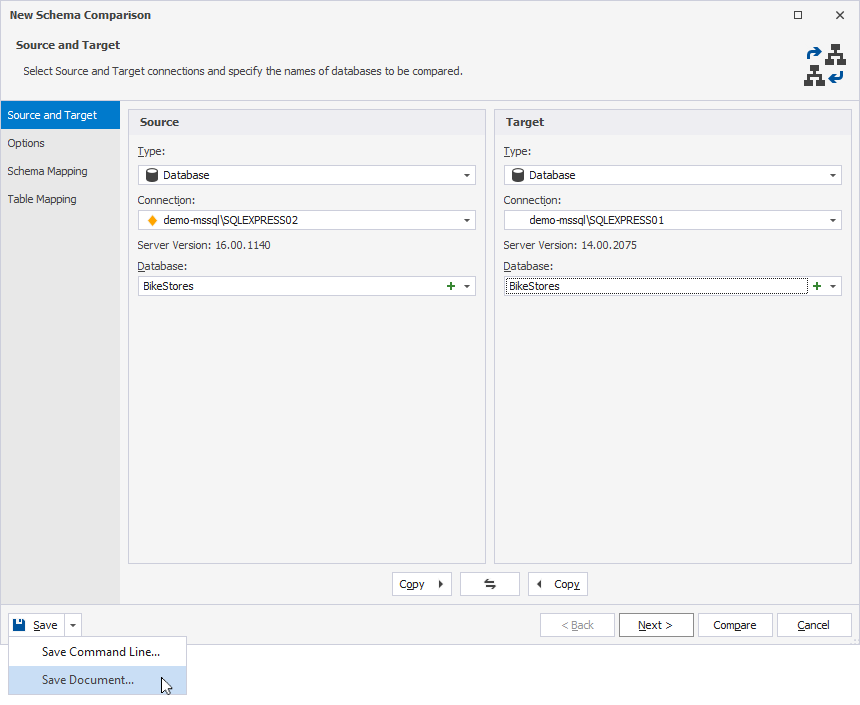
4. In the Save File As dialog, specify the file name and path to store the .scomp file, then click Save.