Update to a revision from source control
You can update a database to a specific revision (commit) from the version control repository. This is useful when you need to revert the database to an earlier state.
Tip
You can also use the Source Control functionality to version-control databases.
To update your database schema to a specific version:
1. Open the New Schema Comparison wizard in one of these ways:
- In the top menu, select Database > New Schema Comparison.
- On the Start Page, select Database Sync > New Schema Comparison.
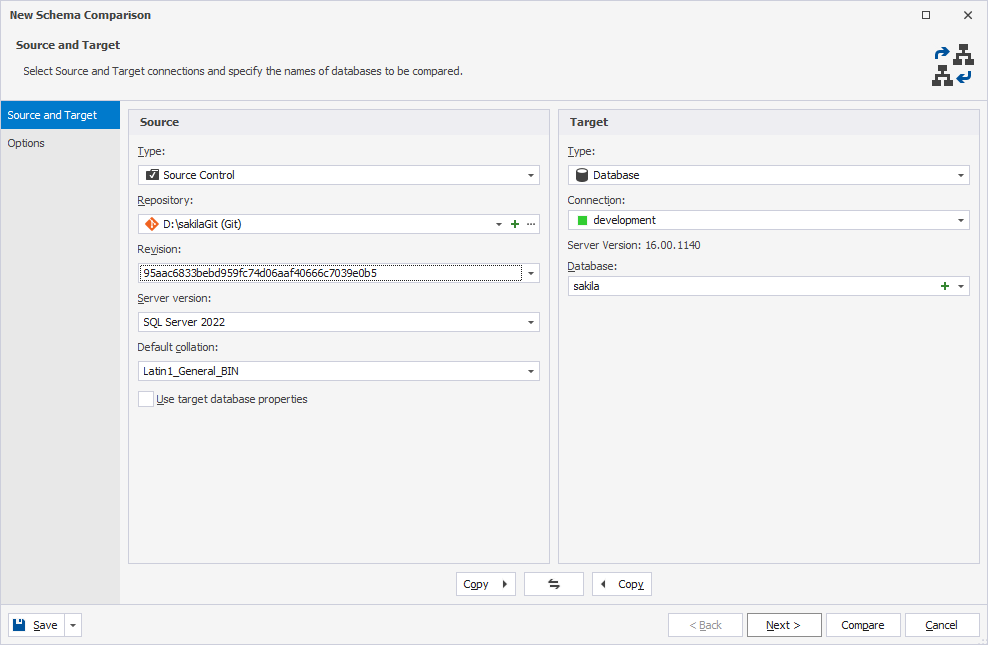
2. On the Source and Target page, configure the source and target data source settings:
-
Under Source:
1. In Type, select Source Control.
2. In Repository, select a previously added source control repository or create a new one.
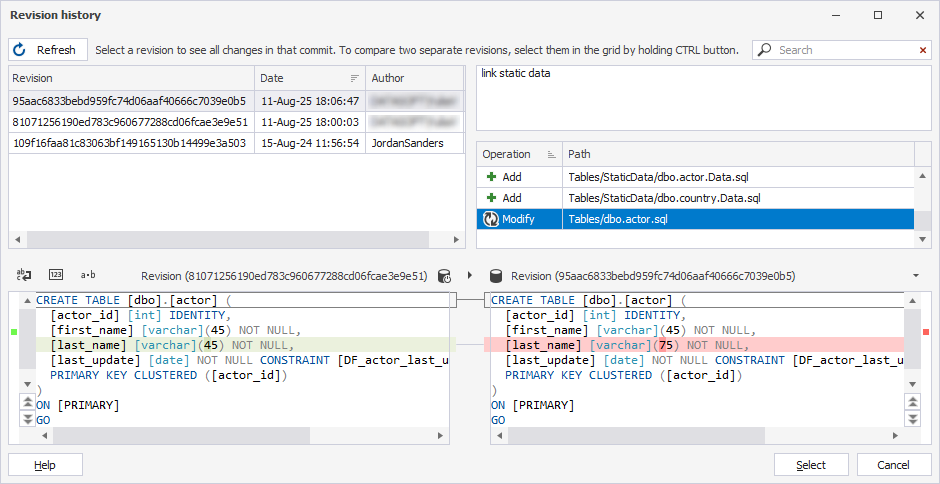
3. In Revision, click Select a specified revision.
4. In the Revision history dialog, select the revision, then click Select.
Note
The Latest (Head) Revision is selected by default.
-
Under Target:
1. In Type, select Database.
2. In Connection, select the target server connection.
3. In Database, select the required database.
3. Click Compare.
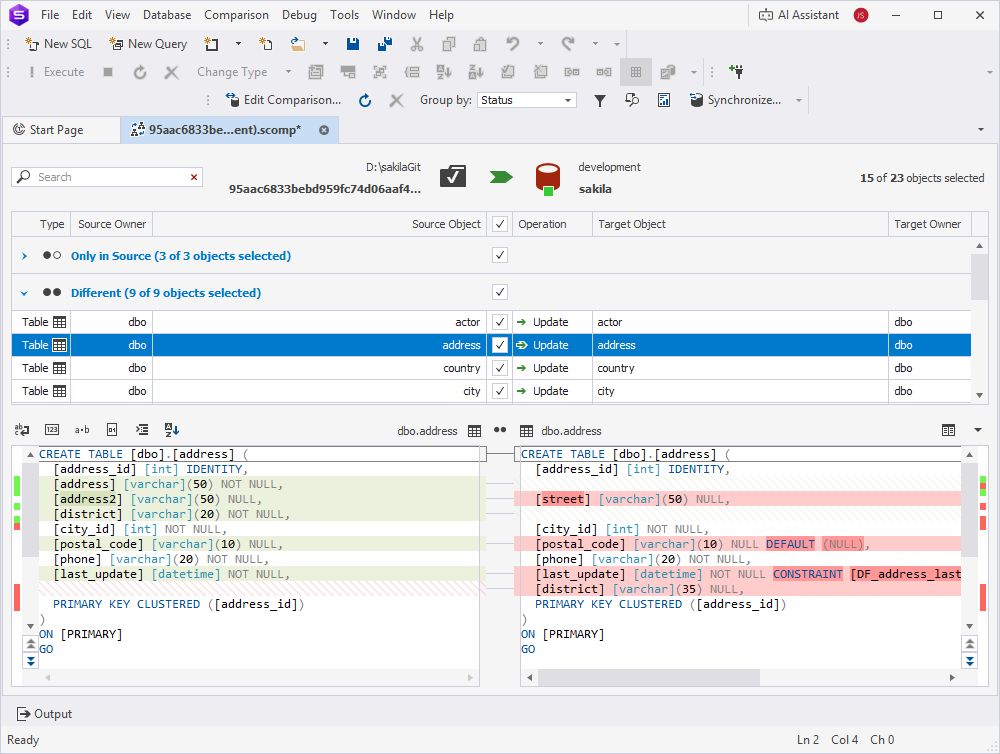
The Schema Comparison document opens, displaying the comparison results.
By default, all objects are selected for synchronization. To exclude an object, clear the checkbox for it.
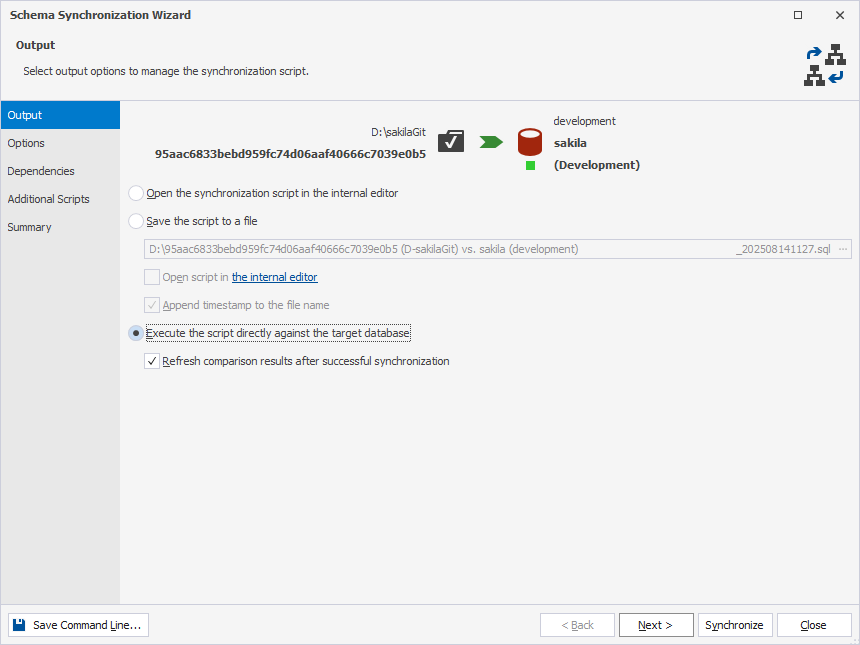
4. At the top of the document, click  to open the Schema Synchronization wizard.
5. Select the output option to generate a synchronization script and, optionally, configure synchronization options.
6. Click Synchronize.
Note
Updating your database to a specific revision overwrites the target database schema with the changes from that revision.