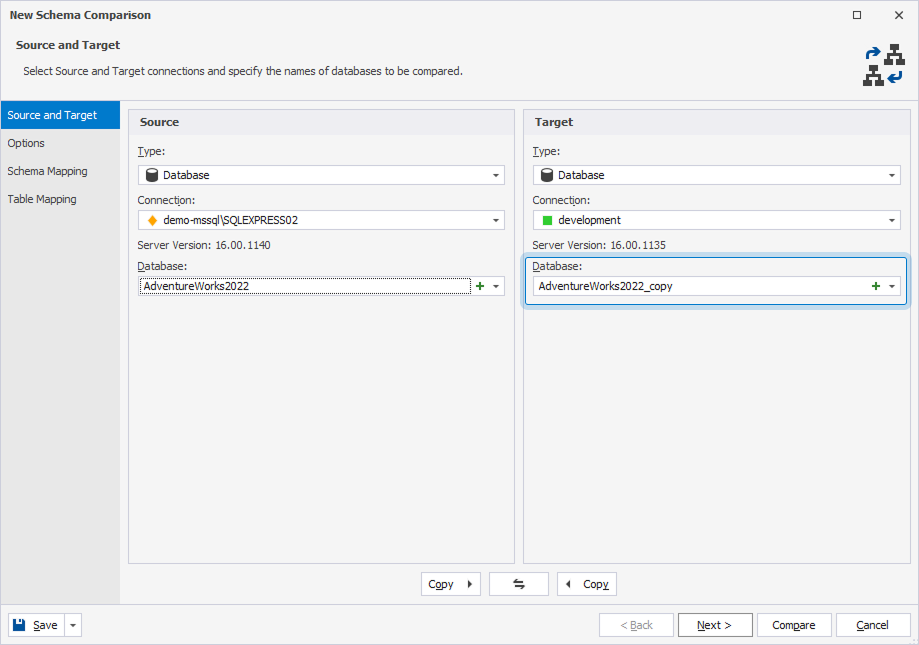
Create a new database
You can create a new database directly in the New Schema Comparison wizard, and it will open in a new SQL document in the visual database editor for further setup.
To create a new database:
1. Open the New Schema Comparison wizard in one of these ways:
- In the top menu, select Comparison > New Schema Comparison.
- On the Start Page, select Database Design > New Schema Comparison.
- In Database Explorer, right-click the server connection or database and select Tasks > New Schema Comparison.
2. In Type, select Database as the source or target.
3. In Connection, select the server connection.
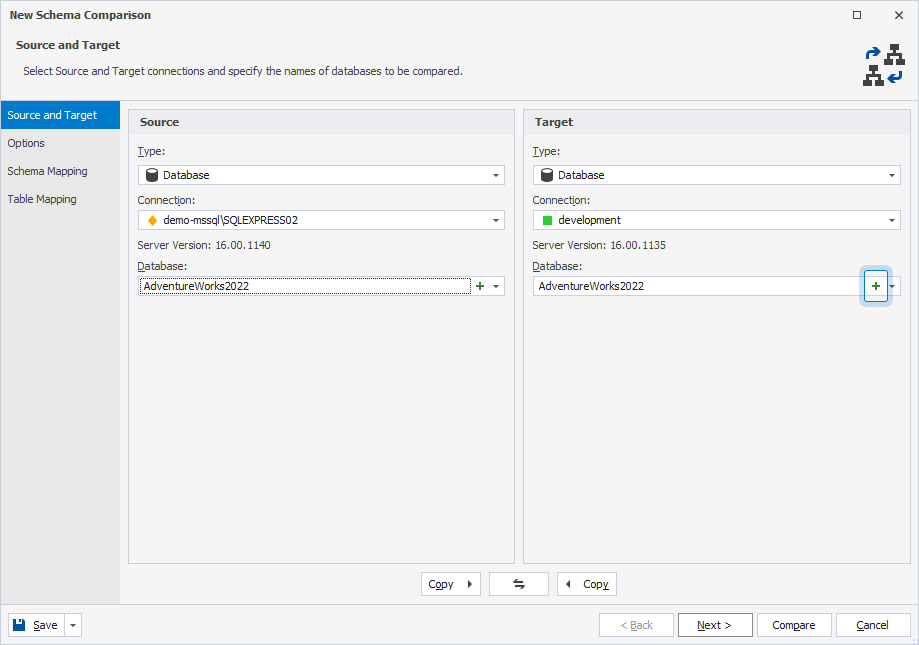
4. Under the Target database, click  to create a database.
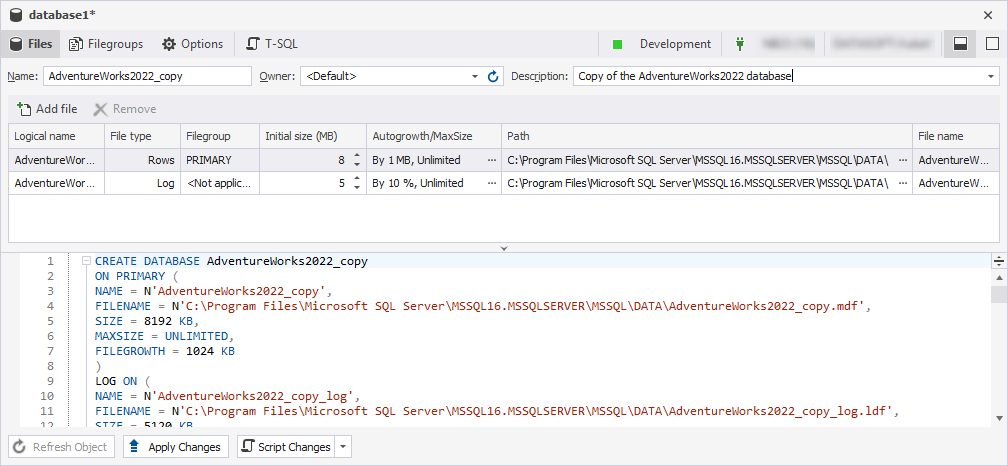
5. In the database editor, create the new database:
5.1. Enter a name and owner for the database.
5.2. Optional: Enter a description.
5.3. Click Apply Changes and close the dialog.
Note
The primary data file and transaction log file are required to create a new database and can’t be removed.
The new database appears in the Database list.