View Designer tab - Query Text
On the Query Text tab, you can create, edit, and view the SQL definition of the selected view. You can also validate and execute the query to preview its results.
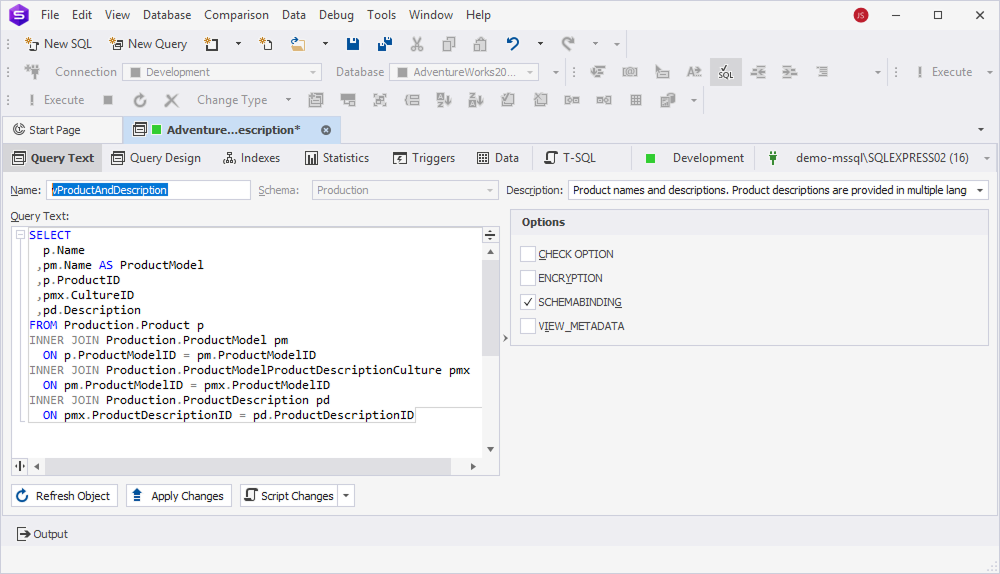
Create a view
1. In Name, enter a view name.
2. From the Schema list, select the required schema.
3. Optional: In Description, enter a description for the view. Then click the arrow next to Description and do the following:
- To save the description, click OK.
- To discard the changes, click Cancel.
4. In Query text, enter the SQL statement for the view.
5. Configure view-specific options, including:
- CHECK OPTION – Ensures all modifications made through the view comply with the view definition.
- ENCRYPTION – Encrypts the view definition to prevent users from viewing it.
- SCHEMABINDING – Binds the view to its underlying tables, preventing structural changes.
- VIEW_METADATA – Makes client applications receive metadata for the view itself rather than for the underlying base tables.
6. In the bottom panel, click Apply Changes.
Edit a view
1. In Name, edit the view name.
Note
When editing an existing view, you can’t change the schema name.
2. Optional: In Description, modify a description for the view. Then click the arrow next to Description and do the following:
- To save the description, select OK.
- To discard the changes, select Cancel.
3. In Query text, update the SQL statement for the view.
4. Update view-specific options if needed.
5. In the bottom panel, click Apply Changes.
Save the changes
An asterisk (*) on the View Designer tab indicates unsaved changes.
To save and apply the changes, in the bottom panel, click Apply Changes.
Note
To discard all changes made since View Designer was opened or last saved, on the standard toolbar, click
. The object is reloaded from the server, and all unsaved changes are permanently lost. You can’t undo this action for database objects.