Find and Replace window overview
You can find and replace text using the Find and Replace window in the following modes:
-
Find – Find text in the current document or all open documents.
-
Replace – Find and replace text in the current document or all open documents.
-
Find in Files – Search for text across multiple files and documents on your local machine.
-
Replace in Files – Find and replace text across multiple files and documents on your local machine.
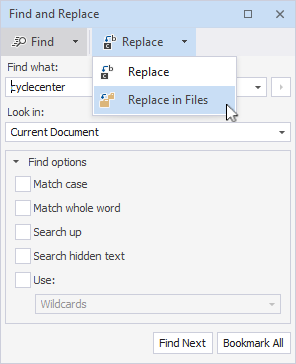
To switch between modes, click the tab name or click the  arrow icon next to the tab name, and then select the mode you want to use:
Note
You can use Find and Replace to search open documents in dbForge Studio and files on your machine.
- To search for database objects, see How to search for database objects.
- To search for database data, see How to search for database data.
Open the Find and Replace window
You can open the Find and Replace window in a specific mode using the following shortcuts:
-
Ctrl+F – Open the window in Find mode.
-
Ctrl+H – Open the window in Replace mode.
-
Ctrl+Shift+F – Open the window in Find in Files mode.
-
Ctrl+Shift+H – Open the window in Replace in Files mode.
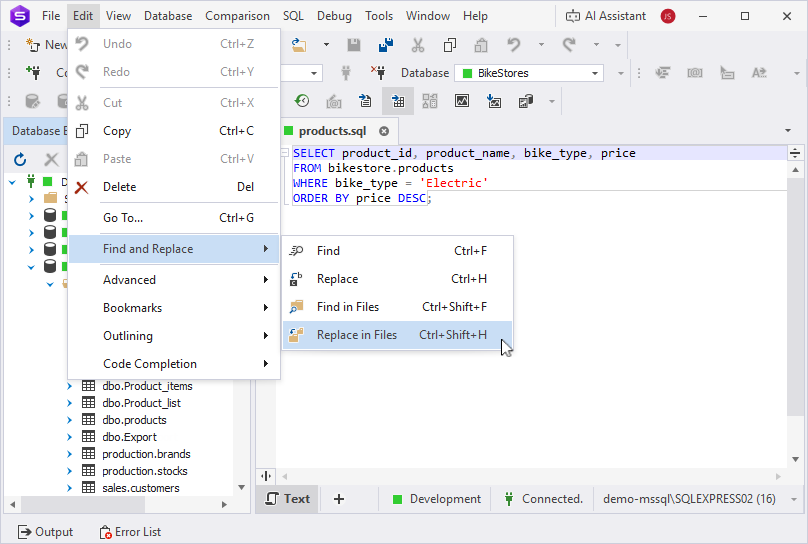
You can also access these options by navigating to Edit > Find and Replace and selecting the mode you want to use:
For more information on how to find and replace text in documents and files, see the following documents: