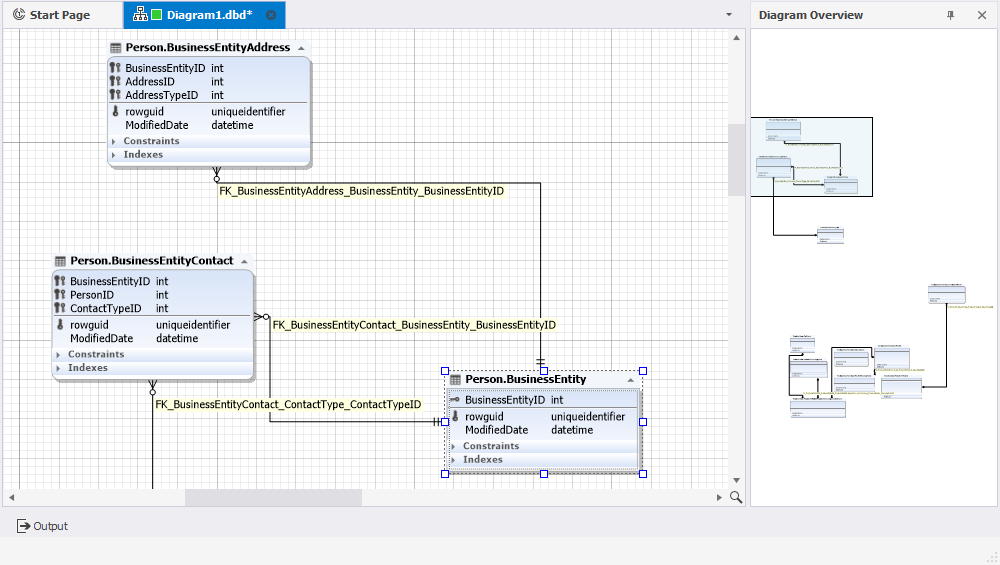
Display database objects on a diagram
dbForge Studio for SQL Server lets you display database objects on a diagram, such as tables and views with their relationships, stored procedures, and functions. You can also add containers, images, notes, and stamps to organize and document the diagram.
Add database objects to a diagram
You can add database objects to a diagram in two ways: drag existing objects from Database Explorer or create new objects directly in the diagram.
If a relationship exists between tables, it is automatically added to the diagram. You can also create physical or virtual relations between tables.
Manage database objects
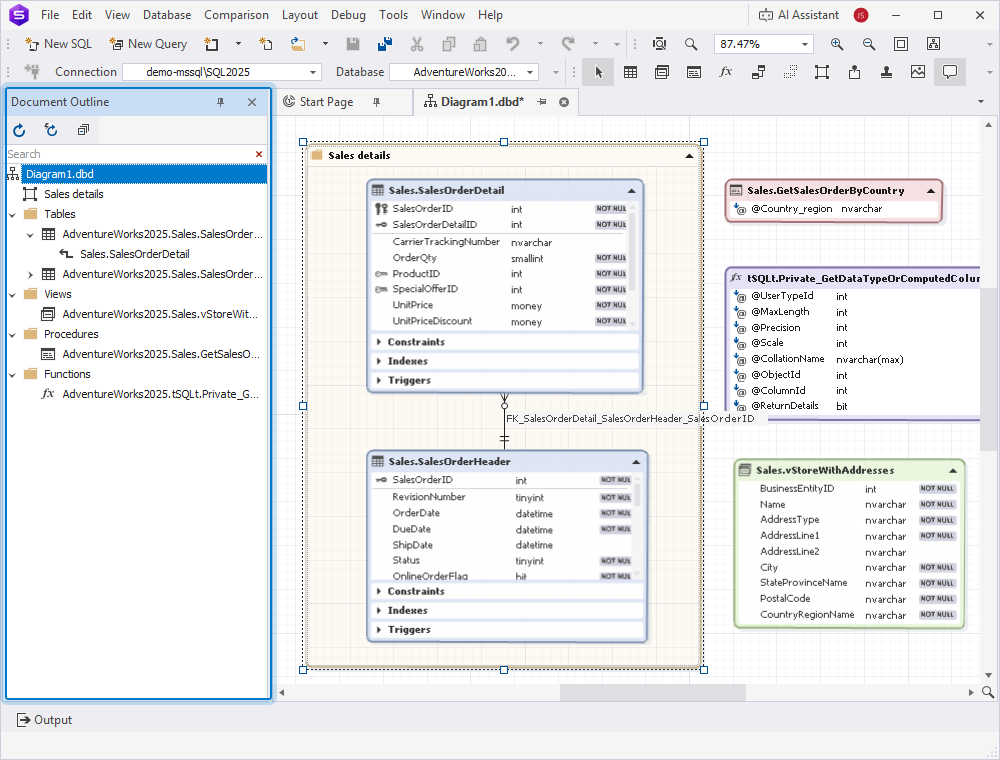
Each type of a database object is displayed as a colored shape.
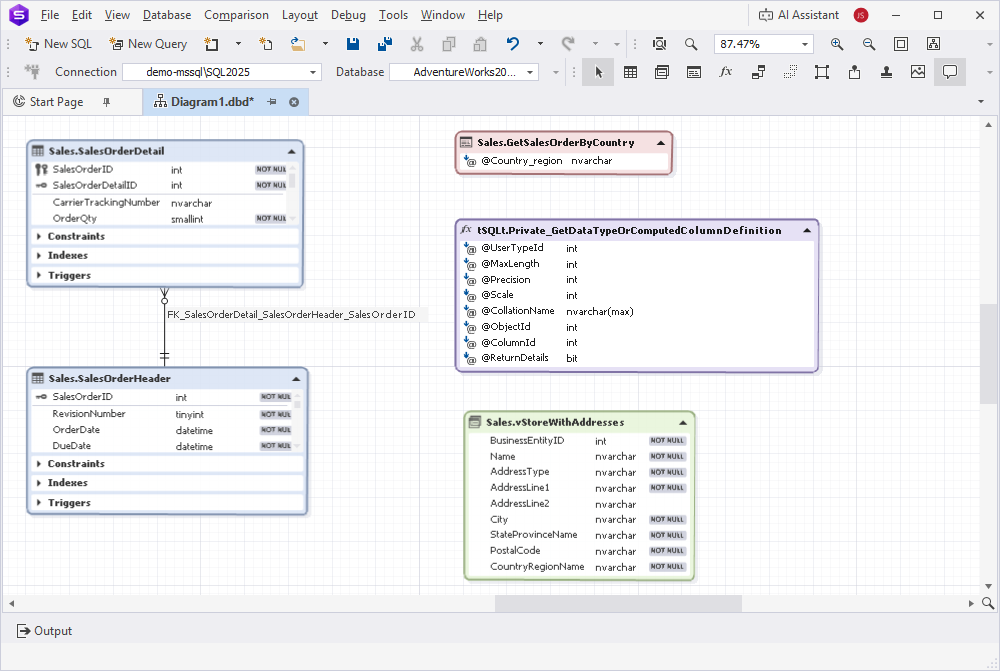
Table and view shapes contain columns, while stored procedure and function shapes contain parameters.
Tables may have additional compartments, such as triggers, constraints, and indexes, which can be displayed as separate sections or hidden in the shape. You can manage these display settings in the Options dialog.
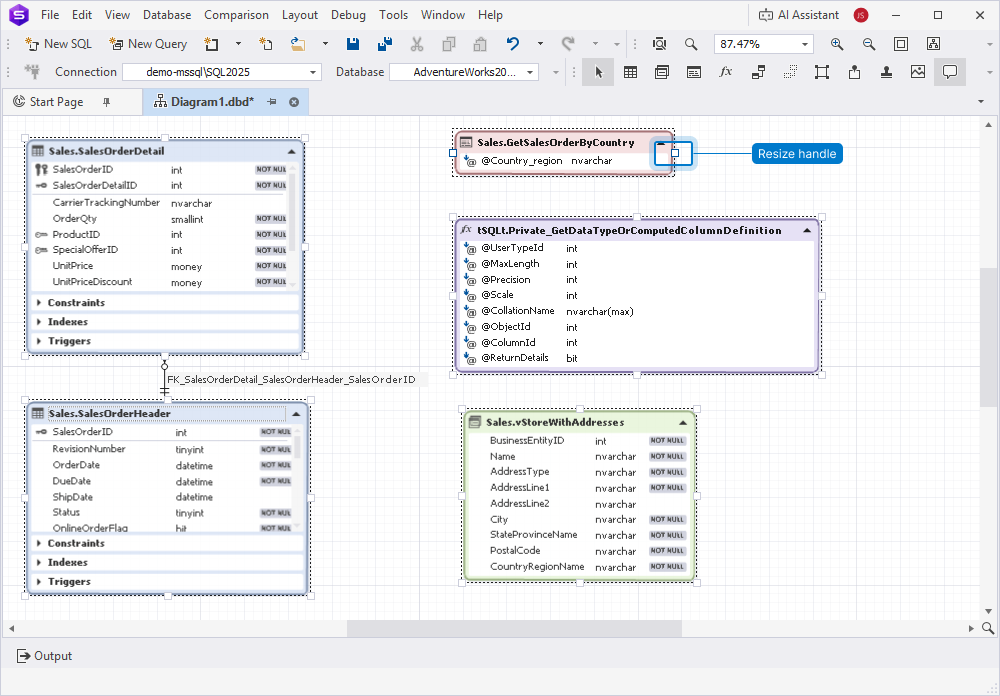
You can resize object shapes by dragging resize handles vertically and horizontally. Unlike table, view, and function shapes, a stored procedure shape has only two resize handles, which let you resize only the shape width.
Organize diagram shapes with containers
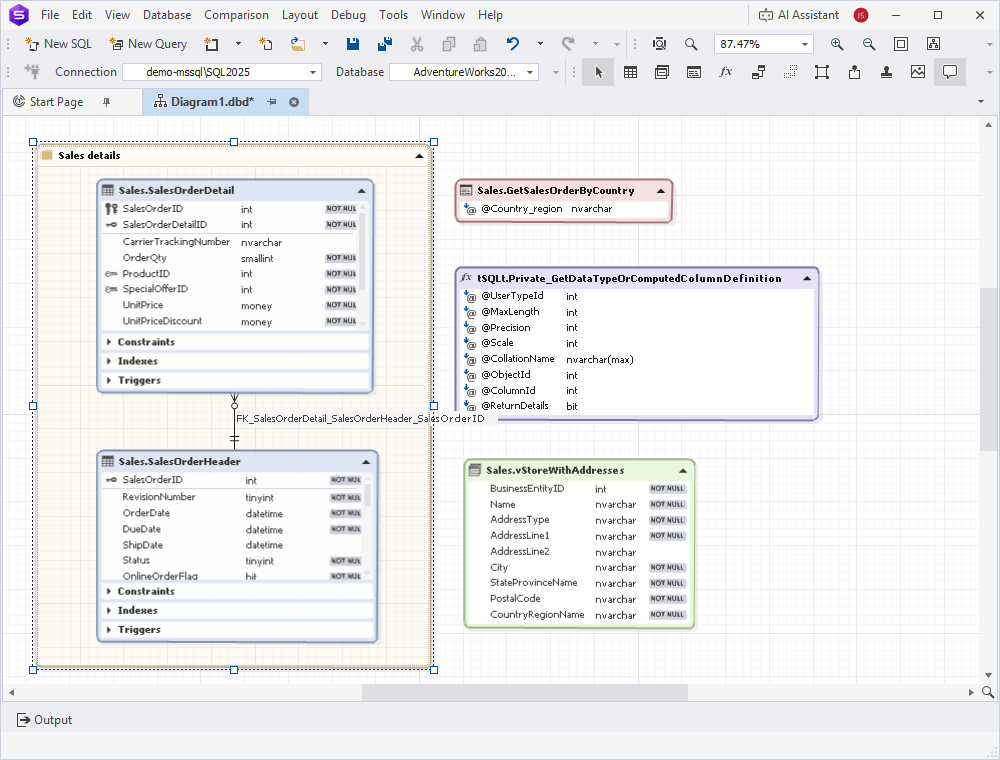
You can group related diagram shapes in containers to organize the diagram layout. Containers can include any diagram object, including other containers. Relationships between table shapes are preserved even when the shapes are placed in different containers.
You can customize the container color and caption. Containers also provide a separate grid for positioning shapes. If the container content exceeds the available space, scroll bars appear automatically.
Display images on a diagram
You can add images to a diagram, including logos, icons, and reference visuals. After you add an image, you can move, resize, and arrange it within the diagram.
Display notes on a diagram
You can add notes to a diagram to provide explanations or additional details about the diagram and its elements. Notes can contain text and links.

Display stamps on a diagram
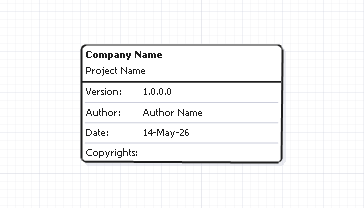
You can add stamps to a diagram to display metadata such as author, company, or copyright information. Stamps help standardize diagram documentation, especially in shared environments and team workflows.
Display objects in Document Outline or Diagram Overview
After you add objects to the diagram, you can view them in the Document Outline pane. This pane displays the diagram structure and all objects included in the diagram. You can also double-click an object in Document Outline to navigate to it in the diagram.
If the diagram is large, you can use Diagram Overview.