Stored procedures
A stored procedure is a precompiled set of SQL statements that you can create, store in the database, and then execute, often with input and output parameters.
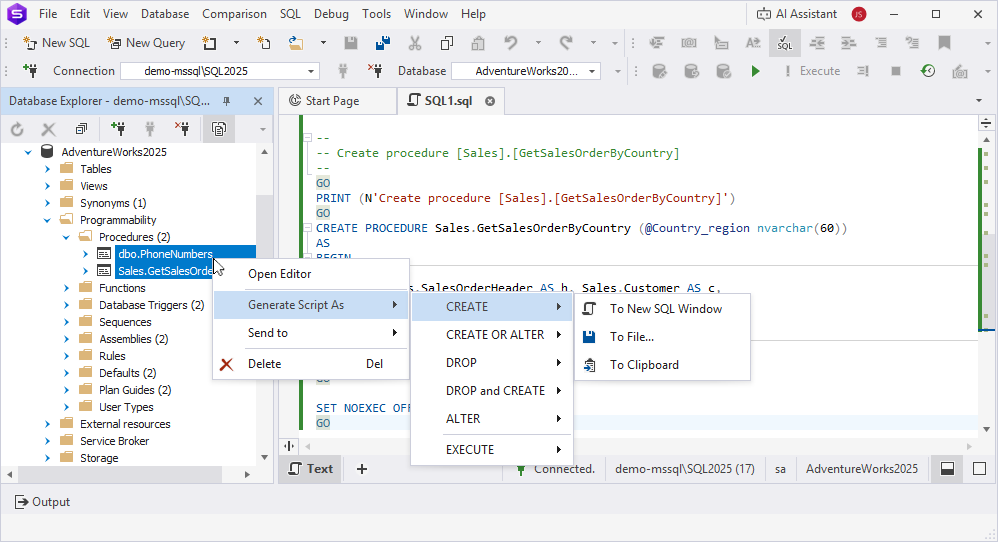
In Database Explorer, you can perform operations on stored procedures by using the shortcut menu. Right-click a stored procedure in Database Explorer to access options for specific tasks, such as creating, modifying, or deleting procedures, or generating scripts for them.
Create a stored procedure
1. In Database Explorer, right-click a procedure or Programmability > Procedures node and select New Procedure.
2. In a SQL document, enter the CREATE PROCEDURE statement.
3. At the bottom of the SQL document, click Apply Changes.
Edit a stored procedure
You can edit a stored procedure in one of these ways.
Edit using Modify via SQL
1. In Database Explorer, right-click the stored procedure you want to edit and select Modify via SQL.
2. In a SQL document, edit the stored procedure.
3. In the top menu, select File > Save or press Ctrl+S.
Edit using Open Editor
1. In Database Explorer, right-click the stored procedure you want to edit and select Open Editor.
2. In a SQL document, edit the stored procedure.
3. At the bottom of the SQL document, click Apply Changes.
Alternatively, in the top menu, select File > Save or press Ctrl+S.
Delete a stored procedure
1. In Database Explorer, right-click the stored procedure you want to delete and select Delete, or press Delete.
2. Click Yes to confirm the deletion.
Note
You cannot undo the drop stored procedure operation, as this action permanently deletes the stored procedure. To avoid data loss, back up the database before deleting the stored procedure.
Debug a stored procedure
1. In Database Explorer, right-click the stored procedure you want to debug and select Step Into.
2. In the Edit parameters dialog, enter the input parameters.
3. Click OK.
Note
If the stored procedure calls a function or a trigger, in Database Explorer, select Step Into from the shortcut menu and follow the steps from How to debug a stored procedure.
Duplicate a stored procedure
1. In Database Explorer, right-click a required stored procedure and select Duplicate Object.
2. In the Duplicate Object dialog, configure the object settings:
- In Destination connection, select the target server.
- In Destination database, select the target database.
- In Destination schema, select the target schema.
- In New object name, specify the object name.
- Select Drop destination object to drop the destination object if it already exists.
- Optional: Select Script Changes, then select To New SQL Window to open the generated script in a new SQL document, or To Clipboard to copy it to the clipboard.
3. Click OK.
Generate a script for a stored procedure
1. In Database Explorer, right-click a required stored procedure and select Generate Script As, then select the statement type.
2. Select one of the following output options:
- To New SQL Window – Opens the script in a new SQL document.
- To File – Generates the script to a .sql file.
- To Clipboard – Copies the script to the clipboard.
For more information, see Generate the DDL and DML statements for database objects.
Manage unit tests
Right-click the stored procedure or Procedures node and select:
- Unit Test > Add New Test to create a unit test for a specific database.
- Unit Test > View Test List to view unit tests in the database.
- (only for the Procedures node): Unit Test > Run All Tests to run all tests against the database.
Add a stored procedure to the database diagram
To add a stored procedure to the database diagram: In Database Explorer, right-click a required stored procedure and select Send To > Database Diagram.
View stored procedure properties
To view stored procedure properties, in Database Explorer, right-click the stored procedure or Procedures node and select Show Details.
Object Viewer opens, displaying detailed information about the stored procedure.
Refresh the stored procedure
To update the stored procedure to reflect the latest changes, in Database Explorer, right-click the stored procedure or Procedures node and select Refresh, or press F5.
Open the Properties window
To open the Properties window, in Database Explorer, right-click the stored procedure and select Properties, or press F4.
Filter stored procedures
1. In Database Explorer, right-click the Procedures node and select Filter.
2. In the Filter Settings (Procedures) dialog, configure the filter parameters.
3. Click OK to apply the filter.
Note
When you open the Procedures node, the number of objects it contains appears in parentheses next to the node name. This number changes based on your filter settings.
Shortcut menu options for a specific stored procedure
The following table describes the shortcut menu options, which appear when you right-click a specific stored procedure in Database Explorer.
| Name | Description |
|---|---|
| New Procedure | Opens a CREATE PROCEDURE template in a new SQL document to create a new procedure. |
| Modify via SQL | Opens the existing stored procedure in a new SQL document containing an ALTER PROCEDURE statement to update it. |
| Open Editor | Opens the selected stored procedure in a new SQL document containing a CREATE PROCEDURE statement to create the procedure or change its code. |
| Unit Test > Add New Test | Opens the Add New Test dialog to create a unit test for a specific database. |
| Unit Test > View Test List | Opens the Test List Manager to view unit tests in the database. |
| Source Control > Source Control Manager | Opens Source Control Manager, where you can track and manage changes to database schema and static data. When Source Control Manager is already open, this option refreshes it. |
| Source Control > Commit | Opens Source Control Manager with all local changes (if any) selected and ready to commit. When Source Control Manager is already open, this option refreshes it and selects all local database changes. |
| Source Control > Get Latest | Opens Source Control Manager with all remote changes (if any) selected, ready to pull using Get Latest. When Source Control Manager is already open, this option refreshes it and selects all remote database changes. |
| Execute | Executes the stored procedure. |
| Step Into | Starts debugging the stored procedure. Shortcut: F11 |
| Duplicate Object | Opens the Duplicate Object dialog to duplicate the stored procedure. |
| Generate Script As | Generates a script of the selected object using the CREATE, CREATE OR ALTER, DROP, DROP and CREATE, ALTER, or EXECUTE statements. The script can be saved to a new SQL document or to a file, or copied to the clipboard. |
| Send to > Database Diagram | Adds the selected stored procedure to a database diagram. |
| Show Details | Opens Object Viewer that displays object details. |
| Delete | Drops the selected stored procedure from the database. Shortcut: Delete |
| Refresh | Updates the object to reflect the latest changes. Shortcut: F5 |
| Properties | Opens the Properties pane to view the object information. Shortcut: F4 |
Shortcut menu options for the Procedures node
The following table describes the shortcut menu options, which appear when you right-click the Procedures node in Database Explorer.
| Name | Description |
|---|---|
| New Procedure | Opens a new SQL document containing the CREATE PROCEDURE statement. |
| Source Control > Source Control Manager | Opens Source Control Manager, where you can track and manage changes to database schema and static data. When Source Control Manager is already open, this option refreshes it. |
| Source Control > Commit | Opens Source Control Manager with all local changes (if any) selected and ready to commit. When Source Control Manager is already open, this option refreshes it and selects all local database changes. |
| Source Control > Get Latest | Opens Source Control Manager with all remote changes (if any) selected, ready to pull using Get Latest. When Source Control Manager is already open, this option refreshes it and selects all remote database changes. |
| Unit Test > Add New Test | Opens the Add New Test dialog to create a unit test for a specific database. |
| Unit Test > View Test List | Opens the Test List Manager to view unit tests in the database. |
| Unit Test > Run All Tests | Runs all tests for the selected database and displays test results in the Test Results pane. |
| Filter | Opens the Filter Settings dialog to control which stored procedures should appear in Database Explorer. |
| Show Details | Opens Object Viewer that displays object details. |
| Refresh | Updates the object to reflect the latest changes. Shortcut: F5 |
Note
The Source Control shortcut menu is available only after you link the corresponding database to a source-control system.
Bulk operations
In Database Explorer, hold down Ctrl and select multiple stored procedures. Then right-click the selection and select the required option.
The following table describes the shortcut menu options available for multiple stored procedures.
| Name | Description |
|---|---|
| Open Editor | Opens the Stored Procedure designer for each selected stored procedure to create the procedure or change its code. |
| Source Control > Source Control Manager | Opens Source Control Manager, where you can track and manage changes to database schema and static data. When Source Control Manager is already open, this option refreshes it. |
| Source Control > Commit | Opens Source Control Manager with all local changes (if any) selected and ready to commit. When Source Control Manager is already open, this option refreshes it and selects all local database changes. |
| Source Control > Get Latest | Opens Source Control Manager with all remote changes (if any) selected, ready to pull using Get Latest. When Source Control Manager is already open, this option refreshes it and selects all remote database changes. |
| Source Control > Link/Unlink Static Data | Opens the Source Control Link Static Data dialog that displays the tables whose data you want to link. |
| Generate Script As | Generates scripts of the selected objects using the CREATE, CREATE OR ALTER, DROP, DROP and CREATE, ALTER, and EXECUTE statements. The scripts can be generated to a new SQL document or to a file, or copied to the clipboard. |
| Send to > Database Diagram | Adds the selected stored procedures to a database diagram. |
| Delete | Drops the selected stored procedures from the database. Shortcut: Delete |