Assemblies
An assembly is a managed code module in an SQL Server instance to deploy functions, stored procedures, triggers, user-defined aggregates, and user-defined types.
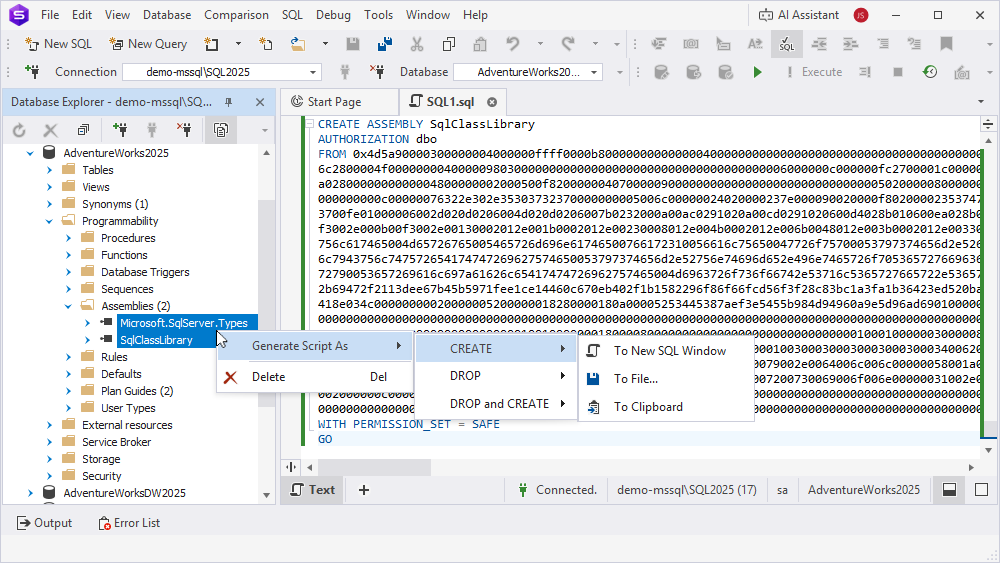
In Database Explorer, you can perform operations on assemblies by using the shortcut menu. Right-click an assembly in Database Explorer to access options for specific tasks, such as deleting assemblies or generating scripts for them.
Create an assembly
You can create an assembly in SQL Editor by using one of these ways:
- Code completion to write a script.
- SQL snippets to insert predefined or custom code.
Delete an assembly
1. In Database Explorer, right-click the assembly you want to delete and select Delete, or press Delete.
2. Click Yes to confirm the deletion.
Note
You cannot undo the drop assembly operation, as this action permanently deletes the assembly. To avoid data loss, back up the database before deleting the assembly.
Duplicate an assembly
1. In Database Explorer, right-click a required assembly and select Duplicate Object.
2. In the Duplicate Object dialog, configure the object settings:
- In Destination connection, select the target server.
- In Destination database, select the target database.
- In Destination schema, select the target schema.
- In New object name, specify the object name.
- Select Drop destination object to drop the destination object if it already exists.
- Optional: Select Script Changes, then select To New SQL Window to open the generated script in a new SQL document, or To Clipboard to copy it to the clipboard.
3. Click OK.
Generate a script for an assembly
1. In Database Explorer, right-click a required assembly and select Generate Script As, then select the statement type.
2. Select one of the following output options:
- To New SQL Window – Opens the script in a new SQL document.
- To File – Generates the script to a .sql file.
- To Clipboard – Copies the script to the clipboard.
For more information, see Generate the DDL and DML statements for database objects.
View assembly properties
To view assembly properties, in Database Explorer, right-click the assembly or Assemblies node and select Show Details.
Object Viewer opens and provides detailed information about the assembly.
Refresh assemblies
To update the assembly to reflect the latest changes, in Database Explorer, right-click the assembly or Assemblies node and select Refresh, or press F5.
Open the Properties window
To open the Properties window, in Database Explorer, right-click the assembly and select Properties, or press F4.
Filter assemblies
1. In Database Explorer, right-click the Assemblies node and select Filter.
2. In the Filter Settings dialog, configure the filter parameters.
3. Click OK to apply the filter.
Note
When you open the Assemblies node, the number of objects it contains appears in parentheses next to the node name. This number changes based on your filter settings.
Shortcut menu options for a specific assembly
The following table describes the shortcut menu options, which appear when you right-click a specific assembly in Database Explorer.
| Name | Description |
|---|---|
| Source Control > Source Control Manager | Opens Source Control Manager, where you can track and manage changes to database schema and static data. When Source Control Manager is already open, this option refreshes it. |
| Source Control > Commit | Opens Source Control Manager with all local changes (if any) selected and ready to commit. When Source Control Manager is already open, this option refreshes it and selects all local database changes. |
| Source Control > Get Latest | Opens Source Control Manager with all remote changes (if any) selected, ready to pull using Get Latest. When Source Control Manager is already open, this option refreshes it and selects all remote database changes. |
| Duplicate Object | Opens the Duplicate Object dialog to duplicate the assembly. |
| Generate Script As | Generates a script of the selected object using the CREATE, DROP, and DROP and CREATE statements. The script can be saved to a new SQL document or to a file, or copied to the clipboard. |
| Show Details | Opens Object Viewer that displays object details. |
| Delete | Drops the selected object from the database. Shortcut: Delete |
| Refresh | Updates the object to reflect the latest changes. Shortcut: F5 |
| Properties | Opens the Properties pane to view the object information. Shortcut: F4 |
Shortcut menu options for the Assemblies node
The following table describes the shortcut menu options, which appear when you right-click the Assemblies node in Database Explorer.
| Name | Description |
|---|---|
| Source Control > Source Control Manager | Opens Source Control Manager, where you can track and manage changes to database schema and static data. When Source Control Manager is already open, this option refreshes it. |
| Source Control > Commit | Opens Source Control Manager with all local changes (if any) selected and ready to commit. When Source Control Manager is already open, this option refreshes it and selects all local database changes. |
| Source Control > Get Latest | Opens Source Control Manager with all remote changes (if any) selected, ready to pull using Get Latest. When Source Control Manager is already open, this option refreshes it and selects all remote database changes. |
| Filter | Opens the Filter Settings dialog to control which assemblies should appear in Database Explorer. |
| Show Details | Opens Object Viewer that displays object details. |
| Refresh | Updates the object to reflect the latest changes. Shortcut: F5 |
Note
The Source Control shortcut menu is available only after you link the corresponding database to a source-control system.
Bulk operations
In Database Explorer, hold down Ctrl and select multiple assemblies. Then right-click the selection and select the required option.
The following table describes the shortcut menu options available for multiple assemblies.
| Name | Description |
|---|---|
| Source Control > Source Control Manager | Opens Source Control Manager, where you can track and manage changes to database schema and static data. When Source Control Manager is already open, this option refreshes it. |
| Source Control > Commit | Opens Source Control Manager with all local changes (if any) selected and ready to commit. When Source Control Manager is already open, this option refreshes it and selects all local database changes. |
| Source Control > Get Latest | Opens Source Control Manager with all remote changes (if any) selected, ready to pull using Get Latest. When Source Control Manager is already open, this option refreshes it and selects all remote database changes. |
| Source Control > Link/Unlink Static Data | Opens the Source Control Link Static Data dialog that displays the tables whose data you want to link. |
| Generate Script As | Generates scripts of the selected objects using the CREATE, DROP, and DROP and CREATE statements. The scripts can be generated to a new SQL document or to a file, or copied to the clipboard. |
| Delete | Drops the selected assemblies from the database. Shortcut: Delete |