Use SQL snippets
You can speed up SQL coding by using snippets. dbForge Studio for SQL Server includes a set of predefined snippets, and you can also create your own.
Use one of the following methods to insert a SQL snippet into your script or query.
Insert from the Code Snippets pane
1. Select View > Code Snippets.
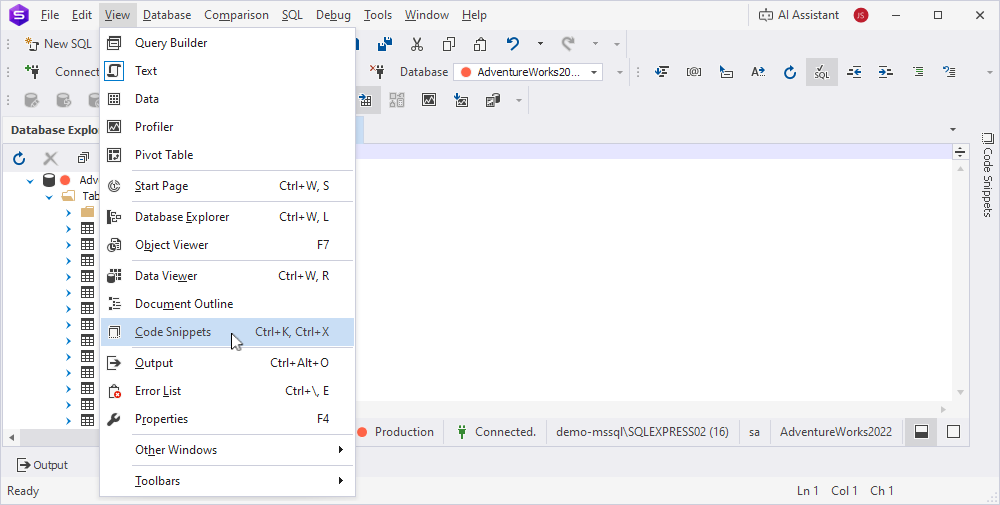
2. Place the cursor where you need to insert the snippet.
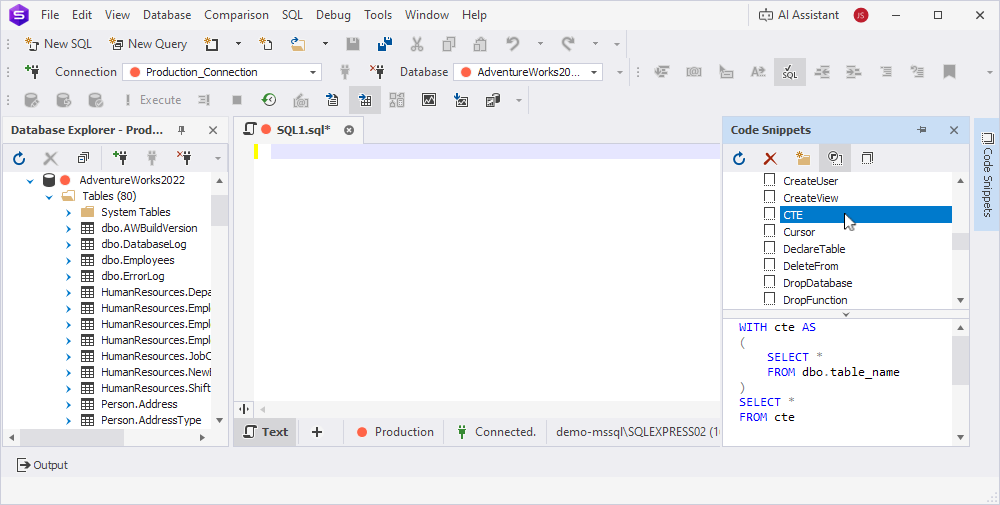
3. Drag the snippet from the Code Snippets pane to the SQL document, or double-click the snippet name.
Tip
To preview a snippet in the Code Snippets pane, click the snippet. To show or hide the preview area, click
.
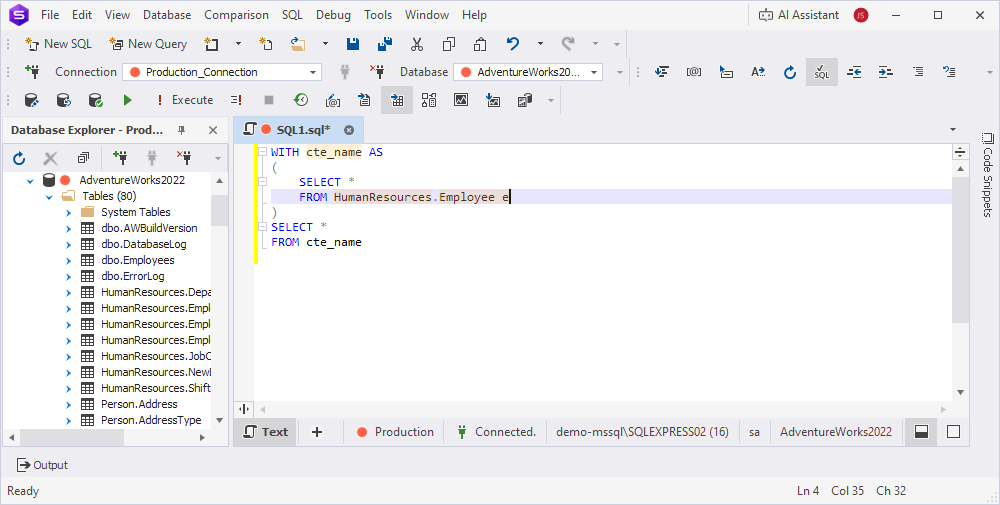
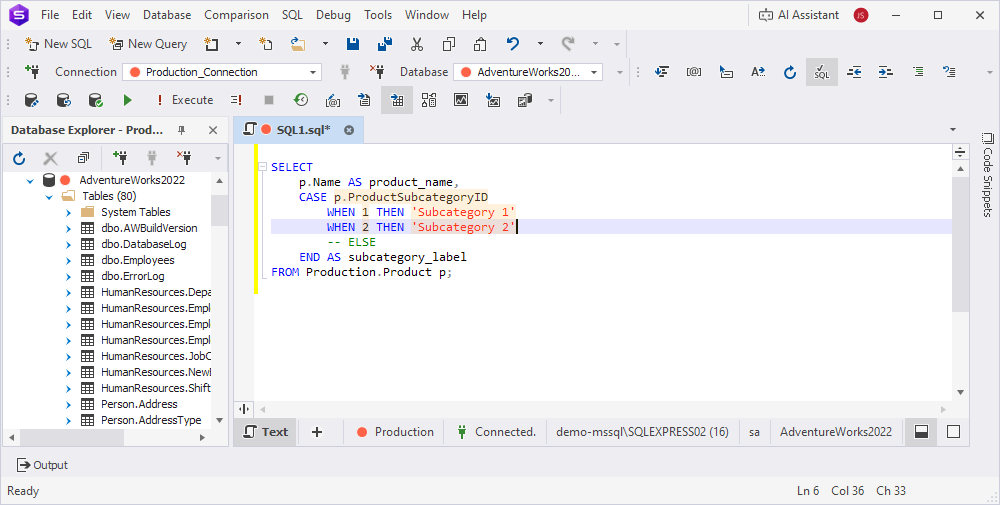
4. If applicable, specify the highlighted placeholder values, then press Enter to finish editing the inserted code fragment.
Tip
To move the cursor to the next placeholder, press Tab. To exit the code fragment editing mode, press Esc.
Insert using a snippet shortcut
1. Start typing a snippet shortcut.
2. If multiple results are suggested, select the needed snippet from the suggestion list. Snippets are shown after keywords.
3. Press Tab.
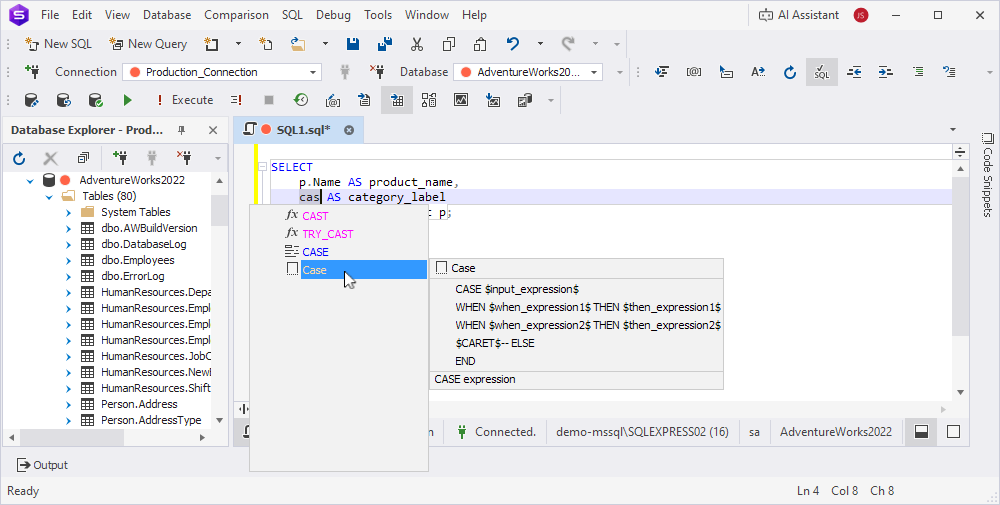
4. Edit the highlighted placeholder values, then press Enter to complete the insertion.
Note
By default, the Tab key is used to insert snippets and other code suggestions. To learn how to change the insert key, see Insert a selected suggestion.
Insert from the shortcut menu
1. Right-click where you want to insert the code snippet.
2. Select Insert Snippet.
3. Select a snippet from the suggestion list.
4. Edit the highlighted placeholder values, then press Enter to complete the insertion.
Tip
To insert a snippet around a code fragment, select the fragment before placing the snippet to the editor. Note that the snippet must support wrapping selected text. Otherwise, your selection will be replaced.