Visual Studio integration
Code Compare lets you compare and merge source files or folders, view differences, and review changes between code revisions in Visual Studio.
Prerequisite
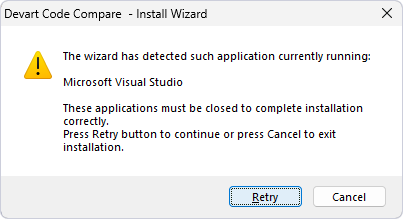
Before installing Code Compare, close all instances of Visual Studio. Otherwise, a warning will appear during installation.
Integrate Code Compare into Visual Studio
1. Download Code Compare.
2. Run the installer.
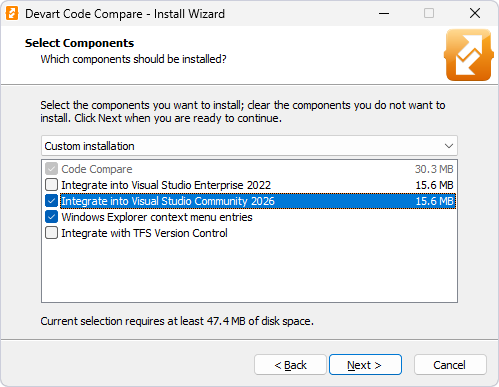
3. On the Select Components page, select the checkbox next to the required Visual Studio version.
Tip
To integrate Code Compare into Team Foundation Server, select Integrate with TFS Version Control. This sets Code Compare as the default comparison and merge tool for TFS.
Note
To see which versions of Microsoft Visual Studio are compatible with Code Compare, see Requirements.
4. Follow the steps in the wizard to complete the installation.
After you install Code Compare, you can compare files or folders directly in Visual Studio.
Integration with version control systems
In Visual Studio, Code Compare works with the following version control systems. For configuration instructions, see: