Manage table-valued functions
This topic describes how to create, edit, delete, and manage table-valued functions from Database Explorer.
Create a table-valued function
1. In Database Explorer, right-click a table-valued function or the Table-valued Functions node and select New Table-valued Function.
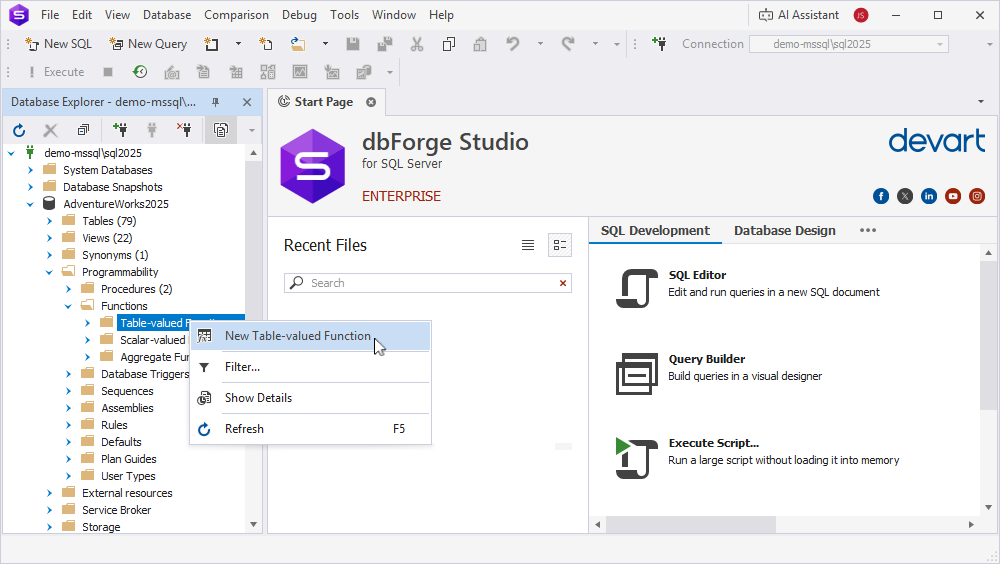
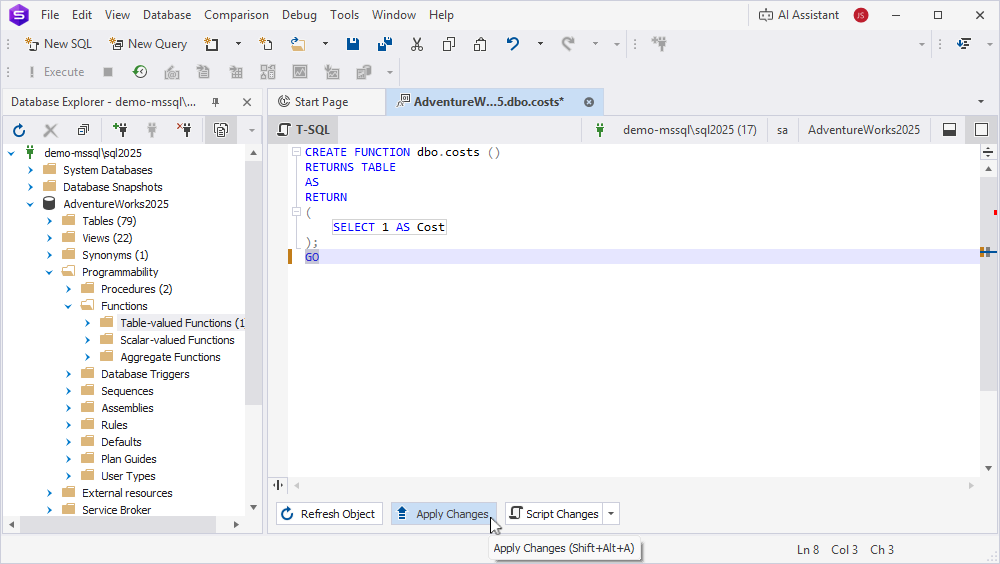
2. In a SQL document, fill in the CREATE FUNCTION statement template. For more information, see Table-valued Function Designer.
3. In the bottom panel, click Apply Changes.
Edit a table-valued function
You can edit a function in one of these ways.
Edit using Modify via SQL
1. In Database Explorer, right-click the table-valued function you want to edit and select Modify via SQL.
2. In a SQL document, edit the function.
3. Click Execute.
Edit using Open Editor
1. In Database Explorer, right-click the table-valued function you want to edit and select Open Editor.
2. In a SQL document, edit the function.
3. In the dialog that opens, click Continue anyway.
Tip
To prevent the message from appearing again in future operations, select Don’t show this message again.
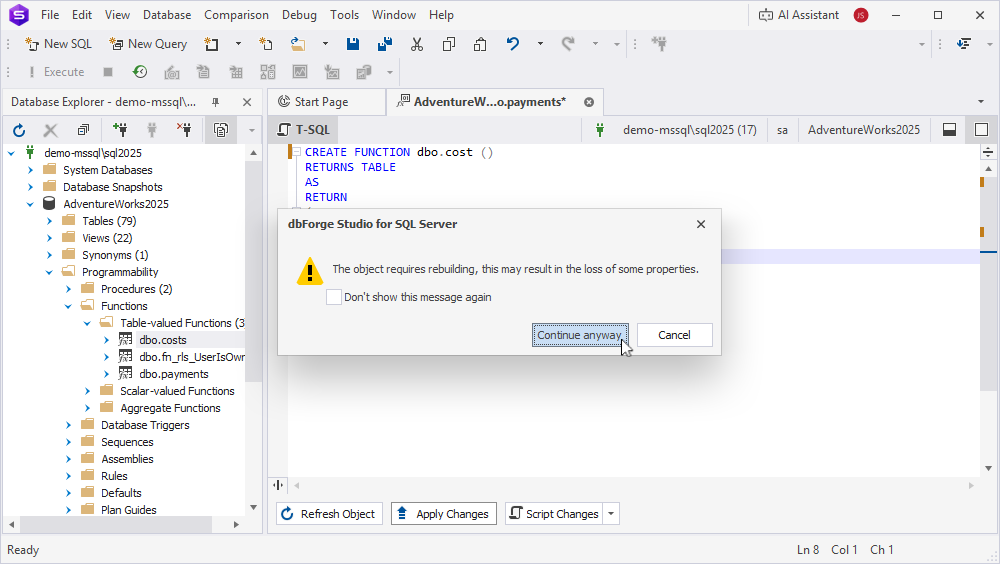
4. In the bottom panel, click Apply Changes.
Alternatively, on the menu bar, select File > Save or press Ctrl+S.
Delete a table-valued function
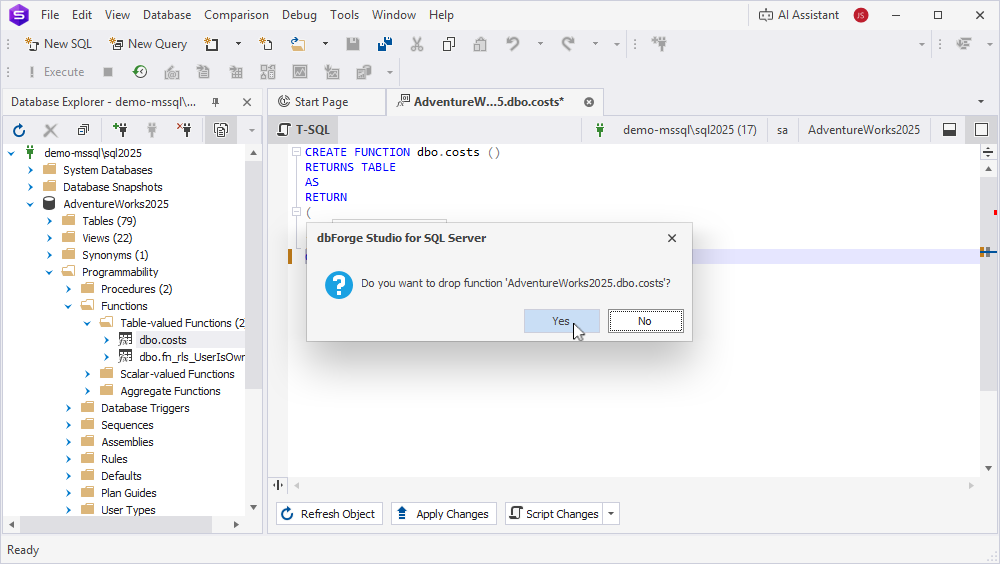
1. In Database Explorer, right-click the table-valued function you want to delete and select Delete, or press Delete.
2. Click Yes to confirm the deletion.
Note
You cannot undo the drop operation, as this action permanently deletes the function definition. Back up the database before deleting the table-valued function.
Execute a table-valued function
1. In Database Explorer, right-click the table-valued function you want to execute and select Execute.
2. In the View output parameters dialog, enter the parameters.
3. Click Close.
Debug a table-valued function
To start debugging a table-valued function, select Step Into from the shortcut menu and follow the steps from How to debug a function.
Duplicate a table-valued function
1. In Database Explorer, right-click the required table-valued function and select Duplicate Object.
2. In the Duplicate Object dialog, configure the object settings:
- In Destination connection, select the target server.
- In Destination database, select the target database.
- In Destination schema, select the target schema.
- In New object name, enter the object name.
- Select Drop destination object to drop the destination object if it already exists.
- Optional: Select Script Changes, then select To New SQL Window to open the generated script in a new SQL document, or To Clipboard to copy it to the clipboard.
3. Click OK.
Generate a script for a table-valued function
1. In Database Explorer, right-click the required table-valued function and select Generate Script As, then select the statement type.
2. Select one of the following options:
- To New SQL Window – Opens the script in a new SQL document.
- To File – Generates the script to a .sql file.
- To Clipboard – Copies the script to the clipboard.
For more information, see Generate the DDL and DML statements for database objects.
Add a table-valued function to the database diagram
To add a table-valued function to the database diagram, in Database Explorer, right-click the required table-valued function and select Send To > Database Diagram.
View function properties
To view function properties, in Database Explorer, right-click the table-valued function or Table-valued Functions node and select Show Details.
Object Viewer opens, displaying detailed information about the table-valued function.
Refresh a table-valued function
To update the table-valued function to reflect the latest changes, in Database Explorer, right-click the table-valued function or Table-valued Functions node and select Refresh, or press F5.
Open the Properties pane
To open the Properties pane, in Database Explorer, right-click the table-valued function and select Properties, or press F4.
Filter functions
1. In Database Explorer, right-click the Table-valued Functions node and select Filter.
2. In the Filter Settings dialog, configure the filter parameters.
3. Click OK.
Note
When you expand the Table-valued Functions node, the number of objects it contains appears in parentheses next to the node name. This number changes based on your filter settings.