Managing aliases
dbForge Studio can automatically generate aliases for all table objects referenced in the FROM clause, including tables, views, and table-valued functions. You can set up alias generation in the Options dialog.
Open the Options dialog
To open the Options dialog,
1. In the top menu, select Tools > Options.
2. In the Options dialog, select Text Editor > Code Completion > Alias.
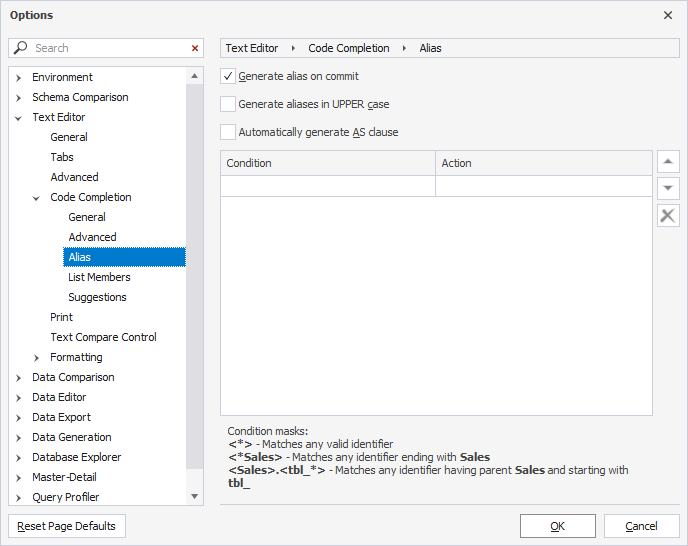
Automatic alias assignment
The table displays options available on the Code Completion > Text Editor > Alias page of the Options dialog.
| Name | Description | Default state |
|---|---|---|
| Generate alias on commit | Automatically creates an alias for tables or database objects when a query is committed. | On |
| Generate aliases in UPPER case | When selected, the option automatically creates aliases in uppercase letters. | Off |
| Automatically generate AS clause | Includes the AS keyword when aliases are generated. |
Off |
When the Generate alias on commit checkbox (default state) is selected, the Studio operates as follows:
-
Adds aliases to tables, views, and synonyms: When a user selects a database object from the suggestion list, dbForge Studio automatically assigns an alias to it.
-
Adds table alias to column names: When a user selects all columns using the asterisk (*) wildcard or individually selects specific columns from the suggestion list, dbForge Studio adds a table alias to each column name.
Alias generation rules
dbForge Studio applies a set of naming rules and heuristics to automatically generate aliases. Whenever possible, dbForge Studio generates aliases using the first letter of a table object name.
The table explains the rules for alias generation.
| Name | Description | Example |
|---|---|---|
| For names with underscores | When an object name includes underscores, dbForge Studio uses the first letter of each word to form the alias. | TBL_Address → ta |
| For names with hyphens | Similar to underscores, hyphenated names are split into parts, and the alias is generated from the initials. | Tbl-address → t |
| For names with CamelCase | For names written in CamelCase, the alias is created from the uppercase letters (initials of each word). | TblAddress → ta |
| For object names that contain numbers | If the object name consists only of numbers or begins with a digit, dbForge Studio assigns a default alias, such as a. | 111 → a |
| For names that match keywords | If the generated alias matches a SQL keyword, the Studio automatically wraps the alias in square brackets to prevent syntax errors. | GeneralObjects → go |
| For object names that would produce duplicate aliases | If an alias already exists in the current query, for example, in a multi-table JOIN, dbForge Studio adds a numeric suffix to avoid conflicts. | If ta already exists, the next alias becomes ta1, then ta2, and so on. |
| No Alias | If No Alias is specified in the Action column for a given condition, no alias will be generated for matching objects. |
Custom alias mapping
Users can manually set conditions for inserting an alias while writing a query using the completion list in a SQL document.
To add a custom alias:
1. In the top menu, select Tools > Options.
2. Go to Text Editor > Code Completion > Alias.
3. In the Condition column, specify the database object name (you may use a mask) to which you want to assign an alias.
4. In the Action column, specify the custom alias you prefer.
5. Click OK to save the changes.
When a custom alias is created, dbForge Studio assigns the alias name to an object referenced in a SQL statement according to a specified alias mask.
Note
Custom aliases have precedence over automatically created ones.
Rename aliases
1. In the SQL document, select the alias in one of these ways:
- Right-click the alias and select Refactoring > Rename.
- Click the alias and navigate to Edit > Advanced > Rename or press F2.
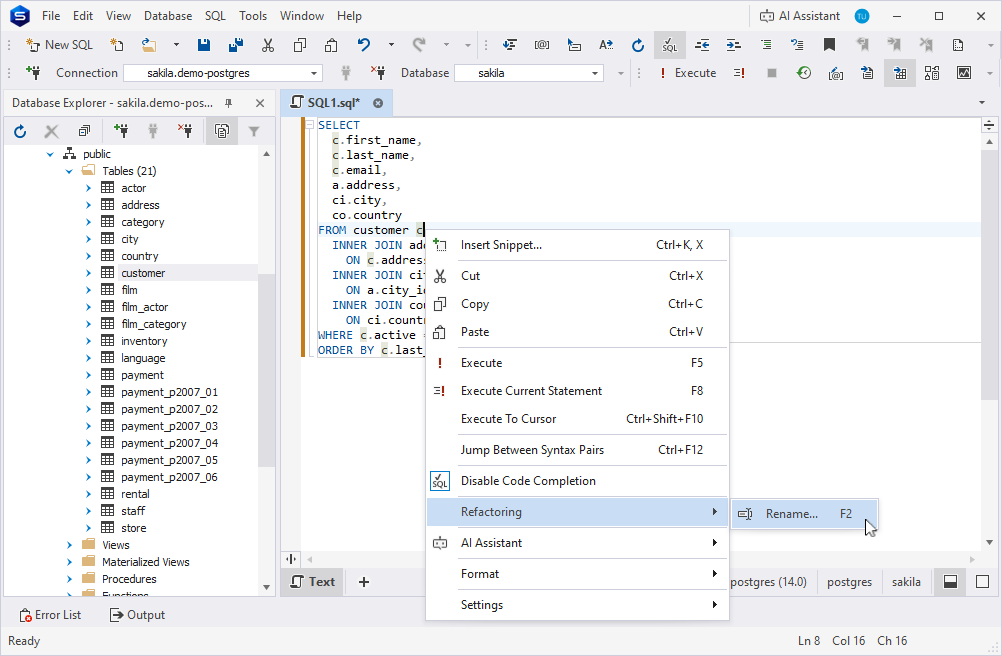
The alias becomes highlighted.
2. Enter a new name for the alias.
3. Optional: To preview the code changes, press F2. To apply the changes, click Apply in the dialog that opens.
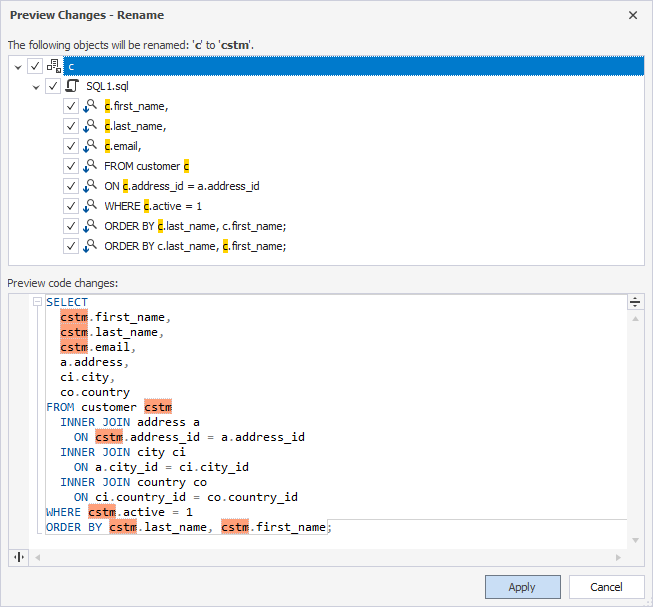
4. To apply the code changes without previewing, press Enter or Tab.
After you rename an alias, dbForge Studio automatically updates all its occurrences and references.
Note
If the alias matches the column name, renaming the alias doesn’t affect the column name.
Tip
To undo the renaming, press Ctrl+Z.
Alias masks
You can use alias masks in dbForge Studio to create custom rules for generating aliases based on object naming patterns. These masks help manage how aliases are applied, especially when dealing with objects that share similar or identical names.
By using alias masks, you can define conditions and corresponding actions to control how aliases are assigned in different scenarios.
Condition masks specify the naming patterns to match. For example:
<actor>– Matches the exact name.<*actor>– Matches object names ending withactor.<actor*>– Matches object names starting withactor.<*actor*>– Matches object names, includingactor.<*>– Matches any valid object name.<schema>.<actor>– Specifies an exact match for the object nameactorwithschemaas its prefix.<schema*>.<actor*>– Matches object names where the prefix starts withschemaand the object name starts withactor.
Action masks define how the alias is generated. For example:
Id<1>– Adds the prefixIdto a generated alias.<1>.<2>– Generates an alias with a prefix.<[Dept]1>– ExcludesDeptfrom a generated alias.
Rules for defining a condition in the Condition column
In the Condition column, you specify the criteria that determine when an alias should be applied, based on the corresponding rule in the Action column. These rules are triggered when an identifier—such as a table, view, table-valued function, or synonym—is inserted into a SQL document from the completion list.
A condition is applied only when its criteria are fully satisfied. When the condition is met, dbForge Studio generates the alias specified in the Action column.
Note
Each identifier in the condition must be enclosed in angle brackets
< >.
Note
The conditions are case-insensitive, meaning you can write them in either lowercase or uppercase. The rule is applied based on the identifier name, regardless of its case.
The following examples show how to create custom aliases in the Options dialog.
Case 1: Generate an alias for the database object regardless of prefixes
To assign a custom alias (for example, NewAlias) to a database object, such as the actor table, regardless of its schema or database, use the following configuration:

Note
This rule applies to any object named
actor, regardless of which database or schema it belongs to.
Alias application example
When you write a SQL query and select actor from the completion list, dbForge Studio automatically inserts the alias NewAlias:
SELECT * FROM prod.actor NewAlias;

SELECT * FROM dev.actor NewAlias;

SELECT * FROM hr.actor NewAlias;
This ensures consistent aliasing of the actor object across different databases and schemas.
Case 2: Generate an alias for an object in a specific schema
To assign a custom alias (for example, NewAlias) specifically to the actor table in the prod schema, use the following configuration:

This condition applies only to the actor object in the prod schema. Objects with the same name in other databases will follow default alias generation rules.
Alias application example
The custom alias NewAlias is applied only when the actor table belongs to the prod schema. In all other cases, dbForge Studio generates aliases according to the standard rules:
SELECT * FROM prod.actor NewAlias;

SELECT * FROM dev.actor a;

SELECT * FROM hr.actor a;
Case 3: Generate an alias for the database object with prefixes
The Condition column can include up to two prefixes, such as a database and a schema, depending on how the object is referenced in the script. An alias is generated only when the specified prefixes are present in the SQL statement.
If the prefixes specified in the Condition column match exactly in the SQL statement, the corresponding alias is applied. Otherwise, no alias is generated.

Alias application example
The NewAlias alias is generated for the actor table only when the statement includes both prefixes specified in the Condition column:
SELECT * FROM sakila.hr.actor NewAlias
If any qualifier is missing from the object reference, the default alias a is generated instead:
SELECT * FROM prod.actor a;

SELECT * FROM dev.actor a;
This ensures precise alias control when working with objects that may exist across multiple schemas or databases.
Case 4: Use an asterisk (*) for any characters in the condition
In the Condition column, you can use an asterisk (*) as a wildcard to match any sequence of characters before or after an identifier. The wildcard can be placed anywhere within angle brackets < >.

This condition matches any object name that ends with actor, regardless of the database or schema it belongs to.
Alias application example
The alias NewAlias is applied to any actor object, no matter which database or schema it belongs to:
SELECT * FROM sakila.prod.actor NewAlias;

SELECT * FROM sakila.dev.actor NewAlias;

SELECT * FROM sakila.hr.actor NewAlias;
Case 5: Use an asterisk (*) in the identifier name
You can use an asterisk (*) within an identifier name in the Condition column to match partial names. This allows you to generate aliases for multiple objects that share a common naming pattern.

This condition applies the alias NewAlias to all objects in the prod schema whose names start with film.
Alias application example
The alias NewAlias is applied to any object in the prod schema whose name starts with film, regardless of what follows after film in the object name:
SELECT * FROM prod.film NewAlias;

SELECT * FROM prod.film_actor NewAlias;

SELECT * FROM hr.film f;
Note
The asterisk (
*) can be used in any part of the identifier within angle brackets< >, enabling flexible matching patterns, such as<*name>,<na*me>, or<name*>.
Rules for defining an action in the Action column
The Action column lets you control how aliases are generated when a matching condition from the Condition column is met. In the Action column, you can do the following:
- Define a custom alias format
Specify the characters or structure that will be automatically applied as an alias when an identifier is inserted from the completion list.
- Exclude parts of the identifier
Enclose the parts of an identifier you want to omit in square brackets [ ]. These excluded elements will not be used in alias generation.
- Use identifier parts to define alias structure
Use specific parts of the identifier, such as database, schema, or object name, to customize how the alias is constructed.
- Disable alias generation
Use No Alias to prevent alias generation for objects that match the corresponding condition in the Condition column.
Case 1: Use one element in the Action column
If the Condition column contains only one element (for example, an object identifier) the Action column will have the <1> value by default. This means that if you specify <1> in the Action column for this condition, an alias will be generated according to the standard alias generation algorithm.

Alias application example
SELECT * FROM prod.film_actor fa;
Case 2: Add characters before or after one element
You can modify the generated alias by adding characters before or after the <1> placeholder in the Action column. These characters will be automatically included in the resulting alias.
Example 1: Add characters after <1>
Adding characters before or after <1> automatically adds those characters to the generated alias.
For example, add NewAlias after <1>:

This configuration adds NewAlias after the alias generated for film_actor.
Alias application example
SELECT * FROM prod.film_actor faNewAlias;
Example 2: Add characters before <1>
Add NewAlias before <1>:

This configuration places NewAlias before the alias generated for film_actor.
Alias application example
SELECT * FROM prod.film_actor NewAliasfa;
Case 3: Use multiple elements in the Action column
When the Condition column includes a single condition with the database, schema, and table prefixes, it appears as follows:
<sakila>.<prod>.<actor>
The conditional numbering of each element occurs from left to right. In this example, the Action column interprets them as <1>, <2>, and <3>, respectively:
-
<1>– Database name (sakila). -
<2>– Schema name (prod). -
<3>– Table name (actor).
To specify an action for an identifier in the Condition column, it is important to know its conditional number in the Condition column.
For example, if you want to generate an alias that combines the schema name and table name, you can specify <2><3> in the Action column:

Alias application example
dbForge Studio generates the alias by using the first letter of the schema (<2>) and the first letter of the table name (<3>):
SELECT * FROM sakila.prod.actor pa;

SELECT * FROM sakila.hr.actor ha;

SELECT * FROM sakila.dev.actor da;
In this example:
-
For the
prodschema, aliaspais generated. -
For the
hrschema, aliashais generated. -
For the
devschema, aliasdais generated.
Use all elements
If you specify <*>.<*>.<*> in the Condition column and <1><2><3> in the Action column, aliases will be generated according to the standard algorithm for all elements:

This configuration creates aliases by combining the first letter of each identifier component (database, schema, and object name).
Alias application example
SELECT * FROM sakila.prod.actor spa;

SELECT * FROM sakila.prod.film spf;

SELECT * FROM sakila.hr.customer shc;
In this example:
-
For the
sakila.prod.actorobject reference, aliasspais generated. -
For the
sakila.prod.filmobject reference, aliasspfis generated. -
For the
sakila.hr.customerobject reference, aliasshcis generated.
Case 4: Exclude characters from the identifier element
To exclude specific characters from an identifier element defined in the Condition column, use the Action column to specify which part to omit. The excluded portion must be enclosed in square brackets [ ], and the entire element must be enclosed in angle brackets < >.
To exclude act from the third identifier, use the following configuration:
SELECT * FROM sakila.prod.actor;

Alias application example
dbForge Studio will exclude act from the third identifier when generating the alias. The next character after act in the third identifier (actor) is o.
SELECT * FROM sakila.prod.actor o;
Following the same rule, you can combine exclusions from multiple identifiers.
For example, exclude pro from the schema name prod and act from the table name actor:

In the following example, the schema prod is shortened by excluding pro, so the alias part starts with d. The table actor is shortened by excluding act, so the alias part starts with o. Combined, they form the alias do.
SELECT * FROM sakila.prod.actor do;
Case 5: Add a static set of characters to the action
You can append a static set of characters to the alias by including them directly in the Action column. To add the static value NewAlias to the end of the generated alias, use the following configuration:

Alias application example
SELECT * FROM sakila.prod.actor doNewAlias;
The generated alias consists of the auto-generated value (do) followed by the static string NewAlias.
Note
You can place static characters before, after, or between placeholder elements (
<1>,<2>,<3>) to construct aliases in a consistent format.
Mask prioritization
User-defined alias masks take precedence over automated alias generation in dbForge Studio. Within the custom mask list, masks are evaluated from top to bottom, meaning the condition at the top of the list in the Condition column has the highest priority.
When multiple conditions match a database object, the first matched condition in the list determines the alias to be applied.
Example 1: Condition with higher priority
Assume the following two conditions are defined:

Now, consider the following SQL statement.
SELECT * FROM prod.film Alias1;
Since both conditions match (the database object starts with film), Alias1 is applied because its condition appears higher in the list:
Note
The
ASclause is included automatically when the Automatically generate AS clause checkbox is selected in the Options dialog > Text Editor > Code Completion > Alias.
Example 2: Reversed priority
If you reverse the order of the two conditions:

Then Alias2 will be applied instead, because <film*> is now at the top of the list:
SELECT * FROM prod.film Alias2;
Note
The
ASclause is included automatically when the Automatically generate AS clause checkbox is selected in the Options dialog > Text Editor > Code Completion > Alias.
Tip
You can change the order of aliases using Move up and Move down next to the Alias grid in the Options dialog > Text Editor > Code Completion > Alias.
