Debug a trigger function
In PostgreSQL, a trigger associates a table event with a trigger function. The trigger function contains the code that runs when the trigger fires and is declared as RETURNS trigger. To debug a trigger, you compile and debug its trigger function.
This topic explains how to debug a trigger function in dbForge Studio for PostgreSQL: how to reach it by stepping in from a calling routine and watch a value.
Prerequisites
Create the demo objects described in Sample scripts: the schema and tables, the get_first_day_of_month and fill_schedule functions, the rebuild_schedule procedure, and the trg_schedule_detail_before_ins trigger function with its schedule_detail_before_ins trigger. A trigger function is never called directly, so the trigger is reached by stepping into the INSERT that fill_schedule performs.
Debug the trigger function
Note
If the debug engine isn’t deployed on the server, you’re prompted to deploy it. Click Deploy to continue.
To debug a trigger function:
1. In Database Explorer, expand the schedules > Trigger Functions folder, right-click trg_schedule_detail_before_ins, and select Compile > Compile for Debugging. Then click OK.
2. Double-click the trg_schedule_detail_before_ins trigger function to open its editor, then switch to the SQL tab.
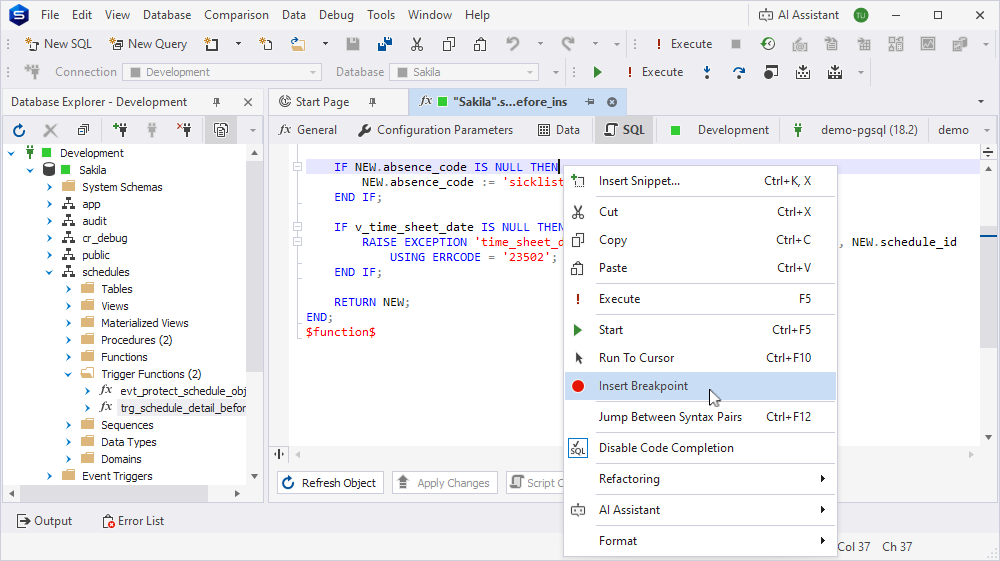
3. Right-click IF NEW.absence_code IS NULL THEN and select Insert Breakpoint. The line with the breakpoint is highlighted in red.
4. In the Functions folder, right-click fill_schedule and select Compile > Compile for Debugging. Then click OK. Repeat for rebuild_schedule in the Procedures folder. You need both compiled: rebuild_schedule calls fill_schedule, and fill_schedule performs the INSERT that fires the trigger—that’s the path you’ll step through to reach it.
5. Double-click rebuild_schedule, then on the SQL tab, right-click v_generated := fill_schedule(p_date_from, p_date_to, p_schedule_id); and select Insert Breakpoint.
6. Double-click fill_schedule, then on the SQL tab, right-click v_time_sheet_date := get_first_day_of_month(v_date_out); and select Insert Breakpoint.
7. On the Debug toolbar, click  .
.
8. In the Edit Parameters dialog, enter the input parameter values, for example p_date_from = 3/1/2026, p_date_to = 3/3/2026, p_schedule_id = 1, then click OK.
Tip
A short period is used to limit the number of debugging stops. Because the trigger fires once for each inserted row, a three-day period causes the debugger to stop three times instead of 35 times for a 35-day period.
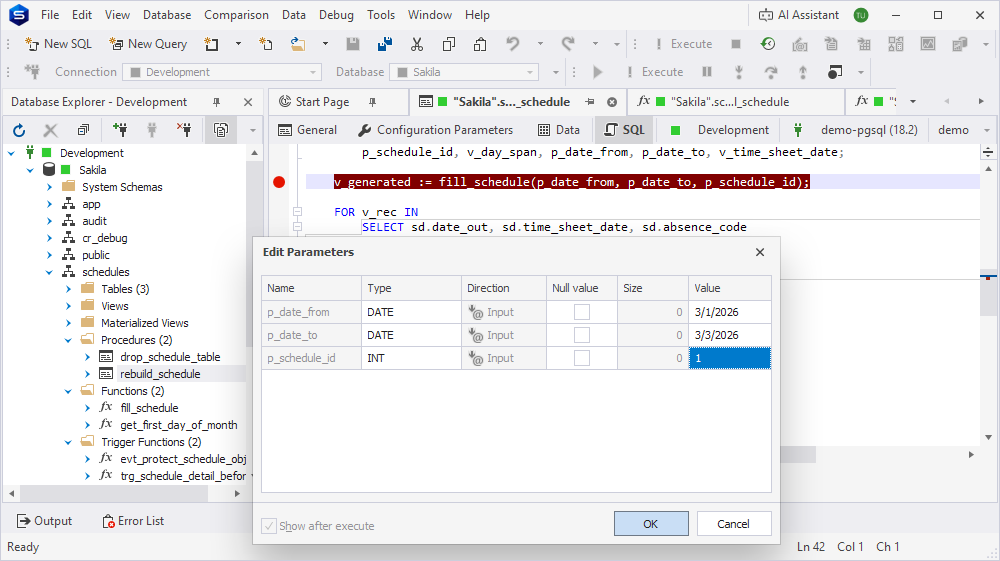
9. Execution stops right at v_generated := fill_schedule(...), the breakpoint you set in step 5. Click  to step into fill_schedule.
10. Click  to run straight to the breakpoint you set in step 6. Click
  twice so as to land on the
 INSERT statement. Then click to execute the INSERT and step into the trigger function.
Tip
The Call Stack window now lists three frames: rebuild_schedule, fill_schedule, and trg_schedule_detail_before_ins. Double-click a frame to view its source in the editor: this only changes which tab is focused; execution stays paused inside the trigger function.
11. Click to run to the breakpoint on IF NEW.absence_code IS NULL THEN.
12. Right-click NEW on that line and select Add Watch.
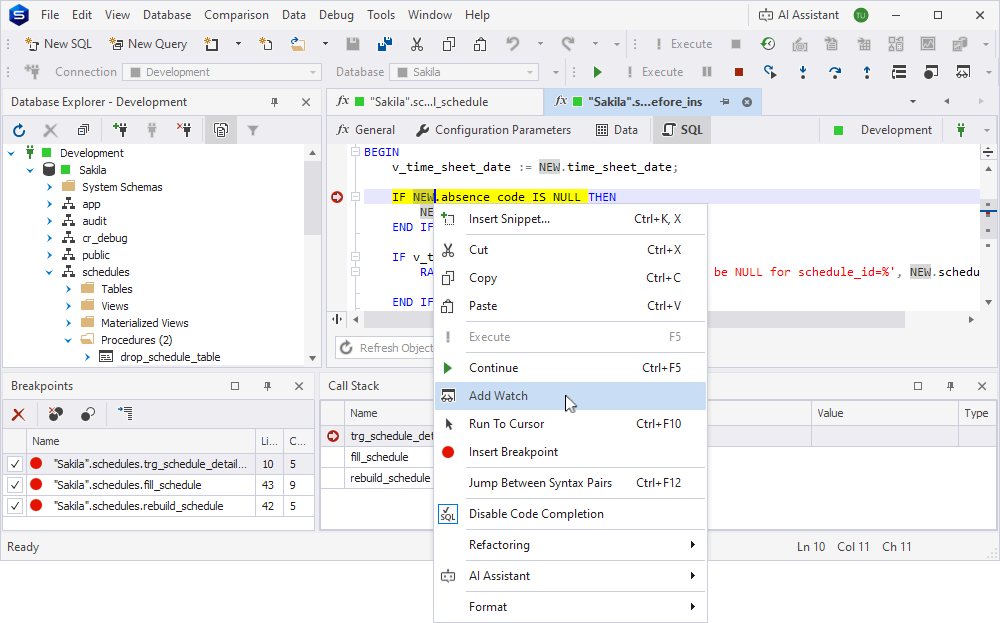
13. Click twice: once to evaluate the condition (since NEW.absence_code is NULL, execution moves to NEW.absence_code := 'sicklist'; inside the IF), and again to execute that assignment. The Watches window now shows the updated NEW tuple.
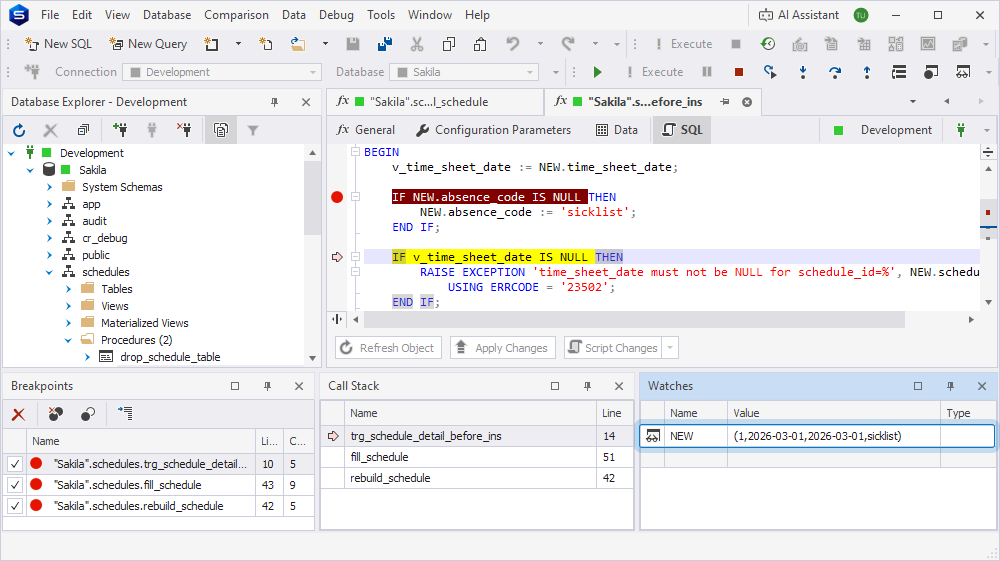
14. Click  once to return to fill_schedule, right after the
 INSERT that fired the trigger.
15. To finish the session, on the Debug toolbar, click Stop Debugging.
Other trigger types and debugger behavior
Statement-level triggers
Triggers defined with FOR EACH STATEMENT stop the debugger exactly once per statement, no matter how many rows are affected. TG_LEVEL is STATEMENT, and NEW and OLD aren’t available.
Conditional triggers
Triggers created with CREATE TRIGGER ... WHEN (...) stop the debugger only for the rows the condition is true for. Rows that don’t satisfy the condition are processed without a break.
INSTEAD OF triggers
INSTEAD OF triggers on views are debugged the same way: compile the trigger function, set a breakpoint, and run the DML statement against the view.
Cascading triggers
If a trigger function modifies a table that has its own triggers, calls to the nested trigger functions appear as additional frames in the Call Stack window.
Clean up
When you’re done debugging, remove the debug information from trg_schedule_detail_before_ins, fill_schedule, and rebuild_schedule. In Database Explorer, right-click each routine and select Compile > Compile.
Note
The schedules schema is shared by Debug a function, Debug a procedure, and Debug an event trigger function. If you no longer need the demo objects, drop the schema and its objects with
DROP SCHEMA schedules CASCADE;.