Debug a procedure
This topic explains how to debug a PL/pgSQL procedure in dbForge Studio for PostgreSQL: how to compile it for debugging, set breakpoints, watch variables, and step into a nested function call.
Prerequisites
Create the demo objects described in Sample scripts: the schema and tables, the get_first_day_of_month and fill_schedule functions, and the rebuild_schedule procedure, which calls both of them.
Debug the procedure
Note
If the debug engine isn’t deployed to the database, you’re prompted to deploy it. Click Deploy to continue.
To debug a procedure:
1. In Database Explorer, expand the schedules > Procedures folder, right-click rebuild_schedule, and select Compile > Compile for Debugging. Then click OK. Repeat for fill_schedule and get_first_day_of_month in the Functions folder, since you’ll be stepping into both of them.
Note
If a called function isn’t compiled for debugging, Step Into steps over the call instead of entering the function.
2. Double-click the rebuild_schedule procedure to open its editor, then switch to the SQL tab.
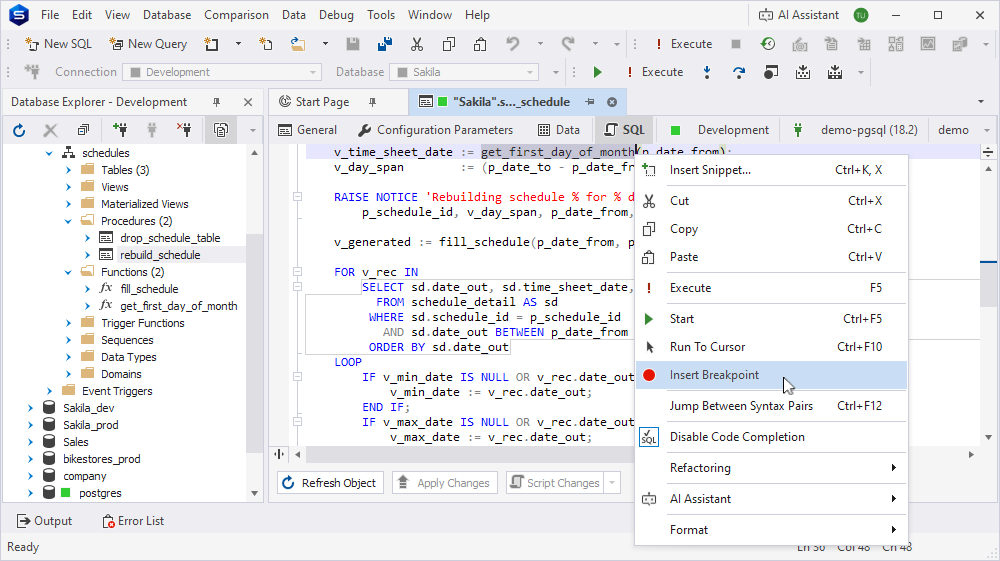
3. Right-click v_time_sheet_date := get_first_day_of_month(p_date_from); and select Insert Breakpoint. The line with the breakpoint is highlighted in red.
4. On the Debug toolbar, click  .
.
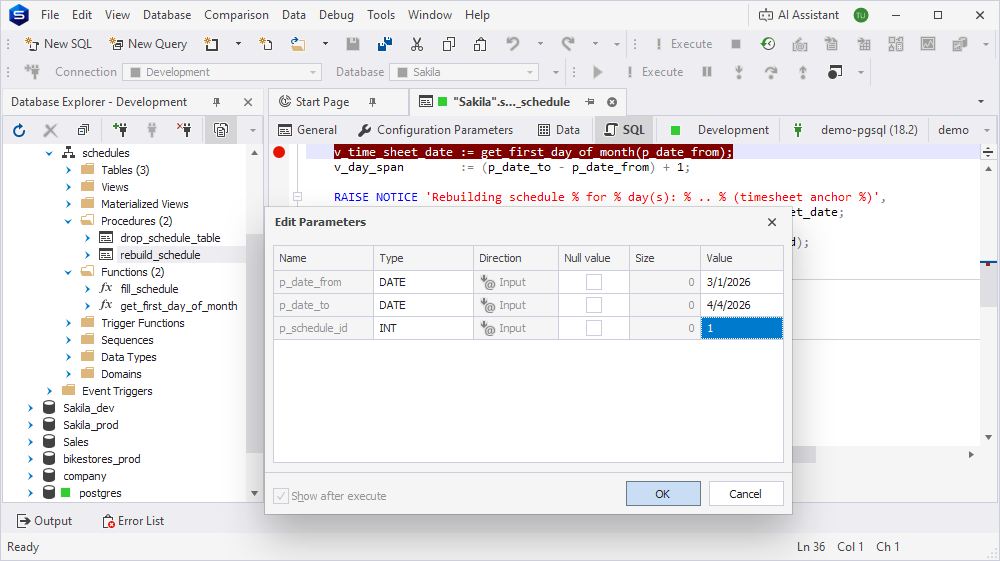
5. In the Edit Parameters dialog, enter the input parameter values, for example p_date_from = 3/1/2026, p_date_to = 4/4/2026, p_schedule_id = 1, then click OK.
6. On the Debug toolbar, click  to step into get_first_day_of_month, or click
  to skip straight past the call and stay in rebuild_schedule.
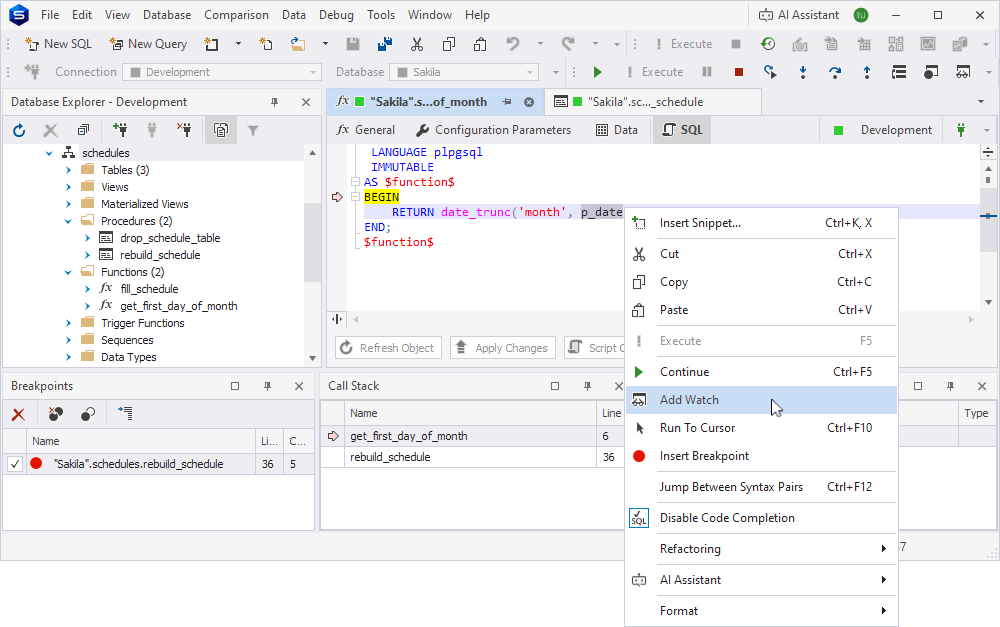
If you stepped into get_first_day_of_month, right-click its p_date parameter and select Add Watch to inspect the value that was passed in, then click  to return to rebuild_schedule before continuing.
7. Right-click v_generated := fill_schedule(p_date_from, p_date_to, p_schedule_id); and select Insert Breakpoint.
8. Click  to run to the breakpoint. When execution stops there, click to step into fill_schedule, or click to run the whole function and stop right after it returns.
Tip
The Call Stack window now lists two frames while you’re inside fill_schedule: rebuild_schedule and fill_schedule. Double-click a frame to view its source in the editor: this only changes which tab is focused; execution stays paused inside fill_schedule.
If you stepped into fill_schedule, click to actually resume execution and return to rebuild_schedule before continuing.
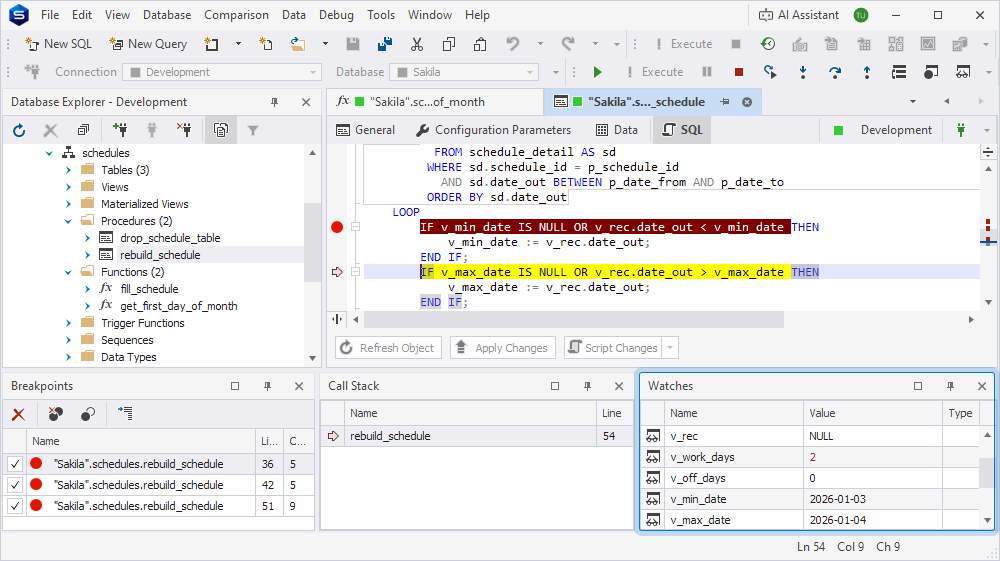
9. Right-click IF v_min_date IS NULL OR v_rec.date_out < v_min_date THEN inside the FOR v_rec IN ... LOOP block and select Insert Breakpoint.
10. Add v_rec, v_work_days, v_off_days, v_min_date, and v_max_date to the Watches list.
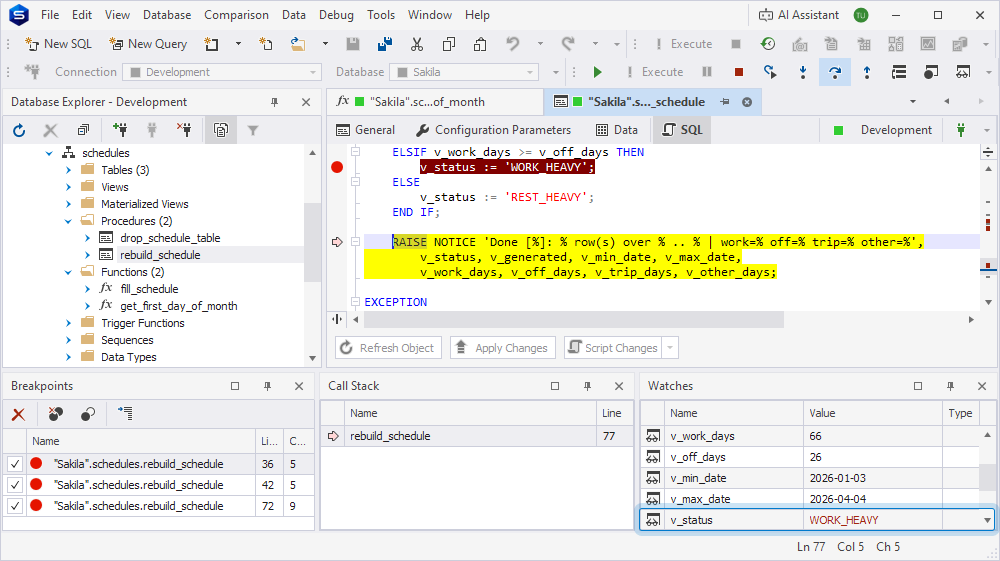
11. Click repeatedly to step through the IF / ELSIF / ELSE block and on into the next row: the execution arrow lands on whichever branch fires, and the matching counter and the min/max dates update in the Watches window as each row is processed. Repeat for a few rows to watch the values change.
12. While still paused inside the loop, right-click v_status := 'WORK_HEAVY'; and select Insert Breakpoint, then add v_status to the Watches list to see which of the three branches (EMPTY, WORK_HEAVY, REST_HEAVY) is taken for your input data.
13. Delete the breakpoint on IF v_min_date IS NULL OR v_rec.date_out < v_min_date THEN so it no longer fires, then click once to run straight to the v_status breakpoint.
14. Click to execute the assignment; the Watches list updates to show which value v_status was set to.
15. Click to let the procedure run to completion.
Check the result
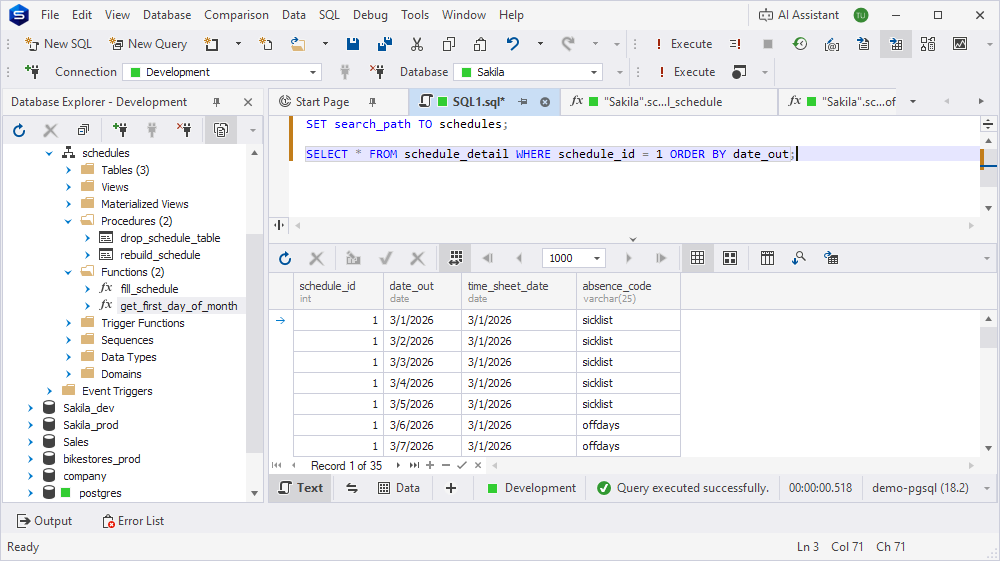
Confirm that rebuild_schedule actually generated the schedule rows for the period you debugged.
SET search_path TO schedules;

SELECT * FROM schedule_detail WHERE schedule_id = 1 ORDER BY date_out;
The number of rows should match the length of the period you passed to rebuild_schedule, for example, 35 rows for a period from 3/1/2026 to 4/4/2026.
Control transactions during debugging
A PL/pgSQL procedure can commit or roll back transactions during debugging. When a COMMIT statement is executed, the changes made up to that point are committed and become visible to other sessions. When a ROLLBACK statement is executed, the uncommitted changes are discarded.
If you stop a debugging session before the procedure finishes, any changes that have already been committed remain in the database.
Apply code changes during debugging
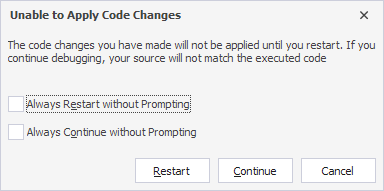
If you modify a procedure while debugging and then continue execution, for example, with Continue, Step Into, Step Over, or Step Out, the Unable to Apply Code Changes dialog appears. This dialog notifies you that the changes won’t be applied until you restart debugging.
To proceed, choose one of the following actions:
- Restart – Restarts the debugging session and asks you whether to save changes to the object first.
- Continue – Continues debugging and ignores any changes you made to the code.
- Cancel – Closes the dialog without restarting or continuing, leaving the session paused where it was.
To prevent the Unable to Apply Code Changes dialog from appearing again, select one of the following options:
- Always Restart without Prompting – The debugger restarts the debugging session after each change you make. All changes are applied during the restart.
- Always Continue without Prompting – The debugger continues the current debugging session without restarting and ignores any changes you made.
Clean up
When you’re done debugging, remove the debug information from rebuild_schedule, fill_schedule, and get_first_day_of_month. In Database Explorer, right-click each routine and select Compile > Compile.
Note
The schedules schema is shared by Debug a function, Debug a trigger function, and Debug an event trigger function. If you no longer need the demo objects, drop the schema and its objects with
DROP SCHEMA schedules CASCADE;.