Set up the debug engine
This topic describes the debug mechanism used by dbForge Studio for PostgreSQL.
Debug engine overview
To debug functions, procedures, trigger functions, and event trigger functions, you must deploy the debug engine on the server.
The debug engine is the server-side component of the debugging infrastructure. It is a dedicated cr_debug schema that holds the state tables and protocol functions and procedures driving step-by-step execution. While a routine is being debugged, dbForge Studio and the engine exchange information about the current line, the call stack, and the values of the variables through this schema.
Requirements
| Requirement | Description |
|---|---|
| Server version | PostgreSQL 11 or later. |
dblink extension |
The engine opens an autonomous connection to the database that contains the routines being debugged. The dblink extension must be installed on the server. |
Permissions
| Action | Required permissions |
|---|---|
| Deploy or remove the debug engine | Ability to create and drop a schema and the objects in it: either superuser, or a role with the CREATE privilege on the database. |
Install the dblink extension |
Superuser privileges, unless the extension is already installed on the server. |
| Debug routines | USAGE privilege on the cr_debug schema, and EXECUTE privilege on the routines in cr_debug. |
| Compile a routine for debugging | Ability to replace the routine: ownership of the routine or membership in the owning role, and the CREATE privilege on the schema where the routine is stored. |
Deploy the debug engine
Note
The cr_debug schema is deployed to the database you select, not to a separate service database. Deploy the engine to the same database where the routines you’re going to debug are stored.
Redeploying the debug engine to a database that already contains the cr_debug schema doesn’t cause errors. Do this after you upgrade dbForge Studio because a newer Studio build may require a newer version of the engine.
To deploy the debug engine:
1. In Database Explorer, select the database where the routines you want to debug are stored.
2. On the menu bar, select Debug > Deploy Debug Engine.
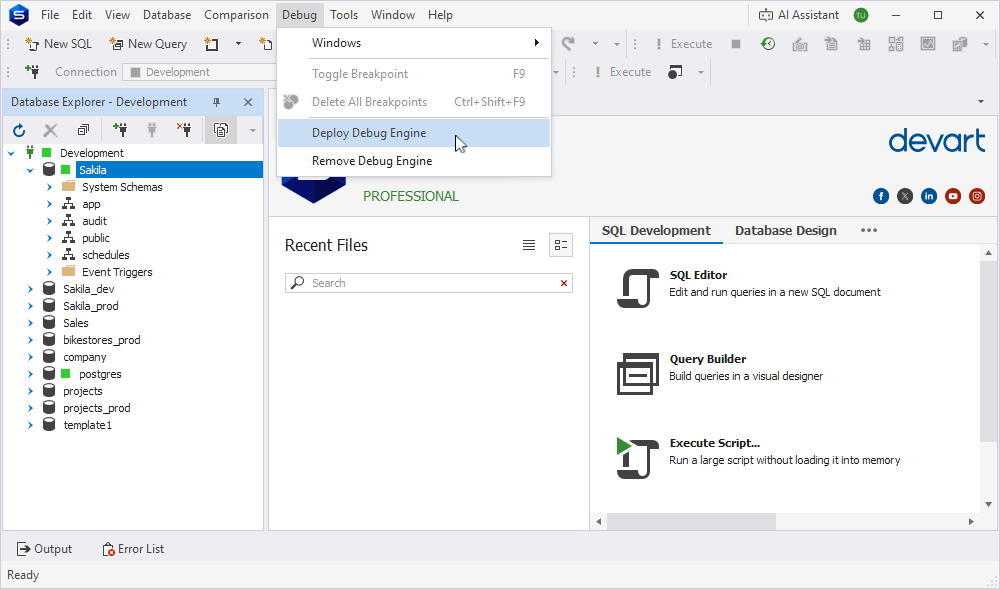
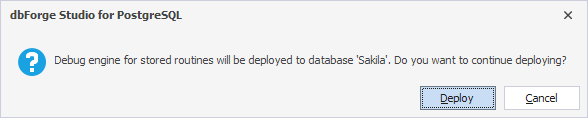
3. Read the confirmation dialog to make sure the cr_debug schema will be deployed to the right database, then click Deploy.
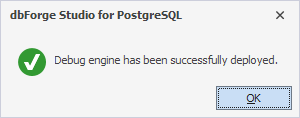
The debug engine is deployed.
4. Click OK.
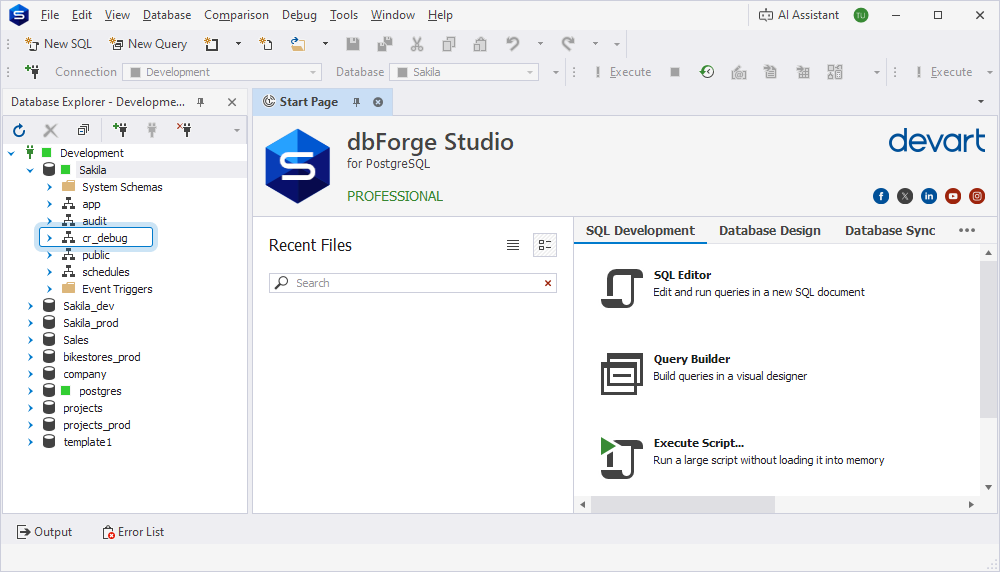
5. Refresh the connection; the cr_debug schema appears in Database Explorer.
Compile a routine for debugging
To debug a function, procedure, trigger function, or event trigger function, you must first add debug information to its body.
Warning
Compiling a routine for debugging replaces the body of the routine on the server. Back up the database before you begin.
Note
Debug information never leaks into the scripts that dbForge Studio generates. Generate Script As, Schema Compare, Data Compare, and Data Generator work with the original body of the routine, and the cr_debug schema itself is excluded from comparison and generation.
To compile a routine for debugging, right-click it in Database Explorer and select Compile > Compile for Debugging.
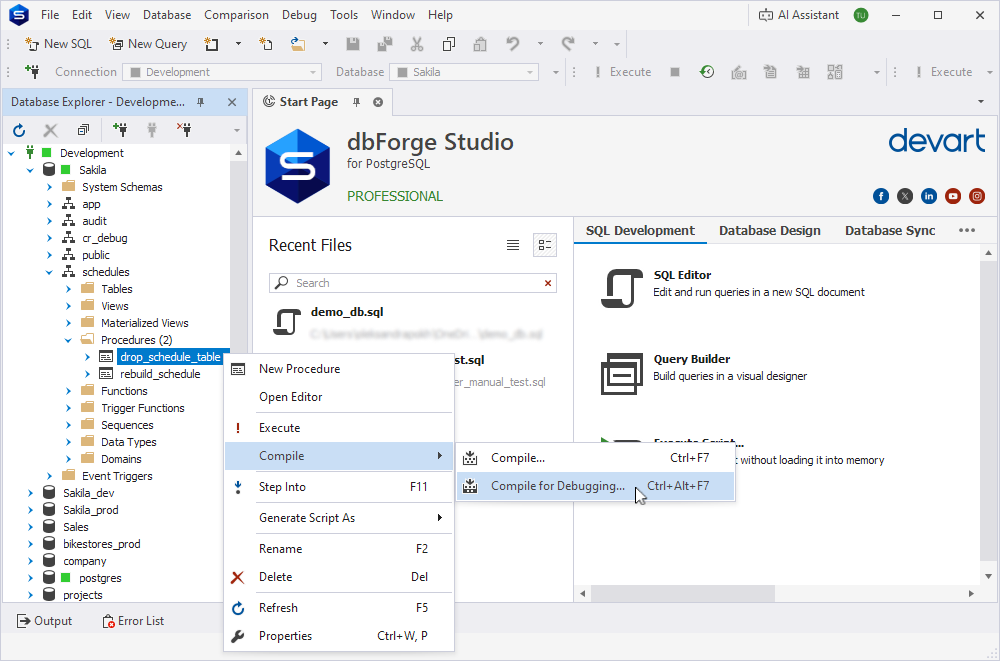
This action rewrites the body of the routine on the server; it inserts calls to cr_debug routines and /*[cr_debug]*/ markers that map the executable statements of the body to line numbers. The signature of the routine, its owner, comment, and modifiers (IMMUTABLE, STABLE, SECURITY DEFINER, PARALLEL, COST, ROWS, SET clauses) are preserved, so the routine keeps working as before. The added statements, however, affect performance, so a routine compiled for debugging shouldn’t be left on a production server.
Note
To step into a routine that’s called from the one you’re debugging, compile the called routine for debugging as well. Otherwise, the debugger steps over the call.
When you open an object compiled with debug information in a visual editor, dbForge Studio hides the added debug statements.
Tip
To find out which routines in the database are currently compiled for debugging, use the following SQL script:
SELECT n.nspname || '.' || p.proname AS routine,
      pg_get_function_identity_arguments(p.oid) AS arguments
 FROM pg_proc p
 JOIN pg_namespace n ON n.oid = p.pronamespace
WHERE n.nspname NOT IN ('pg_catalog', 'information_schema', 'cr_debug')
  AND p.prosrc LIKE '%cr_debug%'
ORDER BY 1, 2;
Remove debug information
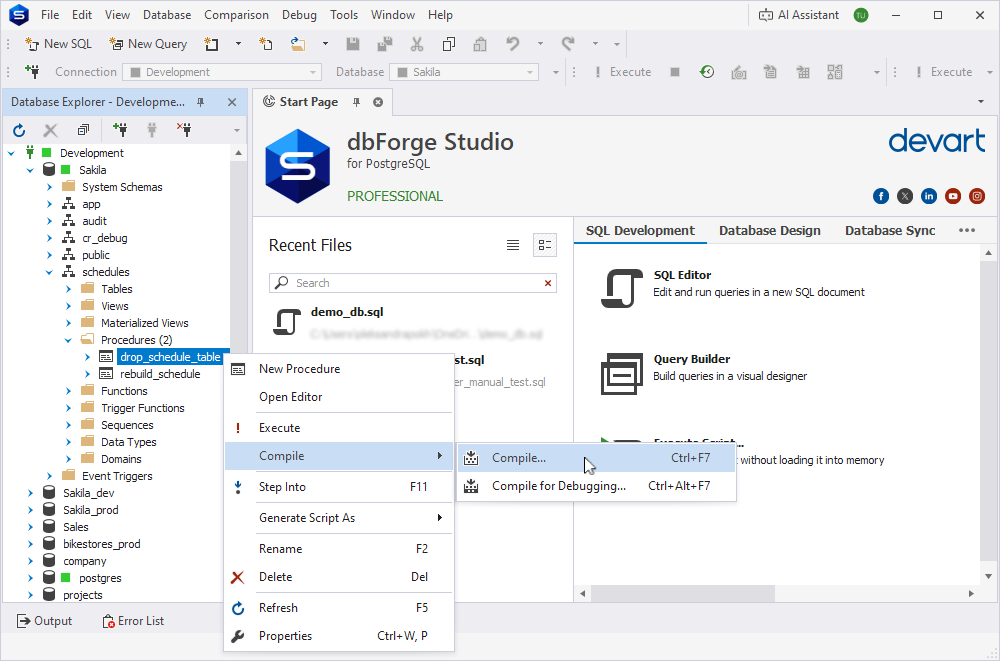
To restore the original body of a routine, right-click it in Database Explorer and select Compile > Compile. dbForge Studio removes the debug calls and the markers, and replaces the routine with its original body.
Tip
To ensure that a routine no longer contains debug information, execute a query such as
SELECT pg_get_functiondef('SchemaName.RoutineName'::regproc);in a SQL document and inspect the returned body forcr_debugcalls and/*[cr_debug]*/markers.
Remove the debug engine
Note
Before you remove the engine, remove the debug information from your routines. A routine that’s still compiled for debugging calls the cr_debug routines, and it stops working once the schema is dropped.
To remove the debug engine:
1. Stop any active debug session.
2. In Database Explorer, select the database.
3. On the menu bar, select Debug > Remove Debug Engine.
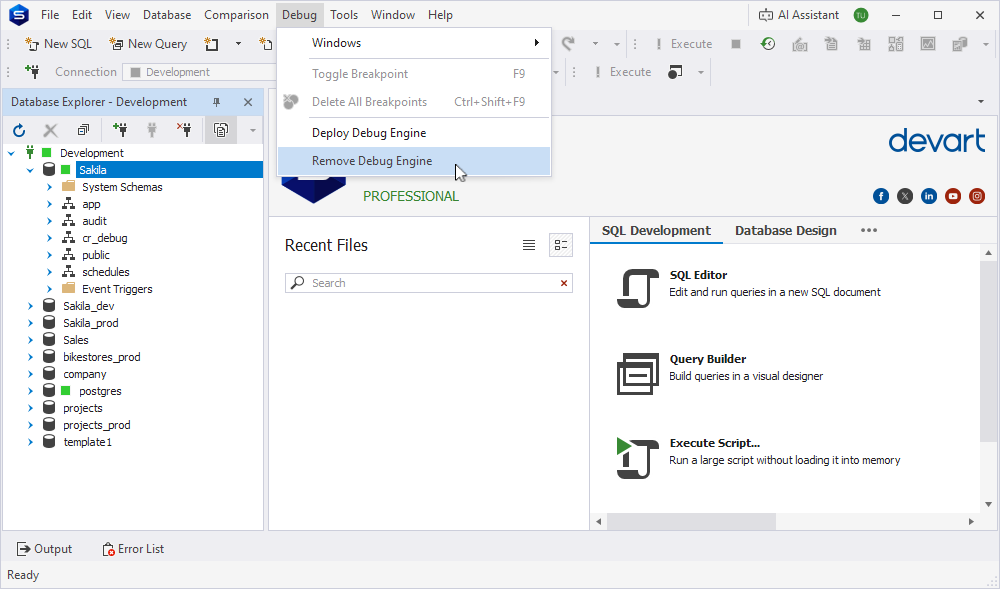
4. Optional: To remove debug information from all routines you compiled for debugging, select Remove debug code from routines.
5. Click Remove.
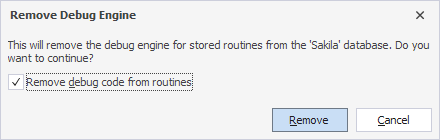
The debug engine is removed.
6. Click OK.
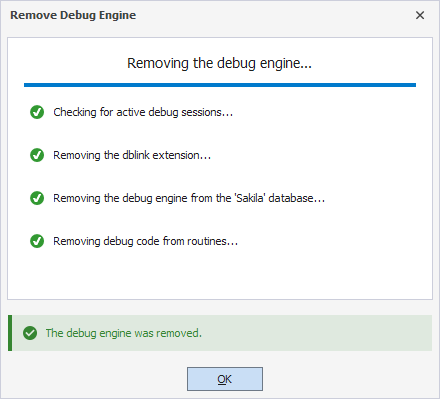
7. Refresh the connection to confirm that the cr_debug schema no longer appears in Database Explorer.
Warning
Don’t remove the cr_debug schema by running
DROP SCHEMA cr_debugor deleting it from Database Explorer. Use Remove Debug Engine instead to ensure the schema and all objects in it are removed correctly.
Tip
To check that nothing remains, execute the following SQL script:
SELECT COUNT(*) AS cr_debug_objects_left
 FROM pg_proc p
 JOIN pg_namespace n ON n.oid = p.pronamespace
WHERE n.nspname = 'cr_debug';
Recommended workflow
1. Back up the database.
2. Deploy the debug engine to the database that contains the routines you want to debug.
3. Compile the routine you want to debug (and every routine it calls that you want to step into) with Compile for Debugging.
4. Debug the routine: set breakpoints, start the session, step through the code, and monitor variable values.
5. Fix any logic errors you find.
6. Restart the debug session to apply the changes and test the routine again.
7. When the routine works as expected, remove the debug information from every routine you compiled for debugging.
8. Remove the debug engine if you no longer need it in this database.
Warning
Keeping routines compiled with debug information in a production environment can affect performance. Always recompile routines without debug information before deployment.