Debug a function
This topic explains how to debug a PL/pgSQL function in dbForge Studio for PostgreSQL in two scenarios: independently and when it’s called from another routine.
Prerequisites
Create the demo objects described in Sample scripts: the schema and tables, the get_first_day_of_month function, and the fill_schedule function, which calls it.
Debug a function independently
Note
If the debug engine isn’t deployed on the server, you’re prompted to deploy it. Click Deploy to continue.
To debug a function:
1. In Database Explorer, expand the schedules > Functions folder, right-click get_first_day_of_month, and select Compile > Compile for Debugging. Then click OK.
2. Double-click the get_first_day_of_month function to open its editor, then switch to the SQL tab.
3. Right-click RETURN date_trunc('month', p_date)::date; and select Insert Breakpoint. The line with the breakpoint is highlighted in red.
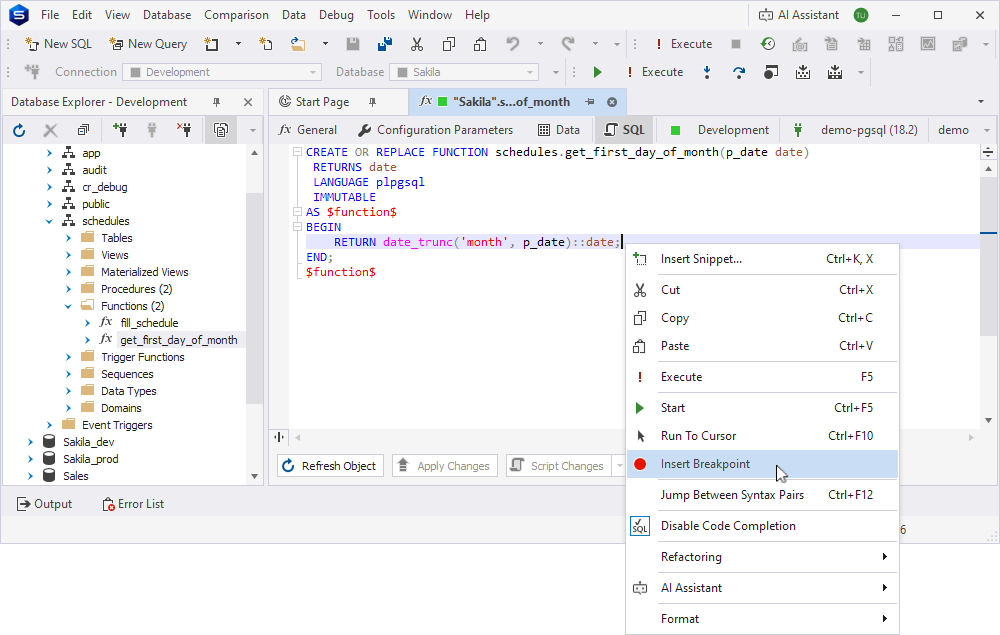
4. On the Debug toolbar, click  .
.
5. In the Edit Parameters dialog, enter a value for p_date, for example, 3/15/2026, then click OK.
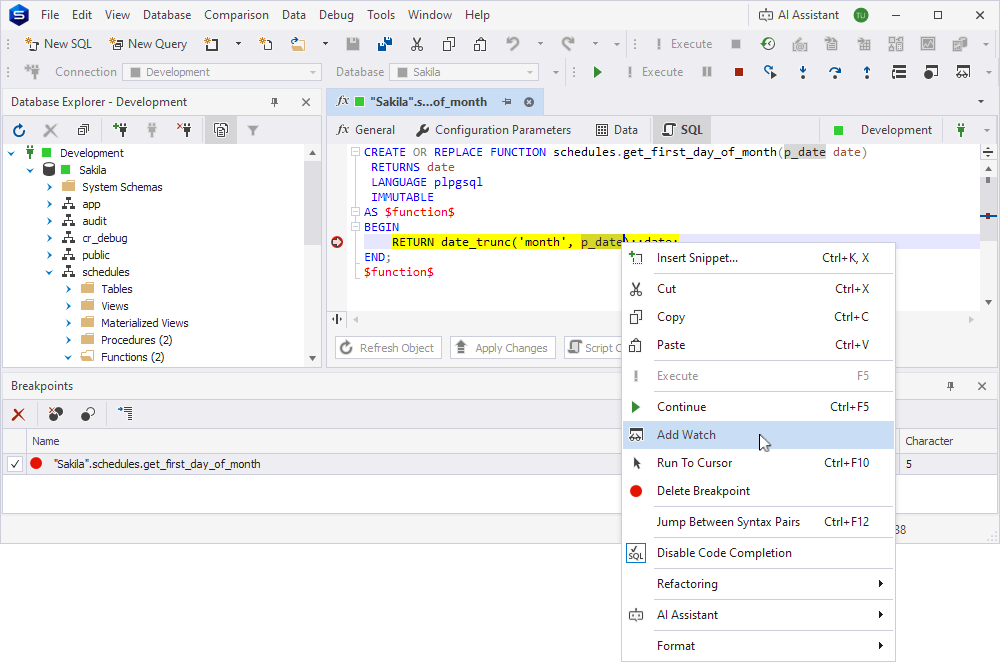
Execution stops at the breakpoint, and a yellow arrow marks the statement.
6. Right-click p_date in the editor and select Add Watch to see the value that was passed in.
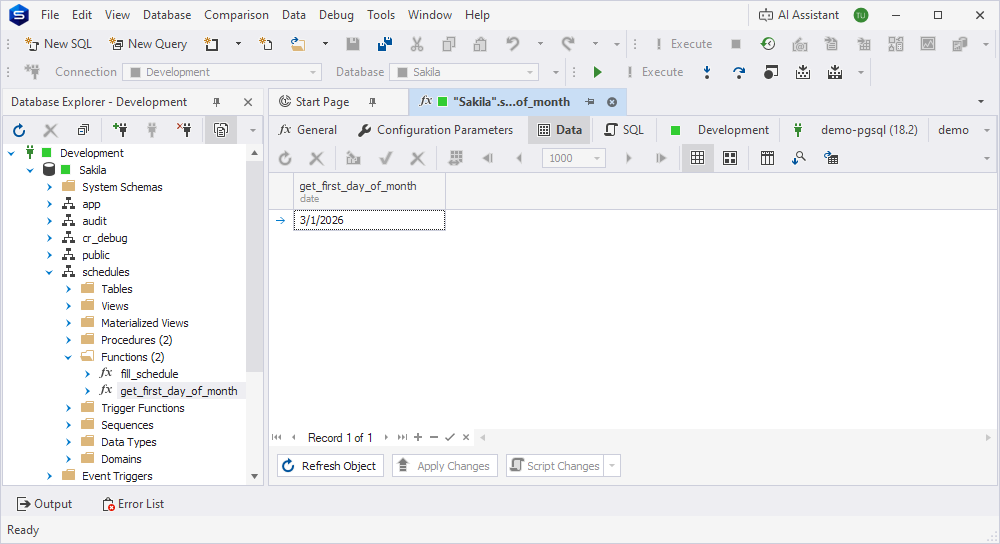
7. On the Debug toolbar, click  to let the function finish. The returned value appears on the Data tab of the editor.
Debug a function when it’s called from another routine
When a function is called from another routine, you can step into the function to inspect the values passed by the calling routine and then return to the calling routine to inspect the returned value.
To debug the function:
1. In Database Explorer, expand the schedules > Functions folder, right-click get_first_day_of_month, and select Compile > Compile for Debugging. Repeat for fill_schedule, which calls the first one.
Note
If the called function isn’t compiled for debugging, Step Into steps over the call instead of entering the function.
2. Double-click fill_schedule, then switch to the SQL tab.
3. Right-click v_time_sheet_date := get_first_day_of_month(v_date_out); and select Insert Breakpoint.
4. On the Debug toolbar, click .
5. In the Edit Parameters dialog, enter the input parameter values, for example p_date_from = 3/1/2026, p_date_to = 4/4/2026, p_schedule_id = 1, then click OK.
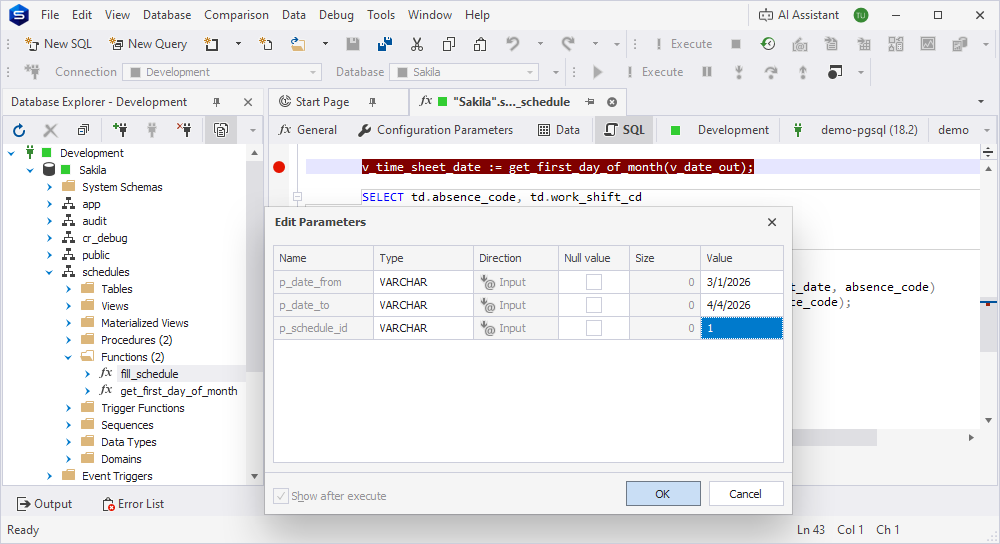
6. Add v_date_out and v_time_sheet_date to the Watches list.
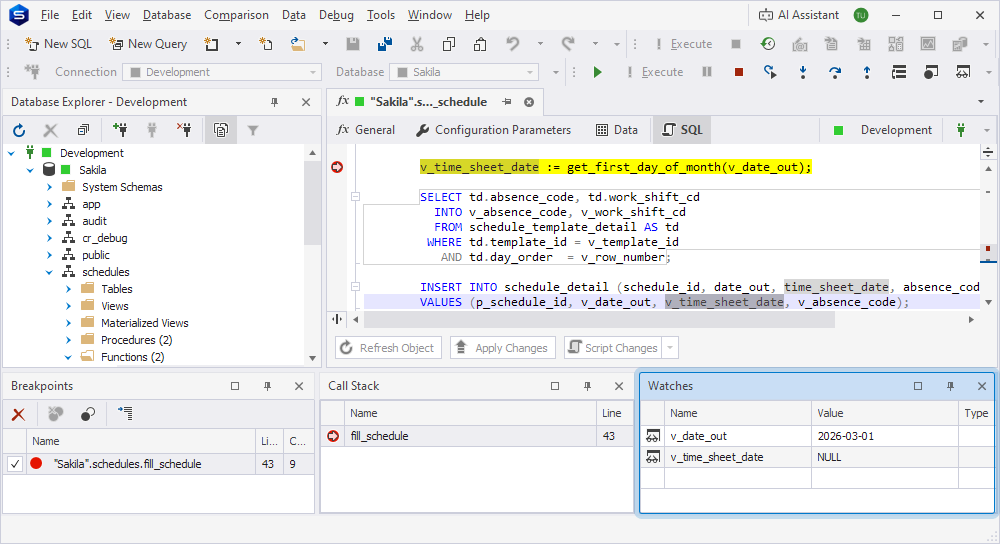
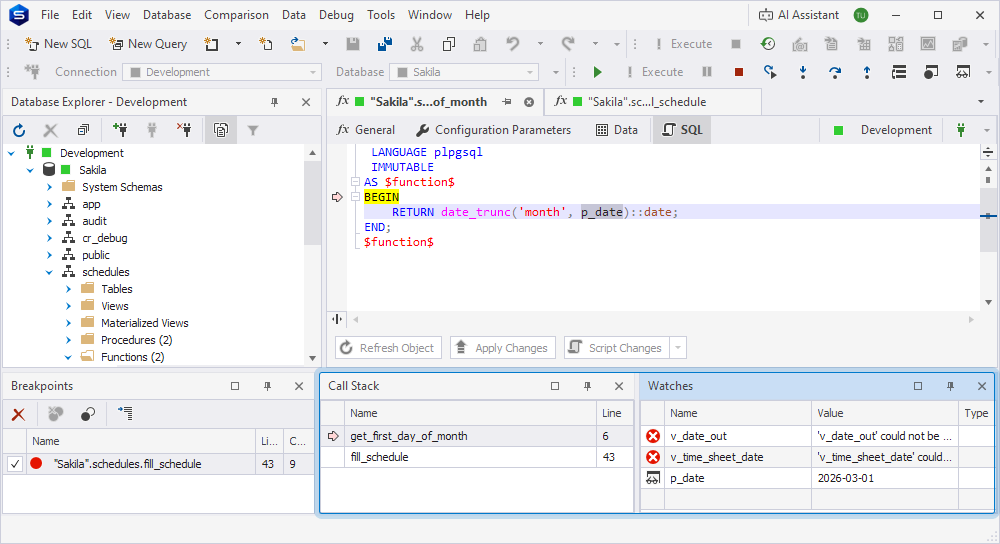
7. On the Debug toolbar, click  . A new tab opens with the code of get_first_day_of_month, and the Call Stack window shows both routines: the get_first_day_of_month function on top, fill_schedule below it.
The Watches list no longer shows v_date_out and v_time_sheet_date values because both variables belong to fill_schedule, and you’re now inside the function it called. Variables can only be watched from the context of the routine that declares them.
8. To watch a value here, add a watch from the code of the function: right-click the p_date parameter and select Add Watch. The value fill_schedule passed in appears in the list.
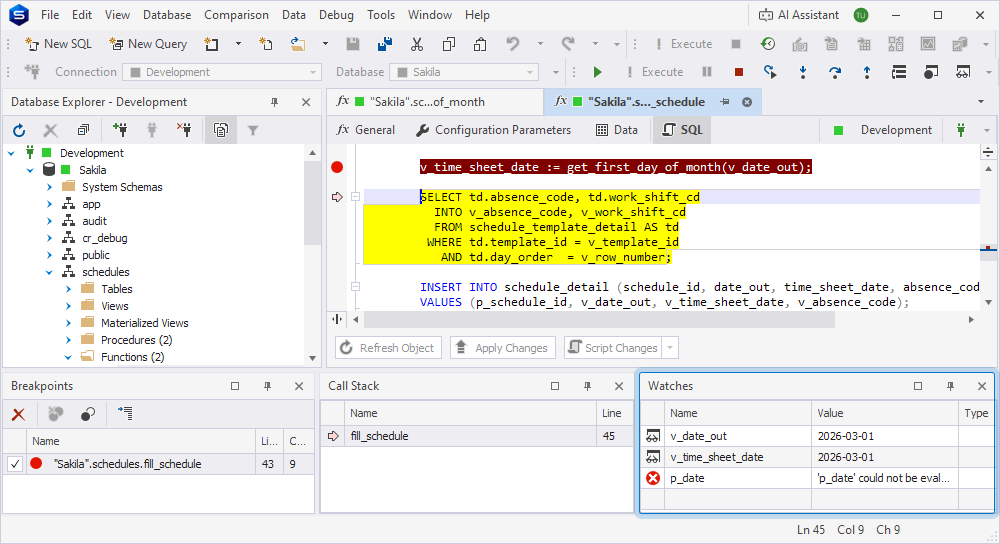
9. Click  to return to
 fill_schedule. The Watches list shows v_date_out and v_time_sheet_date again, and v_time_sheet_date now holds the value the function returned.
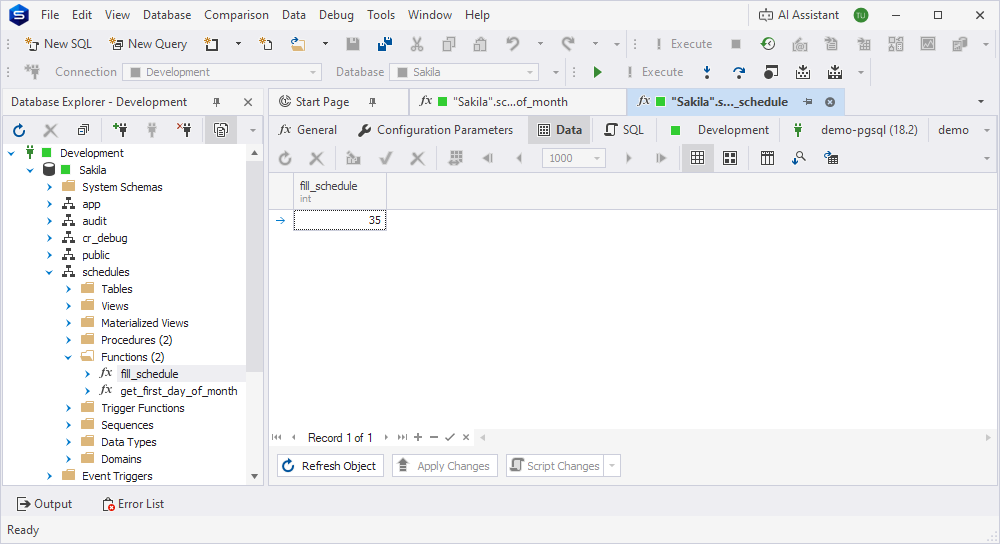
10. The breakpoint is inside the loop, so it fires again on every pass. Click repeatedly until fill_schedule returns, or clear the breakpoint checkbox in the Breakpoints window first, then click once to run straight to completion. The returned value appears on the Data tab of the editor.
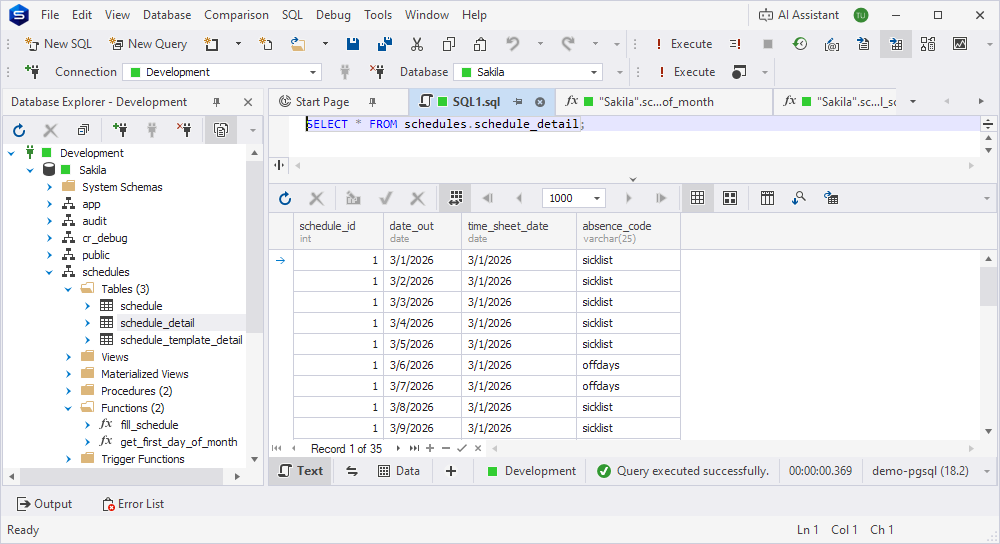
11. In Database Explorer, expand the schedules > Tables folder, right-click schedule_detail, and select Select All Rows to confirm that the rows were generated.
Clean up
When you’re done debugging, remove the debug information from get_first_day_of_month and fill_schedule. In Database Explorer, right-click each routine and select Compile > Compile.
Note
The schedules schema is shared by Debug a procedure, Debug a trigger function, and Debug an event trigger function. If you no longer need the demo objects, drop the schema and its objects with
DROP SCHEMA schedules CASCADE;.