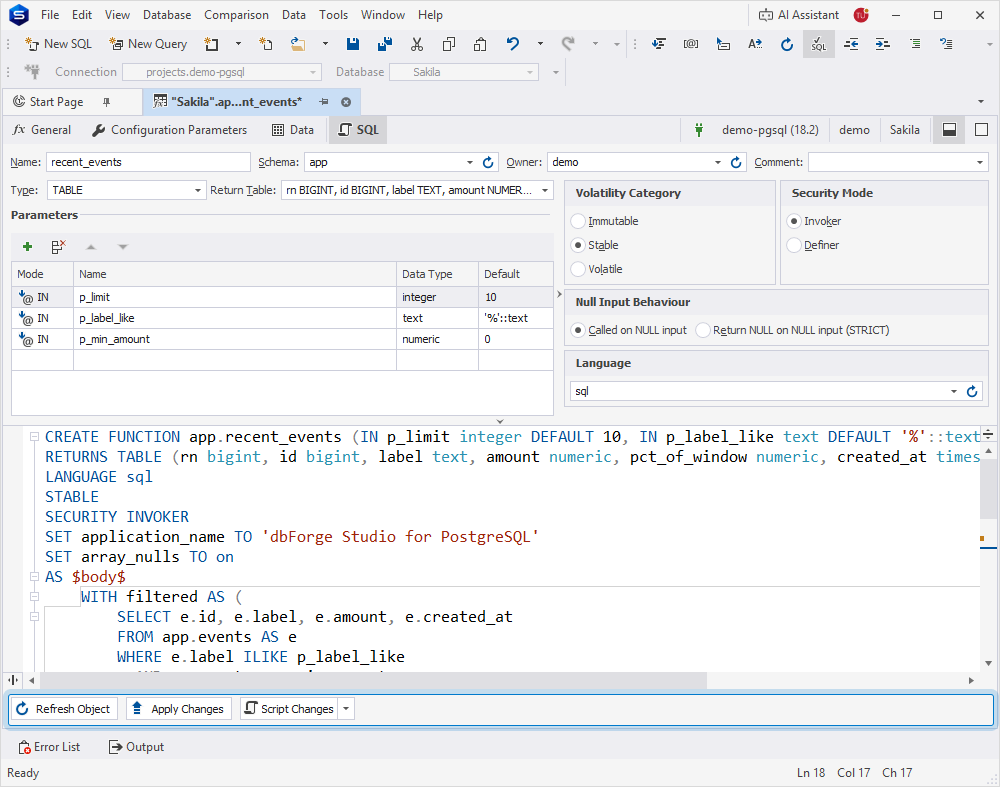
Function Editor
Function Editor in dbForge Studio for PostgreSQL provides a visual interface for creating and modifying functions, allowing you to configure function properties without manually specifying them in SQL code.
Key features of Function Editor:
-
Creating a function visually without writing SQL code.
-
Generating a DDL script to create or modify a function.
-
Adjusting function properties and settings to customize function behavior.
-
Reviewing and editing the generated .sql script before applying changes.
Open Function Editor
Open Function Editor in one of these ways:
-
In Database Explorer, right-click a database and select New Database Object > Function.
-
In Database Explorer, expand a database, right-click the Functions node, then select New Function.
-
In Database Explorer, right-click an existing function and select New Function.
-
On the Standard toolbar, click the arrow next to
 , then select Function.
 -
On the Start Page, select Database Design > New Database Object. In the dialog, select the database > Function, specify the function name, then click Create.
Note
You can configure the default action that occurs when you double-click a function in Database Explorer. Choose whether to open the function in the editor or execute it.
To configure the default action:
1. On the menu bar, select Tools > Options.
2. In the Options dialog, navigate to Database Explorer > General.
3. Under Procedure and Function Default Action, select one of the following options:
- Execute – Executes the function when you double-click it in Database Explorer.
- Open Object Editor – Opens the function in Function Editor.
4. Click OK.
User interface concepts
Function Editor includes the following user interface concepts:
-
Tabs – Use to access specific editors, such as General, Configuration Parameters, Data, and SQL.
-
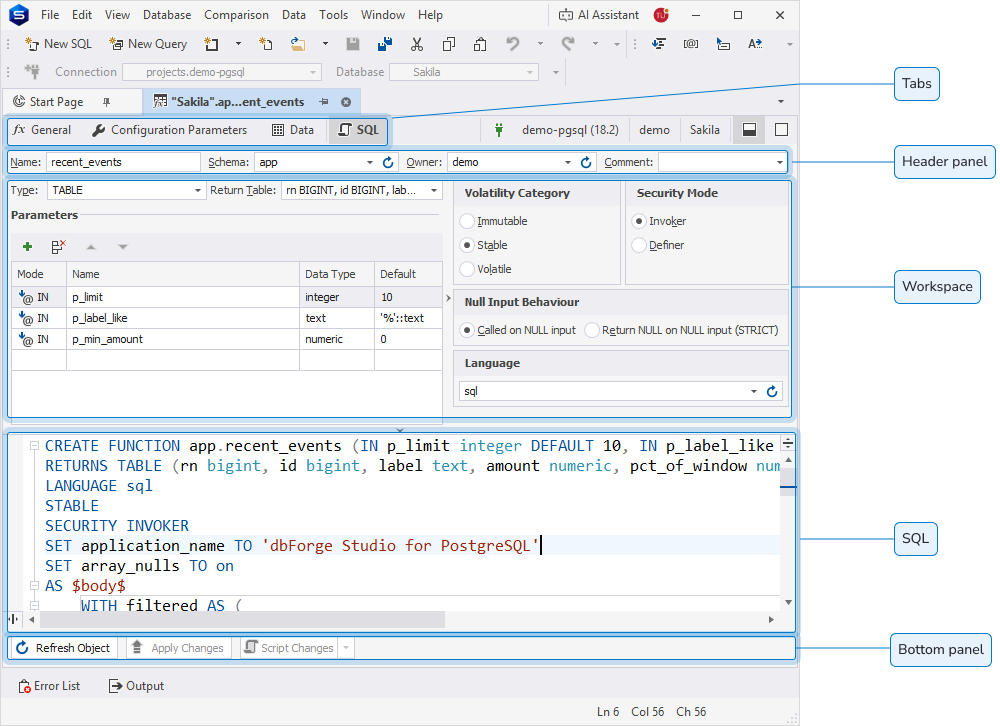
Header panel – Use to specify the function name, assign a schema and an owner, and add a comment.
-
Workspace – Use to configure function properties, settings, and parameters.
-
SQL – Use to view and manage the DDL script, which automatically updates based on the properties you configure in the visual editor.
-
Bottom panel – Use to refresh the object, apply changes, or generate a script for review before execution.
Header panel
You can use the header panel to specify the basic function details:
-
Name (required) – Enter a function name. When you create a function, the default value is
function1. If a function with this name already exists, the system generates a unique name by incrementing a numeric suffix, for example,function2,function3. -
Schema (optional) – Select the schema for the function from the dropdown list.
-
Owner (optional) – Select the function owner from the list. The default value is the username used to connect to the server.
-
Comment (optional) – Enter a function description. To save the description, click OK. To discard the change, click Cancel.
Note
Comment isn’t available for Amazon Redshift.
Tip
To refresh the list of schemas and owners, click
.
General tab
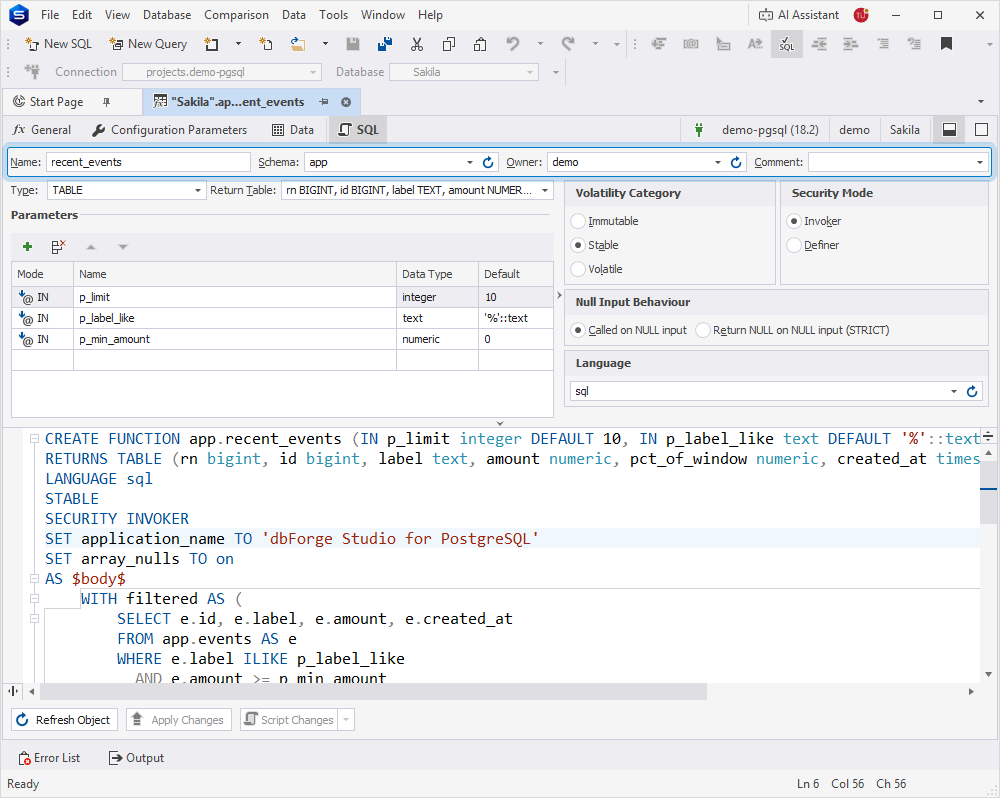
On the General tab, you can configure function properties, its parameters, and execution settings.
Configure function properties
At the top of the editor’s workspace, you can configure function properties.
1. In Type, select the function type from the dropdown list. Available values are: SCALAR (default), TABLE, TRIGGER, EVENT TRIGGER.
Note
Only the SCALAR function type is available for Amazon Redshift.
2. In Return Value, select or enter the data type of the value returned by the function. The property is available only when Type is set to SCALAR.
Tip
To refresh the list of return values, click
3. In Return Table, select an existing table or create a new one that defines the structure of the data returned by the function. The property is available only when Type is set to TABLE.
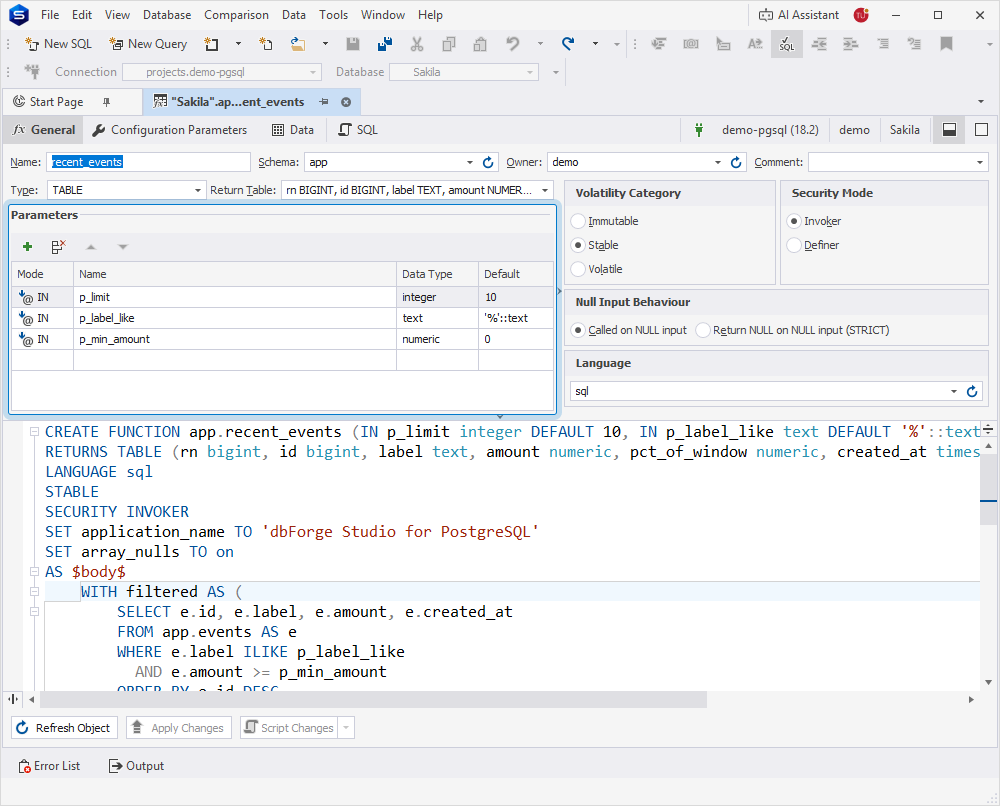
Configure function parameters
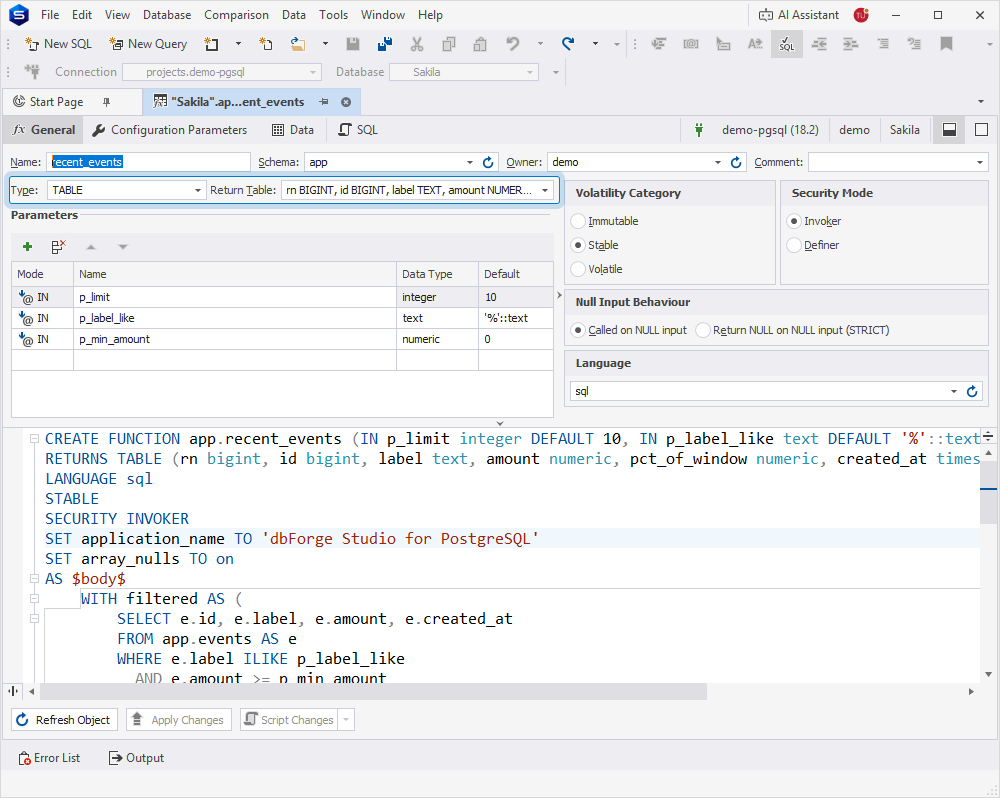
In the Parameters grid, you can configure function parameters.
1. In Mode, select the parameter mode. Available options are: IN, OUT, INOUT, or VARIADIC.
Note
The INOUT and VARIADIC parameter modes aren’t available for Amazon Redshift.
Only one VARIADIC parameter is allowed in a parameter list. Parameters declared after the VARIADIC parameter must be explicitly marked as OUT.
2. In Name, enter the parameter name.
3. In Data Type, select or enter the parameter’s data type. The parameter is required.
4. In Default, enter the default value for the parameter. The parameter isn’t available when Mode is set to OUT.
Tip
To add a parameter, click
, right-click the grid and select Add, or press Ins.
To remove the selected parameter, click
, right-click the grid and select Delete, or press Ctrl+Del.
To reorder the selected parameter, click
or
to move it up or down.
Configure function settings
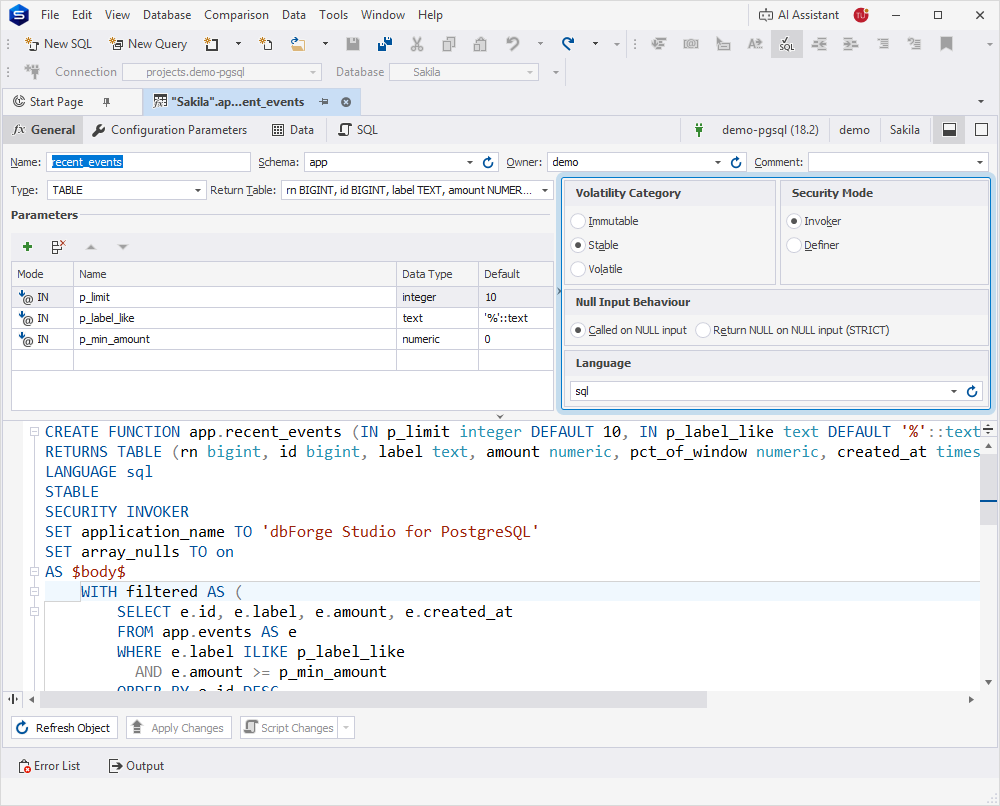
In the workspace, you can configure the function execution settings that determine how the database executes and optimizes the function.
The following tables describe function execution settings, grouped by categories.
Volatility Category
| Property name | Description |
|---|---|
| Immutable | Declares that the function does not modify the database and promises that it returns the same result for the same arguments. This is a promise to the planner, not a mechanism that prevents the function from violating these assumptions. |
| Stable | Declares that the function does not modify the database and promises that it returns the same result for the same arguments within a single statement. This is a promise to the planner, not a mechanism that prevents the function from violating these assumptions. |
| Volatile | Allows the function to modify the database and return different results on successive calls with the same arguments. PostgreSQL treats the function as non‑stable and does not optimize repeated calls. Note: The property is set by default. |
Security Mode
| Property name | Description |
|---|---|
| Invoker | Executes the function with the function caller’s privileges. Note: The property is set by default for PostgreSQL and isn’t available for Amazon Redshift. |
| Definer | Executes the function with the privileges of its owner. |
Null Input Behaviour
| Property name | Description |
|---|---|
| Called on NULL input | Executes the function even if some of its arguments are NULL. Note: The property is set by default for PostgreSQL and isn’t available for Amazon Redshift. |
| Return NULL on NULL input (STRICT) | Returns NULL without executing the function body if any of its arguments are NULL. |
Language
| Property name | Description |
|---|---|
| Language | Specifies the procedural language used to implement the function body. Select the option from the dropdown list. Available options are: plpgsql, sql, c, internal. Note: The default value is plpgsql for PostgreSQL and sql for Amazon Redshift. |
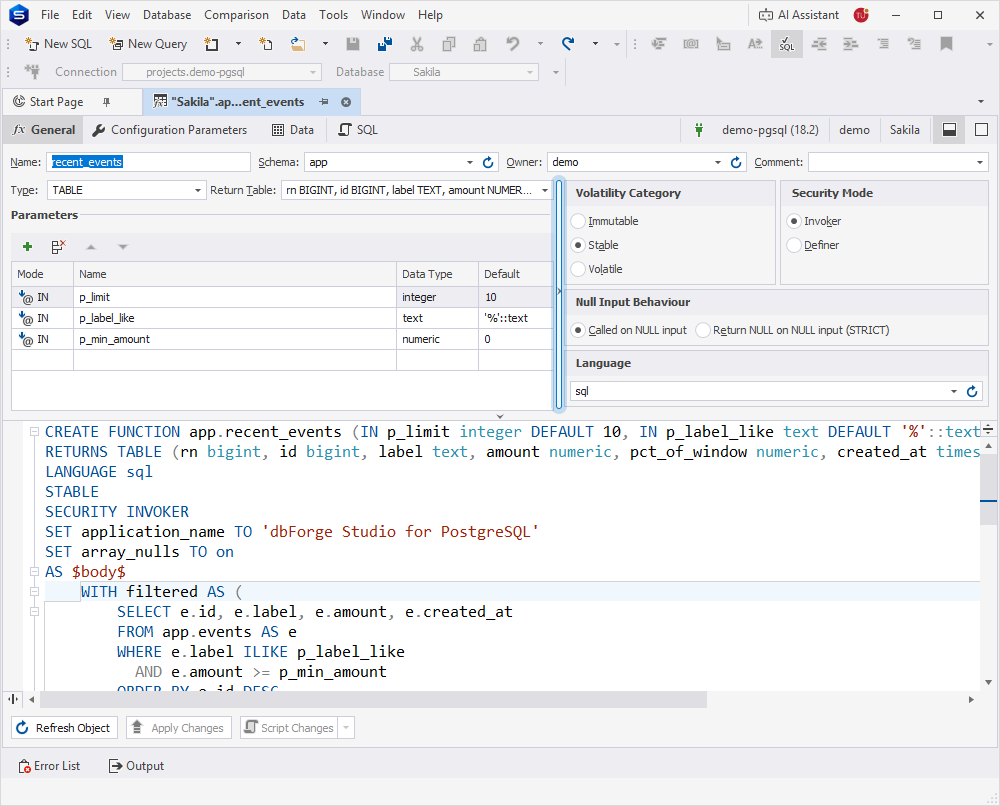
Tip
To hide the panel with function settings, click the vertical splitter or drag it to the right.
Configuration Parameters tab
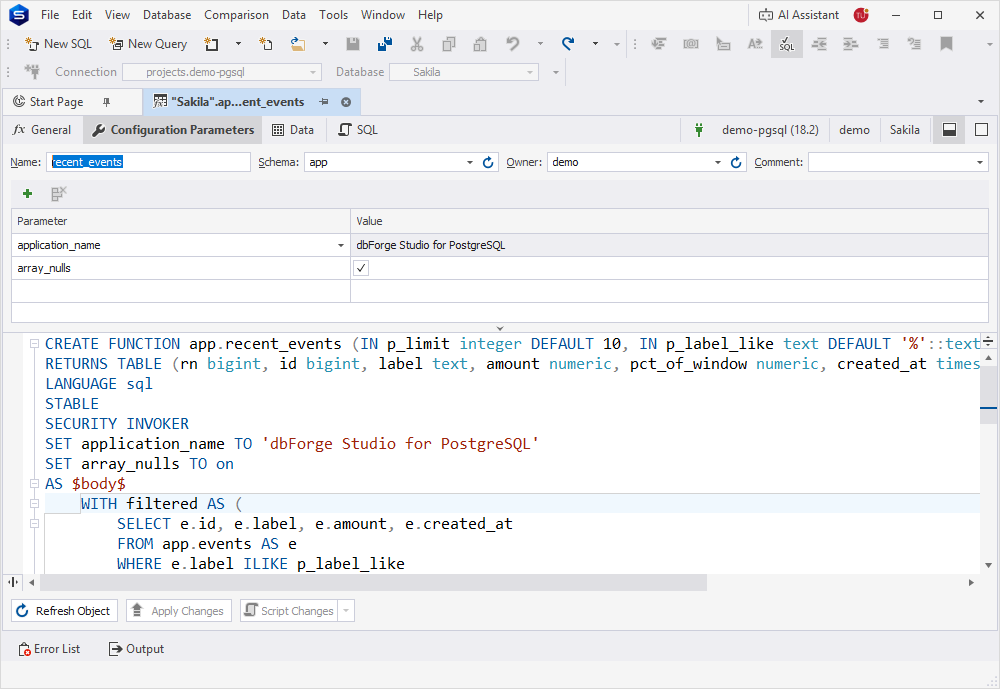
On the Configuration Parameters tab, you can configure server parameters that apply only when the function is executed.
To configure server parameters for the function:
1. In Parameter, select a parameter from the dropdown list. For more information about PostgreSQL parameters, see the official documentation.
Warning
All parameters in the grid must be unique. If a duplicate value is entered, the edited cell can’t lose focus.
The parameter name is required. If the name is missing or deleted, the cell can’t lose focus.
2. In Value, enter or select the parameter value.
Tip
To add a parameter, right-click the grid and select Add, click
To remove the selected parameter, right-click the grid and select Delete, click
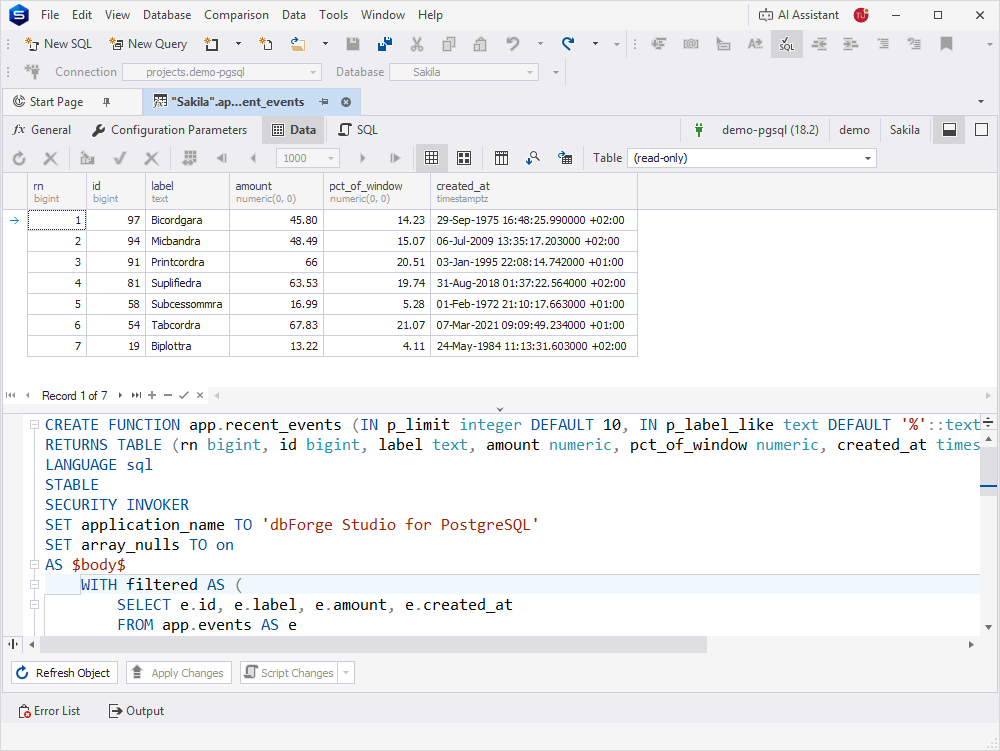
Data tab
On the Data tab, you can view the data returned by the function.
For more information about how to work with table data, see Work data in Data Editor.
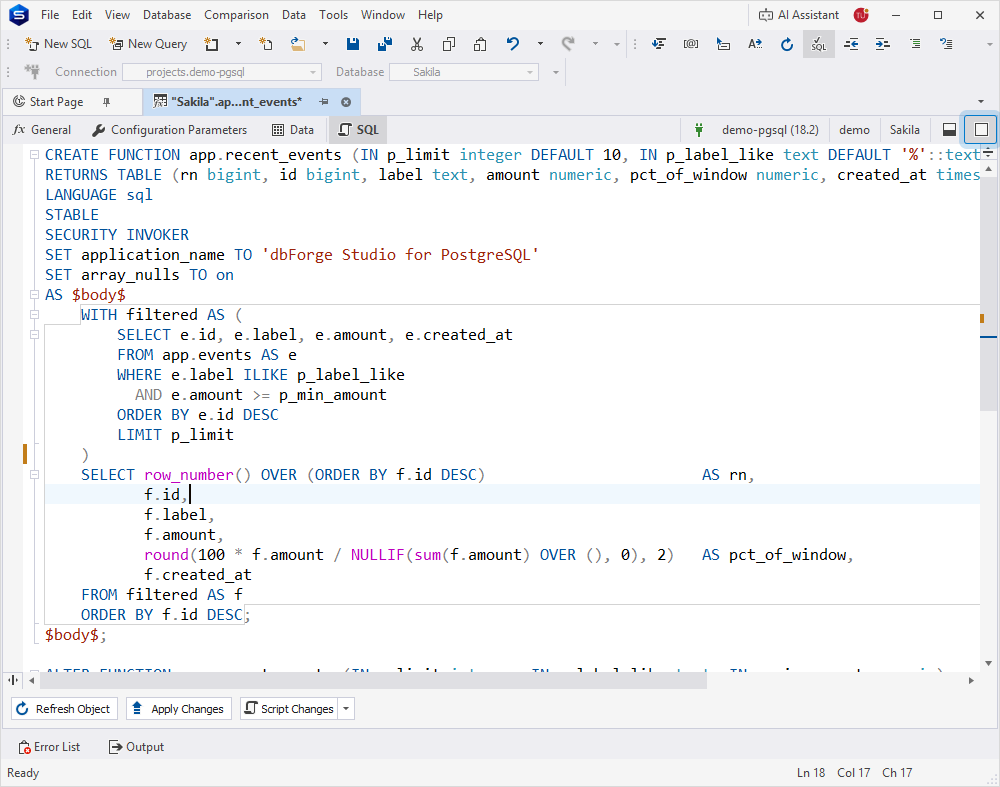
SQL tab
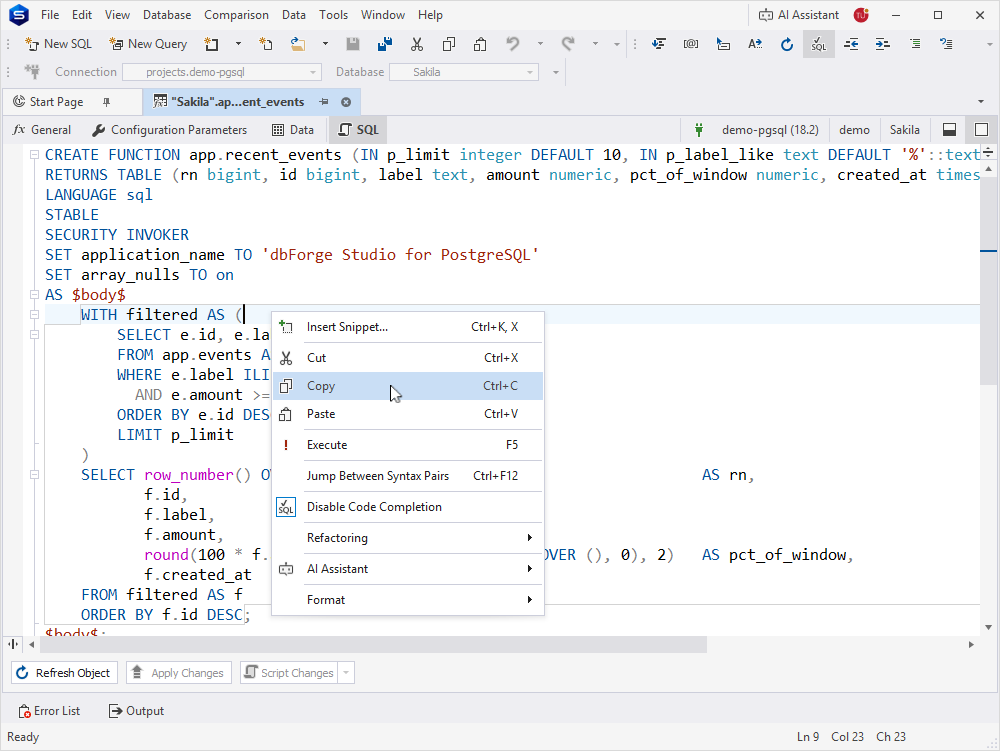
On the SQL tab, you can view the CREATE FUNCTION DDL script, which automatically updates based on the properties you configure in the visual editor.
To manage the .sql script, right-click anywhere in SQL Editor and select the required option.
Function Editor layout
Function Editor supports two layouts: Split and Combined.
Split layout
By default, Function Editor opens in the Split layout.
To switch to the Split layout, in the upper-right corner of the editor, click  .
.
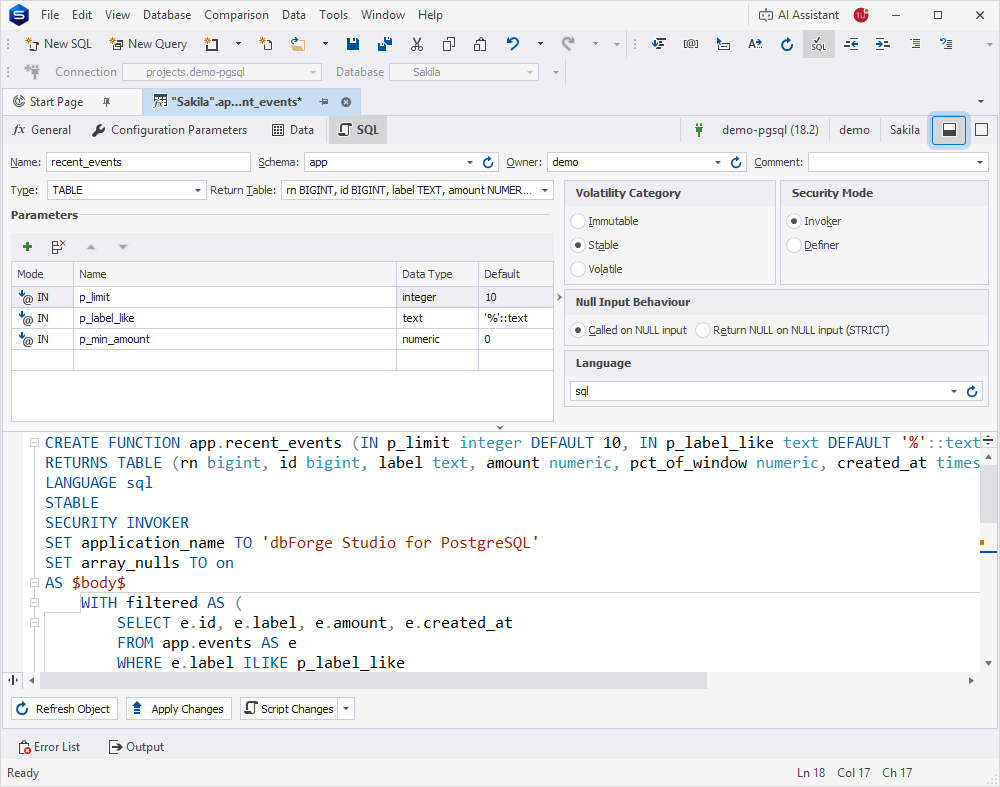
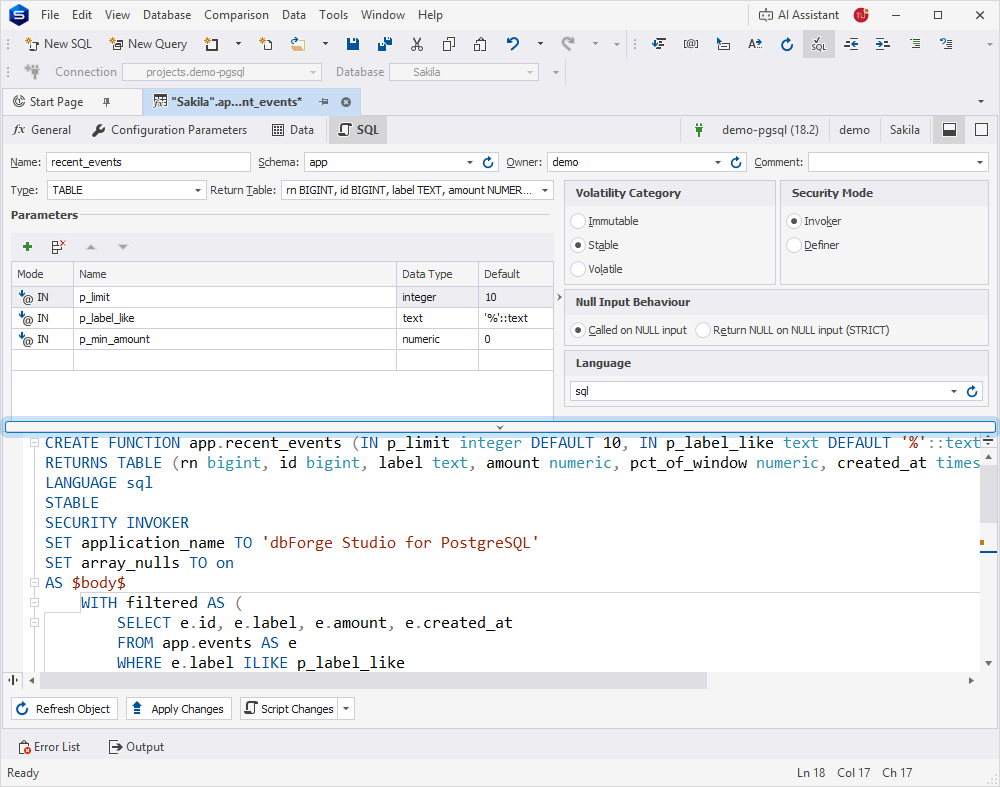
You can also hide SQL Editor by clicking the horizontal splitter or dragging it down.
Combined layout
To switch to the Combined layout, in the upper-right corner of the editor, click  .
.
In the Combined layout, only one view is displayed at a time.
Bottom panel
You can use the bottom panel to:
-
Refresh Object – Updates the function to reflect the latest changes.
-
Apply Changes – Saves and applies changes to the function.
-
Script Changes – Opens the generated .sql script in a new document for review before execution. Click the arrow next to Script Changes and select one of the following options:
-
To New SQL Window – Opens the script in a new SQL document.
-
To Clipboard – Copies the script to the clipboard.
-