Replace text in documents
You can use the Find and Replace window to replace text in the current document or across all open documents.
To replace text
1. Press Ctrl+H or select Edit > Find and Replace > Replace.
2. In the Find what field, enter the text you want to find or a search pattern.
Note
To use wildcard characters or regular expression syntax elements, enable Use > Wildcards or Use > Regular Expressions in step 5, then click the
arrow button next to the Find what field and choose the desired element from the list.
3. In the Replace with field, enter the replacement text or a replacement pattern.
Note
To reference tagged expressions captured in the Find what field, enable Use > Regular Expressions in step 5, then click the
$1,$2) from the list. For more information, see Tagged expressions.
4. In the Look in list, select Current Document or All Open Documents.
5. Optional: Configure additional search options.
-
Match case – Finds text that matches the exact capitalization (for example,
CREATEwill not matchcreate). -
Match whole word – Finds only complete words, not parts of words (for example,
tablewill not matchtablesorportable). -
Search up – Searches upward from the current cursor position toward the beginning of the document.
-
Search hidden text – Includes hidden or collapsed text in the search.
-
Use > Wildcards – Allows wildcard characters such as
*and?. For example,table*findstable,tables, andtablespace. After you select Wildcards, the arrow button next to the Find what field becomes active—click it to choose the desired element from the list. For more information, see Wildcards. -
Use > Regular Expressions – Enables regex-based searches. After you select Regular Expressions, the
arrow button next to the Find what field becomes active—click it to choose the desired element from the list. For more information, see Regular expressions.
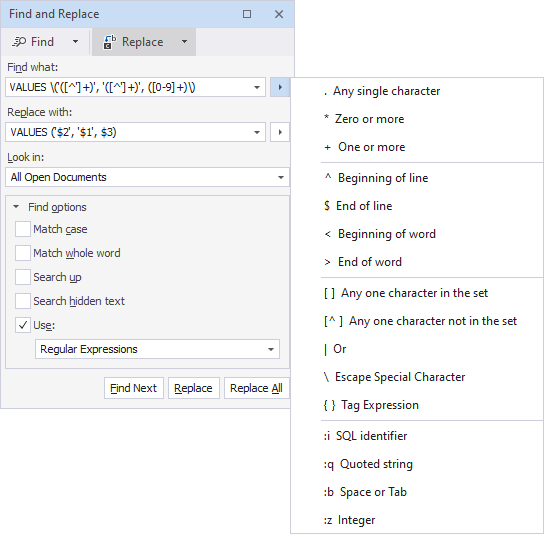
6. Use the following buttons to review and apply replacements:
-
Find Next – Locates the next occurrence without replacing it.
-
Replace – Replaces the current occurrence and moves to the next one. Continue clicking Replace to replace all occurrences one by one.
-
Replace All – Replaces all occurrences, including those you have skipped with the Find Next button.
7. Save your changes and close the documents. If a document has unsaved changes, dbForge Studio prompts you to save them. Click Yes to save or No to discard the changes.
When you click Replace All, all replaced occurrences are listed in the Find Results window:
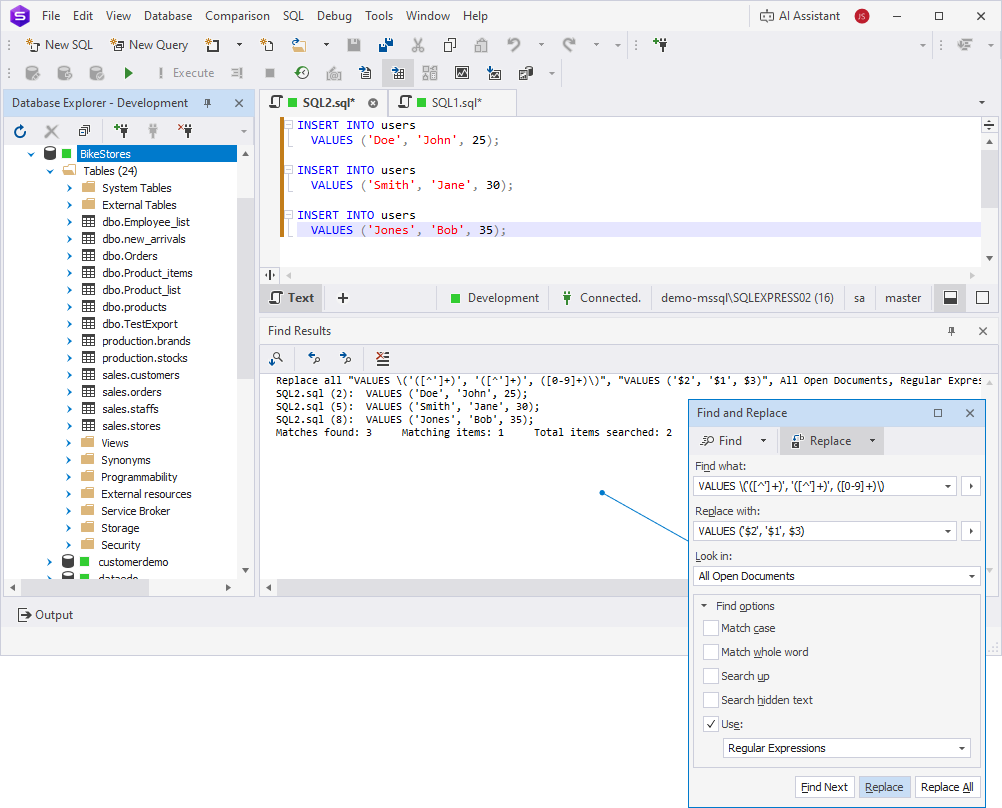
In this example, the search pattern VALUES \('([^']+)', '([^']+)', ([0-9]+)\) finds VALUES clauses containing two quoted strings followed by a number in files within the selected folders. The replacement pattern VALUES ('$2', '$1', $3) applies the following changes:
-
Swaps the positions of the two strings while keeping the number unchanged.
-
Replaces
VALUES ('Doe', 'John', 25)withVALUES ('John', 'Doe', 25)across all matching files.
Note
To undo a Replace All action, select Edit > Undo in each modified document before closing it. The Undo command reverses all replacement changes made in the current document only.
For more information on how to navigate occurrences in the Find Results window, see Find Results window.