Find text in documents
You can use the Find and Replace window to search for text within the current document or across all open documents.
To search the current document or all open documents
1. Press Ctrl+F or select Edit > Find and Replace > Find.
2. In Find what, enter the text you want to find or a search pattern.
Note
To use wildcard characters or regular expression syntax elements, enable Use > Wildcards or Use > Regular Expressions in step 4, then click the
arrow button next to Find what and choose the desired element from the list.
3. In Look in, select Current Document or All Open Documents.
4. Optional: Configure additional search options.
-
Match case – Finds text that matches the exact capitalization (for example,
CREATEwill not matchcreate). -
Match whole word – Finds only complete words, not parts of words (for example,
tablewill not matchtablesorportable). -
Search up – Searches upward from the current cursor position toward the beginning of the document.
-
Search hidden text – Includes hidden or collapsed text in the search.
-
Use > Wildcards – Allows wildcard characters such as
*and?. For example,table*findstable,tables, andtablespace. After you select Wildcards, the arrow button next to Find what becomes active—click it to choose the desired element from the list. For more information, see Wildcards. -
Use > Regular Expressions – Enables regex-based searches. After you select Regular Expressions, the
arrow button next to the Find what field becomes active—click it to choose the desired element from the list. For more information, see Regular Expressions.
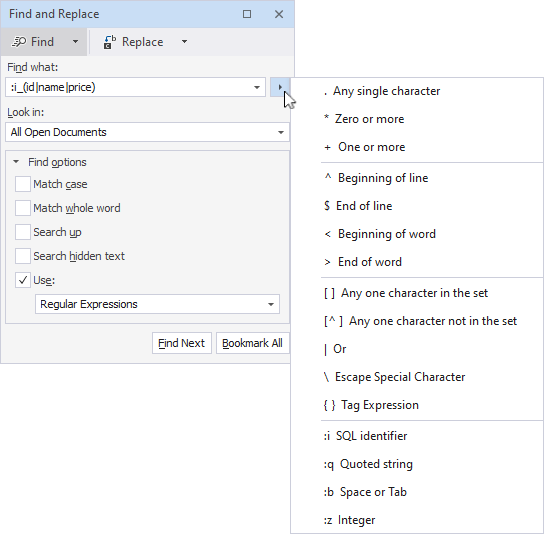
5. Click Find Next to locate the next occurrence or click Bookmark All to add bookmarks to all occurrences.
Tip
Use the following commands to navigate or remove the bookmarked results:
- To navigate bookmarks, select Edit > Bookmarks > Previous Bookmark or Next Bookmark.
- To remove bookmarks, select Edit > Bookmarks > Clear Bookmarks to remove all, or Toggle Bookmark to remove individual bookmarks.