How to search for database objects
This topic discusses how to search for objects in a database using Search.
Note
- To search and replace text in open documents or files, see Find and Replace overview.
- To search for database data, see How to search for database data.
1. Navigate to Database > Find Objects, or press Ctrl+D, F.
2. To switch to the Search objects by name and DDL mode, click  DDL.
DDL.
3. In the search box, enter the search string.
4. Optional: To select an additional find option from the list, click  Search options. The available options are Match Case, Match Whole Word, and Use WildCards. By default, Use WildCards is selected.
5. Optional: To organize search results by object type, click Group results by object type.

6. You can change the scope of search results by specifying the search parameters, such as an object type, database, and connection to search in.
-
Object types – Select object types to search in. By default, all object types are selected.
-
Database – Select a database to search in. The database you are currently connected to is selected by default.
-
Connection – Select a connection for the search. The connection you are currently using is selected by default.
7. To start the search, click  Start search in the search box. While the search is running, a progress spinner is displayed next to the search box, and you can stop the search by clicking Stop search.

8. When the search is completed, the details of search results will be displayed in the results grid.
9. Optional: Set a filter for each column in the results grid.
10. When you select a result in the grid, the Preview area displays the DDL statements that define the selected database object.
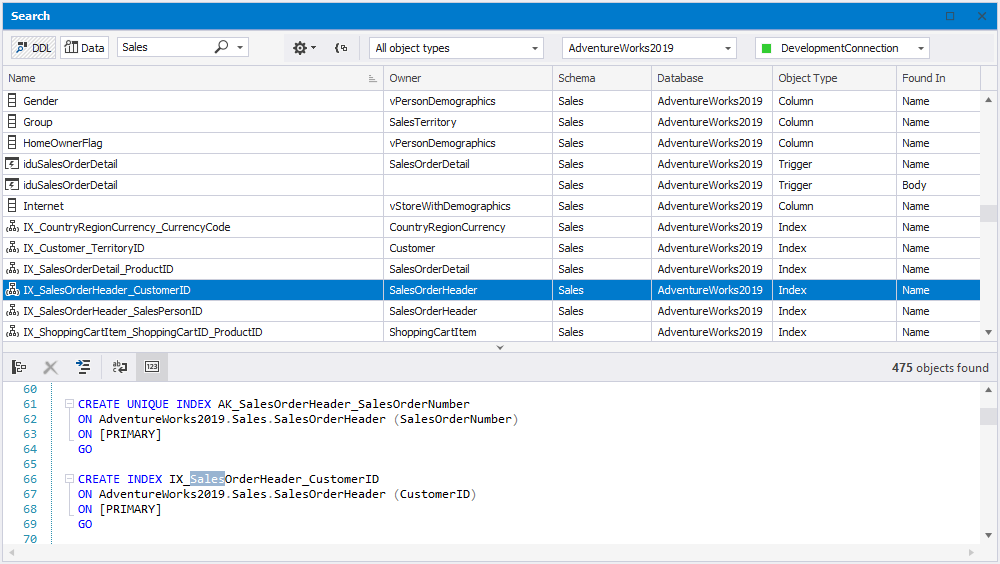
11. Optional: To export the contents of the results grid to a CSV file, click Export to CSV.
Download dbForge Studio for SQL Server and try it absolutely free for 30 days!