dbForge Studio for SQL Server v2026.2 release notes
What’s new
dbForge Studio for SQL Server v2026.2 delivers a broad set of improvements focused on AI-assisted development, everyday productivity, and usability. The release significantly expands dbForge AI Assistant with richer context and greater flexibility, introduces a redesigned activation experience, and improves key database development and management workflows across the product.
AI Assistant
Active document context
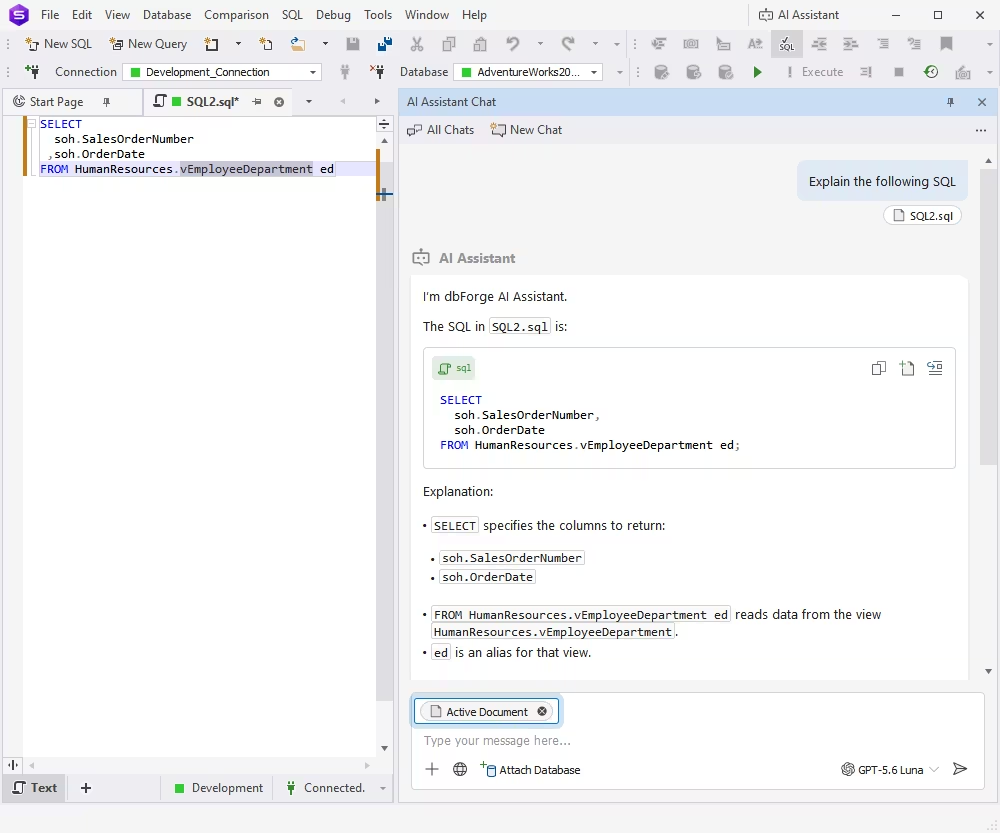
AI Chat can now automatically use the active document as context, giving AI Assistant access to the code you are currently working with. When you switch to another document, the active document context is updated automatically. You can enable or disable this behavior in the settings or manage the active document context directly in the chat.
File attachments
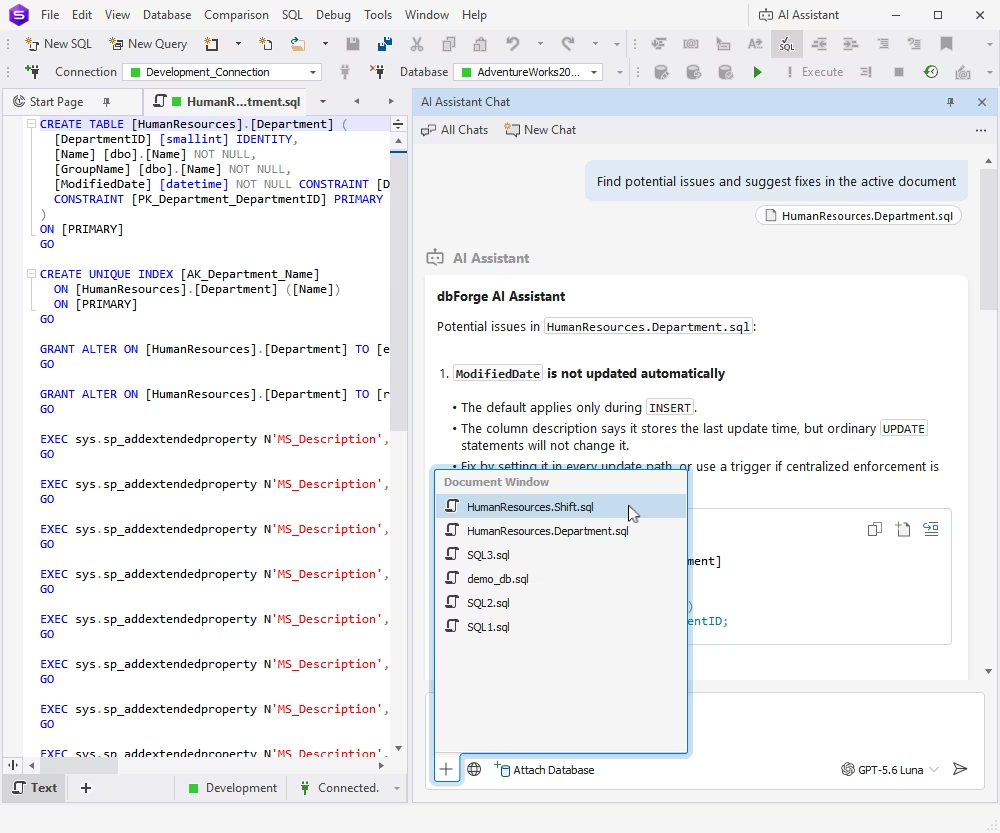
You can now manually attach open documents to AI Chat to provide additional context for a conversation. You can select one or more documents that are currently open in dbForge Studio. Attached documents remain part of the chat context until you remove them.
AI model selection
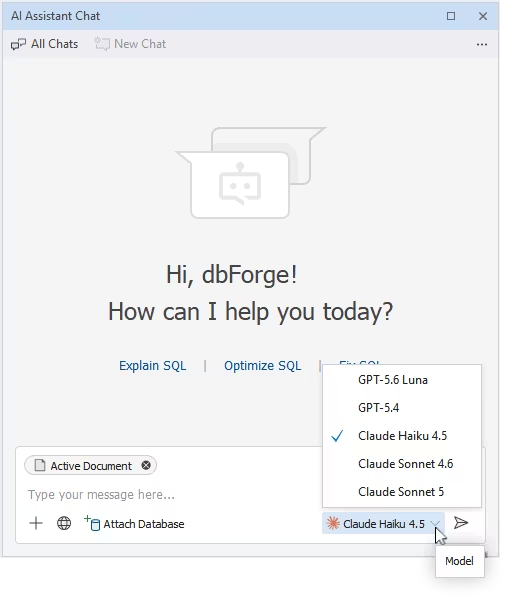
AI Assistant now lets you choose from available managed AI models and shows the active model directly in AI Chat. Usage is calculated according to the input and output rates of the selected model, allowing different models to consume the available usage allowance at different rates.
Free Express edition
Users can now use AI Assistant without a paid subscription under the Express license, with a limited usage allowance. The profile settings display the current subscription tier and remaining usage, with an option to upgrade when the Express limit is reached.
Custom instructions
AI Assistant now supports persistent instructions stored in a dbforge.md file. The file is automatically included as context, allowing you to define preferences, development rules, and project-specific guidelines that AI Assistant can follow across conversations. You can also ask AI Assistant to create or update these instructions directly from the chat.
Text Editor
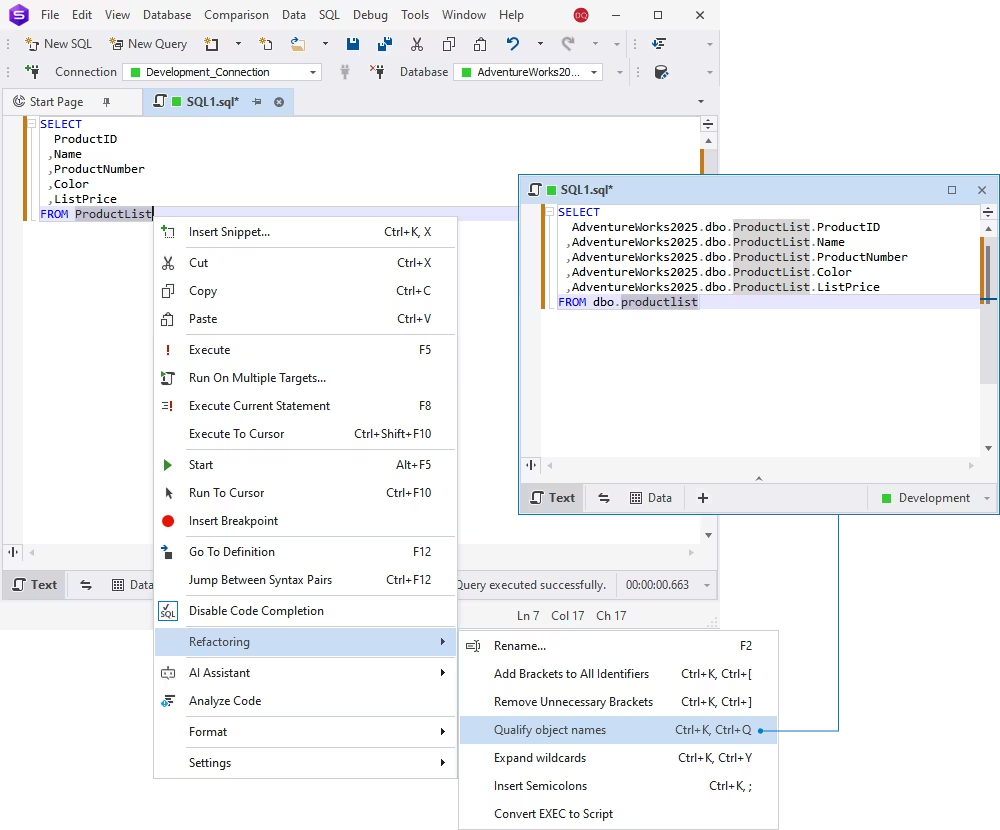
Qualifying object and column names
The Studio now lets you apply object and column name qualification to code that is already written. Previously, the qualification settings in Options > Text Editor > Code Completion > Advanced applied only while you typed. The new refactoring command uses the same settings and qualifies names in an entire SQL document or in a selected fragment of code.
Wildcard expansion
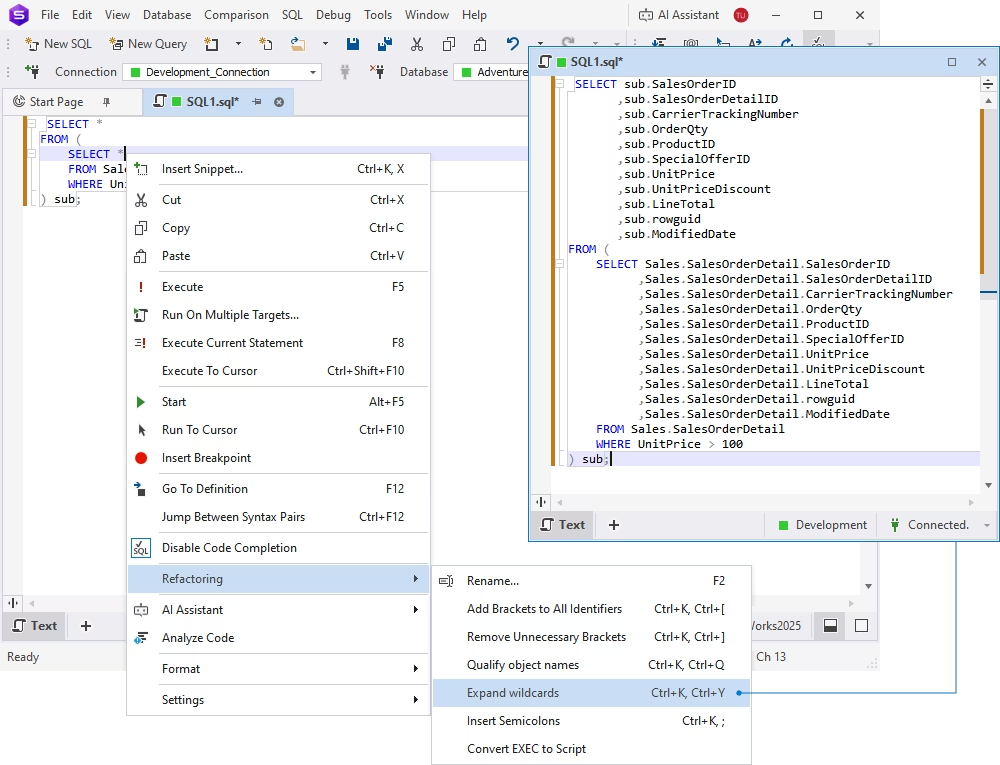
dbForge Studio for SQL Server can now expand wildcards (*) in SELECT statements into the corresponding column names in all supported contexts. You can apply wildcard expansion to an entire SQL document or a selected fragment of code.
Schema Compare
Last Modified column
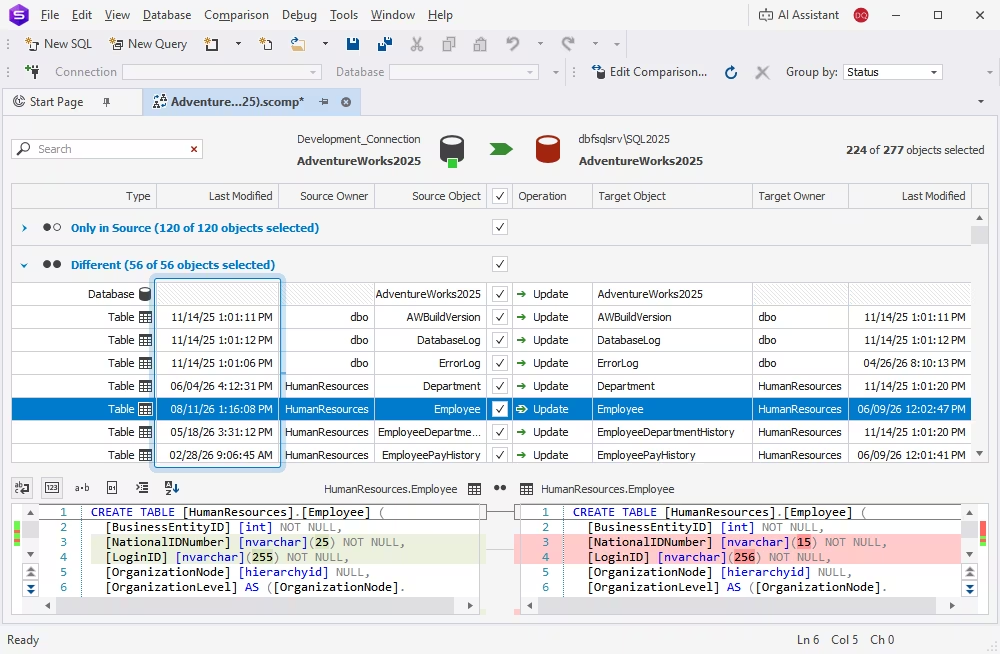
Schema comparison documents now display the date and time when each database object’s DDL was last modified for both the source and target. The Last Modified column is also included in all three types of comparison reports, making it easier to identify recently changed objects when reviewing comparison results.
Data Generator
Quick data generation from Database Explorer
You can now start data generation directly from Database Explorer. Right-click one or more tables and select Generate Data to proceed directly to the data generation setup for the selected tables.
Licensing and activation
Product activation via sign-in
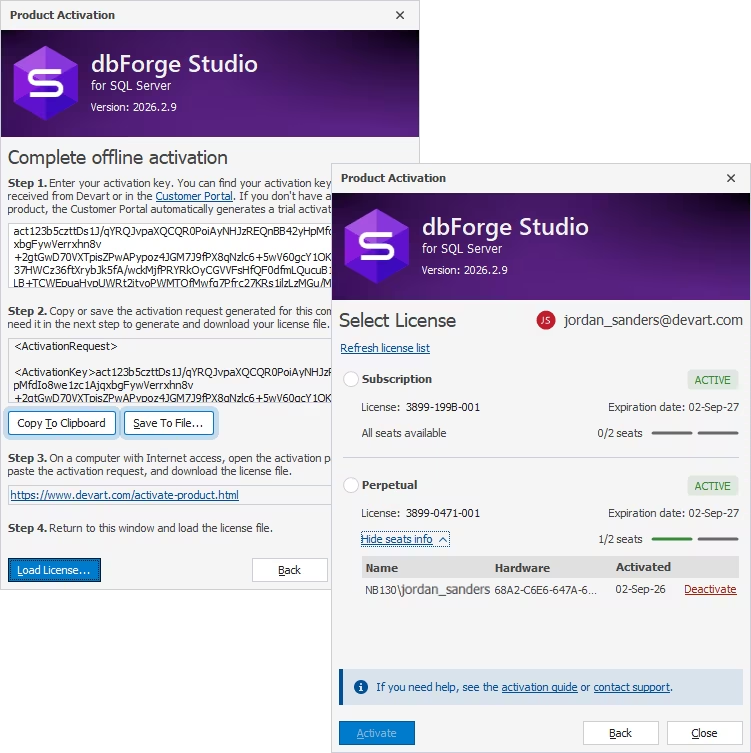
dbForge Studio for SQL Server can now be activated by signing in to a Devart account. The Studio automatically uses an available license associated with the account or generates a trial license if no licenses are available. Users with multiple active licenses can select the license they want to use for activation.
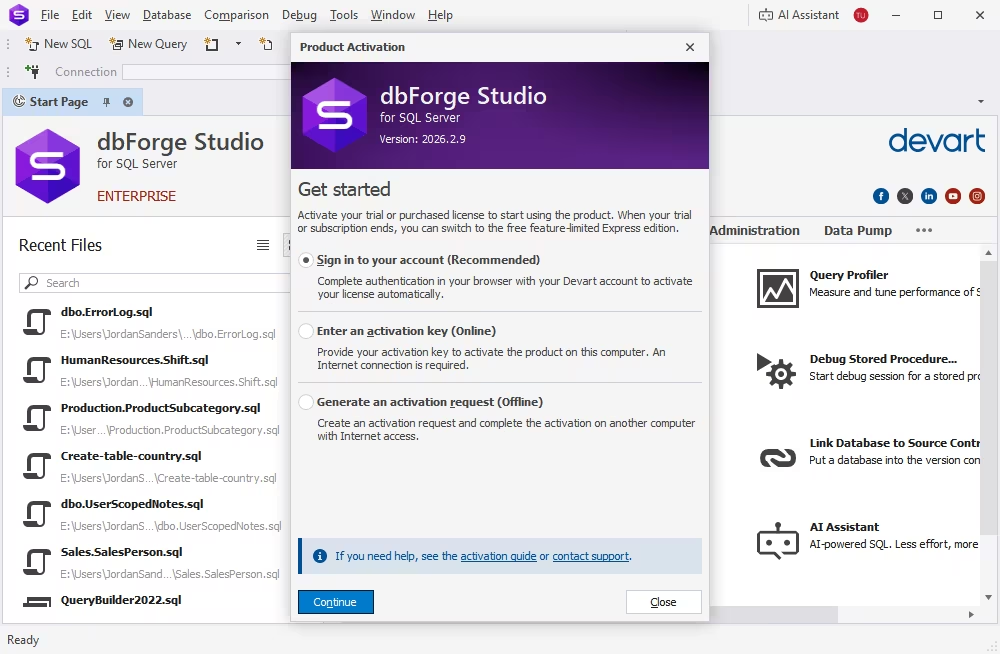
Product Activation wizard
The Product Activation wizard has been redesigned to provide a clearer and more convenient activation workflow. The wizard now brings all activation methods together, including activation through a Devart account, an activation key, and an offline activation request. Users with multiple licenses can select the required license and free up an occupied seat directly from the license selection page. The offline activation workflow has also been simplified with clear step-by-step instructions for generating an activation request and loading the license file.