Attach documents to the AI Assistant chat
You can attach documents directly to a chat with dbForge AI Assistant to provide additional context for your request. AI Assistant analyzes the contents of the attached documents together with your prompt and generates more accurate and relevant responses. This eliminates the need to copy and paste code from SQL Editor or manually re-enter detailed information.
Note
You can attach only documents that are currently open in the dbForge tool. When you use dbForge AI Assistant in SSMS or Visual Studio, documents that are open in those IDEs automatically appear in the attachment list.
How document attachments work
When you attach a document to a chat, it becomes part of the current chat and appears as a tag in the prompt input box. When you submit your request, AI Assistant captures a snapshot of the document’s contents and uses that snapshot as context for generating its response.
After you save the document and submit your request, you can close the document or even delete it from disk. AI Assistant continues to use the snapshot captured when you submitted the request.
Warning
If you attach a document but close it without saving before submitting your request, AI Assistant can’t access the document or won’t use it to process your request.
When you reopen the chat, the attached document remains visible in the chat history.
Note
The chat context is currently limited to the 10 most recent messages. If you need AI Assistant to use information from older messages, submit that information again.
Tip
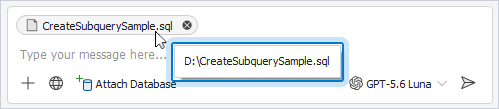
To view the full path of the attached document, hover over its tag.
File size limits
The maximum supported file size is 10 MB.
Files larger than 10 MB might still appear in the list of available documents and can be attached to the chat. When you submit a request that includes a file larger than 10 MB, the following error occurs: The attached file <full_path_and_name> is too large. Maximum allowed size is 10MB.
Supported documents
You can attach documents that contain text. In SSMS and Visual Studio, only SQL documents can be attached.
Attach a document
1. Start a new chat.
2. In the prompt input box, click  and select the document from the Document Window list.
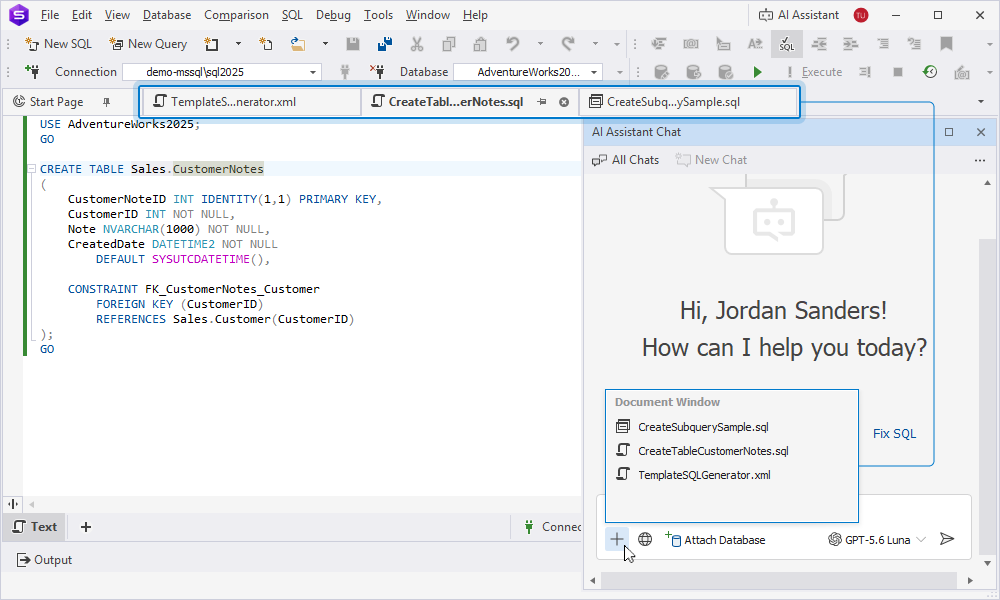
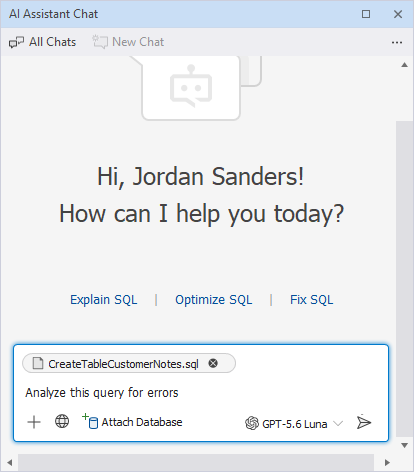
The document appears as a tag in the prompt input box. You can enter your request and click  to submit it. AI Assistant reads the attached document and uses its contents together with your prompt.
Remove the attached document
You can remove the attached document only before you submit the request. To remove the attached document, click  next to it.

Warning
A snapshot of the file content is stored locally. When you delete a chat, the files attached to that chat are also removed.