Add the current document context to the AI Assistant chat
You can provide dbForge AI Assistant with the content of the document you’re currently editing. You can either attach a document that contains text, such as .xml, .md, or .txt, and a .sql document manually or use the Auto-Attach Active Document feature to include the active document in the chat as context automatically.
How Auto-Attach Active Document works
The Auto-Attach Active Document feature is enabled by default. When you start a new chat, AI Assistant automatically uses the currently active document, so you don’t need to attach it manually.
When an active document is included, the Active Document tag appears in the chat. When you hover over the tag, you can view the full path to the document.
If you switch to another document, the Active Document tag is updated. AI Assistant uses the newly active document as context for your subsequent requests. Previous responses remain unchanged.
If there is no document open in the tool, the Active Document tag isn’t displayed. For a document open in SQL Editor, the entire SQL content of the editor is included in the context.
Note
Switching AI models doesn’t affect the chat content.
Turn off Auto-Attach Active Document
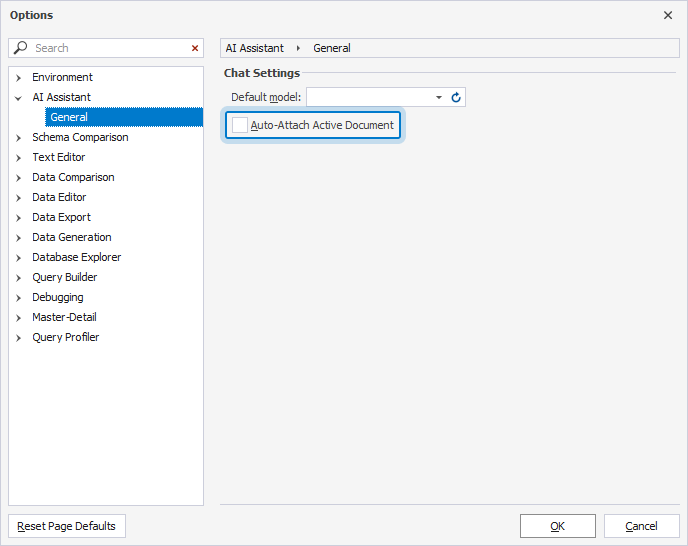
1. On the menu bar, select Tools > Options.
2. On the AI Assistant > General page, clear the Auto-Attach Active Document checkbox.
3. Click OK.
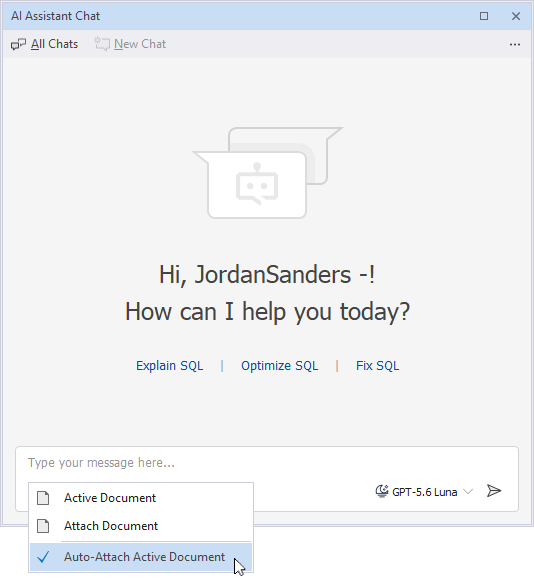
Alternatively, in the chat, click  and clear Auto-Attach Active Document.
Turn on Auto-Attach Active Document
1. On the menu bar, select Tools > Options.
2. On the AI Assistant > General page, select the Auto-Attach Active Document checkbox.
3. Click OK.
Alternatively, in the chat, click and select Auto-Attach Active Document.
Attach the database
You can also provide dbForge AI Assistant with metadata from the database associated with the active document.
To attach the database, in the prompt input box, click Attach Database and select the document under Document Window.
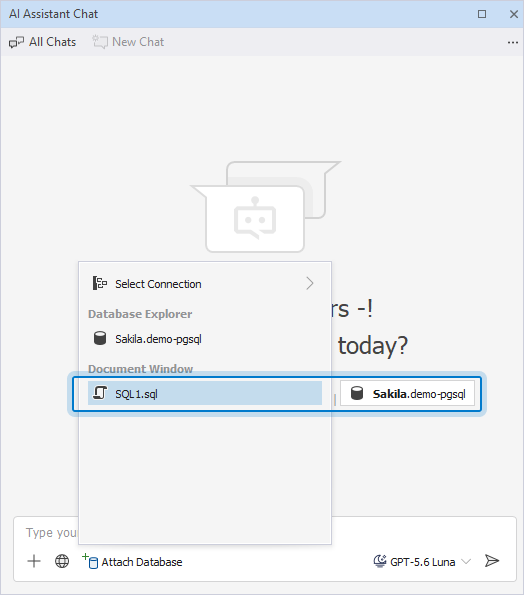
The database metadata from your active document has been loaded. AI Assistant can now provide more accurate, context-aware responses to your request.
Remove the active document from the request
You can remove the active document only before you submit the request.
To remove the active document from the request, click  next to the Active Document tag.
