Choose an AI model for a chat
In dbForge AI Assistant, you can switch between AI models at any time and choose the one that best fits the task you’re working on.
Supported AI models
The following table provides AI models supported by dbForge AI Assistant.
| AI provider | Model | Express license | Professional edition |
|---|---|---|---|
| Anthropic | Haiku 4.5 |  |
|
| Anthropic | Sonnet 4.6 |  |
|
| Anthropic | Sonnet 5 | |
|
| OpenAI | GPT-5.4 | |
|
| OpenAI | GPT-5.6 Luna (default) | |
|
Choose an AI model for the chat
1. Start a new chat.
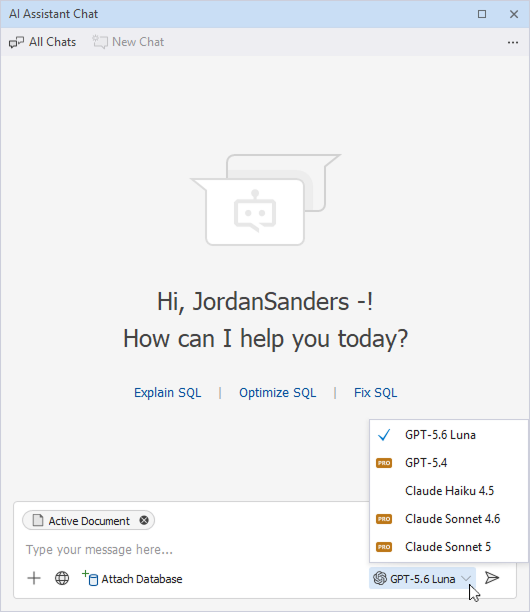
2. In the prompt input box, click  and select the model you want to use for the chat.
Note
The chat displays all available models. Models included in the Professional edition are marked with a PRO badge. Selecting a PRO model opens the ordering page, where you can purchase the Professional edition.
Switch models within an active chat
You can switch models or providers at any time by clicking , before or after you submit your prompt.
When you switch models:
- Chat history is retained.
- Subsequent requests are processed by the newly selected model while the full chat context is preserved.
- Context tags, such as the active document, instructions, connected databases, and attached files, remain unchanged.
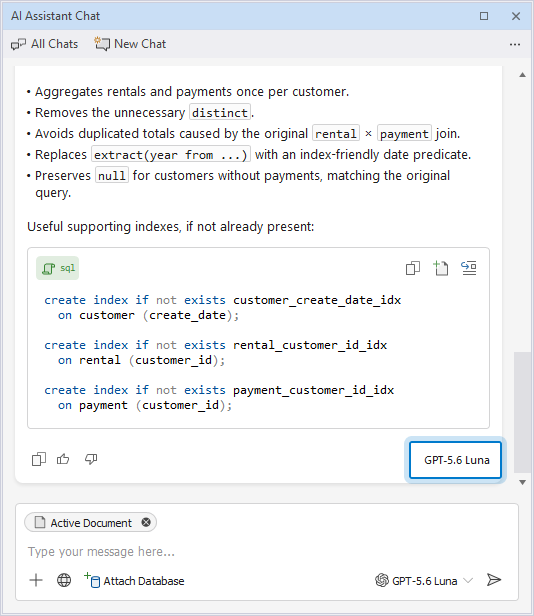
- Each request indicates which model was used to generate the response.
Warning
If the context from the previous chat exceeds the context window of the newly selected model, the following warning message appears:
The conversation history may exceed the context limit of the selected model. Older messages might be truncated.
Set a default model
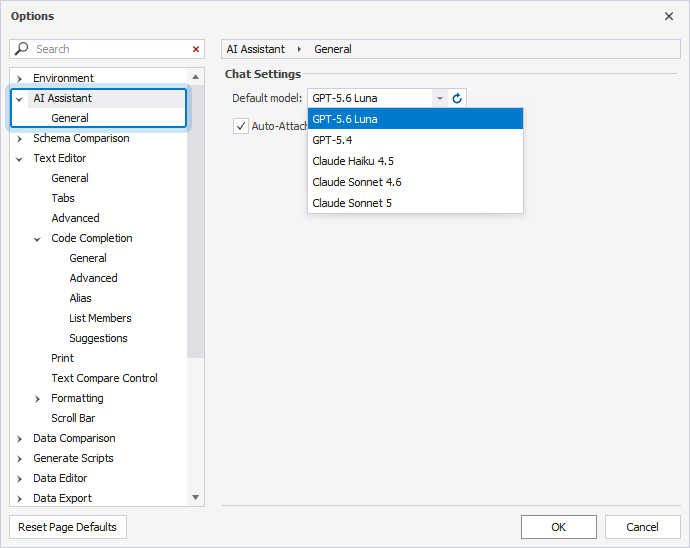
You can configure which model is selected by default when you start a chat.
To set a default model:
1. On the menu bar, select Tools > Options.
2. In the Options dialog, navigate to AI Assistant.
3. From the Default model list, select the model you want to use as the default.
4. Click OK.