Regular maintenance tasks to keep a database running efficiently
Like hardware, databases require regular maintenance to ensure consistent performance and reliability. As databases grow over time, regular maintenance helps optimize performance, reduce downtime, and prevent data integrity issues.
This topic describes different methods for performing routine maintenance tasks using available dbForge tools: Backup and Restore, Command-Line, Index Manager, and Table Editor. The following scenarios don’t cover all possible use cases; they are intended to illustrate the key workflows of database maintenance in dbForge.
Tip
To prevent data loss, back up your database.
You can also schedule backups to reduce manual work and minimize the risk of human error.
Defragment indexes
Fragmented indexes can slow down query performance. Regular index analysis and maintenance help ensure efficient query execution and overall database performance.
You can defragment indexes using:
-
dbForge Index Manager: Allows you to scan your database for fragmented indexes and rebuild them if necessary.
-
CLI Index Manager: Enables you to analyze and optimize index health directly from the command line.
You can also schedule index defragmentation in dbForge Studio for SQL Server to run automatically.
Update statistics
Outdated statistics can lead to inefficient query execution plans, slowing down database performance. Keeping statistics up-to-date ensures the query optimizer has the necessary data to generate optimal execution plans.
To update statistics, use one of the methods:
- Select the database for which you want to update statistics and execute the command:
EXEC sp_updatestats;
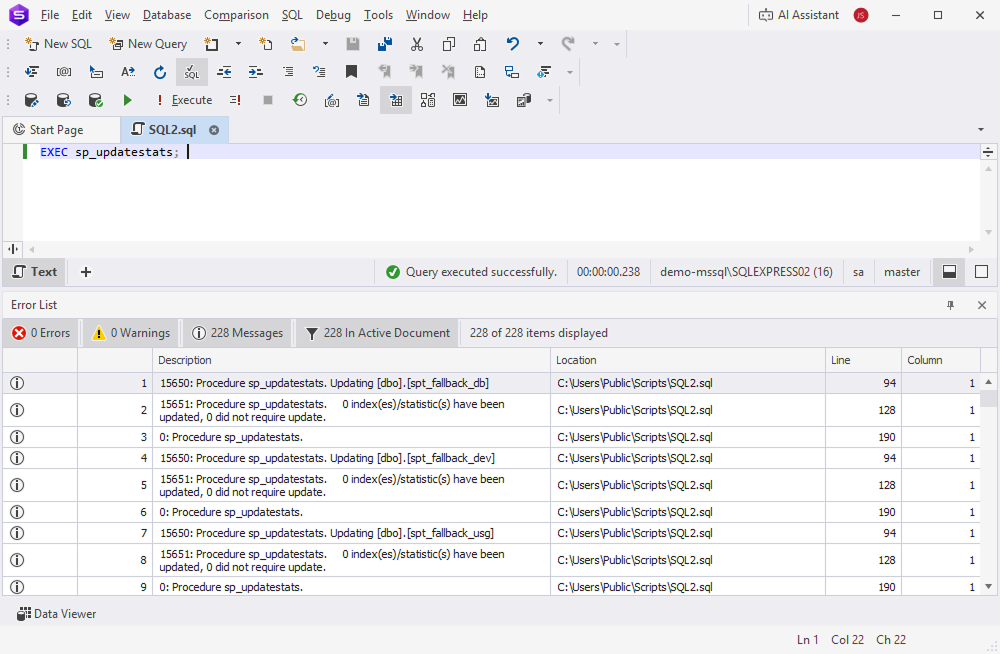
- Use Table Editor to view and update table statistics.
You can also schedule a statistics update in dbForge Studio for SQL Server to run automatically.
Perform regular integrity checks
Regular integrity checks are crucial for identifying and resolving data corruption at an early stage. This helps prevent disruptions to database operations that may lead to performance issues.
Tip
Perform integrity checks during off-peak hours to avoid performance slowdowns.
Regular integrity checks involve the following steps:
Step 1: Analyze database integrity for issues
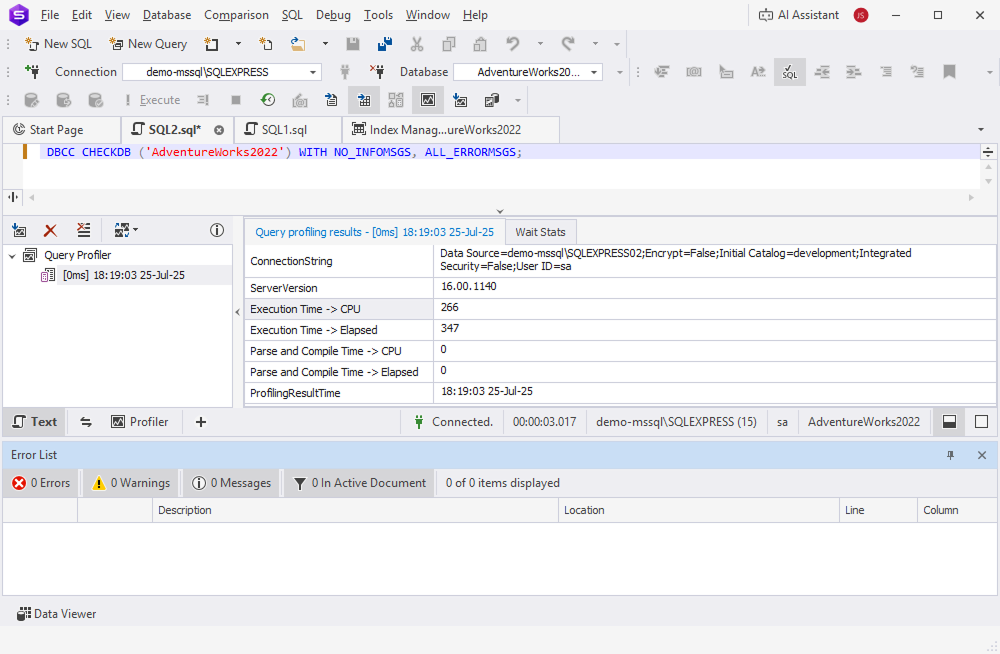
Execute the following command, replacing the database name with the actual one.
DBCC CHECKDB ('AdventureWorks2022') WITH NO_INFOMSGS, ALL_ERRORMSGS;
The results are displayed in the Output pane. If the command completes without errors, the database has passed the integrity check. If errors are found, the output includes details about the corruption or inconsistencies that require further investigation.
Step 2: Identify bottlenecks caused by integrity issues
With dbForge Monitor, you can detect performance slowdowns related to corruption or integrity issues. It enables you to monitor long-running queries, I/O bottlenecks, and blocking sessions in real time.
Then, use Query Profiler to get detailed information about each query’s execution plan, resource consumption, and potential areas for optimization.
Step 3: Optimize database performance
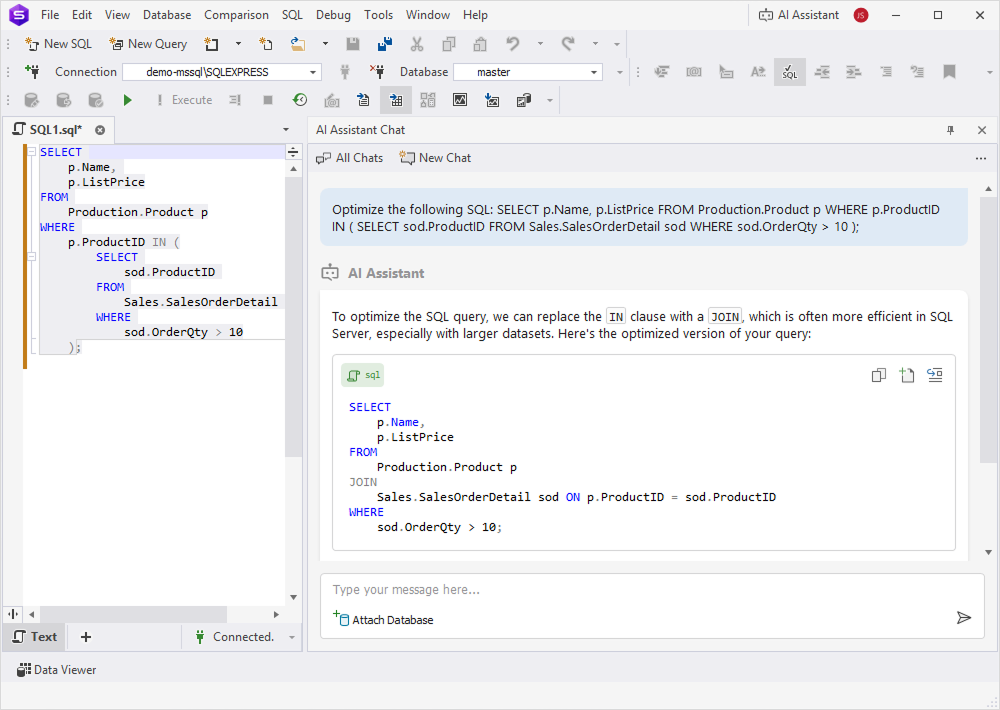
After checking integrity and identifying bottlenecks, you can use AI Assistant integrated in dbForge Studio for SQL Server to optimize queries. AI Assistant suggests improvements based on query patterns and performance metrics.
Manage database growth and storage
Databases are constantly growing, and uncontrolled growth can lead to performance degradation and storage issues. Regular monitoring and management of database size help maintain efficiency and prevent capacity problems.
Managing database growth and storage involves the following steps:
Step 1: Scan for obsolete data
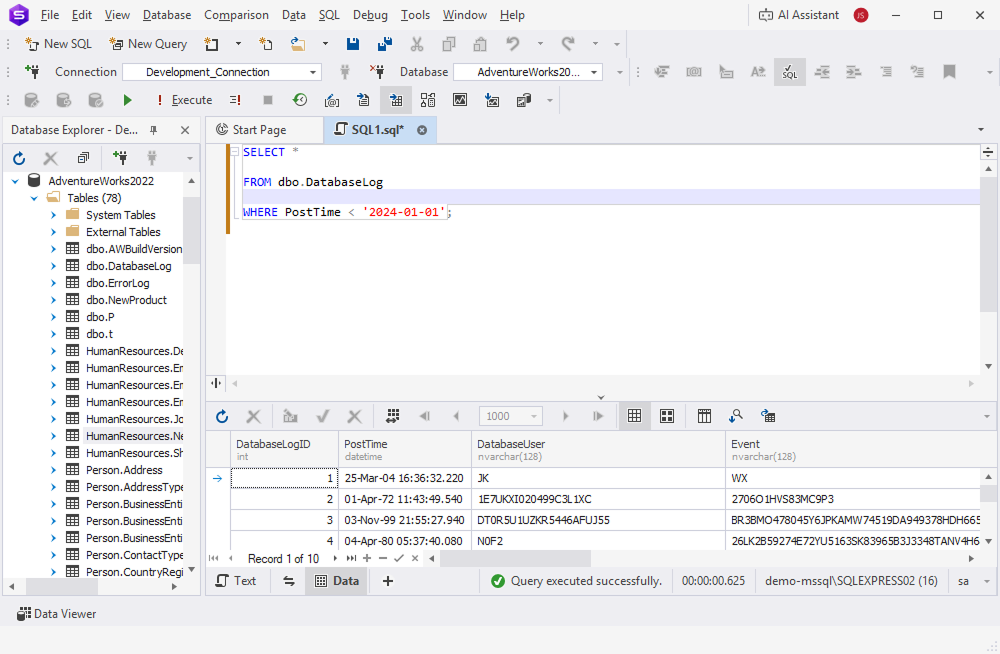
Execute the following query, replacing the table name and filtering criteria with your actual values:
SELECT *
FROM dbo.DatabaseLog
WHERE PostTime < '2024-01-01';
The filtered data appears in the Results grid.
Step 2: Export and archive data
In the Results grid, select the data you want to export, then use the Data Export SQL wizard to perform the export and save the data to a specified location.
Step 3: Remove data
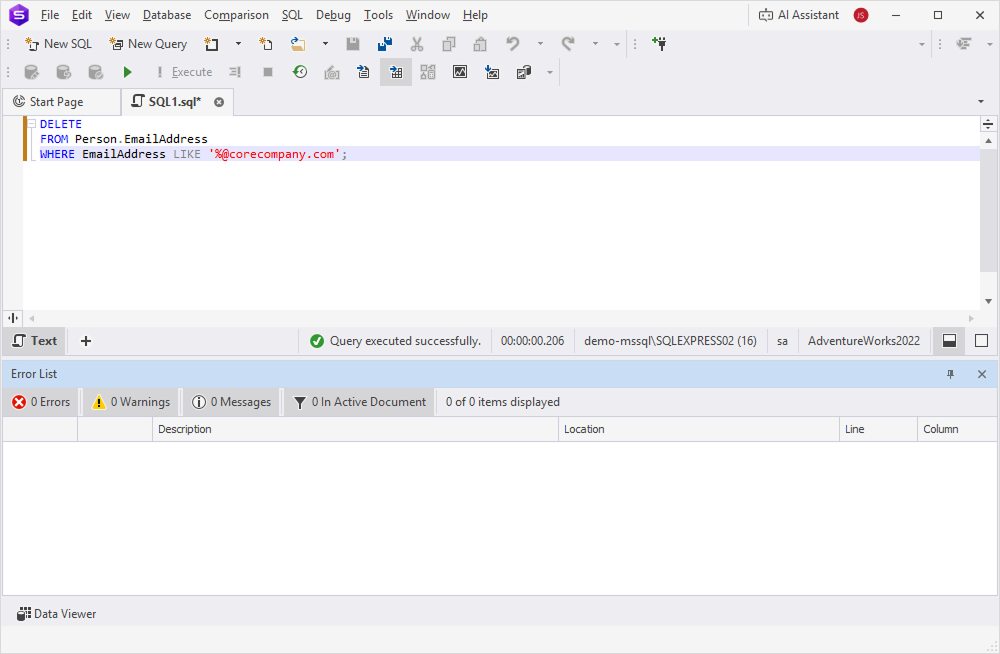
Execute the following DELETE statement for the data you want to remove:
DELETE
FROM Person.EmailAddress
WHERE EmailAddress LIKE '%@corecompany.com';
The selected data is deleted from the database.
Note
Back up your database before removing data.
Recommendations
In addition to using dbForge Studio for SQL Server tools, such as Backup and Restore, Command-Line, Index Manager, and Table Editor, you can follow these recommendations to effectively perform regular maintenance tasks.
| Maintenance Best Practice | Description |
|---|---|
| Perform maintenance at low-load | Run maintenance tasks during off-peak hours. |
| Keep backups | Create and keep several backups of your database (for example, daily, weekly, and monthly backups). |
| Test backups | Test backups in a development environment before applying them to production. |
| Monitor index fragmentation | Scan for index fragmentation regularly using dbForge Index Manager. |
| Update statistics | Keep statistics up-to-date especially after executing tasks in bulk. |
| Archive data | Archive data before shrinking a database to free up space and prevent performance issues. |
| Use appropriate autogrowth | Configure appropriate autogrowth settings to avoid frequent database expansions. |
| Monitor transaction log size | Check SQL Server transaction log size and perform regular transaction log backups. |
| Delete unused indexes | Find and remove unused or redundant indexes. |
| Ensure enough disk space | Compress backups to reduce the required storage space. |
| Encrypt backups | Secure backup files by setting passwords and encrypting the data storage where they are kept. |
| Monitor error logs | Check the SQL Server error log files regularly. |
| Optimize tempdb | Adjust tempdb to reduce conflict in high-transaction environments. |
| Test all scripts | Test all maintenance scripts in a development environment. |
| Monitor maintenance jobs | Monitor database maintenance jobs to identify those that are time-consuming. |