Document SQL Server database objects
Database documentation provides detailed information about a database, including its objects, relationships, and data types.
dbForge Studio for SQL Server lets you document SQL Server database objects, including their properties, object dependencies, and permissions, and generate documentation in HTML, PDF, and Markdown.
You can customize the documentation layout, apply a predefined visual theme, and adjust settings using WYSIWYG-based templates. You can also include or exclude specific objects from the documentation.
Document database objects
1. Start a new documentation project in one of these ways:
- On the Start Page, select Database Design > New Documentation.
- On the menu bar, select Database > Tasks > New Documentation.
- In Database Explorer, right-click a server connection or a database and select Tasks > New Documentation.
- On the standard toolbar, click New Documentation.
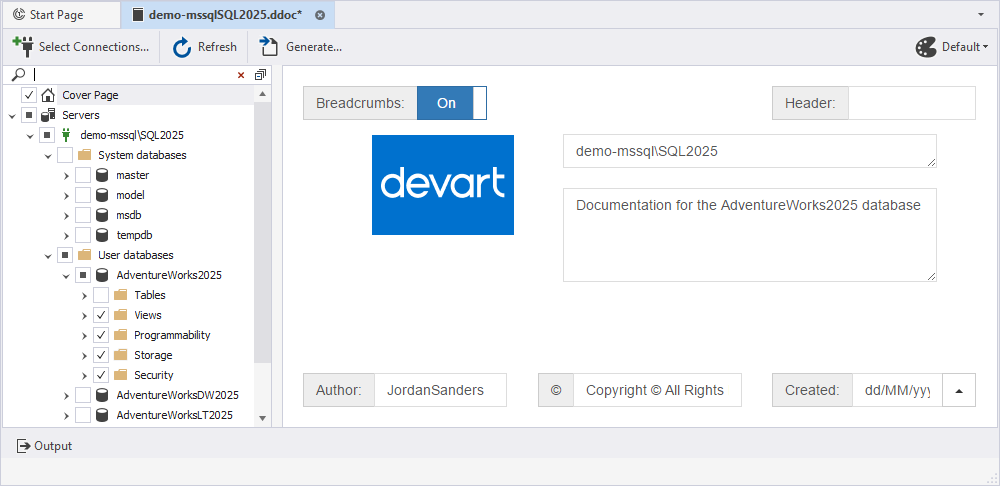
2. In the database documentation tree, click Cover Page to customize the settings.
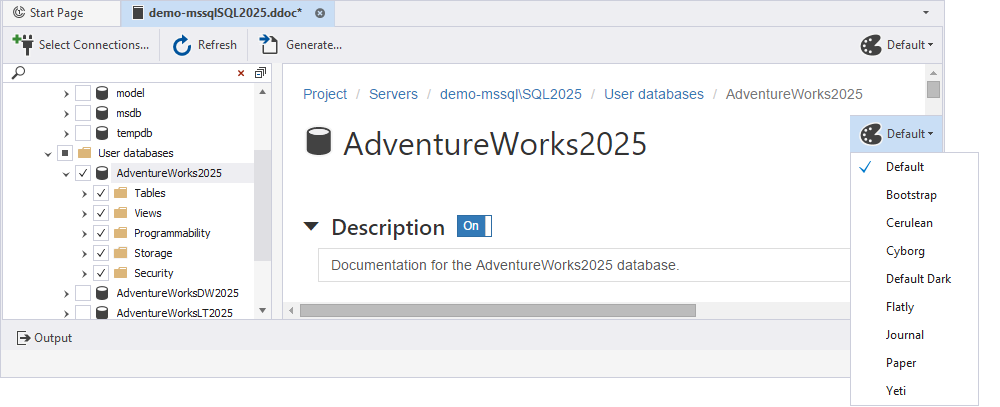
3. Optional: In the upper-right corner of the database documentation project, click Default and select a visual theme for the documentation.
The theme defines the visual style of the generated documentation, including colors, fonts, and page layout.
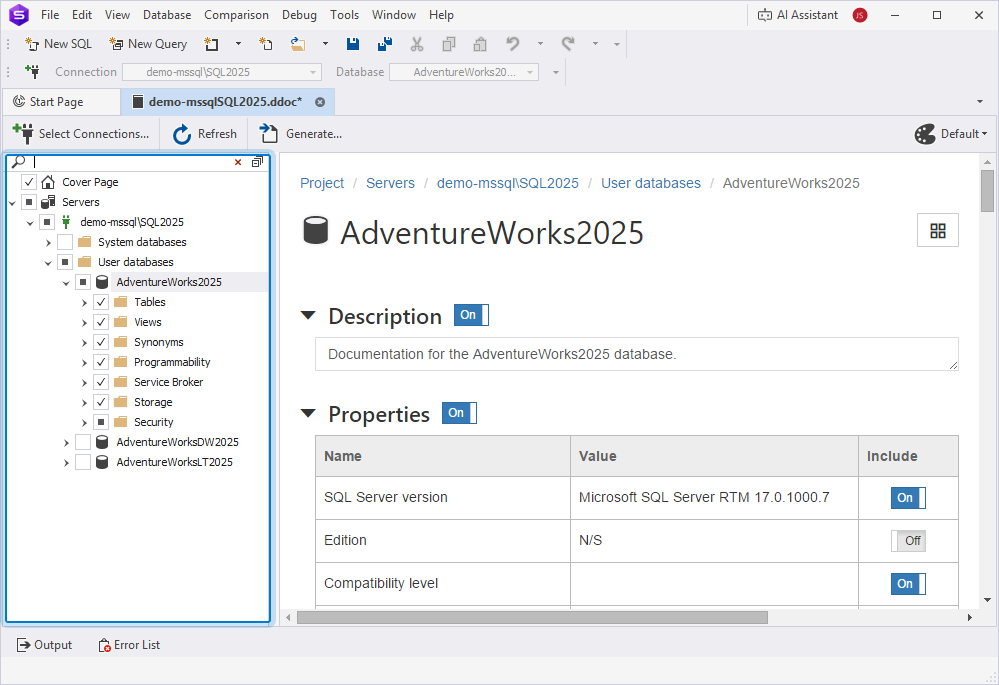
4. In the documentation tree, select the objects for documentation:
- Select the checkbox for the object you want to include.
- Clear the checkbox for the object you want to exclude.
Tip
Select an object type folder to include or exclude all objects of that type.
5. Configure sections and properties of each object or group of objects:
5.1. In the documentation tree, click an object or folder to open its settings.
5.2. Turn sections on or off to include or exclude them.
5.3. Optional: To exclude a property, turn off its toggle.
5.4. To view a summary of all objects of that type, click an object type folder.
The common folder sections are:
| Section name | Description |
|---|---|
| Objects | Displays a list of object names as links. Click a link to navigate to the corresponding object in the documentation project. The number next to Objects shows how many objects of that type are currently selected. The Description column displays the text added to the database using the MS_Description extended property. You can add a new description or update the existing one. Any changes are written directly to the database and are not stored in the database documentation project file (.ddoc). |
| Sections To Include | Displays the sections you can include in the documentation. By default, all sections are included. The available sections are:
Note: The Description section might be unavailable for some object types. |
 .
.For example, to view the summary of all scalar-valued functions in the database, in the database documentation tree, click the Scalar-Valued Functions node.
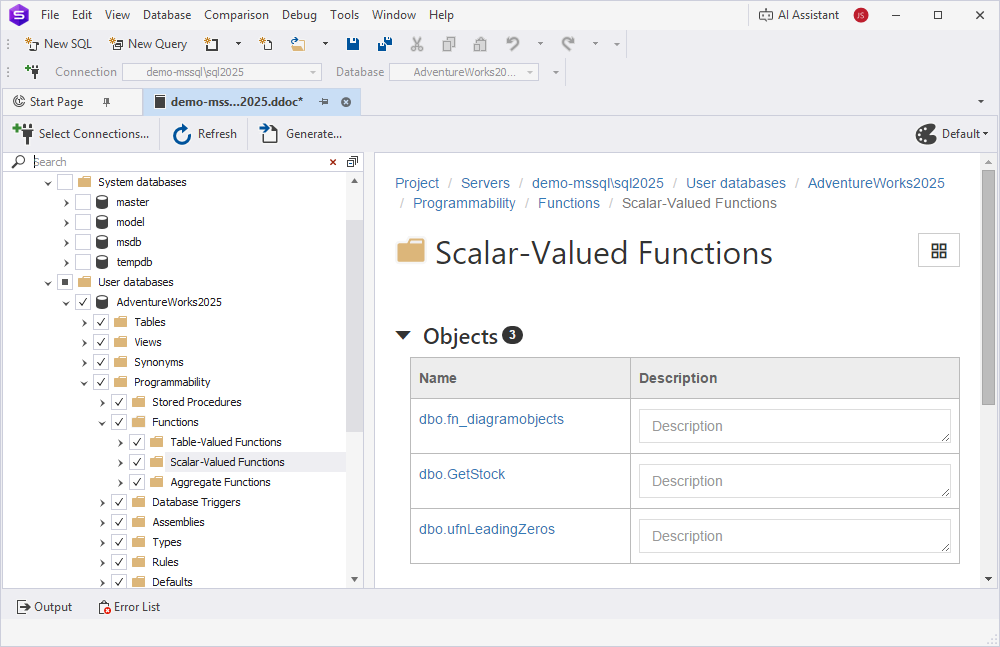
For a full list of available sections per object type, see Object-specific sections.
For common sections for objects, see Common sections shared between objects.
6. Optional: Add or edit object descriptions.
6.1. In the documentation tree, select the object to describe.
6.2. In the Description section, enter a new description or edit the existing one.
6.3. Click Save.
Note
Documenter’s descriptions are stored as
MS_Descriptionextended properties in the database. When you add or edit a description, dbForge Studio adds a new value or updates the existing one. The description isn’t stored in the database documentation project file (.ddoc).Microsoft Azure SQL Database doesn’t support
MS_Descriptionextended properties. As a result, dbForge Studio doesn’t displayMS_Descriptionvalues in the Documenter.
7. On the documentation project toolbar, click Generate.
For instructions, see Generate database documentation.
Manage the preview settings
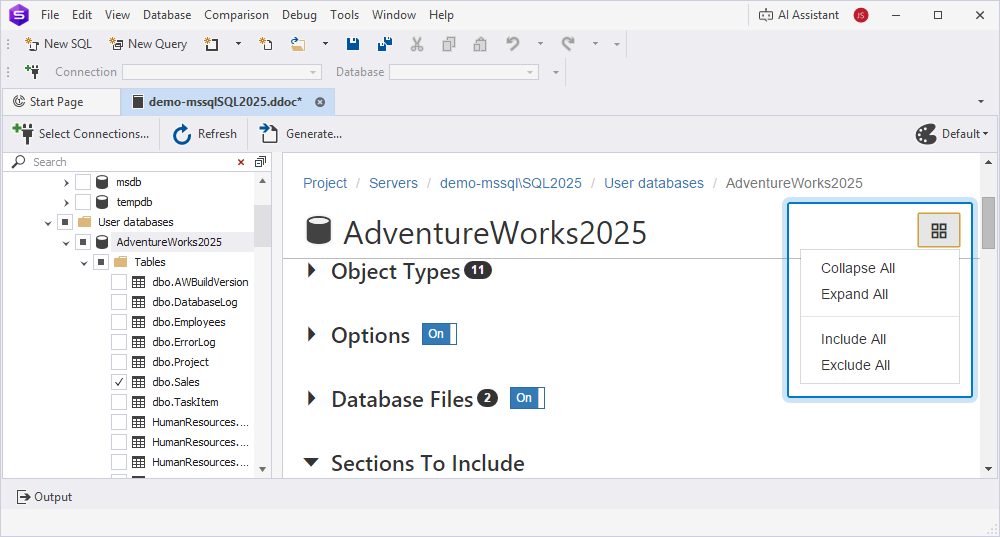
To expand and collapse sections, or include and exclude sections and their elements, in the upper-right corner of the page, click  and select Collapse All, Expand All, Include All, or Exclude All, respectively.