Document a SQL Server database
dbForge Studio for SQL Server enables you to document SQL Server databases and customize the documentation layout. The database documentation project opens in a new tab and uses <server_name>.ddoc as the default file name. You can configure a documentation project at the server, database, or object level.
Set up the database documentation
1. Start a new documentation project in one of these ways:
- On the Start Page, select Database Design > New Documentation.
- On the menu bar, select Database > Tasks > New Documentation.
- In Database Explorer, right-click the server connection or database and select Tasks > New Documentation. The selected database is automatically added to the documentation project tree.
Note
To re-open a documentation project, on the Start Page, select it under Recent Files. You can also open a previously created project by selecting File > Open File on the menu bar or by pressing Ctrl+O.
The database documentation project opens, displaying the database documentation tree on the left. In the tree, you can select the documentation elements to include in the configuration: a cover page (selected by default), one or more databases, and database objects.
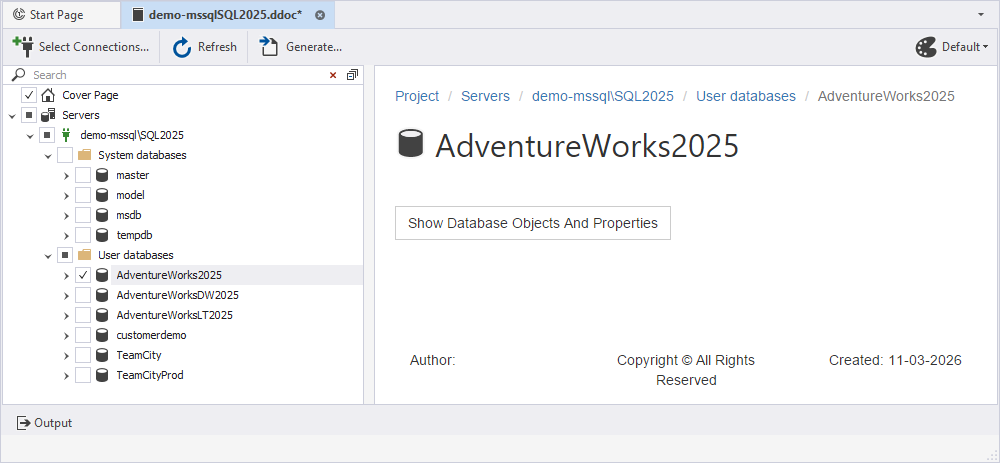
2. In the database documentation tree, click Cover Page to customize the default settings of the cover page.
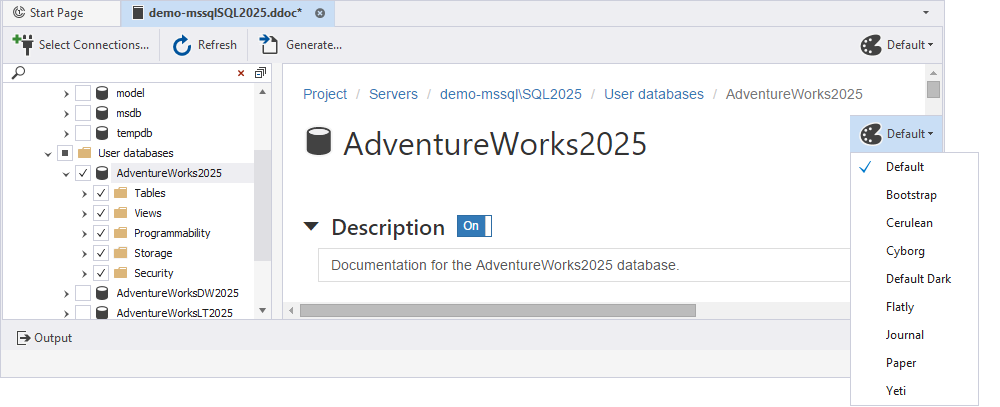
3. Optional: In the upper-right corner of the database documentation project, click Default and select a predefined visual theme for the documentation from the dropdown list.
The theme defines the visual style of the generated documentation, including colors, fonts, and page layout.
4. In the database documentation tree, select the checkbox for the database you want to include in the documentation project.
Tip
To include all objects that reside on the server, in the database documentation tree, select the checkbox for the required server.
Note
If database objects were added, modified, or removed while you were working on the documentation, click Refresh on the documentation project toolbar.

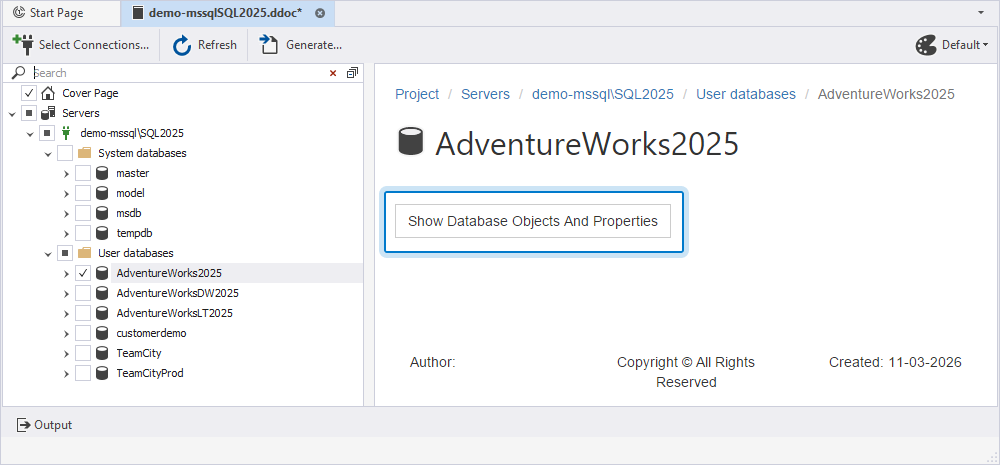
5. Click Show Database Objects And Properties to retrieve metadata.
Alternatively, in the database documentation tree, expand the required database.
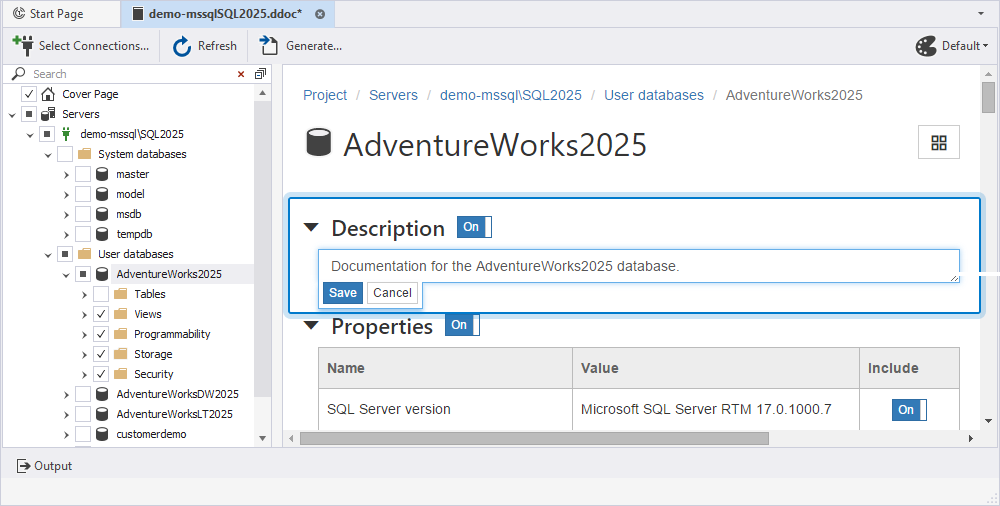
6. In Project description, enter a project description, then click Save.
Note
A new description overwrites an existing one.
To discard the changes, click Cancel.
To remove the description, turn off the toggle.
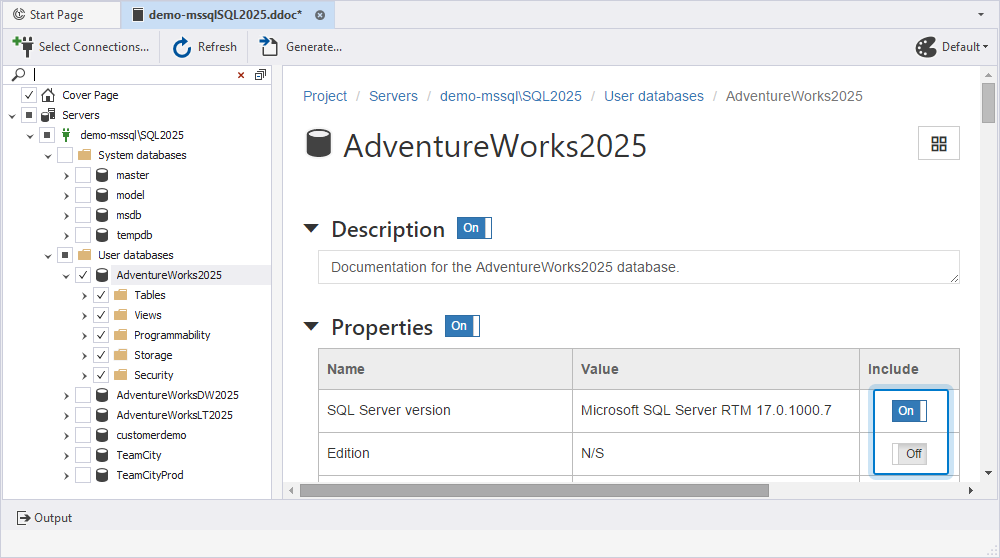
7. In the Include column, turn on the toggle to include the sections and their elements in the documentation, or turn it off to exclude them from the documentation.
Note
By default, all sections and their elements are included.
The documentation elements are grouped into the following sections:
| Section | Description |
|---|---|
| Description | Displays the description of the database documentation project. |
| Properties | Displays the properties of the database you document. |
| Object Types | Displays the types of objects that the database contains. The number next to Object Types shows how many object types are selected in the database. |
| Options | Displays the options of the database you document. |
| Database Files | Displays the following files:
|
| Sections To Include | Displays the following sections to include:
|
Note
When you document an Azure SQL database, the generated documentation doesn’t include the following SQL Server-specific content:
- Database Files – Information about database data and log files, including file size, maximum size, autogrowth settings, and physical file paths.
- Sequences – Sequences as a separate object type.
- XML Schema Collections – XML schema collections as a separate object type.
- Database size and unallocated data space – Database size and unallocated space properties.
The database documentation preview displays sections specific to the object you select in the documentation project tree.
For more information about objects you can include in the documentation, see Document database objects.
Tip
- To save the documentation project as a .ddoc file, on the standard toolbar, click
or press Ctrl+S.
Note
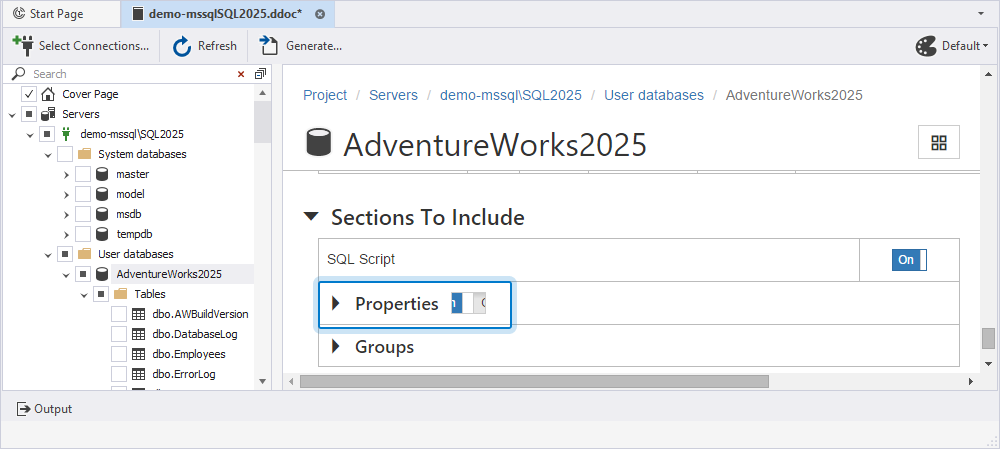
If only some properties of an object in the group are included, the group toggle appears in the middle position. For example, if the properties of the dbo.Sales table are excluded, the toggle next to the Properties section appears in the middle position when you switch to the database.
8. On the documentation project toolbar, click Generate.
The Generate Documentation dialog opens, where you can run documentation generation in PDF, HTML, or Markdown formats.
Customize the cover page
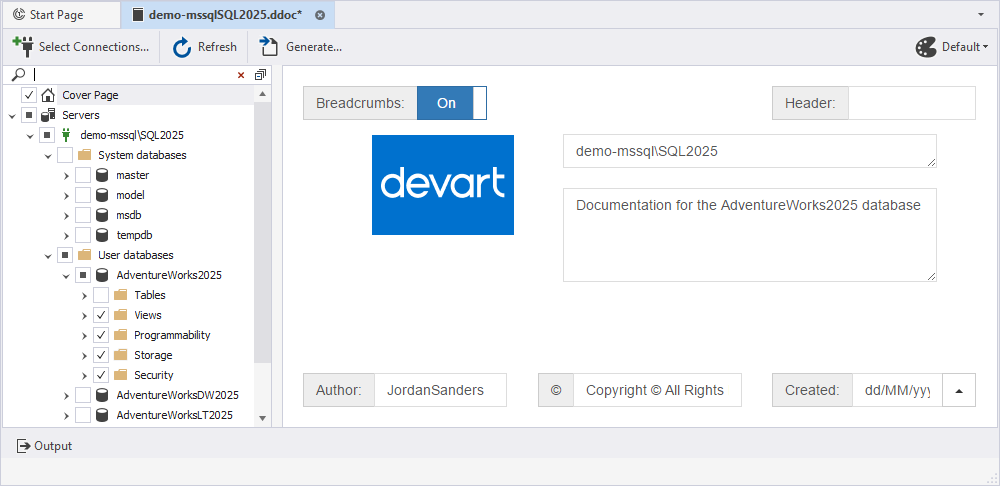
The project cover page includes breadcrumbs, a header, a logo, the project title and description, and a footer. The footer contains the author name, copyright information, and the generation date.
Note
The header and footer appear on each page of the generated documentation.
To customize the cover page:
1. In the database documentation tree, select Cover Page.
2. Optional: To remove the breadcrumb navigation, turn off the toggle.
Note
By default, the breadcrumb navigation is turned on.
3. In Header, enter the text that appears on each page of the generated documentation.
4. To add a logo, hover over the Logo block and click Browse. Then select the image file you want to use and click Open.
To remove a logo, hover over the Logo block and click  .
.
5. In Title, enter the project title.
6. In Project description, enter the project description.
7. In Author, enter the name of the author who generated the database documentation.
8. In Copyright, enter the copyright information.
9. In Created, select a date format from the list.
The format shows how the current date of documentation generation is displayed.
The table displays the available date formats.
| Date format | Example |
|---|---|
| dd MMMM yyyy HH:mm | 17 March 2026 11:27 |
| dd MMMM yyyy | 17 March 2026 |
| dd MMMM | 17 March |
| yyyy/MM/dd | 2026/03/17 |
| dd/MM/yyyy | 17/03/2026 |
| MM/dd/yyyy | 03/17/2026 |
Note
Timestamp formats use standard Windows format strings, such as
dd,MM, andyyyy. For more information about customizing date and time formats, see Custom date and time format strings.
Manage the preview settings
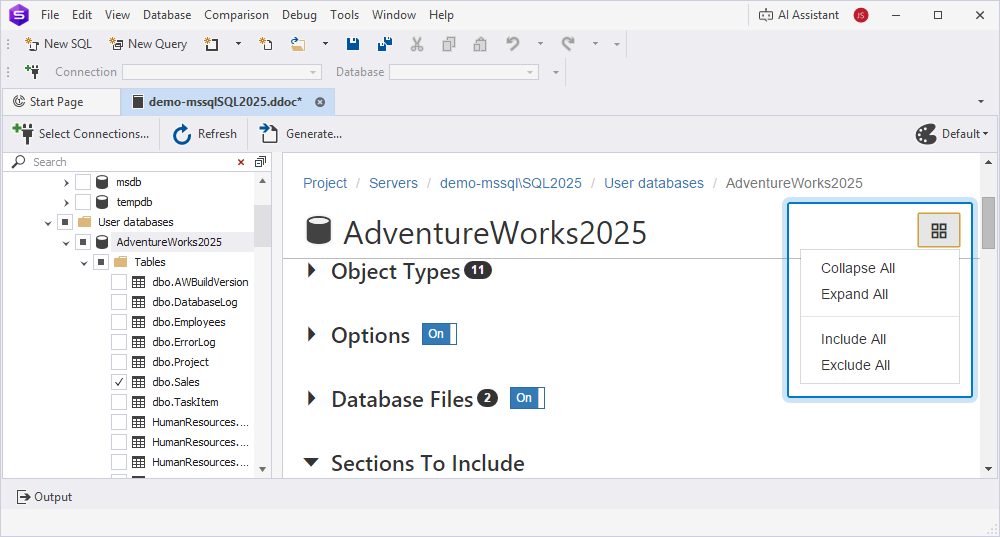
To expand and collapse sections, or include and exclude sections and their elements, in the upper-right corner of the page, click  and select Collapse All, Expand All, Include All, or Exclude All, respectively.