Best practices for indexing
dbForge Studio for SQL Server includes tools that help optimize database performance. This topic explains how to improve SQL query performance by using indexes, with detailed guidance on using dbForge Monitor, Query Profiler, and other tools in dbForge Studio for SQL Server.
Performance optimization overview
Slow database performance is often caused by inefficient SQL queries. By understanding where queries slow down and which parts of the database are underperforming, you can apply targeted optimization strategies, especially indexing.
Database performance optimization involves the following key steps:
1. Identify performance issues such as high CPU usage, excessive I/O, or memory bottlenecks.
2. Determine the root causes of those bottlenecks.
3. Apply indexing techniques to improve query performance.
Identify performance issues
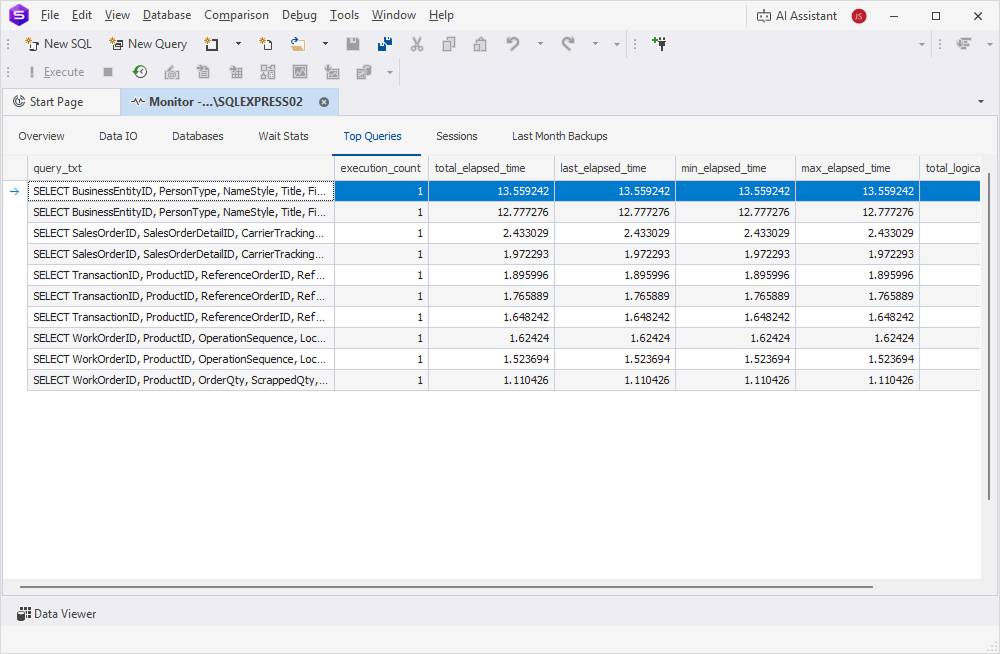
dbForge Monitor helps you monitor database performance in real-time by collecting detailed system and performance metrics.
To analyze performance and identify queries that consume the most CPU, memory, and I/O resources, navigate to the Top Queries tab.
Determine the root causes of bottlenecks
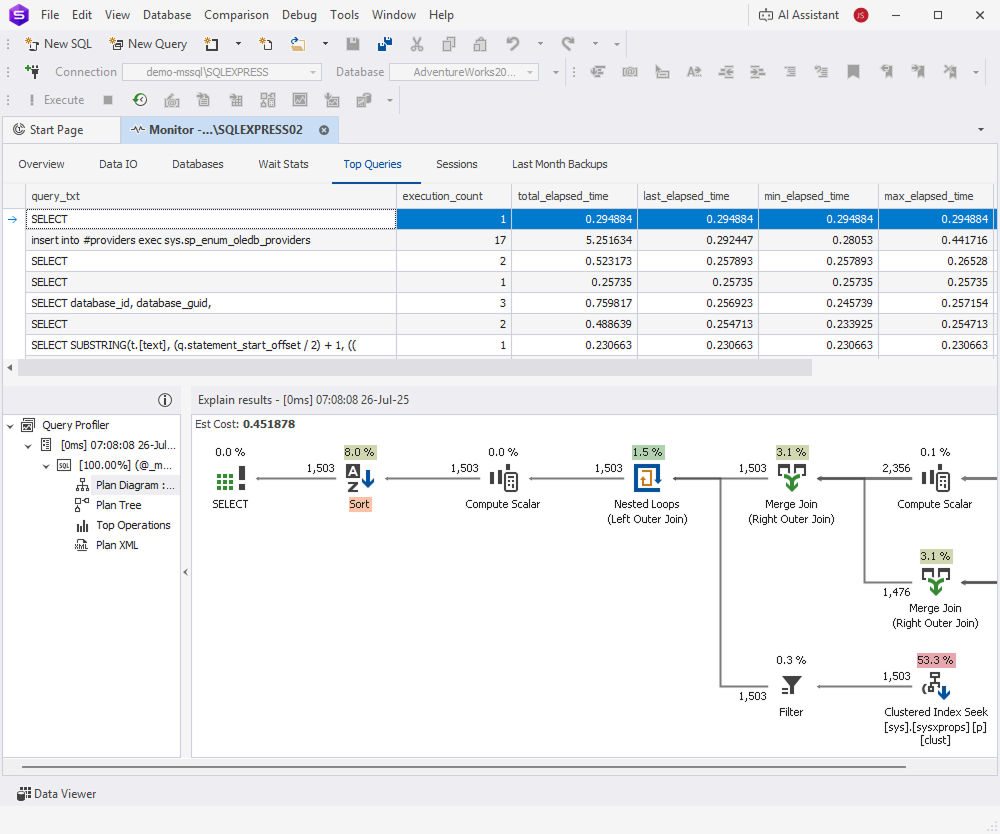
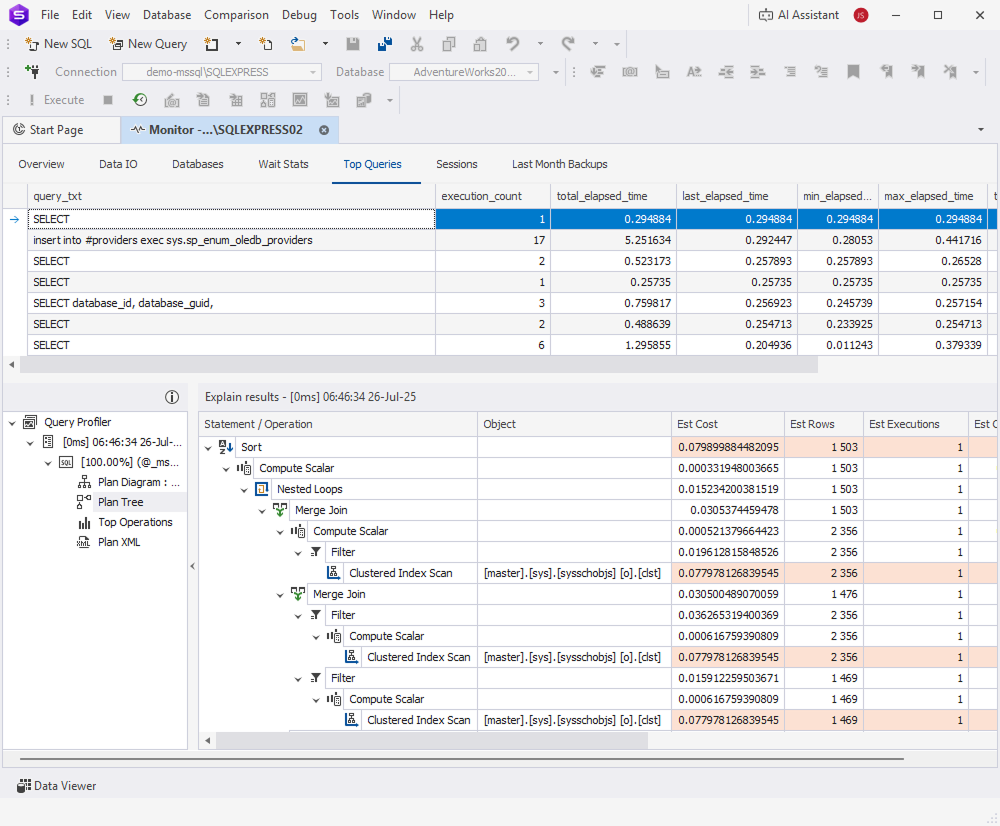
After you identify resource-intensive queries, use Query Profiler to examine execution details:
- Plan Diagram – Displays the query execution plan and the cost of each operation as a percentage of the total batch cost. Hover over a node to view metrics such as estimated row count, I/O cost, and CPU cost.
- Plan Tree – Lists each operation together with its I/O and CPU cost. High resource usage may indicate table scans, nested loops, or missing indexes.
Improve performance using indexes
After you identify indexing-related performance issues, apply appropriate indexing techniques to improve query efficiency. You can use the Table Designer tool to create an index on the required columns.
Optimize queries with targeted indexes
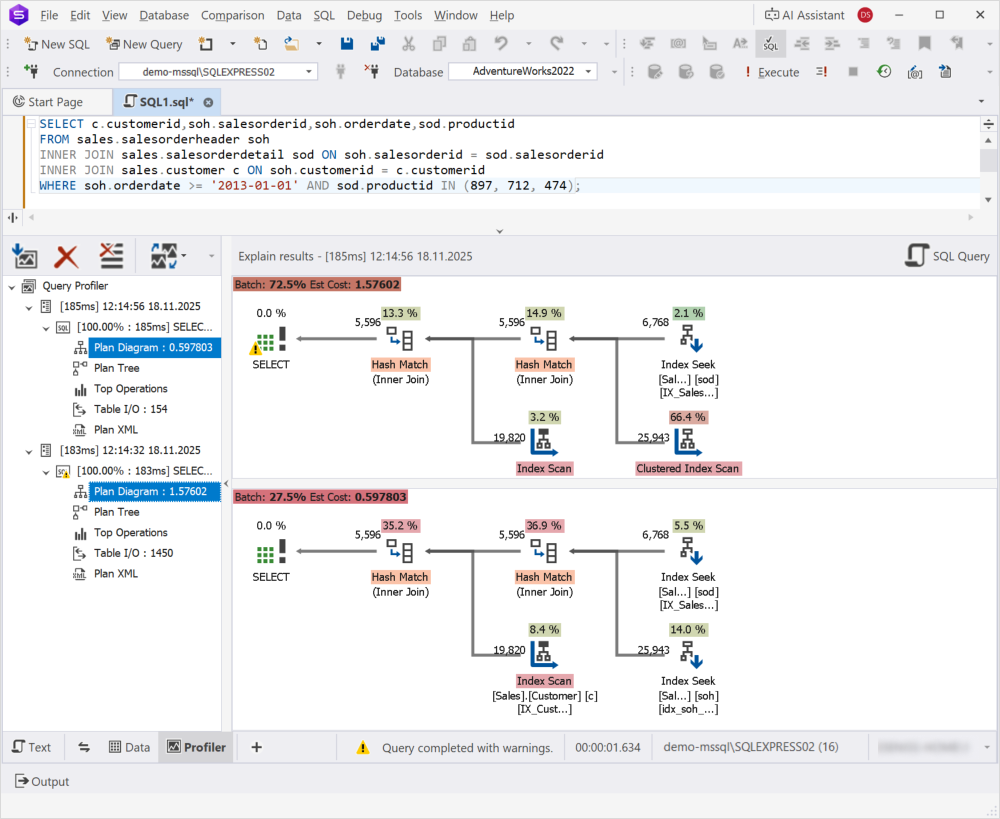
When analysis shows that a query doesn’t use an index, create an index to improve execution speed. Focus on high-selectivity columns, where the number of distinct values is high relative to the total number of rows. Indexes on these columns help SQL Server narrow down search results faster and reduce full table or index scans.
Columns used in WHERE, JOIN, ORDER BY, and GROUP BY clauses often benefit most from indexing. Proper indexing can reduce I/O and CPU usage and improve overall database responsiveness. For more information about creating efficient indexes, see Index architecture and design guide.
The results show that adding an index can significantly improve the performance of queries that filter or join on high-selectivity columns.
Avoid overusing indexes
Indexing can improve query performance, but too many indexes can:
-
Increase storage requirements.
-
Slow down
INSERT,UPDATE, andDELETEoperations because SQL Server must update each related index.
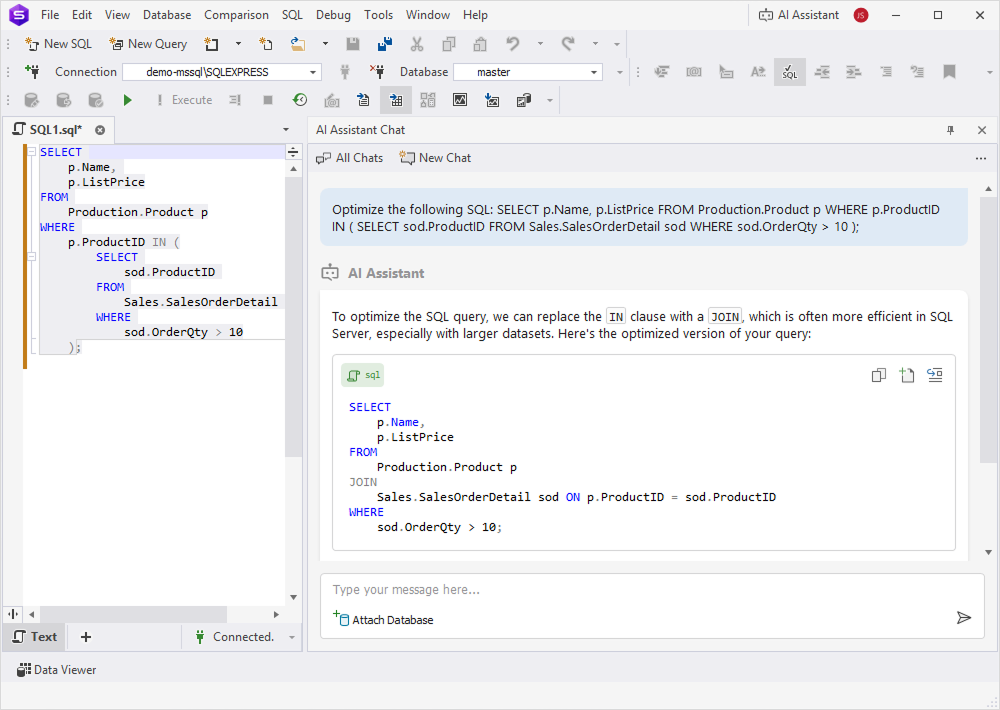
To identify high-selectivity columns and detect potentially redundant indexes, use AI Assistant in dbForge Studio for SQL Server. AI Assistant reviews query structure, analyzes column usage and data distribution, and suggests possible indexing improvements.
Automate index defragmentation
Regular index defragmentation helps maintain database performance. You can automate defragmentation by using CLI Index Manager in dbForge Studio for SQL Server.
To schedule index defragmentation:
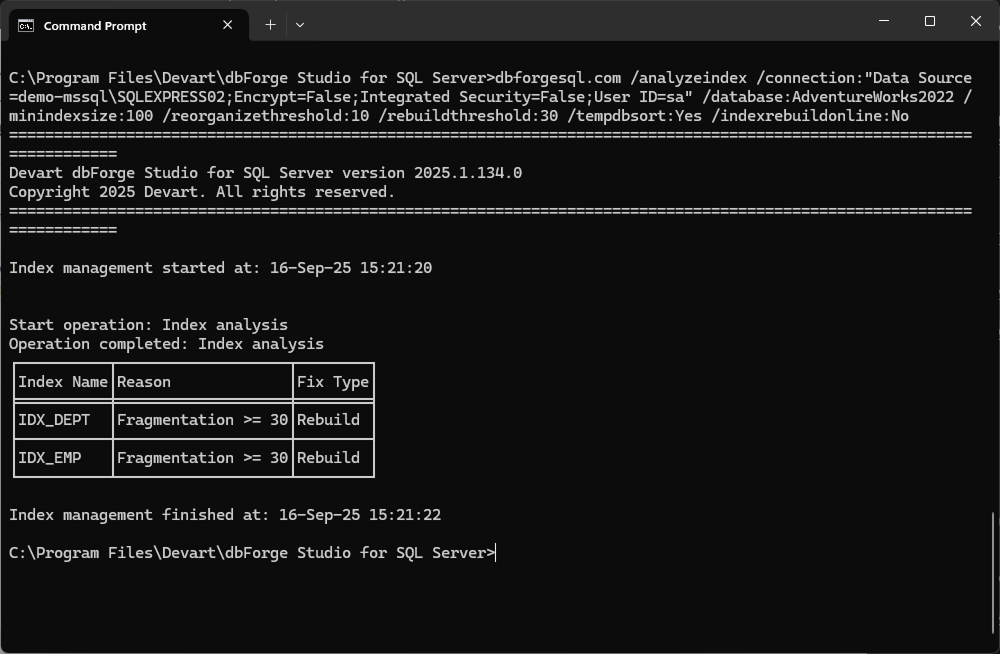
Step 1: Create an index defragmentation command using CLI Index Manager.
dbforgesql.com /analyzeindex /connection:"Data Source=SERVER;Encrypt=False;Integrated Security=False;User ID=USER; Password=PSW" /database:DB /minindexsize:100 /reorganizethreshold:10 /rebuildthreshold:30 /tempdbsort:Yes /indexrebuildonline:No
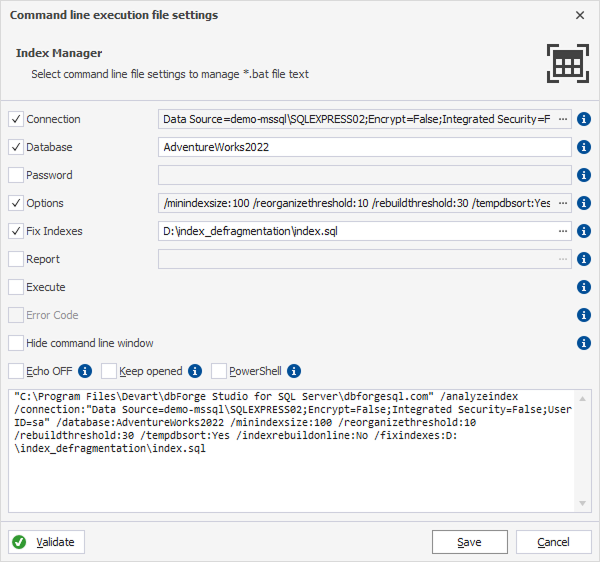
Step 2: Create a batch file using Index Manager.
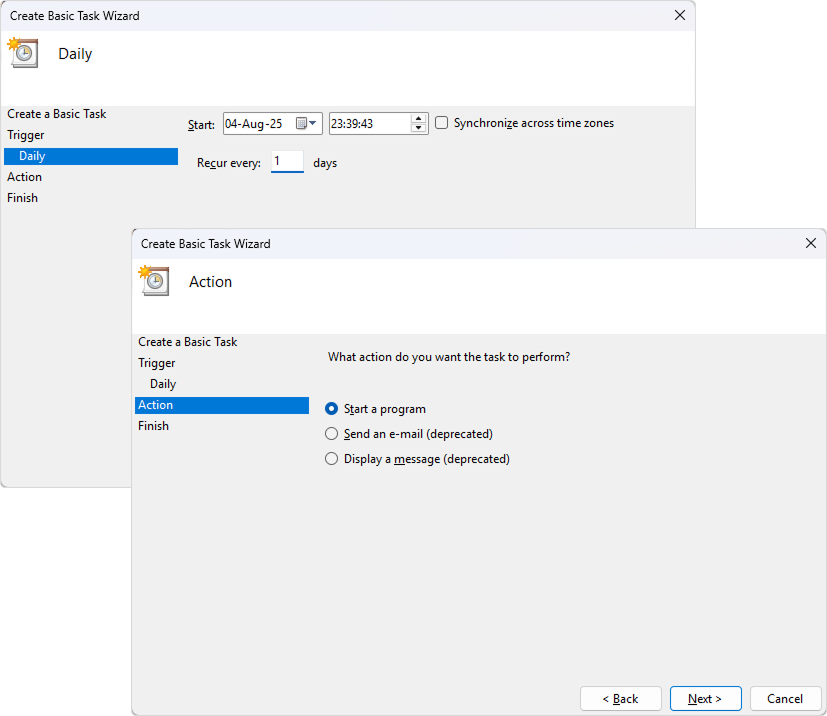
Step 3: Schedule an index defragmentation task in Windows Task Scheduler.
Tip
To reduce the impact on database performance during peak hours, schedule index defragmentation to run automatically during off-hours.
Recommendations
In addition to using dbForge Studio for SQL Server tools, such as dbForge Monitor, Query Profiler, and Table Designer, you can follow these recommendations to effectively optimize database performance by using indexes.
| Best practice | Description |
|---|---|
| Maintain a balance between reads and writes | Make sure your indexing strategy supports query performance without adding unnecessary overhead to write operations. |
| Limit the number of indexes | Avoid adding too many indexes to a table, because each extra index can affect query performance. As a general guideline, aim for around five indexes per table. |
| Avoid over-indexing | Create only indexes that support actual query patterns, and remove indexes that are not used. |
| Choose the appropriate index type | Use composite indexes when queries filter or sort by multiple columns. |
| Avoid duplicate indexes | Don’t create duplicate indexes on the same columns. |
| Avoid overusing indexes | Don’t add indexes to small tables unless they provide a clear benefit. |
| Monitor index size | Review index sizes regularly. Compress oversized indexes when appropriate. |
| Identify missing indexes | Review new queries regularly to identify missing indexes. |
| Defragment indexes | Defragment indexes regularly by using dbForge Index Manager. |
| Update statistics | Keep statistics up to date to ensure that the Query Optimizer can choose the best execution plans. |
| Test performance | Test query performance after you modify the database schema or change indexes so that you can detect slowdowns and revert changes if necessary. |
| Test applied changes | Always test changes in a development environment before you apply them to production. |
| Back up the database | Before you update data, back up the database. |
| Keep track of changes | Use dbForge Source Control to manage and track database changes. It records the author, timestamp, and reason for each change. |
| Compare schemas effectively | Use dbForge Schema Compare when changes are not under version control and the previous database version is available only as a script or in a backup. |