Restore a full backup
A full backup restore recovers a complete database to the state it was in when the backup was created. It can be used as a standalone operation or as the first step before restoring differential or transaction log backups.
Prerequisites
-
Connect to the required SQL Server instance.
-
Create a full backup of the database you want to restore. If you plan to perform a full recovery sequence, you need to create a full, differential, and transaction log backups. For more information, see Back up a database.
Important
The created backup files with a
.bakor.trnextension must be located on the server where the SQL Server instance is installed. If the backup files are stored on your local machine, copy them to the server before restoring the database.
To restore a full backup
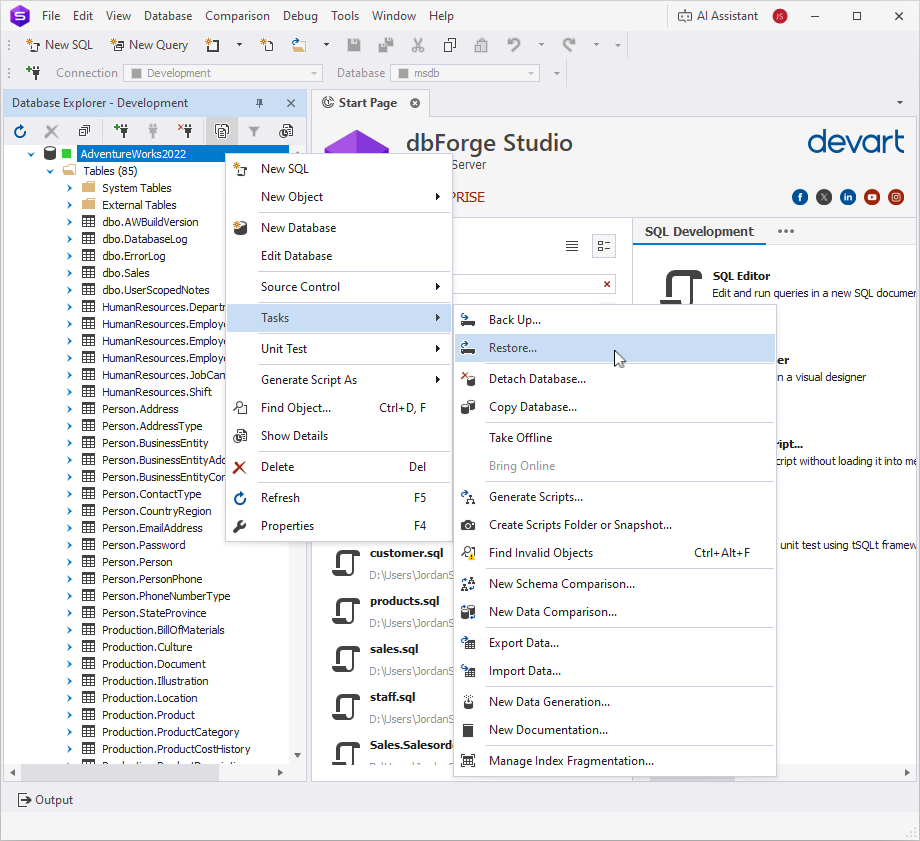
1. In Database Explorer, right-click the database you want to restore, and select Tasks > Restore to open the Restore Database wizard.
2. On the Source and Target page, under Source for restore, specify the source of the backup sets to restore:
-
Database: Select the database from the list to restore from the SQL Server backup history. Use this option if the backup was created on the same SQL Server instance — SQL Server will use backup metadata from the
msdbsystem database to locate the available backups. -
Files: Specify the path to a
.bakfile stored on the SQL Server machine and the name of the database that the backup file contains. Use this option to restore directly from a backup file, for example, if the file was copied to the server and is not included in the backup history.
3. Under Destination to restore, in Database, select the database to which you want to restore the backup from the list or keep the default name that is automatically populated from the backup file.
Tip
To restore the backup to a different database name, enter a new name in the Database box. For more information, see Restore a database to a different name.
4. Optional: For a point-in-time restore, in Restore to, specify the point in time to which the database needs to be restored:
-
To restore the database to the most recent available state, keep the default To the last backup taken option.
-
To restore the database to a specific point in time, select the desired date and time in the picker.
-
To view all backups required to restore the database as close as possible to the current time in the Backup set to restore grid, click Now in the Restore to date and time picker, and then click OK.
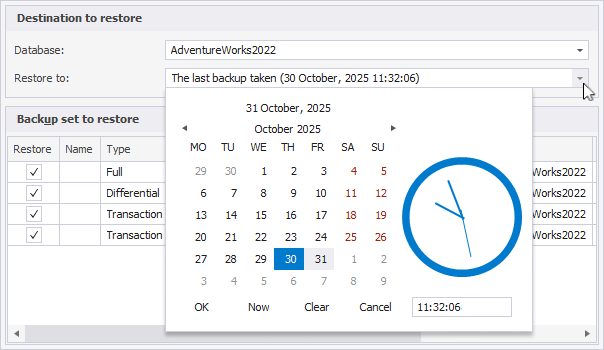
The list of backups in the Backup set to restore grid automatically updates based on the selected date and time.
Note:
Restore to is available only when backup metadata is accessible—for example, when restoring from backup history or from backup files in the SQL Server default backup directory. If this option is unavailable, the database is restored to the end of the selected backup.
5. In the Backup set to restore grid, review the available backups and select the full backup you want to restore:
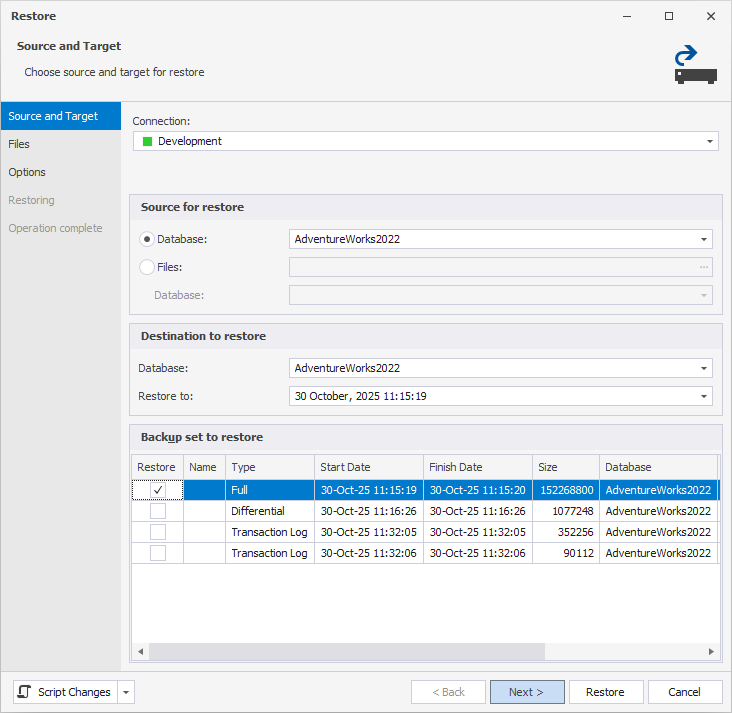
When you select a backup in the grid, the Restore to box automatically updates to display the date and time when that backup was created.
Tip
If you selected Database as the source for restore, you can click Now in the Restore to date and time picker to view all available backups.
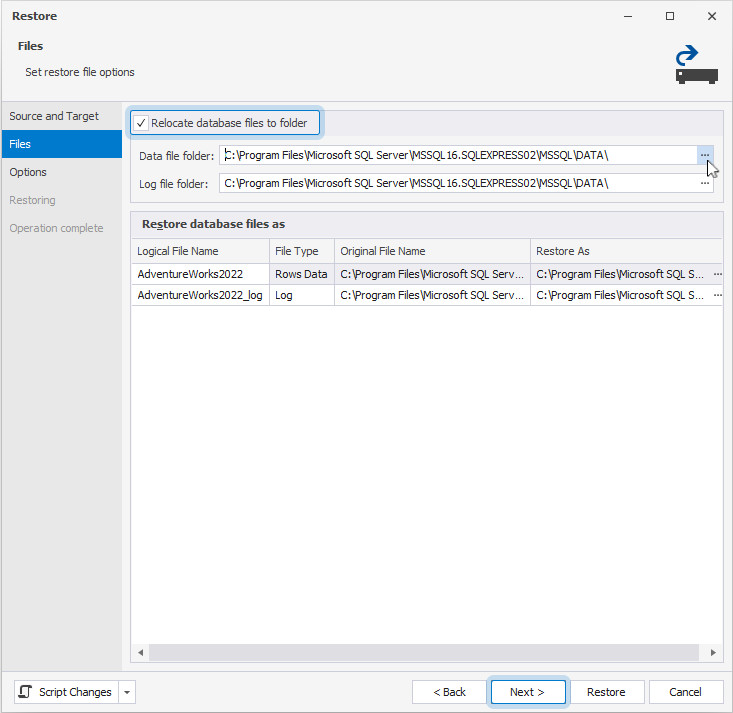
6. Optional: Review the target locations for the restored database files. By default, the database files are restored to the SQL Server default data directory. You can specify a different location in one of the following ways:
-
To relocate all files to new folders, select the Relocate database files to folder checkbox, then specify the Data file folder and Log file folder.
-
To specify individual file locations, in the Restore database files as grid, modify the path in the Restore As column for each file.
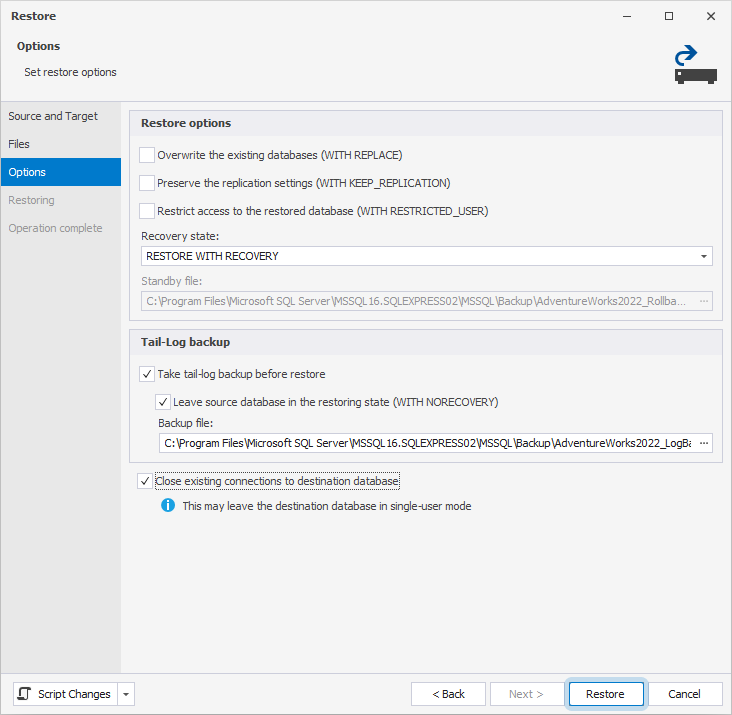
7. Optional: On the Options page, under Restore options, review and, if needed, configure advanced restore settings:
- Overwrite the existing database (WITH REPLACE) – Replaces the existing database with the backup version, even if it already exists on the server.
- Preserve the replication settings (WITH KEEP_REPLICATION) – Keeps replication configuration for databases involved in replication.
- Restrict access to the restored database (WITH RESTRICTED_USER) – Limits access to privileged roles (
db_owner,dbcreator, orsysadmin) after restore.
8. In Recovery state, select the recovery state for the restored database:
-
RESTORE WITH RECOVERY — The database is fully restored and ready for use immediately. Uncommitted transactions are rolled back, and no additional backups can be applied. Use this option when restoring only a full backup or completing the final step in a restore sequence.
-
RESTORE WITH NORECOVERY – The database remains non-operational, and uncommitted transactions are not rolled back. Additional differential or transaction log backups can be applied. The database cannot be used until it is recovered. Use this option when you plan to apply additional differential or transaction log backups after the full backup.
-
RESTORE WITH STANDBY – The database is left in read-only mode, which allows queries to be run while additional restores are pending. Uncommitted transactions are undone and saved in a standby file so that recovery effects can be reverted. Requires specifying a Standby file path.
9. Optional: Under Tail-Log backup, you can create a final log backup before restoring an active database. This backs up any uncommitted transactions from the existing database before it is replaced. To do this, select one or both of the following checkboxes:
- Take tail-log backup before restore – Backs up any uncommitted transactions from the existing database before replacing it.
- Leave source database in the restoring state (WITH NORECOVERY) – Keeps the source database in restoring mode after the tail-log backup.
Note
The Tail-Log backup option is available only for databases that use the
FULLrecovery model.
10. To prevent restore failures caused by active connections, select the Close existing connections to destination database checkbox to close all connections to the target database.
11. Click Restore.
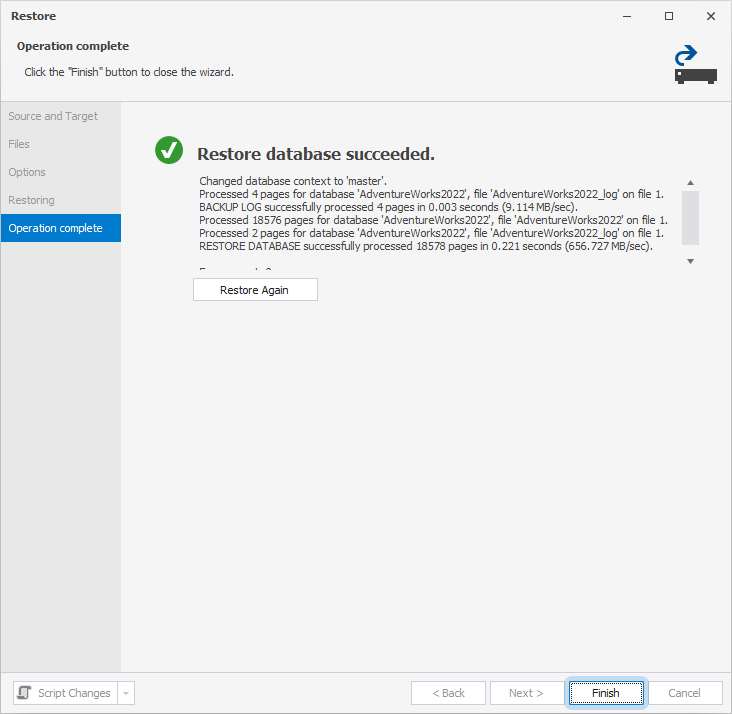
After the full backup is restored successfully, if you used the NORECOVERY option and have additional backups to apply (such as differential or transaction log backups), you can continue restoring them in sequence.
Note
You can use a backup file to restore the entire database or only selected objects and data with the Schema Compare or Data Compare features of dbForge Studio. For more information, see:
- Schema Compare: Compare and synchronize backup files
- Data Compare: Compare and synchronize backup files