Compare and synchronize backup files
The New Schema Comparison wizard enables you to:
- Compare a native SQL Server backup (.bak) with other data sources, such as a database, snapshot, scripts folder, or version control revision.
- Restore individual objects.
- Generate a synchronization script from a backup.
Note
The Backup feature is available only in the Enterprise and Professional editions of dbForge Studio for SQL Server.
Limitations
When dbForge Studio reads backup files, it locks them, preventing any overwrite, move, or deletion operations until the project is closed.
dbForge Studio cannot modify backup files directly, as they are read-only.
Incompatible backup files
The following backup types cannot be used in schema comparison:
- Compressed backups
- Encrypted backups
- Backups of TDE‑enabled databases
- Azure SQL Database backups
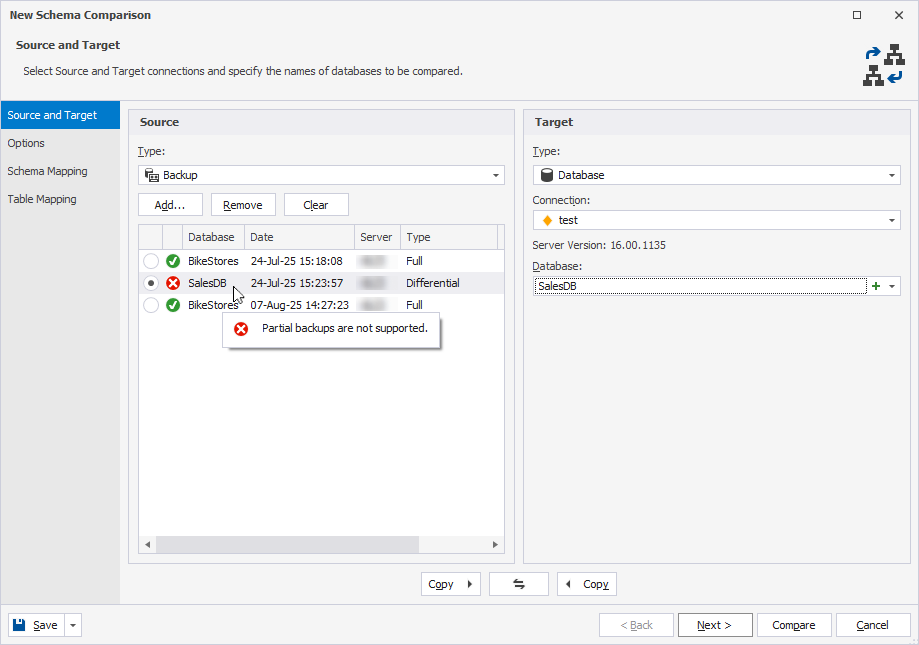
- Partial, filegroup, or transaction log backups
Differential backups
When you use differential backups, only schema changes made up to that specific differential backup are considered. Any changes made afterward are ignored and may not be shown in the Schema Comparison results grid.
Compare and synchronize backups
1. Open the New Schema Comparison wizard in one of these ways:
-
In the top menu, select Comparison > New Schema Comparison.
-
On the Start Page, select Database Sync > New Schema Comparison.
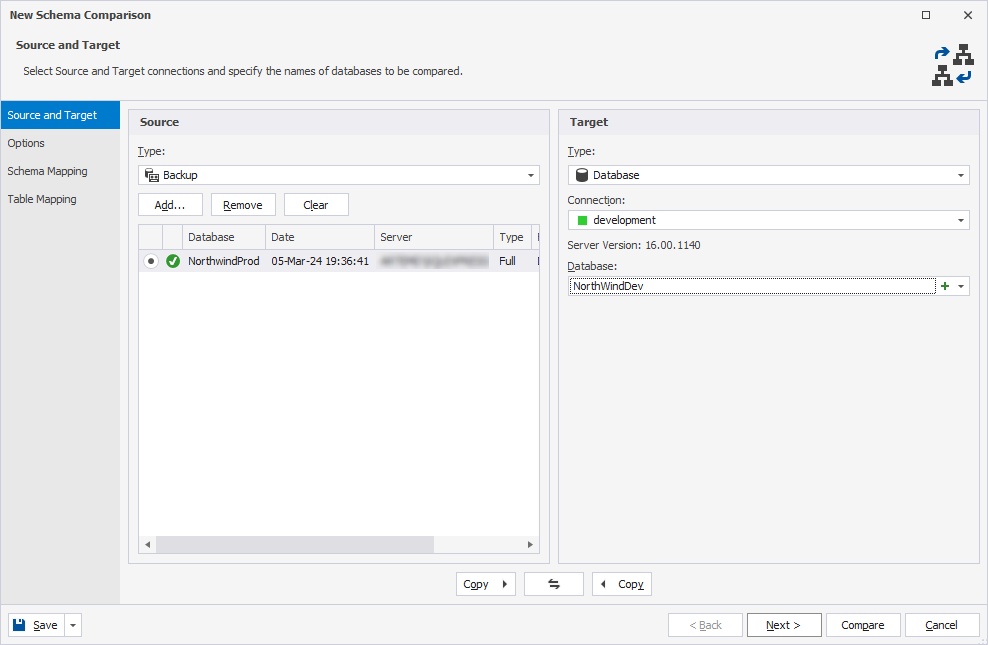
2. On the Source and Target page:
-
Under Source:
1. In Type, select Backup.
2. Click Add to add backup files.
Warning
You can use the backup only as a source, not as a synchronization target.
-
Under Target:
1. In Type, select the data source to compare with the backup.
2. Configure the data source settings.
3. Optional: On the Options page, configure the comparison settings.
4. For Database, Backup, or Snapshot:
4.1. On the Schema Mapping page, map schemas.
4.2. On the Table Mapping page, map tables and columns.
Note
The database objects with the same names are mapped automatically.
5. Click Compare.
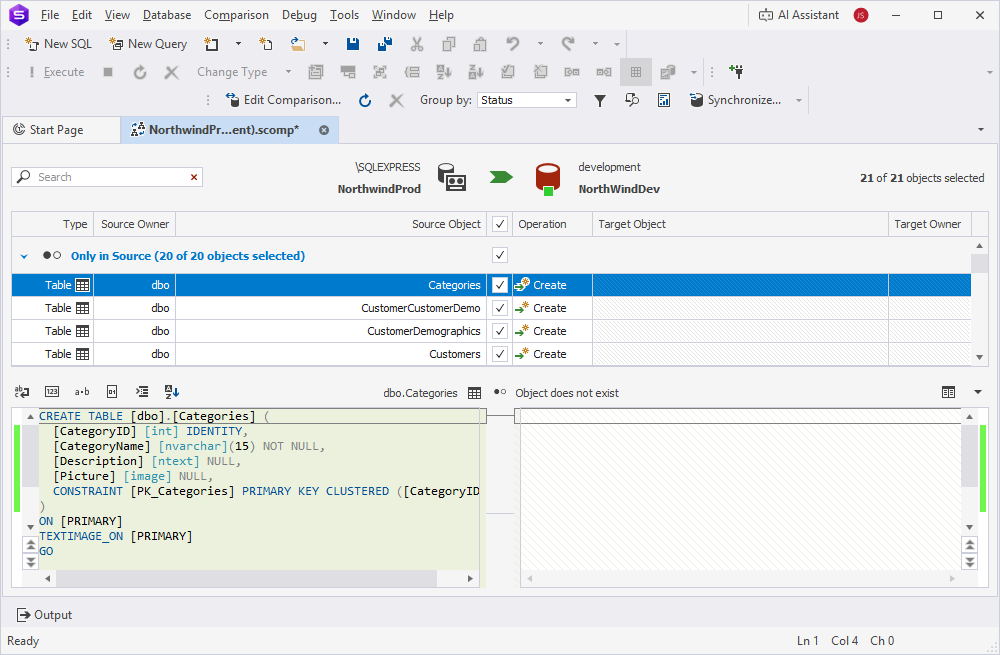
The comparison results appear in the Schema Comparison document.
By default, all objects are selected for synchronization. To exclude any objects from synchronization, clear the checkboxes for the corresponding objects.
6. At the top of the document, click  to open the Schema Synchronization Wizard.
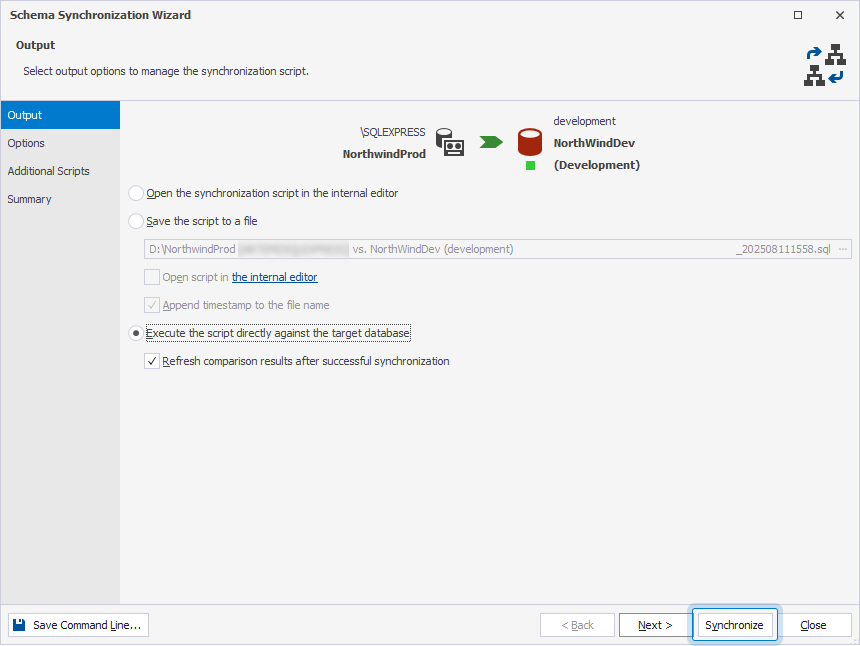
7. Select an output option to generate a synchronization script, and optionally configure the synchronization settings.
8. Click Synchronize.