Create a snapshot in SQL Server
The topic describes how to create a schema snapshot (.snap) in an XML format by using the Create Scripts Folder or Snapshot dialog of dbForge Studio for SQL Server or by using the command line.
Overview
A database snapshot is a static view of a database at a specific point in time. It captures the state of the source database at the moment when the snapshot was created and stores only the data pages that change afterward.
Snapshots allow you to revert a database to a previous state but do not replace regular backups. You can’t back up or restore database snapshots directly, so it is essential to maintain a reliable backup strategy to ensure proper data protection and recovery in case of data loss or corruption.
Note
You can use Schema Compare to compare and synchronize a snapshot with a database, scripts folder, backup, another snapshot or a scripts folder in a version-control system.
Limitations
- If the source database is dropped, corrupted, or offline, all associated snapshots become unusable.
- Each update to the source database triggers a copy operation to the snapshot file, which can reduce write performance.
- A snapshot must reside on the same SQL Server instance as its source database.
- Snapshots cannot be mirrored, replicated, or log-shipped.
- Database snapshots apply to an entire database.
- Files can’t be dropped from a database snapshot.
- Database snapshots can’t be backed up or restored, attached, or detached.
Create a snapshot
You can create a snapshot in the Create Scripts Folder or Snapshot wizard or from the command line.
Create a snapshot in the wizard
1. Open the Create Scripts Folder or Snapshot dialog in one of these ways:
- In the top menu, select Database > Tasks > Create Scripts Folder or Snapshot.
- In Database Explorer, right-click the connection and select Tasks > Create Scripts Folder or Snapshot.
- On the Start Page, select Database Sync > Create Schema Snapshot.
2. Under Source, configure the source settings:
2.1. In Type, select the data source type.
2.2. Depending on the data source, specify its details.
3. Under Target, configure the destination settings:
3.1. In Type, select Snapshot.
3.2. In File name, specify the full path to the .snap file, or click the ellipsis (…) and select the existing folder.
3.3. To reduce the size of the snapshot, select Compress.
4. Click Create.
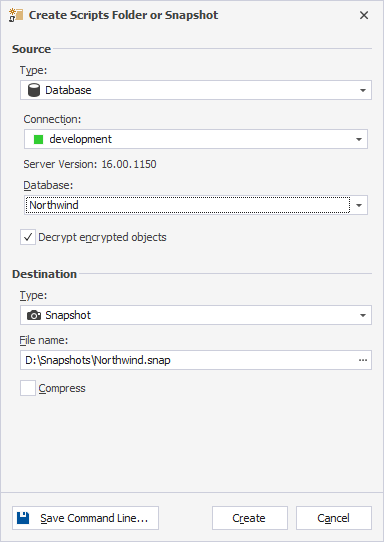
Select data sources
You can select the following data source types as the source:
- Database: Creates a scripts folder from the specified database.
- Scripts Folder: Creates a scripts folder from another scripts folder.
- Snapshot: Creates a scripts folder from the specified snapshot.
Database
When you select Database as the source type, configure the settings:
- Connection – Select the existing server connection or create a new one by clicking Manage. Then, in the Connection Manager, click New and establish a new connection.
- Database – Select the database based on which you want to create a scripts folder.
- Decrypt encrypted objects (optional) – Select the checkbox to decrypt database objects so that the resulting script shows the actual SQL code, not just encrypted placeholders.
Scripts Folder
When you select Scripts Folder as the source type, in Database scripts folder, specify the full path to the scripts folder, select the previously added scripts folder, or click the ellipsis (…) and add the existing folder.
Snapshot
When you select Snapshot as the source type, in Snapshot, select the previously added snapshot, or click the ellipsis (…) and add the existing snapshot (.snap).
Create a command-line execution file
You can create a command-line execution .bat file to automate or schedule the database snapshot creation.
To create a command-line execution file:
1. In the lower-left corner of the Create Scripts Folder or Snapshot dialog, click Save Command Line.
2. In the Command line execution file settings dialog, configure the command-line settings.
3. Click Validate to verify the settings.
4. Click Save.
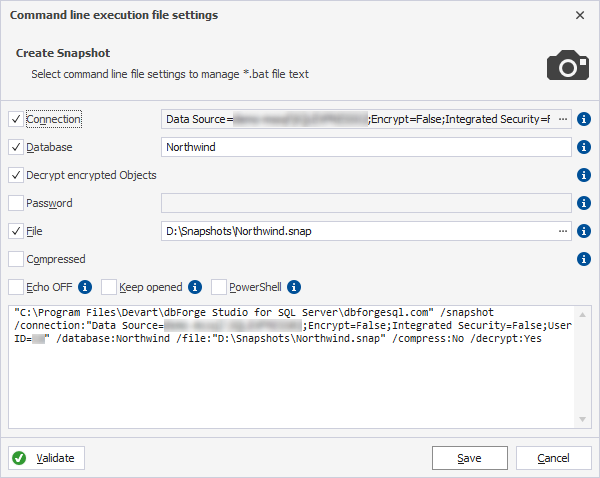
Create a snapshot from the command line
1. Open Command Prompt (CMD).
Note
To run the command line in Windows 11:
Using the Windows taskbar
- At the bottom of the screen, right-click the taskbar, then select Run. Alternatively, click Start or press the Windows key on your keyboard to open the Start menu.
- In the search box, type cmd or command prompt.
- Select the Command Prompt app from the search results to open it.
Using shortcut keys
- Press Windows + R to open the Run command window.
- Type cmd and press Enter.
2. Specify the /snapshot operation to create a scripts folder and replace the parameters and arguments with your actual data:
"C:\Program Files\Devart\dbForge Studio for SQL Server\dbforgesql.com" /snapshot /connection:"Data Source=<server_connection>;Encrypt=False;Integrated Security=False;User ID=<user_name>" /database:<database_name> /file:"<path_to_snapshot>"
where:
C:\Program Files\Devart\dbForge Studio for SQL Server\dbforgesql.com– The full path to the default installation folder of dbForge Studio for SQL Server.<server_connection>– The server connection where the source database resides.<user_name>– The username you connect to the server.<database_name>– The database based on which the scripts folder is created.<path_to_snapshot>– The full path to the scripts folder.
3. Press Enter.
Available command-line arguments
The table provides the command-line arguments (switches) you can use in the script to create a scripts folder from the command line.
| Argument | Description |
|---|---|
/connection |
Specifies a connection string. Usage: /connection:<connection_string> |
/database |
Specifies the database to create a scripts folder. Usage: /database:<database_name> |
/decrypt |
Defines whether to decrypt source objects. Usage: /decrypt:<value>To turn the option on, specify Yes, Y, On, True, or T.To turn it off, specify No, N, Off, False, or F. |
/password |
Specifies the server password. Usage /password:<yourpassword>The switch overrides the password specified in the connection string. |
/file |
Specifies the full path to the snapshot file. Usage: /file:<file_path> |
/compress |
Defines whether to compress the snapshot file. Usage: /compress:[value]To turn the option on, specify Yes, Y, On, True, or T.To turn it off, specify No, N, Off, False, or F. |
Tip
To view a list of available switches for the
/snapshotoperation, run the following command:"C:\Program Files\Devart\dbForge Studio for SQL Server\dbforgesql.com" /snapshot /?