Select synchronization output
You can select a synchronization output option and create a synchronization script on the Output page of the Schema Synchronization Wizard.
Open the Schema Synchronization Wizard
Open the Schema Synchronization Wizard in one of these ways:
-
At the top of the Schema Comparison document, click
 .
. -
Right-click the Schema Comparison grid and select Synchronize.
-
Press F8.
-
On the Comparison toolbar, click Synchronize.

Synchronization output options
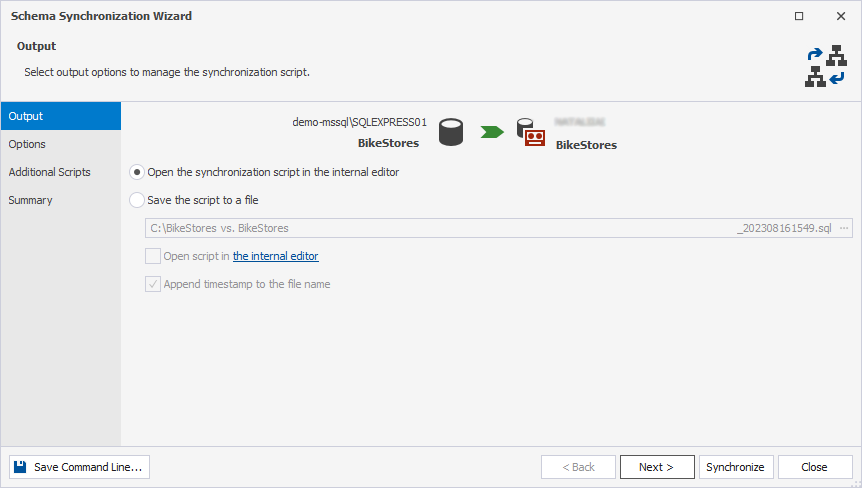
On the Output page of the wizard, you can choose one of the following options.
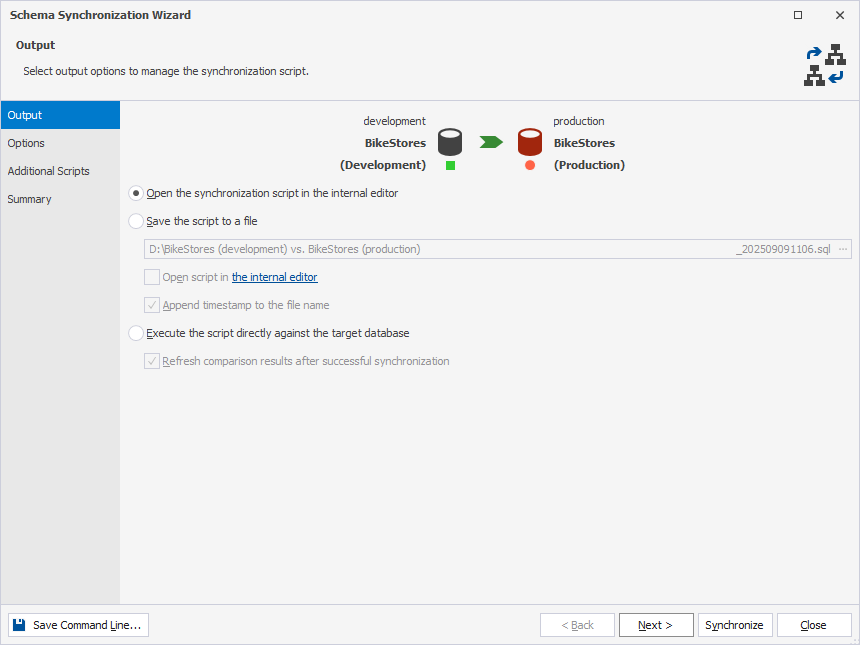
Open the synchronization script in the internal editor
Select the option to open the database synchronization script in the internal SQL editor after you run schema synchronization. You can review and edit the script, then click Execute on the SQL toolbar to run it and synchronize the databases.
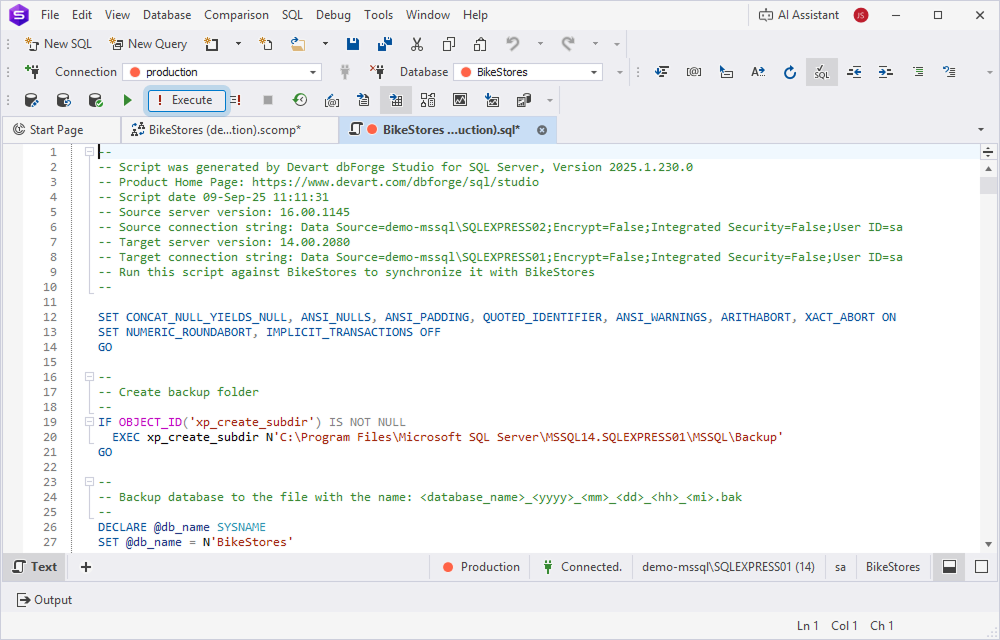
Save the script to a file
Select the option to save the synchronization script locally on your machine after you run schema synchronization.
Under Save the script to a file:
- Specify the path to the file.
- Optional: To remove the date and time from the file name (added by default), clear Append timestamp to the file name.
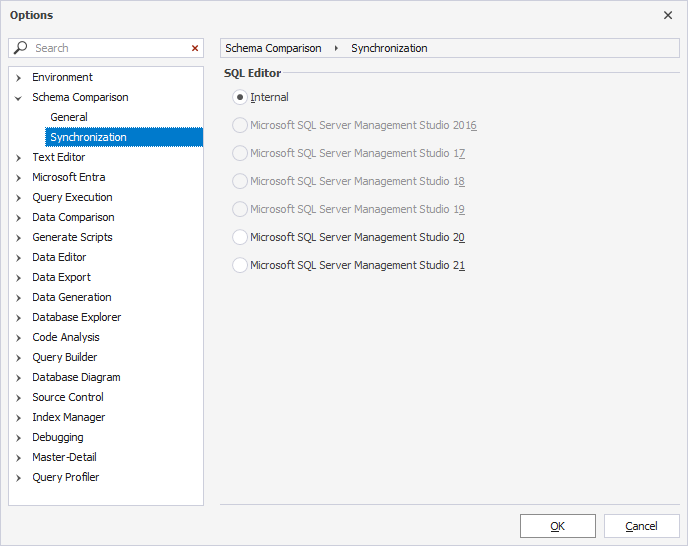
- Optional: To change the editor used to open the file, click the internal editor link.
- In the Options dialog opens, select the editor in which you want to open the synchronization script before deployment.
- Click OK.
Tip
By default, synchronization scripts are saved with a file name that includes the source and target database names. If you re-synchronize the same databases, the existing script may be overwritten. To avoid this, select Add timestamp to the file name to generate a unique name for each script.
Execute the script directly against the target database
Select the option to refresh the comparison view automatically after synchronization, so it shows the current state of the source and target databases.
Clear the option to keep the comparison view unchanged after synchronization. To see updated results, re-run the comparison manually.
Optional: Under Execute the script directly against the target database, clear Refresh comparison results after successful synchronization.
Synchronize backups
When you select a backup as the target, the synchronization wizard creates a script to update the database from which the backup was created. You can either open the generated script in the internal editor or save it to a file.
Note
When a backup is selected as the target, the Execute the script directly against the target database option is unavailable. You can’t modify backups directly.
Synchronize scripts folders
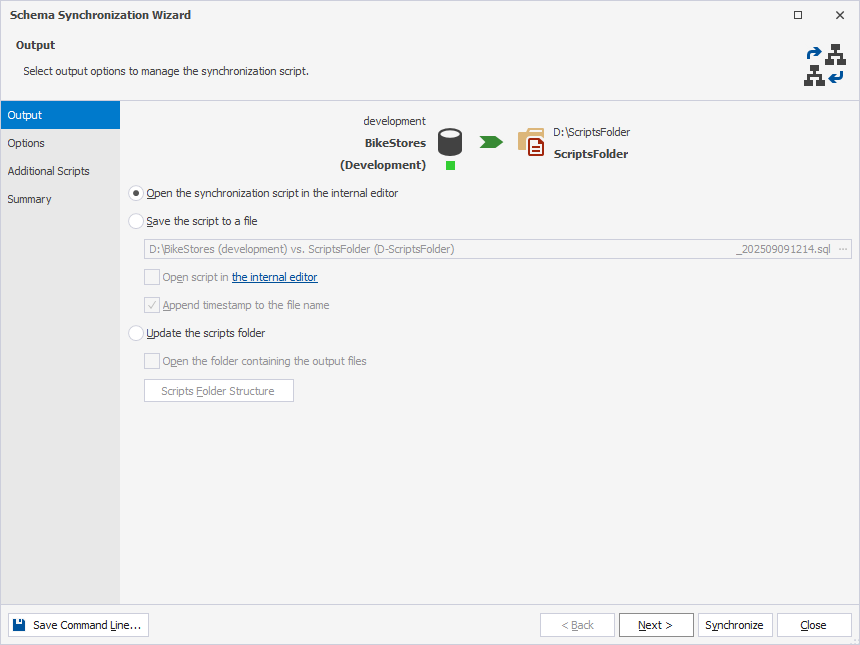
When you select a scripts folder as the target, the Update the scripts folder option appears. Select it to update the local script folder with SQL scripts from the source database.
Warning
Updating a script folder may overwrite local changes. Back up or commit your changes before deployment.
Under Update the scripts folder:
- Optional: Select Open the folder containing the output files to open the folder where the generated files are stored. This also refreshes the comparison results after a successful schema deployment.
- Optional: Click Scripts Folder Structure to open the Scripts Folder Structure dialog and determine the default folder and file name structure for scripts. This mapping configuration will be used by schema comparison and source control by default.
Scripts Folder Structure
The Scripts Folder Structure dialog defines how database objects are organized when performing schema comparison. It lets you:
- Include or exclude specific database object types and subfolders in a synchronization script.
- Define how folders and file names are created for each object type.
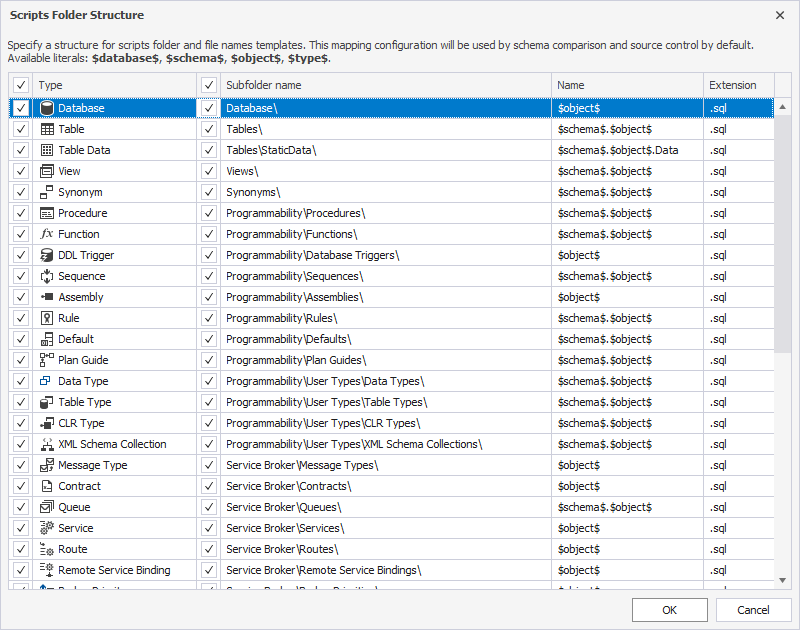
The table describes the values from the grid.
| Column | Description |
|---|---|
| Type | Specifies the database object type, such as Table, View, or Procedure. To include the object type in script generation, select the checkbox for the required type. To exclude the object type, clear the corresponding checkbox. |
| Subfolder name | Defines the folder structure where scripts are saved. To generate a subfolder for that object type, select the checkbox for the required subfolder, otherwise, clear the corresponding checkbox. |
| Name | Defines the file name format for each script. |
| Extension | Specifies the file extension of the generated script. The default value is .sql. |
The table describes the available literals used for folders or file names.
| Variable | Description |
|---|---|
$database$ |
Inserts the current database name. |
$schema$ |
Inserts the schema name, for example, dbo. |
$object$ |
Inserts the object name, for example, Customers. |
$type$ |
Inserts the object type, for example, Table, View. |
So, when you synchronize the Bikestores database with this configuration:
- Type:
Table - Subfolder name:
Tables\ - Name:
$schema$.$object$ - Extension: .sql
dbForge Studio will create the following scripts:
Bikestores\Tables\dbo.Customers.sql
Bikestores\Tables\dbo.Orders.sql
Synchronize snapshots
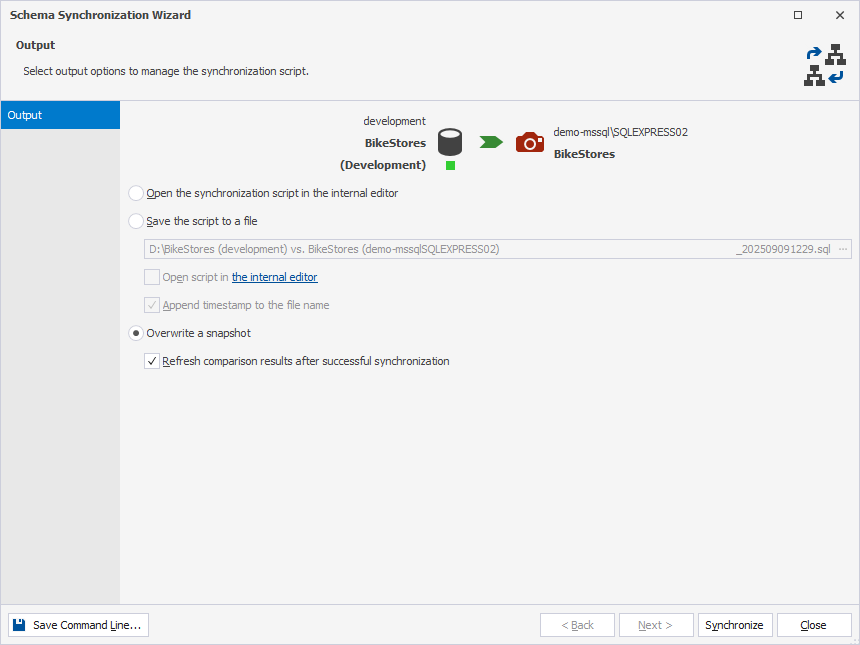
When you select a snapshot as the target, the Overwrite a snapshot option appears. Select it to replace the existing snapshot file with a new one based on the source schema.
By default, the Refresh comparison results after successful synchronization option is selected. Clear the option to prevent the results from updating automatically.
Note
When you select a backup or a snapshot as a target, the Execute the script directly against the target database option is unavailable. Instead, Schema Synchronization Wizard generates a script that modifies the original data source from which the snapshot or backup was created.
Synchronize a source control revision
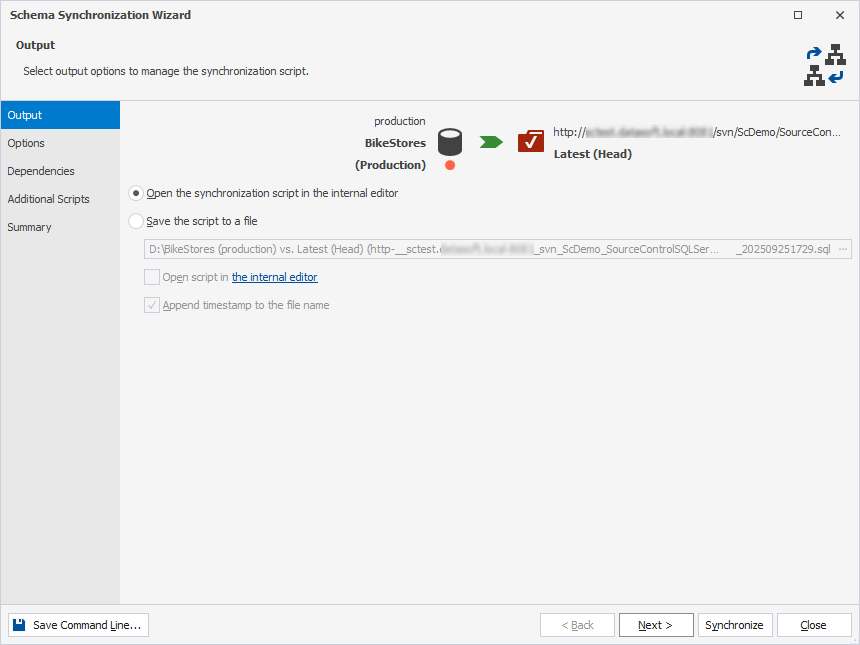
When you select source control as the target, only two output options are available:
- Open the synchronization script in the internal editor
- Save the script to a file
When you select a backup, a scripts folder, a source control, or a snapshot as a source, all three synchronization options are available:
- Open the synchronization script in the internal editor
- Save the script to a file
- Execute the script directly against the target database
Tip
To deploy repository changes to the database and commit database updates to the repository, use the Source Control functionality.
Create a command-line executable file
In the lower-left corner of the wizard, click Save Command Line to create a command-line executable .bat file to automate schema synchronization tasks. In the Command line execution file settings dialog, configure the settings and save the file.
Note
You can create an executable file with command-line schema comparison and synchronization settings on any page of the wizard.