Command-line wizard
The built-in command-line wizard helps you generate command-line syntax based on the options you select. You can save the generated command to a .bat file and use it to schedule or automate database comparison and synchronization tasks.
Open the command-line wizard
Open the command-line wizard in one of these ways:
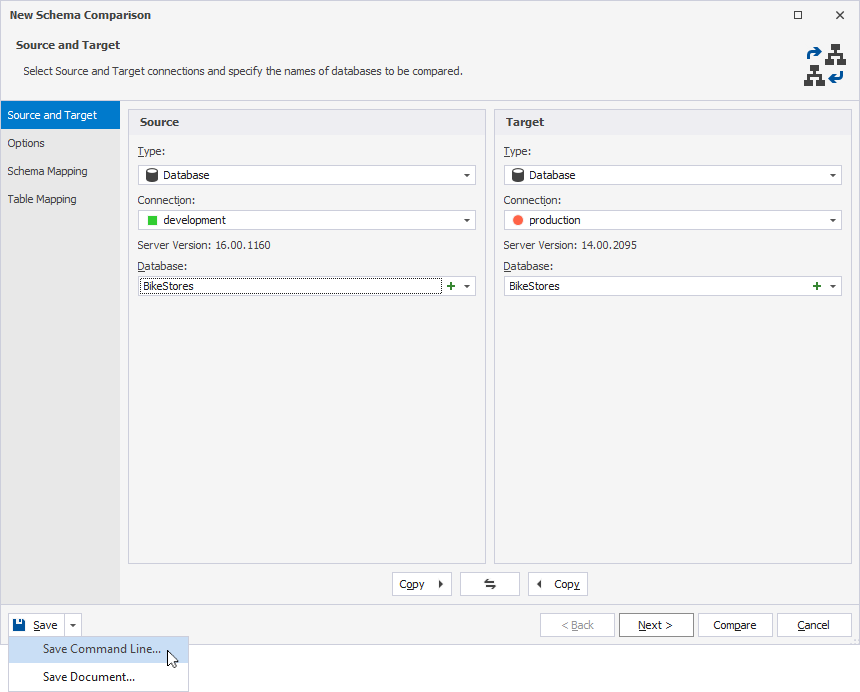
- In the lower-left corner of the New Schema Comparison wizard, click the expander arrow next to Save and select Save Command Line.
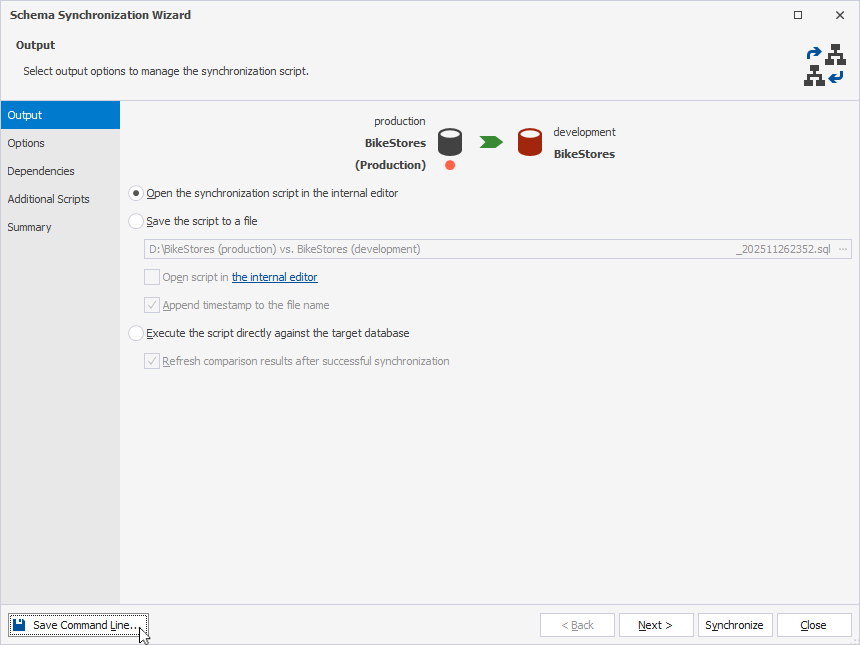
- In the lower-left corner of the Schema Synchronization Wizard, click Save Command Line.
Command-line wizard options
The table provides options available in the command-line wizard.
Tip
To include an option, select the checkbox for the option. To exclude an option, clear the checkbox.
| Option | Description |
|---|---|
| Comparison Project | Loads command-line settings from a comparison (.scomp) project file. Usage: /compfile:<path_to_scomp_file> |
| Source | Specifies the source for comparison by using one of the following options:
|
| Target | Specifies the target for comparison by using one of the following options:
|
| Comparison Options | Specifies the options to manage schema comparison. To select the options, click the ellipsis (…) and select the required options, then click OK. |
| Report | Generates a schema comparison report file. If the output file name uses an .html, .xls, or .xml extension, the format is selected automatically. Usage: /report:<file_name> |
| Report Format | Specifies the format of a schema comparison file. Available options:
If no format is specified, the report format is determined by the file extension. The Report Format option is available when the Report option is selected. Usage: /reportformat:<HTML|XLS|XML|XMLFOREXCEL> |
| Include Objects | Specifies the objects that will be included in the report. Available options:
The Include Objects option is available when the Report option is selected. Usage: /includeobjects<All|Filtered|Diff|SelectForSync> |
| Append timestamp to the report | Generates the folder name with a timestamp for a comparison report. The Append timestamp to the report option is available when the Report option is selected. |
| Include compare and sync options | Includes the comparison and synchronization settings in the comparison report. The Include compare and sync options option is available when the Report option is selected. |
| Warnings | Includes the comparison and synchronization warnings (if any) in the comparison report. The Warnings option is available when the Report option is selected. |
| Deployment script | Includes a deployment script in the comparison report. The Deployment script option is available when the Report option is selected. |
| Script Diffs Style | Specifies the style of displaying script differences in the comparison report. Available options:
Usage: /ScriptDiffsStyle:<removeadd|cross> |
| Objects Filter | Applies a custom filter to include or exclude objects from comparison. Usage: /filter:<file_path> |
| Log File | Generates a comparison log file in the specified directory. Usage: /log:<file_path> |
| Synchronization | Starts database synchronization. If an output file path is specified, only a synchronization script will be generated. |
| Synchronization Options | Specifies the options to manage a synchronization script. To select the options, click the ellipsis (…) and select the required options, then click OK. The Synchronization Options option is available when the Synchronization option is selected. |
| Synchronization File | Specifies the full path to the database synchronization script file. The Synchronization File option is available when the Synchronization option is selected. |
| Execute | Executes the file generated by the previous command. The Execute option is available when the Synchronization option is selected. |
| Error Code | Enables the processing of the code needed to finish the Execute operation. The Error Code option is available when the Execute option is selected. |
| Arguments File | Generates a .txt file containing command-line settings and arguments that will be stored by the specified path. Usage: /argfile:<path> |
| Echo OFF | Wraps all text in the .bat file within the @Echo OFF ... Echo ON block. |
| Keep opened | Adds the pause command at the end of the .bat file. |
| PowerShell | Adds the & symbol at the beginning of the .bat file. |
The text box displays the generated script with the specified options.
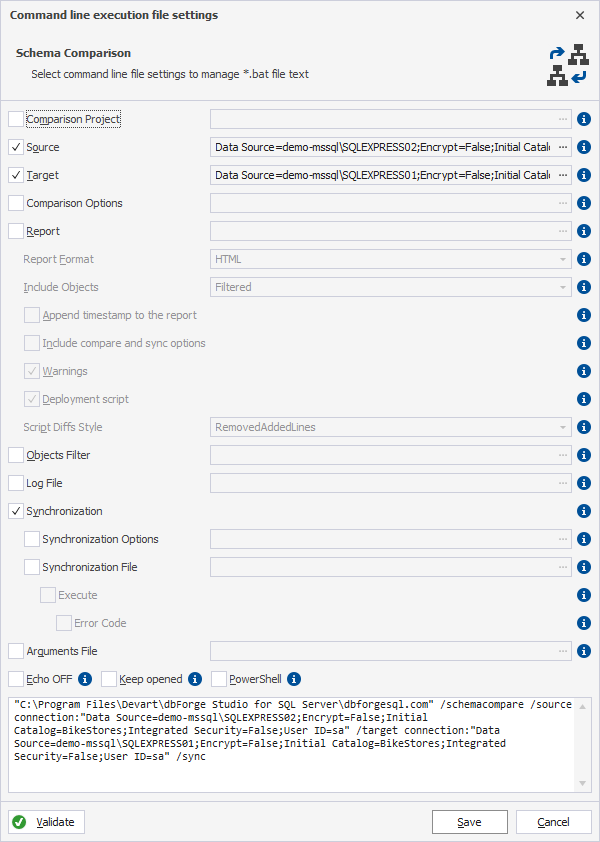
To save the settings in the .bat file, click Save.
To close the dialog, click Cancel.
Command-line validation
To verify the settings, click Validate.
If the parameter validation succeeds, the following message appears:
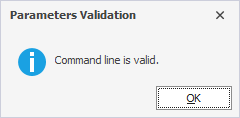
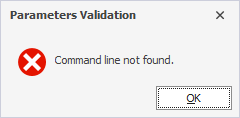
If the parameter validation fails the tool displays the error, for example: