Configure synchronization options
You can configure synchronization options on the Options page of the Schema Synchronization Wizard.
Open the Schema Synchronization Wizard
Open the Schema Synchronization Wizard in one of these ways:
-
At the top of the Schema Comparison document, click
 .
. -
Right-click the Schema Comparison grid and select Synchronize.
-
Press F8.
-
On the Comparison toolbar, click Synchronize.

The options are grouped in collapsible categories. Selecting an option displays its description under the options grid.
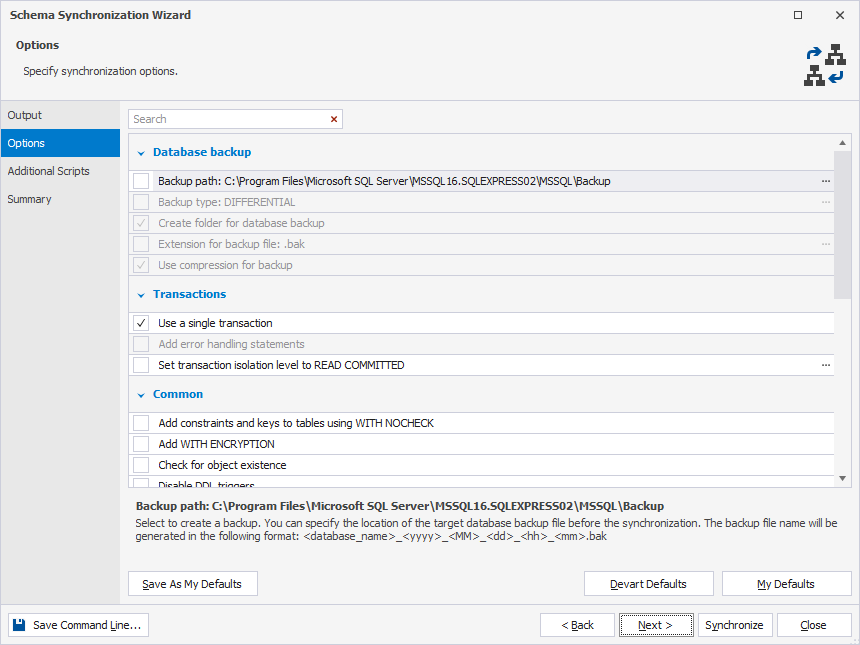
Set up synchronization behavior
Select the checkbox to turn the option on, or clear the checkbox to turn it off.
Use default options
To save your current selection of options as defaults for all new projects, click Save As My Defaults.
To restore your saved defaults, click My Defaults.
To reset all options to default settings, click Devart Defaults.
Search for options
You can search for synchronization options by entering text or symbols, such as a wildcard or underscore, in the search box. The list filters automatically to show only options that contain the search term.
The default search mode is case-insensitive. For example, entering De matches De, de, or DE. Matching text is highlighted, and the search bar shows the number of matches. Multiple words separated by spaces highlight matches for each term.
To clear the search, click  in the search box.
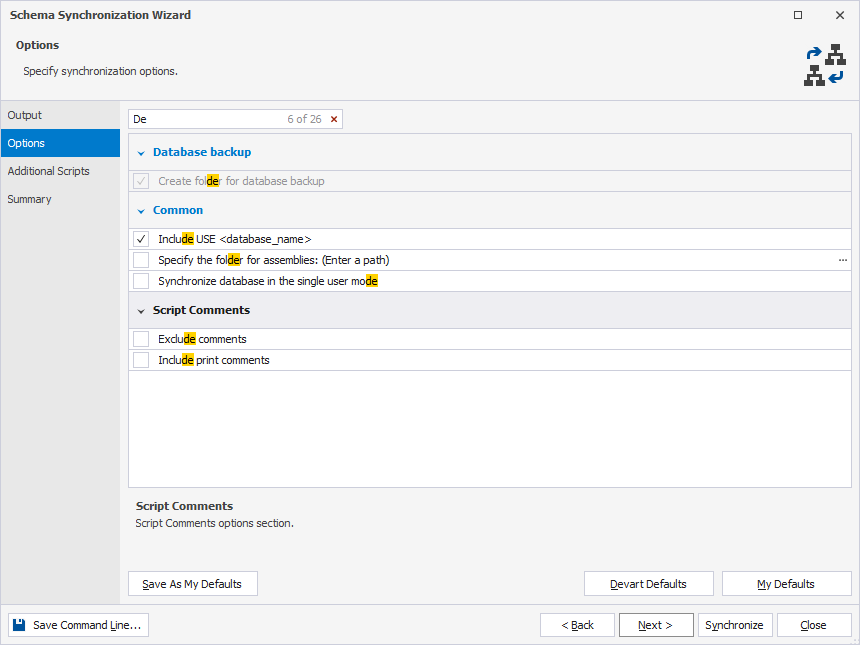
Keyboard shortcuts in the search box
The table provides keyboard shortcuts you can use in the search box.
| Name | Description |
|---|---|
| Ctrl+A | Selects all. |
| Ctrl+Left Arrow (←) | Moves the caret to the beginning of the word. |
| Ctrl+Right Arrow (→) | Moves the caret to the end of the word. |
| Ctrl+Shift+Left Arrow (←) | Selects text from the current caret position to the beginning of the current word and moves the caret to the beginning of the word. |
| Ctrl+Shift+Right Arrow (→) | Selects text from the current caret position to the end of the current word and moves the caret to the end of the word. |
| Ctrl+Backspace | Deletes the word to the left of the caret. |
Save the synchronization options
You can save synchronization options as a .scomp file for further use, for example for automating and/or scheduling database synchronization tasks.
To save the synchronization options:
1. On the Options page, configure the synchronization options.
2. Close the wizard.
3. Save the file in one of these ways:
-
On the standard toolbar, click
 or
or  .
. -
In the top menu, select File > Save .scomp or Save All.
-
Press Ctrl+S or Ctrl+Shift+S.
Note
If you save the .scomp file before configuring synchronization settings, it will include the schema comparison settings from the New Schema Comparison wizard along with the default synchronization settings.
Schema synchronization options
The table provides a list of schema synchronization options available on the Options page of the Schema Synchronization Wizard.
| Name | Group | Description | Default State |
|---|---|---|---|
| Backup path | Database backup | Creates a backup. You can specify the location of the target database backup file. The backup file name will be generated in the following format: <database_name>_yyyy_MM_dd_hh_mm.bak. |
On |
| Backup type | Database backup | Creates a backup in the selected mode. Note that creating a differential database backup requires a previous full database backup. If you have never backed up the database, a full database backup will be created. |
Off |
| Create folder for database backup | Database backup | Creates a folder on the server for a database backup. | On |
| Extension for backup file: .bak | Database backup | Specifies the extension for a backup file. When the option is cleared, the default extension (.bak) is used for a backup file. |
Off |
| Use compression for backup | Database backup | Performs the backup compression. This option is available for SQL Server 2008 or later versions. |
On |
| Use a single transaction | Transactions | Executes a synchronization script as a single transaction. All the changes to the databases will be rolled back if any error occurs during the synchronization script execution. The option should be inactive when working with the memory-optimized tables, since the execution of the ALTER, DROP, and CREATE DDL is not supported within user transactions. |
On |
| Add error handling statements | Transactions | Stops executing a script when encountering an error. | Off |
| Set transaction isolation level to | Transactions | Sets the transaction isolation level. This option is available when the Use a single transaction option is selected. You can specify the following transaction isolation levels: SERIALIZABLE, SNAPSHOT, REPEATABLE READ, READ UNCOMMITTED, and READ COMMITTED. |
On |
| Add constraints and keys to tables using WITH NOCHECK | Common | Adds the WITH NOCHECK clause to foreign keys and constraints created during synchronization. |
Off |
| Add WITH ENCRYPTION | Common | Adds the WITH ENCRYPTION clause when stored procedures, functions, views, and triggers are included to the synchronization script. |
Off |
| Check for object existence | Common | Adds an additional check into the synchronization script (before each object DDL) to verify object existence in the target database. | Off |
| Disable DDL triggers | Common | Deactivates DDL triggers before the synchronization. After the synchronization is completed, the triggers will be enabled. | Off |
| Generate fully qualified object names | Common | Generates fully qualified object names in the synchronization script. If the option is selected, the names of objects in the synchronization script will include a schema name. | On |
| Include USE <database_name> | Common | Adds the USE <database_name> clause to the script. |
On |
| Specify the folder for assemblies | Common | Performs assembly synchronization by copying the files to the specified folder. Specify a local path or network location to copy the target assemblies to. |
Off |
| Synchronize database in the single user mode | Common | Synchronizes a database in the single user mode. | Off |
| Update views | Common | Updates the metadata for the specified non-schema-bound views. | On |
| Use ALTER SCHEMA TRANSFER statement | Common | Transfers tables between schemas using the ALTER SCHEMA TRANSFER statement. This option can be selected if the same database is compared. |
Off |
| Use DROP and CREATE instead of ALTER for assemblies | Common | Replaces the ALTER statements with the DROP and CREATE statements for assemblies in the synchronization script. |
Off |
| Use DROP and CREATE instead of ALTER for tables | Common | Replaces the ALTER statements with the DROP and CREATE statements for tables in the synchronization script. Data will be transferred to a new table. |
Off |
| Use DROP and CREATE instead of ALTER for views, procedures, functions, and triggers | Common | Replaces the ALTER statements with the DROP and CREATE statements for views, procedures, functions, and triggers in the synchronization script. |
Off |
| Verify table data using checksum | Common | Checks if any table data is lost after synchronization. If any data is lost, the warning will appear in the Error list dialog after synchronization. | Off |
| Comment DDL statements for signatures, symmetric and asymmetric keys as well as certificates | Script Comments | Adds comments to the DDL statements for signatures, certificates, symmetric and asymmetric keys. | On |
| Exclude comments | Script Comments | Prevents comments generation in the synchronization script. | Off |
| Include print comments | Script Comments | Adds comments to the output during the script execution. If print comments are included in the deployment script, it is easier to locate items in the output. |
Off |
For more information on a list of comparison options, see Configure comparison options.