Generate script from the results grid
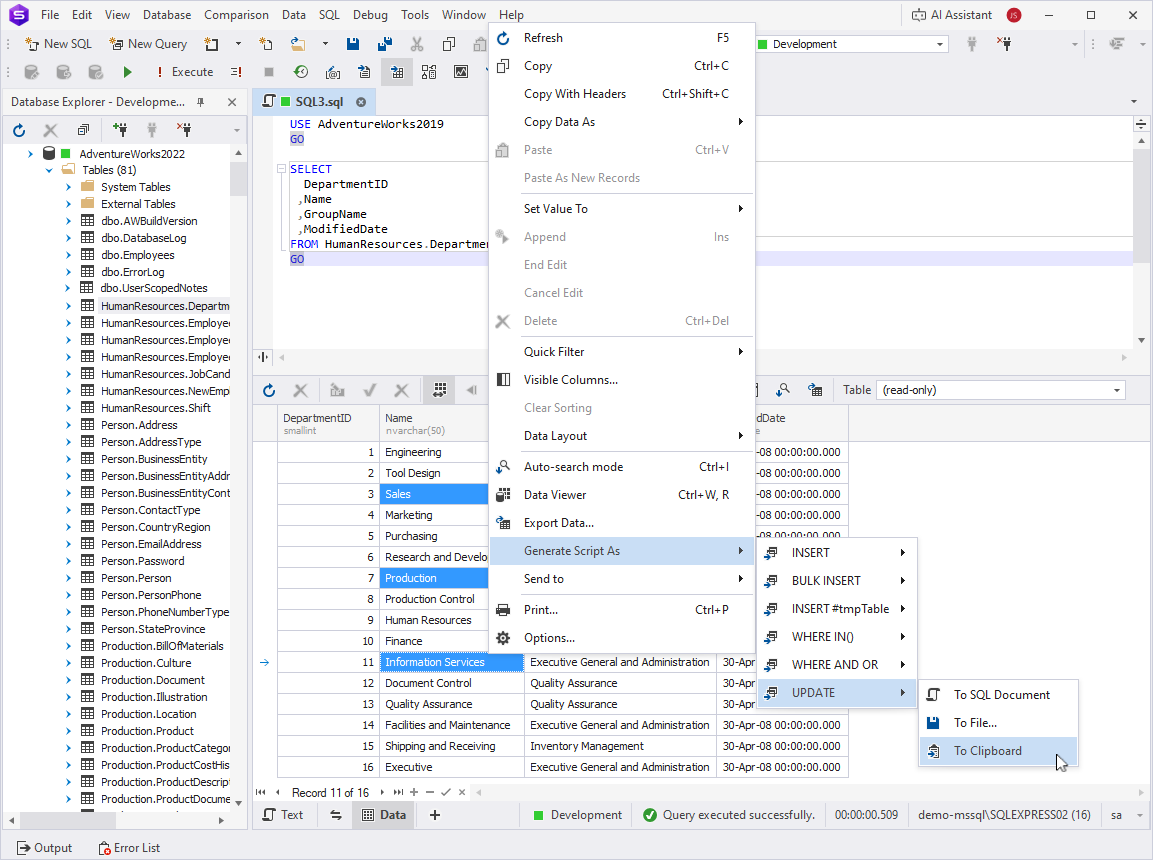
You can use the Generate Script As command to generate DML statements for the selected table data in the results grid.
To generate scripts from the results grid
1. In the results grid, select the data values for which you want to generate a script.
Tip
To select a range of objects, click the first object, hold Shift, and click the last object. You can also click and drag while holding the left mouse button.
To select individual objects, hold down Ctrl and click each object you want to include.
2. Select Generate Script As, and then choose the type of statement you want to generate.
3. Select the output format for the script:
-
To New SQL Window – Opens the script in a new SQL window.
-
To File – Saves the script as a SQL file.
-
To Clipboard – Copies the script to the clipboard.
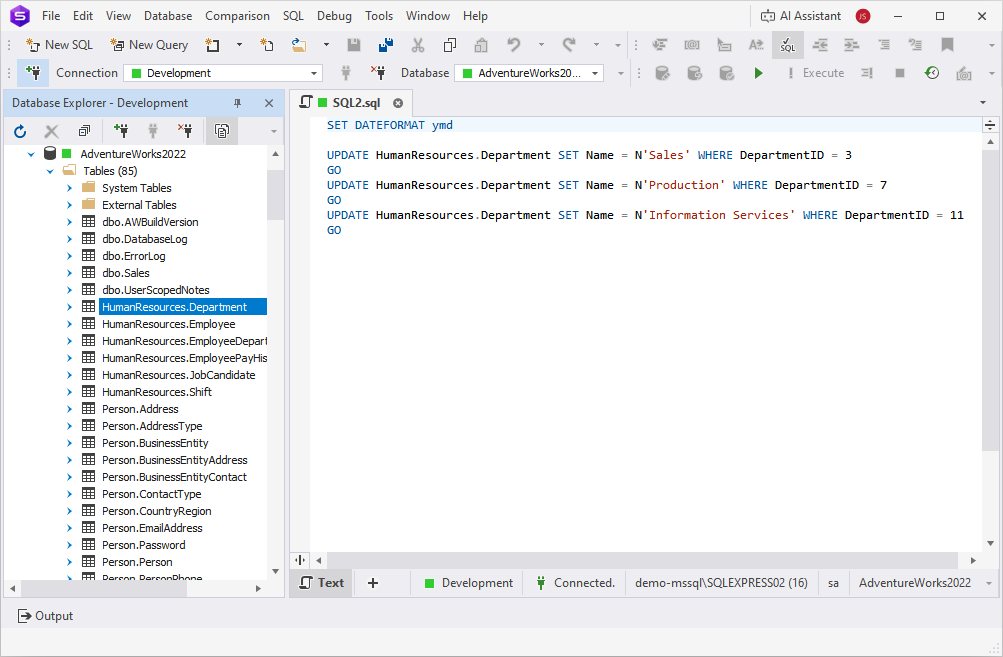
The following example shows the generated UPDATE script that is opened in a new SQL window:
For more information, including use cases for the Generate Script As options, see Generate a SQL script from the results grid.
Note
You can generate scripts for a large number of objects or the entire database using one of the following options:
- To create a scripts folder or a database snapshot, see How to create a scripts folder or a snapshot.
- To generate scripts for multiple objects or the entire database, see How to generate SQL Server database scripts.