Tagged expressions
A tagged expression (also called a capturing group) is any part of a regular expression enclosed in parentheses (()). Each pair of parentheses captures a portion of the matched text as a numbered group, starting from $1, $2, and so on. You can reference these groups in your replacement pattern to reuse, rearrange, or modify the matched text.
Use tagged expressions in the Find and Replace window
1. Select Use and choose Regular expressions from the drop-down list.
2. In Find what, enter a regular expression pattern that includes the tagged expressions you want to capture.
-
Use parentheses
()to enclose the parts of the pattern you want to capture. -
To insert supported regex syntax elements, click the
 arrow button and choose the desired element from the list.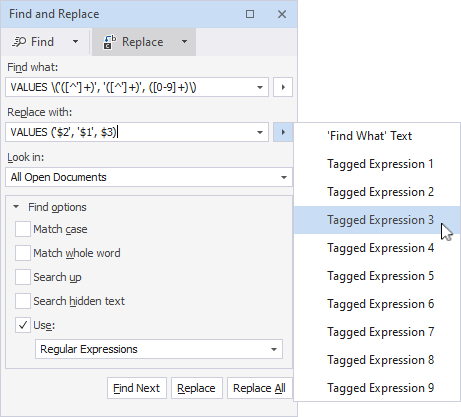
For more information about regular expressions, see Regular expressions
3. In Replace with, reference the text captured by your tagged expressions. You can type the references manually or select them from the drop-down list.
-
Select tagged expressions from the list by clicking
next to Replace with and choose the desired option:-
Find What Text – Inserts the entire matched text (
$0). -
Tagged Expression 1 – Inserts
$1(text from the first captured group). -
Tagged Expression 2 – Inserts
$2(text from the second captured group). -
Tagged Expression 3 – Inserts
$3(text from the third captured group). -
Tagged Expression 4 through Tagged Expression 9 – Insert the text captured in the fourth through ninth captured groups (
$4–$9) respectively.
-
-
Type the references manually:
-
$1– captured text in the first captured group. -
$2– captured text in the second captured group. -
$3– captured text in the third captured group.
Note
You can add text or symbols between captured groups. For example, if
$1captures a first name and$2captures a last name:$2, $1producesSanders, Jordan.[email protected]produces[email protected].$1_$2producesJordan_Sanders.
-
4. Click Find Next, Replace, or Replace All to apply the replacements.
Examples
The following examples demonstrate how to use tagged expressions in the Find and Replace window.
Example 1: Reorder column values in INSERT statements
This example shows how to use a regular expression to swap first and last names in INSERT statements while keeping the age unchanged.
Original statements
INSERT INTO users
  VALUES ('John', 'Doe', 25);

INSERT INTO users
  VALUES ('Jane', 'Smith', 30);

INSERT INTO users
  VALUES ('Bob', 'Jones', 35);
Desired output
INSERT INTO users
  VALUES ('Doe', 'John', 25);

INSERT INTO users
  VALUES ('Smith', 'Jane', 30);

INSERT INTO users
  VALUES ('Jones', 'Bob', 35);
Search pattern
VALUES \('([^']+)', '([^']+)', ([0-9]+)\)
Explanation:
-
'([^']+)'– Captures the first quoted string (first name). -
'([^']+)'– Captures the second quoted string (last name). -
([0-9]+)– Captures the number (age).
Replacement pattern
VALUES ('$2', '$1', $3)
Explanation:
-
'$2'– Inserts the last name first. -
'$1'– Inserts the first name second. -
$3– Keeps the age position unchanged.
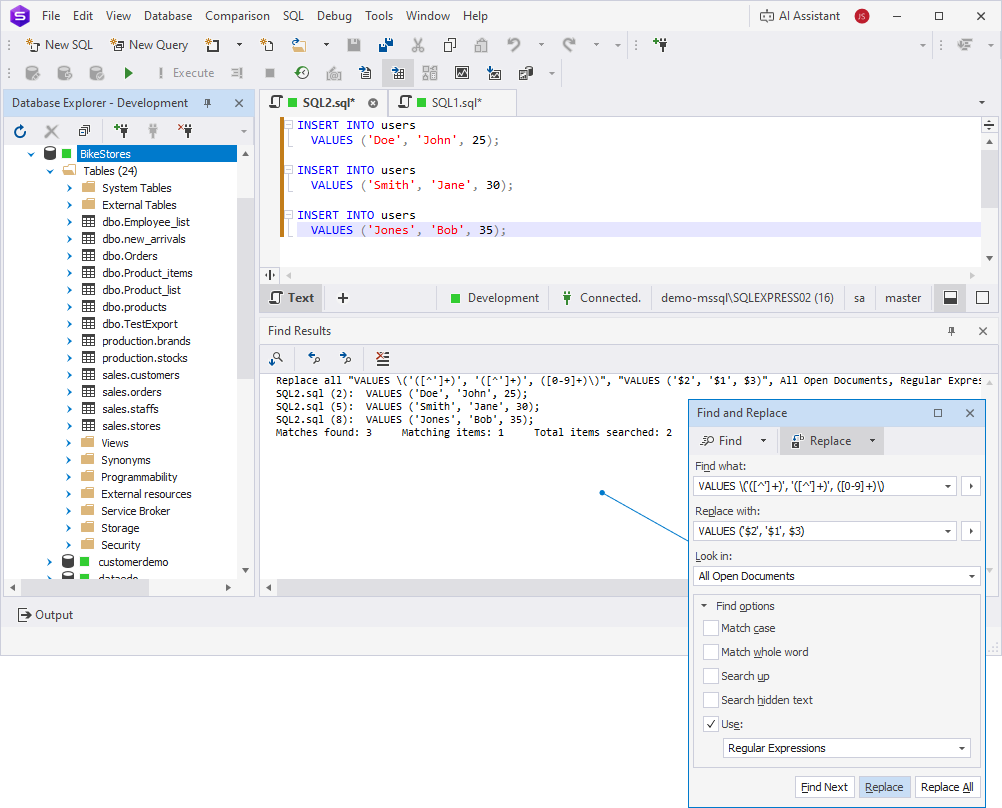
The search pattern VALUES \('([^']+)', '([^']+)', ([0-9]+)\) finds VALUES clauses containing two quoted strings followed by a number in files within the selected folder. The replacement pattern VALUES ('$2', '$1', $3) applies the following changes:
-
Swaps the positions of the two strings while keeping the number unchanged.
-
Replaces
VALUES ('Doe', 'John', 25)withVALUES ('John', 'Doe', 25)across all matching files.
Example 2: Reorder WHERE clause conditions
This example demonstrates how to use a regular expression to reverse the order of column names and values in SQL WHERE clauses.
Original statements
WHERE NAME = 'Jordan Sanders'
AND
city = 'New York'
AND
status = 'Active'
Desired output
WHERE 'Jordan Sanders' = NAME
AND
'New York' = city
AND
'Active' = status
Search pattern
VALUES \('([^']+)', '([^']+)', ([0-9]+)\)
Explanation:
-
([A-Za-z]+)– Captures the column name (letters only). -
([^']+)– Captures the quoted value.
Replacement pattern
'$2' = $1
Explanation:
-
'$2'– Inserts the captured value with quotes first. -
$1– Inserts the captured column name second.
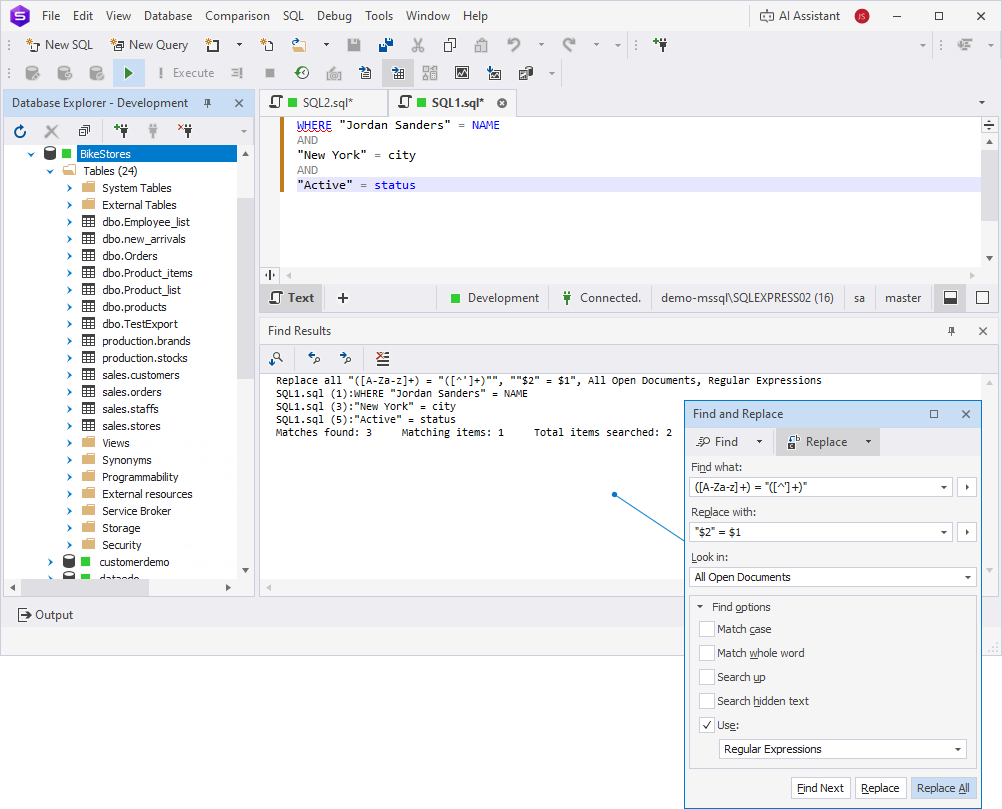
In this example, the search pattern ([A-Za-z]+) = '([^']+)' finds conditions where a column name is followed by an equals sign and a quoted value. The replacement pattern '$2' = $1 reverses their order, so NAME = 'Jordan Sanders' becomes 'Jordan Sanders' = NAME across all open documents.
Example 3: Apply a table alias to a SELECT statement
This example shows how to add a table alias and apply it to all column names in a SELECT statement.
Original statement
SELECT customername,
       orderdate,
       productprice
FROM   orders;
Desired output
SELECT o.customername,
       o.orderdate,
       o.productprice
FROM  orders o;
Step 1: Add an alias to the table name
Add the alias o to the table referenced in the FROM clause.
Search pattern
FROM[ \t]+([A-Za-z_][A-Za-z0-9_]*)
Explanation
-
FROM\s+– Matches theFROMkeyword followed by spaces. -
[ \t]+– Matches one or more whitespace characters to avoid issues caused by inconsistent or invisible spacing in SQL code. -
([A-Za-z_][A-Za-z0-9_]*)– Captures the table name.
Replacement pattern
FROM $1 o
Explanation
$1 – Inserts the captured table name.
o – Appends the alias after the table name.
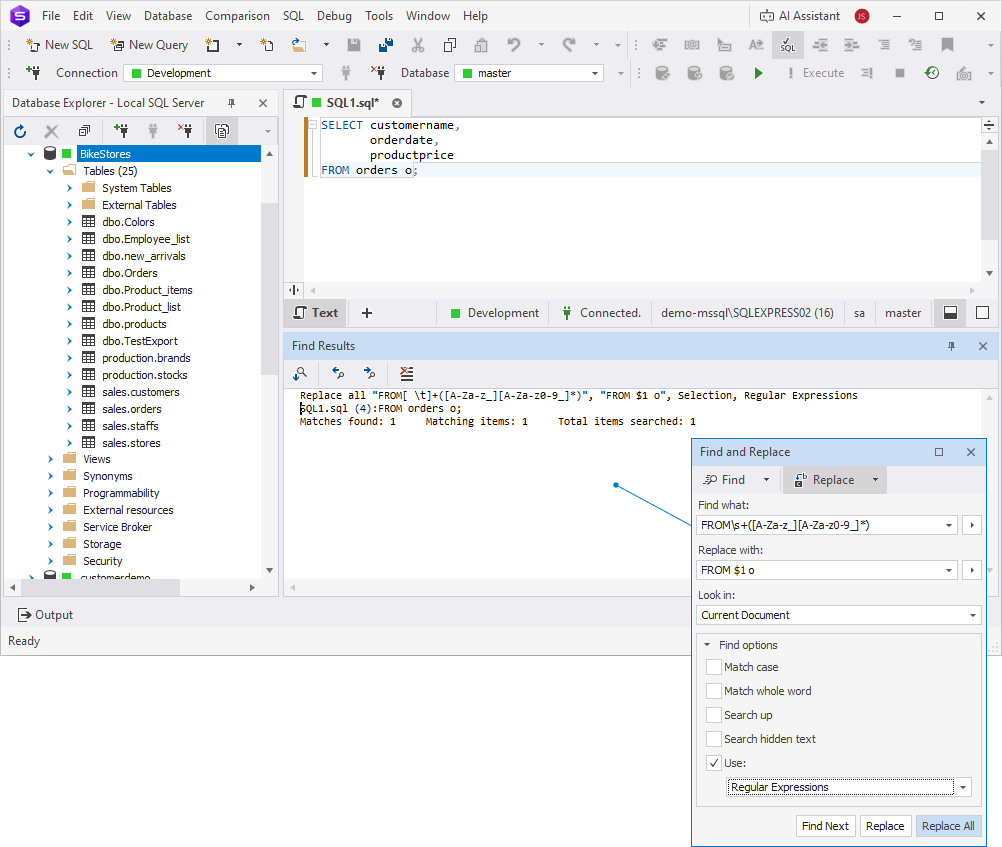
In this example, the search pattern matches the table name orders in the FROM clause, and the replacement pattern inserts the alias o, changing FROM orders to FROM orders o.
Step 2: Prefix column names with the alias
Replace customername, orderdate, productprice with o.customername, o.orderdate, and o.productprice respectively.
Search pattern
(?m)([A-Za-z_][A-Za-z0-9_]*)(?=,|$)
Explanation
-
(?m)– Enables multi-line mode, so the regex processes each line independently. -
([A-Za-z_][A-Za-z0-9_]*)– Captures a valid SQL identifier (column name). It matches a letter or underscore, followed by letters, digits, or underscores. -
(?=,|$)– Checks that the captured name is immediately followed by a comma or the end of the line.
Replacement pattern
o.$1
Explanation
o. – Adds the alias prefix.
$1 – Inserts the original column name.
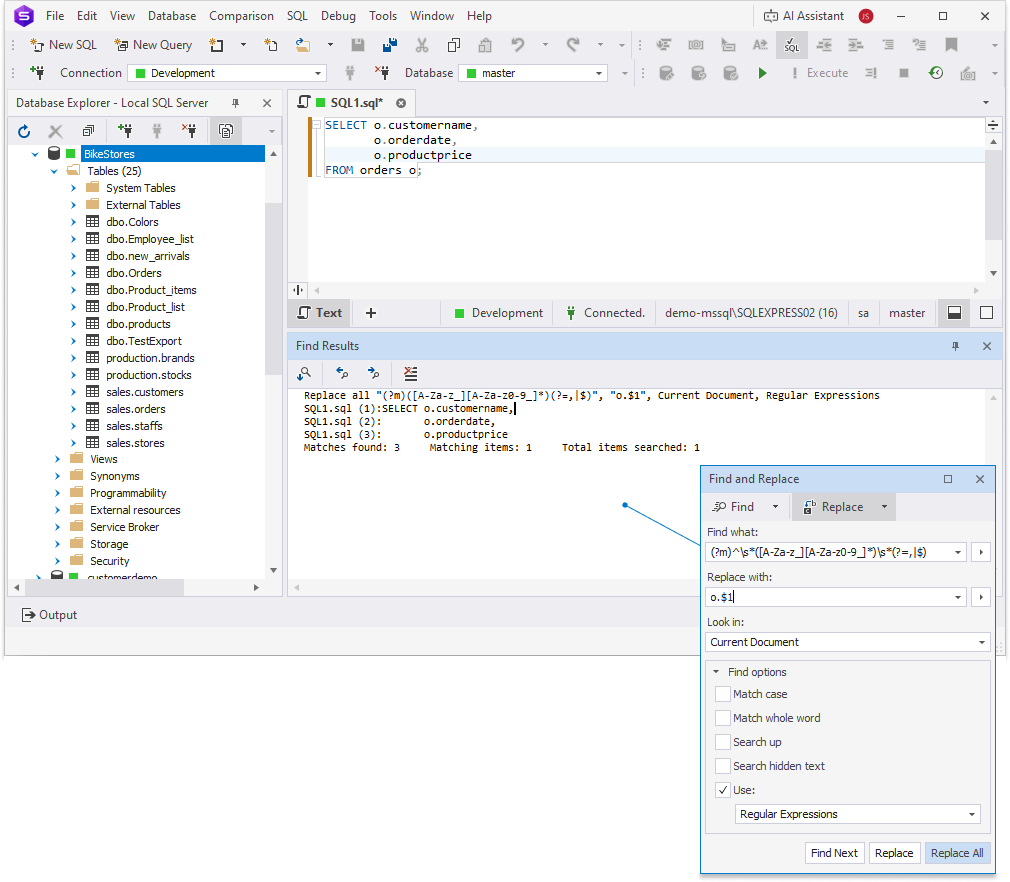
In this example, the search pattern finds the column names in the SELECT list and the replacement pattern prefixes each column name with o., changing customername, orderdate, and productprice to o.customername, o.orderdate, and o.productprice.
Tip
It’s better to use the SQL refactoring feature to rename objects or aliases.