Find Results window
The Find Results window displays occurrences found when you run Find All or Replace All commands in the Find and Replace window. This includes finding text across open documents and in files on your machine.
The window lists each occurrence along with its file path, file name, and line number. You can double-click any occurrence in the Find Results window to navigate directly to that location in the editor.
Open the Find Results window
The Find Results window opens automatically when occurrences are found using:
- Replace All in open documents – Lists occurrences where replacements were performed in the currently open files.
- Find All in files (Find in Files) – Lists all occurrences found in the searched folders.
- Replace All in files (Replace in Files) – Lists occurrences where replacements were performed in the searched files.
You can also open it manually by navigating to View > Other Windows > Find Results.
Results overview
Each result entry includes:
- Full file path and name of the file containing the occurrence.
- Line number of the occurrence.
- Full text of the line where the occurrence was found.
The list starts with a summary of search parameters and ends with statistics such as the number of occurrences, matching files, and total files searched.
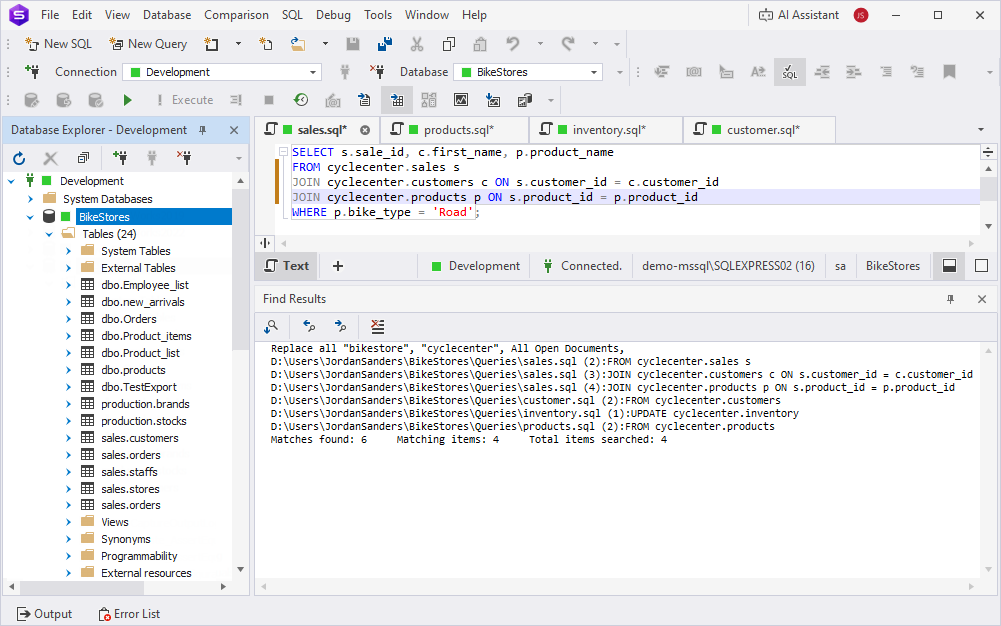
In this example, the window displays the results of replacing bikestore with cyclecenter in all open documents. The results show six matches found across four files, with each entry showing the file path, line number, and the context where the replacement was made.
Navigate occurrences
Double-click a result to jump to the matching line in the editor. Alternatively, you can use the toolbar in the Find Results window to move between matches.
| Icon | Command | Description |
|---|---|---|
 |
Go To Location | Opens the file and navigates to the selected occurrence. |
|
Go To Previous Location | Moves to the previous match in the list. |
 |
Go To Next Location | Moves to the next match in the list. |
 |
Clear All | Removes all matches from the window. |