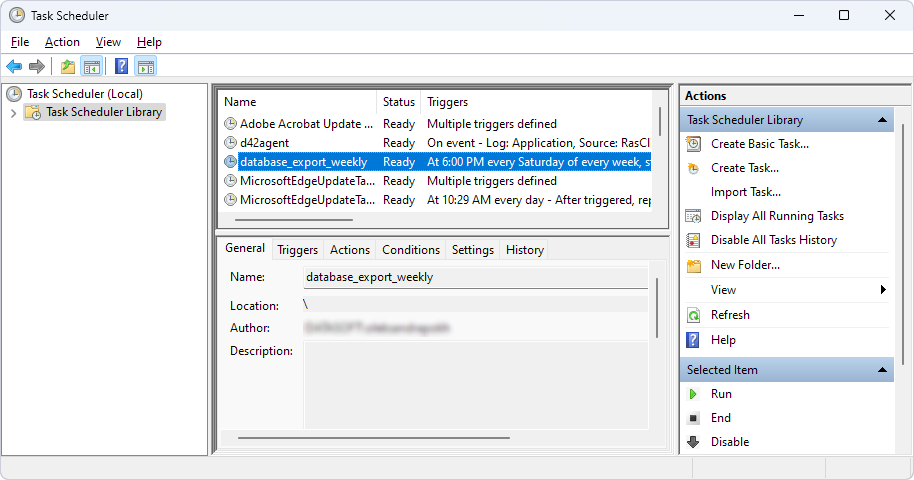
Schedule data export
You can schedule a data export task using Task Scheduler to run automatically at a specific time or after a defined event.
Prerequisite
- Create a template file (.det) that contains the settings for exporting data.
- Create a .bat file to run the data export.
Create a data export task
1. Open Task Scheduler.
2. Under Actions, click Create Basic Task.
3. On the Create a Basic Task page, specify a name and optional description for the task, then click Next.
4. On the Trigger page, select a schedule, then click Next.
5. Depending on your selection, specify the start date and time, the recurrence frequency, or the log, source, and event ID, then click Next.
6. On the Action page, select Start a Program, then click Next.
7. Under Program/script, click Browse and select the .bat file, then click Next.
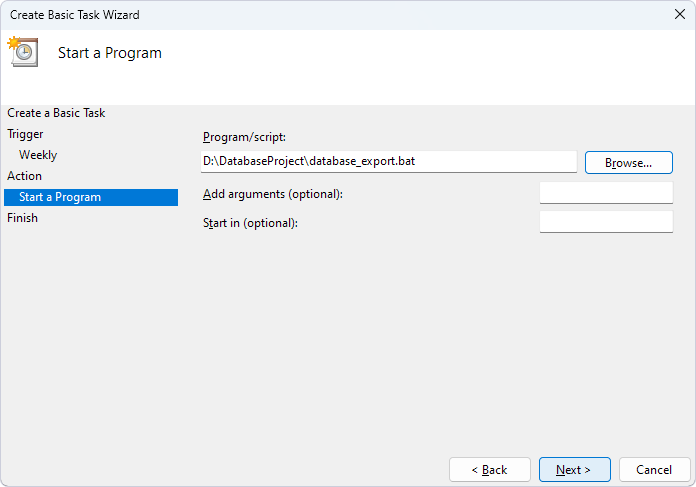
8. On the Finish page, verify the settings.
Tip
To update the settings, click Back.
9. Click Finish.
The task appears in the Task Scheduler Library.