Use data import templates
You can configure the import settings and save them to a custom template. You can reuse this template for recurring tasks, such as daily imports, so you don’t need to reconfigure the settings each time.
Create a template
1. Open the Data Import wizard in one of these ways:
-
On the Start Page, select Data Pump > Import External Data.
-
In Database Explorer, right-click the required database or server connection and select Tasks > Import Data.
-
In Database Explorer, right-click the required table or view and select Import Data.
-
In the top menu, select Database > Tasks > Import Data.
2. On the Source file page, select the file import format.
3. Configure the import template settings for the selected data format:
4. Select Save > Save Template.
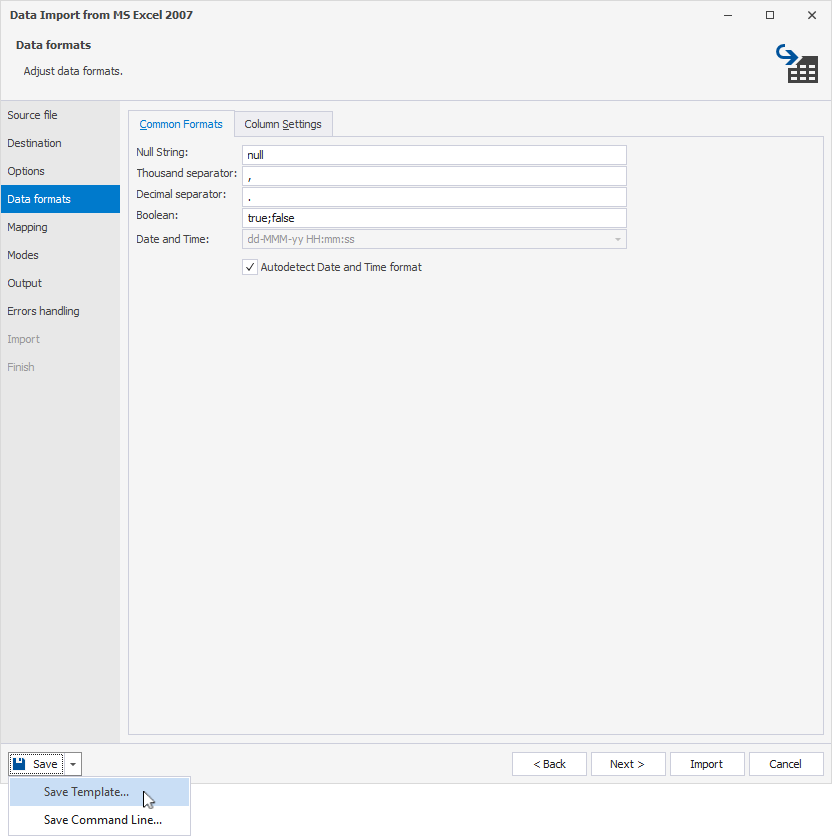
5. Enter the template file name and select the folder to save it.
6. Click Save.
Load a template
1. Open the Data Import wizard in one of these ways:
-
On the Start Page, select Data Pump > Import External Data.
-
In Database Explorer, right-click the required database or server connection and select Tasks > Import Data.
-
In Database Explorer, right-click the required table or view and select Import Data.
-
In the top menu, select Database > Tasks > Import Data.
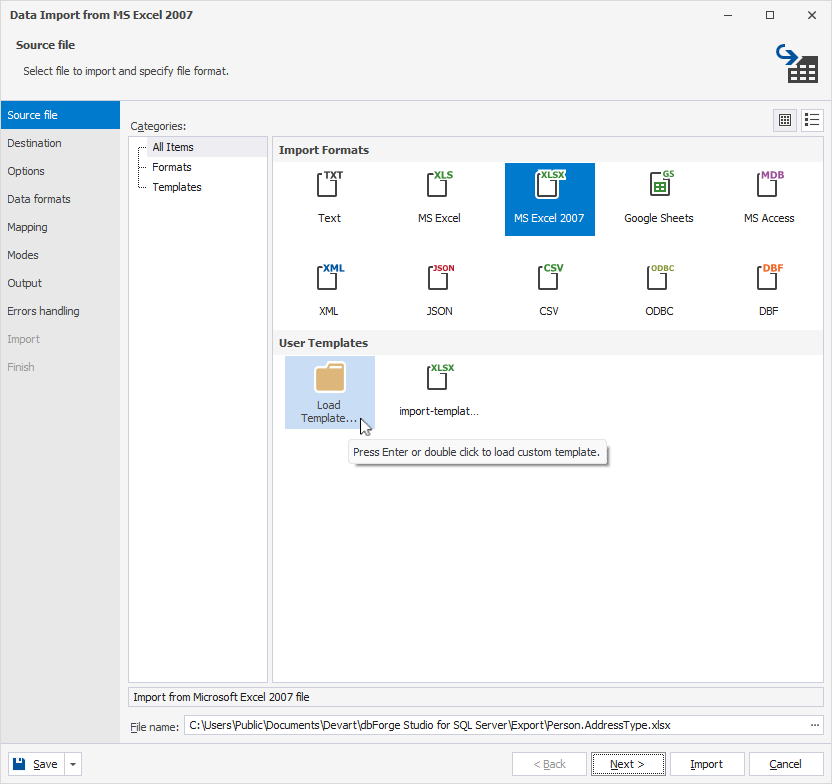
2. On the Source file page, double-click Load Template and select the template file for the data import, then click Next.
3. Optional: Configure additional settings for the selected data format.
4. Click Import.