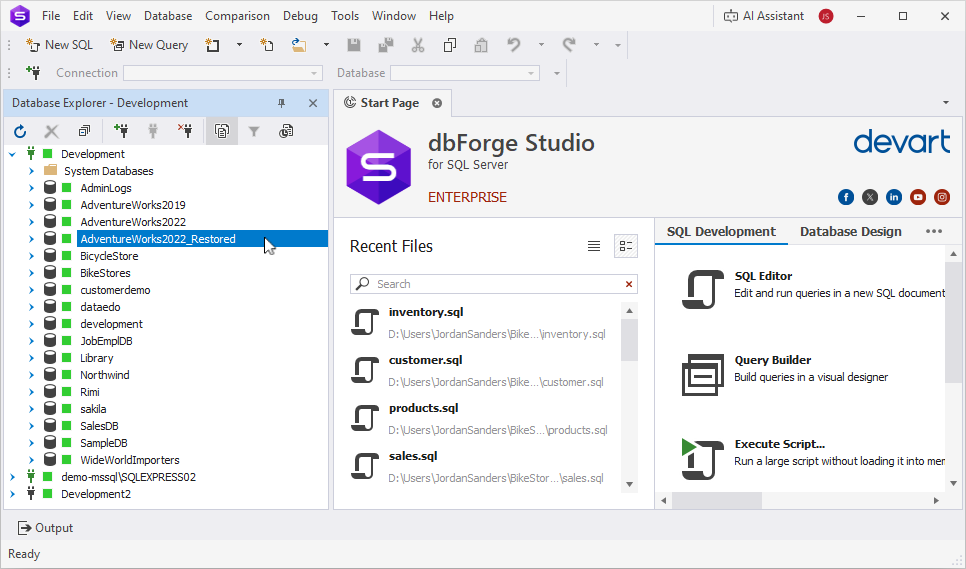
Restore a database to a different name
You can restore a database backup to a new database name to create a copy of an existing database on the same SQL Server instance, for example, for development or testing purposes.
Prerequisites
-
Connect to the required SQL Server instance.
-
Create a backup of the database that includes a full backup and, optionally, differential and transaction log backups. For more information, see Back up a database.
Important
The created backup files must be located on the server where the SQL Server instance is installed. If the backup file is stored on your local machine, copy it to the server before restoring the database.
To restore a database to a different name
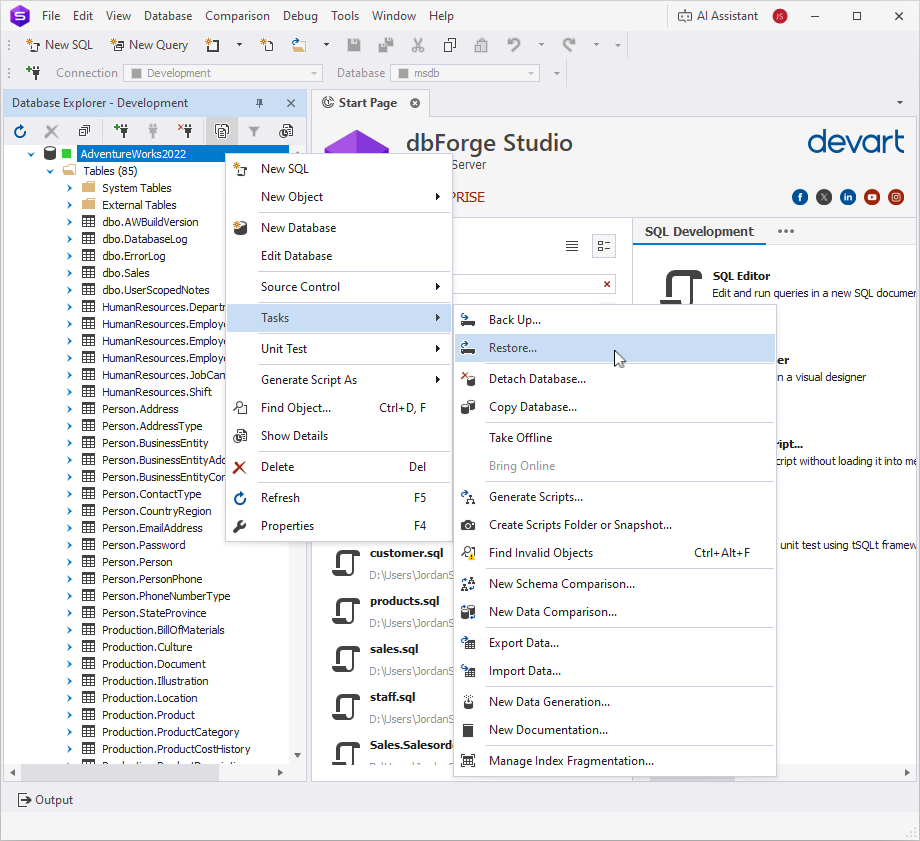
1. In Database Explorer, right-click the database you want to restore, and select Tasks > Restore to open the Restore Database wizard.
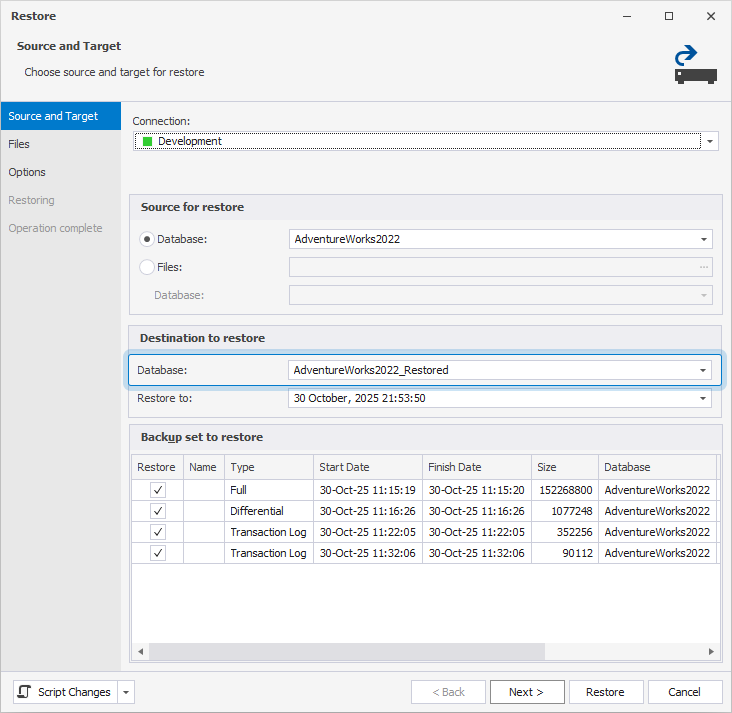
2. On Source and Target page, under Source for restore, choose the backup source:
-
Database – Select a database from the backup history on this instance. Use this option when the backup was created on the same SQL Server instance.
-
Files – Specify the path to a
.bakfile stored on the SQL Server machine and the name of the database that the backup file contains. Use this option to restore directly from a backup file.
3. Under Destination for restore, in Database, enter the destination database name. If a database with that name doesn’t exist on the instance, SQL Server creates it.
4. Optional: For a point-in-time restore, in Restore to, specify the point in time to which the database needs to be restored:
-
To restore the database to the most recent available state, keep the default To the last backup taken option.
-
To restore the database to a specific point in time, select the desired date and time in the picker.
-
To view all backups required to restore the database as close as possible to the current time in the Backup set to restore grid, click Now in the Restore to date and time picker, and then click OK.
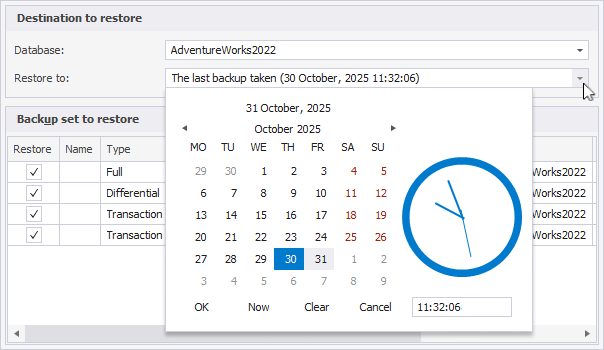
The list of backups in the Backup set to restore grid automatically updates based on the selected date and time.
Note:
Restore to is available only when backup metadata is accessible—for example, when restoring from backup history or from backup files in the SQL Server default backup directory. If this option is unavailable, the database is restored to the end of the selected backup.
5. Under Backup set to restore, in Database, review the available backups in the grid and select the backup set you want to restore.
6. Optional: Configure custom file locations and restore options. For more information, see Restore a full backup.
Note
When restoring a database to a different name, make sure that the Leave source database in the restoring state (WITH NORECOVERY) checkbox in the Tail-Log backup section is not selected.
Otherwise, the source database will remain in the Restoring state, and you will need to repeat the restore operation.

7. Click Restore.
After the full backup is restored successfully, the new database appears in Database Explorer with the name you specified.