Add a TFVC repository
You can link a database to a TFVC repository and compare its revision with other data sources.
Note
If you use TFS, Azure DevOps Server, or Azure DevOps Services with Git-based version control, Team Foundation Version Control (TFVC) mode isn’t supported. Use Git instead.
To add a TFVC repository to schema compare:
1. In the New Schema Comparison wizard, select Source Control as the source or target type.
2. In Repository, click  .
.
3. In the Source Control Repository Properties dialog, configure the repository settings:
3.1. In Source control system, select Team Foundation Version Control (TFVC).
3.2. In Server URL, enter the server URL.
3.3. In Authentication type, select the authentication type.
Depending on the selected authentication type, enter your username and password, or a token.
3.4. In Database folder, click the ellipsis (…) and select the folder to store SQL scripts.
By default, the selected folder name is used as the repository name. To specify a different name, enter it manually.
Warning
The database folder must already exist on the server. Otherwise, the connection fails.
For instructions, see How to resolve the TFVC issue - No folder on the repository.
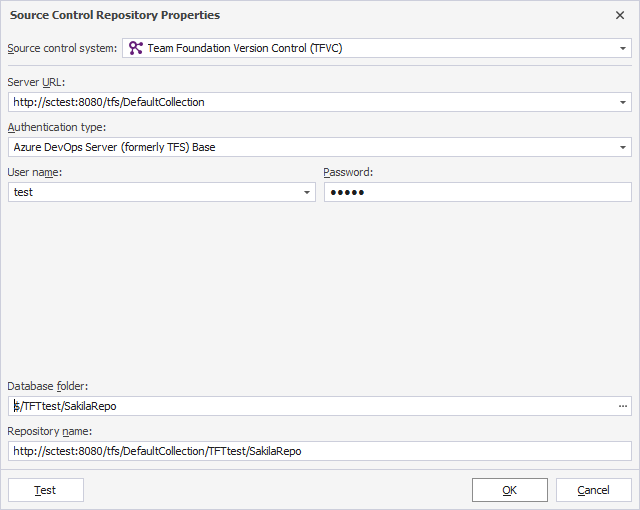
4. Optional: Click Test to verify the connection settings.
5. Click OK to save the settings and close the dialog.