Ignore user differences and object permissions
With dbForge Studio for SQL Server, you can exclude user differences and object permissions from schema comparison and synchronization.
Ignore object permissions
You can save schema comparison settings to a .scomp project file and automate schema comparison and synchronization tasks from the command line.
To save schema comparison settings:
1. Open the New Schema Comparison wizard in one of these ways:
- In the top menu, select Database > New Schema Comparison.
- On the Start Page, select Database Sync > New Schema Comparison.
2. On the Source and Target page, set up source and target data sources.
3. On the Options page, under Common, select Ignore permissions.
Note
Selecting Ignore permissions automatically enables Ignore users permissions.
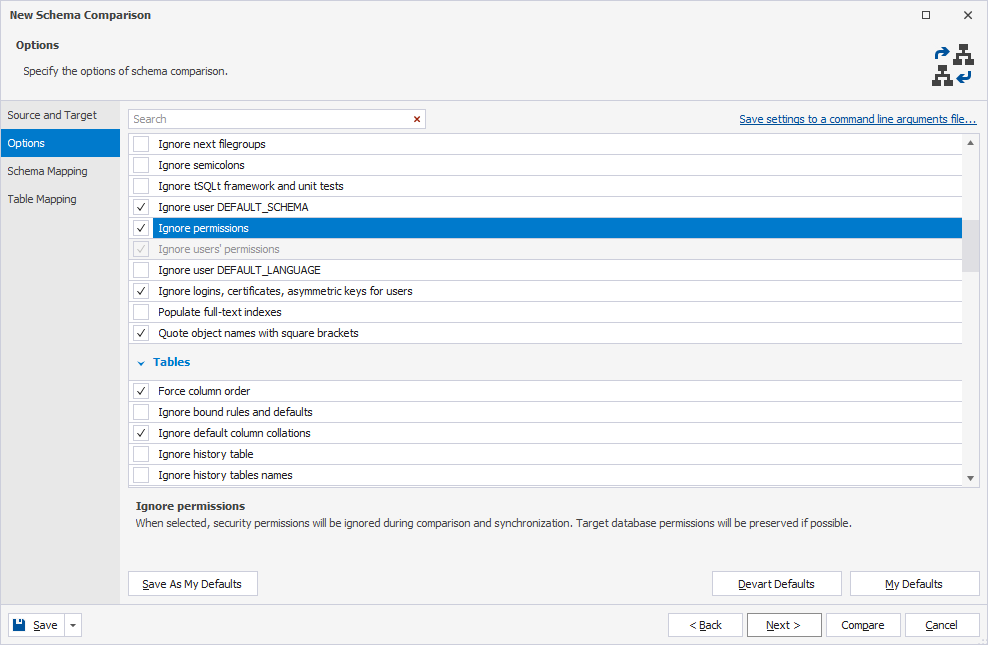
4. Click Compare.
The Schema Comparison document opens and displays schema comparison results.
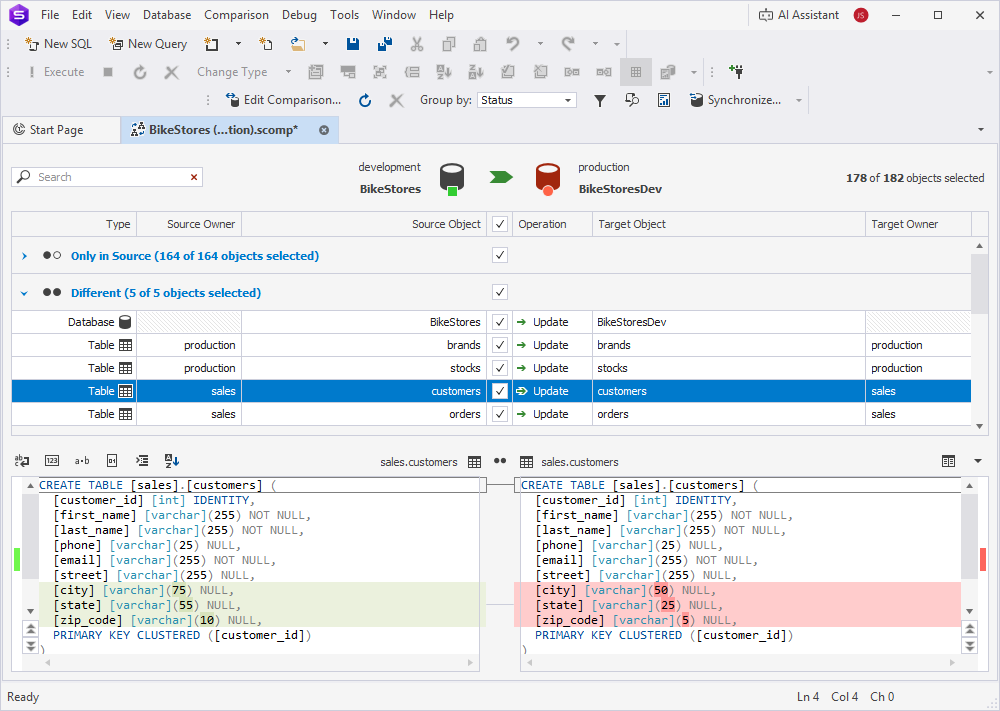
5. Save the results as a .scomp file in one of these ways:
-
On the standard toolbar, click
 .
. -
In the top menu, select File > Save.
-
Press Ctrl+S.
Use the settings from the command line
To use the settings of the .scomp file from the command line, provide a path to that file after the /compfile argument.
"C:\Program Files\Devart\dbForge Studio for SQL Server\dbforgesql.com" /schemacompare /compfile:"path-to-your-scomp-file"
where path-to-your-scomp-file is the path to the .scomp file containing the schema comparison settings.
Ignore user differences
1. In the Schema Comparison document, on the Comparison toolbar, click  .
.
2. In the Objects Filter tree, clear Users.
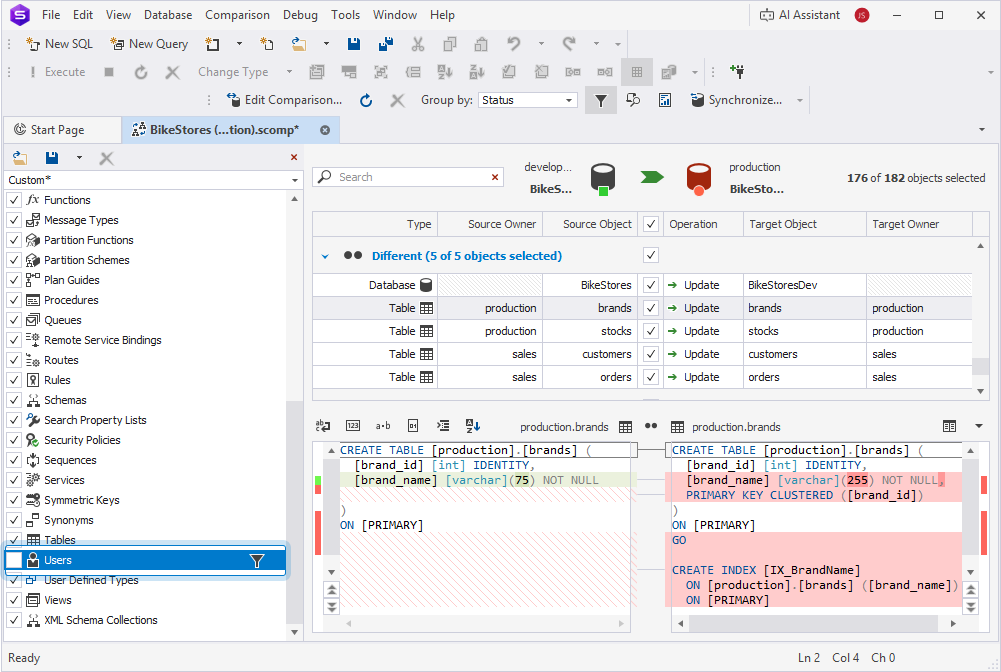
Tip
To reuse filter settings, save them as a .scflt file. On the toolbar, click
3. At the top of the document, click  to open the Schema Synchronization wizard.
4. Click Synchronize.
Use a filter file from the command line
To use the filter file in the command line, provide a path to it after the /filter argument.
"C:\Program Files\Devart\dbForge Studio for SQL Server\dbforgesql.com" /schemacompare /compfile:"<path_to_scomp_file>" /filter:"<path_to_scflt_file>"
where:
<path_to_scomp_file>is the full path to the .scomp file containing the schema comparison settings.<path_to_scflt_file>is the full path to the .scflt file with filter settings.