Database reverse engineering
Reverse engineering a database creates a model that can be represented as an ER diagram or as a schema containing database objects—such as tables, views, and stored procedures—and optionally the associated data.
With dbForge Studio, you can reverse engineer a database using:
Reverse engineer a database using the Generate Scripts Wizard
The Generate Scripts Wizard allows you to create a single .sql file containing objects and data.
Benefits and drawbacks
| Pros | Cons |
|---|---|
|
|
Reverse engineer a database
1. Open the Generate Scripts Wizard in one of these ways:
- In the top menu, select Database > Tasks > Generate Scripts.
- In Database Explorer, right-click a connection or a database and select Tasks > Generate Scripts.
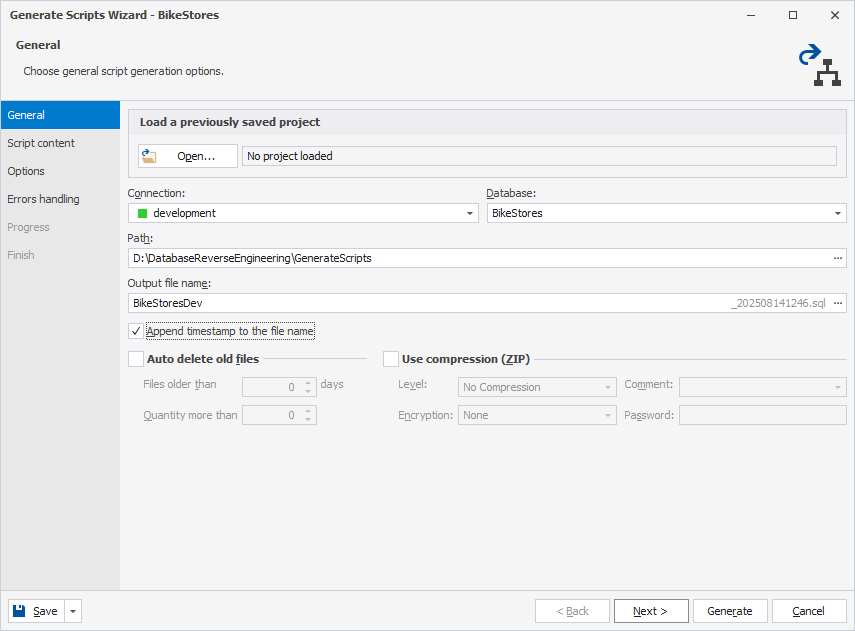
2. On the General page, set up script generation options:
- In Connection, select a connection from the list.
- In Database, select the required database.
- In Path, specify a path to the folder that will store the output file.
- In Output file name, enter the name of the output file.
- Optional: Keep the Append timestamp to the file name checkbox selected to add the current date and time to the file name, or clear the checkbox to exclude the timestamp.
- Optional: Select Auto delete old files to automatically remove old generated files to save storage space.
- In Files older than (…) days, specify the number of days to delete files that are older than the specified number of days.
- In Quantity more than, specify the number of files you want to store. It deletes older ones beyond that number.
- Optional: Select Use compression to compress the generated files into a .zip archive.
- In Level, set the compression ratio: No Compression, Best Speed, Fast, Default, Good, or Maximum.
- In Encryption, select the encryption type for the .zip archive: None or AES.
- In Comment, enter the optional text that added to the .zip file metadata.
- In Password, specify the password required to protect and restrict access to the encrypted .zip file.
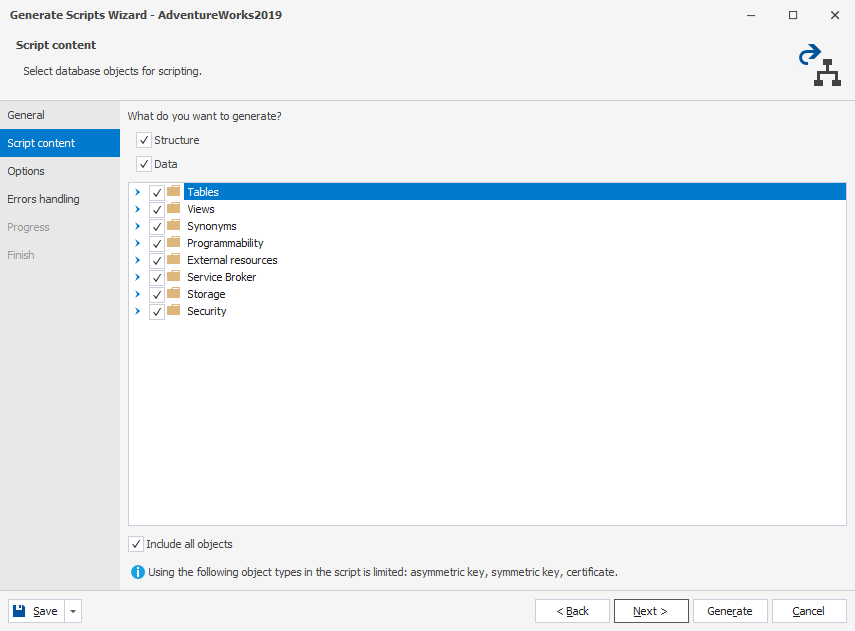
3. On the Script content page, select a database structure, data, and/or database objects.
4. Optional: On the Options page, select options that define how the script generation should be processed.
5. Optional: On the Errors handling page, set up error processing behavior and logging options.
6. Click Generate.
7. To open the output file in the editor, select Open script.
8. Click Finish to close the wizard.
Reverse-engineer a database using the Create Scripts Folder or Snapshot Wizard
The Create Scripts Folder or Snapshot Wizard allows you to import database objects and data to individual .sql files.
Benefits and drawbacks
| Feature | Pros | Cons |
|---|---|---|
| Scripts Folder |
|
|
| Snapshot |
|
|
Note
The Scripts Folder feature is available only in the Professional edition of dbForge Studio for SQL Server.
Reverse engineer a database
1. Open the Create Scripts Folder or Snapshot dialog in one of these ways:
- In the top menu, select Database > Tasks > Create Scripts Folder or Snapshot.
- In Database Explorer, right-click a connection or a database and select Tasks > Create Scripts Folder or Snapshot.
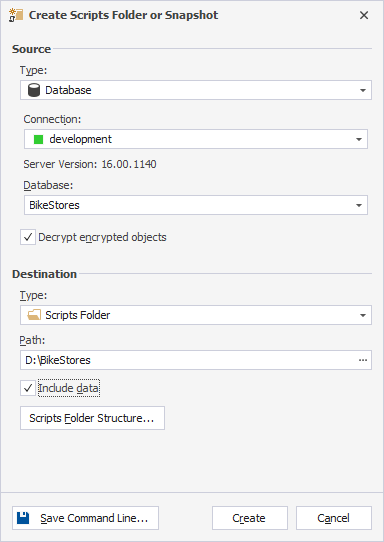
2. Under Source, configure the source data source settings:
2.1. In Type, select Database.
2.2. In Connection, select a server connection.
2.3. In Database, select a database.
2.4. In Decrypt encrypted objects (selected by default), leave this option enabled to decrypt any encrypted database objects.
3. Under Target, configure the destination data source settings:
-
For Scripts folder:
1. In Type, select Scripts folder.
2. In Path, specify the path to an empty folder where SQL scripts for objects and data will be stored, or click the ellipsis (…) to browse for and select the folder.
3. Select the Include data checkbox to add database data.
4. Click Scripts Folder Structure to select the types of database objects you want to script.
-
For Snapshot:
1. In Type, select Snapshot.
2. In File name, specify the name for the output file that will store a .snap file.
3. Select the Compress checkbox to compress the output file.
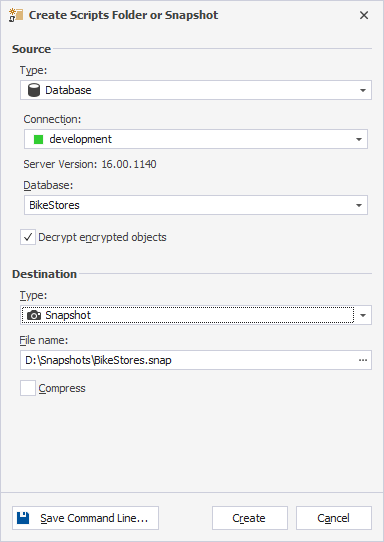
4. Click Create.
Reverse-engineer a database using the Schema Synchronization Wizard
The Schema Synchronization Wizard lets you import database objects or data into a single .sql file or into separate .sql files for each object.
Benefits and drawbacks
| Pros | Cons |
|---|---|
|
|
Reverse engineer a database
1. Open the New Schema Comparison Wizard in one of these ways:
- In the top menu, select Comparison > New Schema Comparison.
- On the Start Page, select Database Sync > New Schema Comparison.
2. On the Source and Target page, configure source and target data sources:
-
Under Source:
1. In Type, select Database.
2. In Connection, select a server connection.
3. In Database, select a database and a connection.
-
Under Target:
1. In Type, select Scripts folder.
2. In Database folder, Click the ellipsis (…) to browse for and select the empty folder.
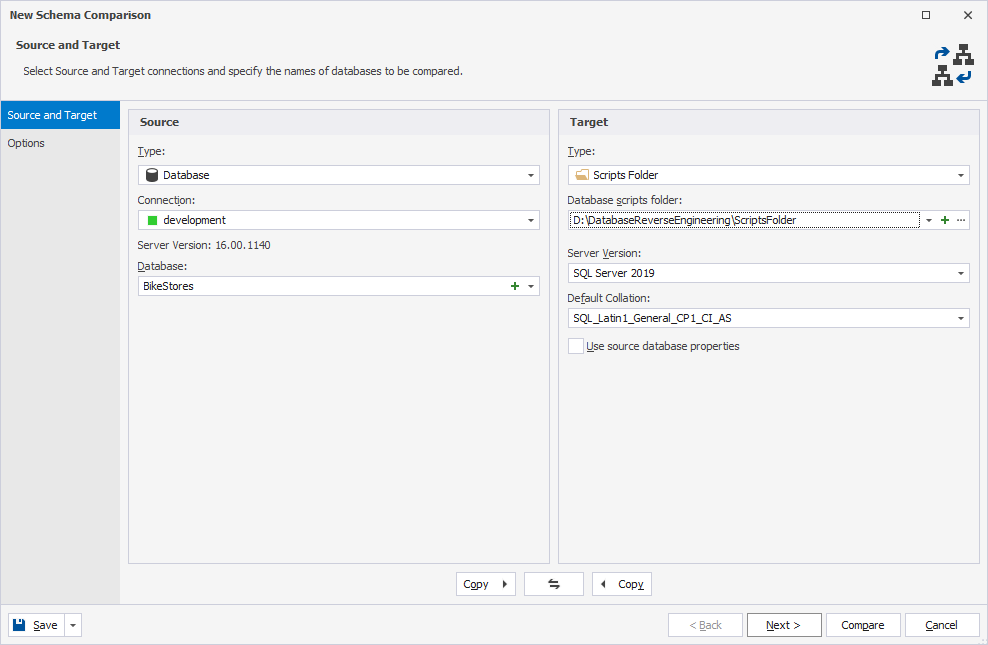
3. Optional: On the Options page, configure schema comparison settings.
4. Click Compare.
The comparison results appear in the Schema Comparison document.
By default, all objects are selected for synchronization. To exclude an object, clear the checkbox for it.
5. At the top of the document, click  to open the Schema Synchronization Wizard.
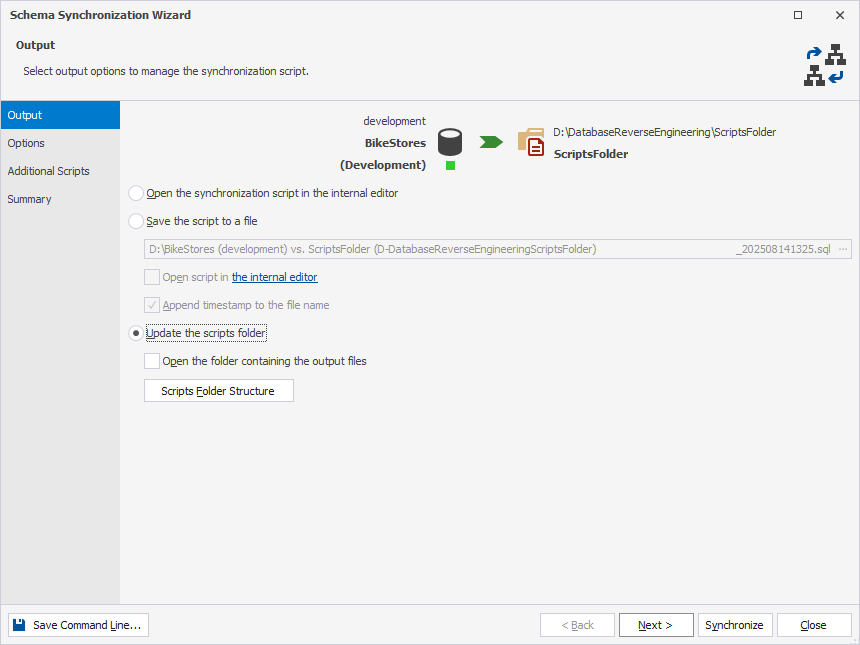
6. Select the output option to generate a synchronization script.
- Save the script to a file – Creates a single .sql file with all database objects.
- Update the scripts folder – Creates separate .sql files for each database object and groups them into categories. To customize the folder structure, click Scripts Folder Structure, choose the object types to script, then click OK.
7. Optional: Configure synchronization options.
8. Click Synchronize.