Exporting Data
Export data to other formats
-
Open the Data Export wizard by doing either of these actions:
- In Database Explorer, right-click a table or a view (or CTRL+click several tables and/or views) you want to export data from and select
 Export Data on the shortcut menu.
 - Right-click data grid and choose Export Data on the shortcut menu, or click the Export Data button on the Data Editor window toolbar.
- On the Fusion menu, select MySQL, and click Export Data.
Note
The appearance of the Data Export Wizard can differ depending on a product you use.
- In Database Explorer, right-click a table or a view (or CTRL+click several tables and/or views) you want to export data from and select
- On the Export format page, select an export format or load export options from a template file if you saved them previously and click Next.
-
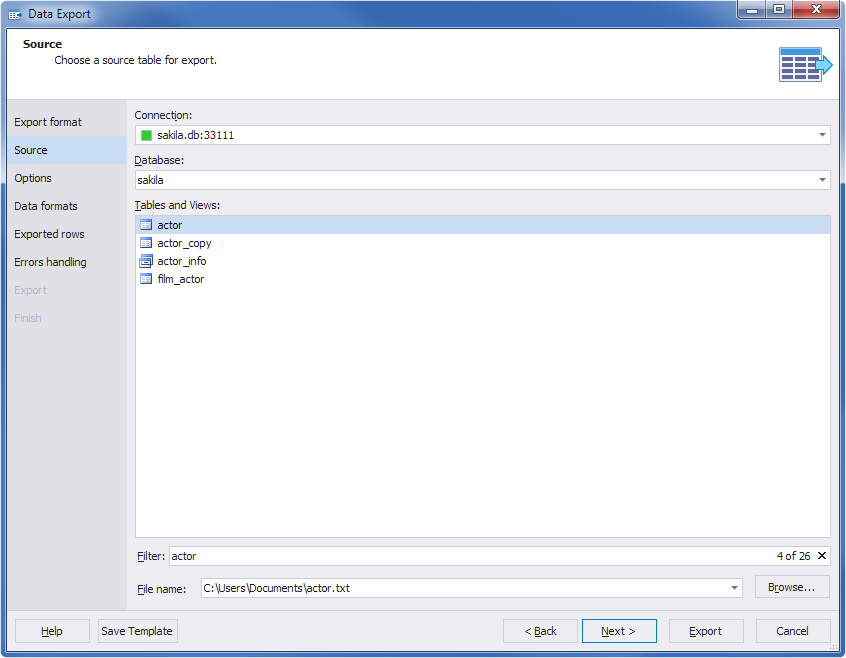
On the Source page, select a required MySQL server connection, a database, table(s), view(s), which you want to export, and then click Next.
Note
If you opened the wizard from the data grid, the Source tab would allow to specify only a name and a path of the destination file (the one where the exported data will be saved.
- Set additional settings for the selected export format on the Options wizard page and click Next.
- Select exported columns and click Next. (For CSV, HTML, PDF, RTF, and Text export formats, select formats of data representation, e.g., integer, date, time, etc. For Excel and Excel 2007 formats, the field is editable only for binary columns and includes only two data types (HexString and String) in the drop-down list).
- Select exported rows. You can export all rows, only selected in the grid ones, or a specified range.
- Specify how the application should behave when an error is encountered.
- (Optional) To export options to a template file for future usage, click the Save Template button and specify a path and a name of the template file.
- Define how dbForge Fusion for MySQL should handle errors during export and whether to write a log file.
- Click the Export button and see the result of export process.
- Select whether to open the exported file or result folder, and click the Finish button. Data export is finished.
Filtered data export
There is a filter in the Data Export wizard window.
If you want to filter data, use the required column filter. To do this, firstly write a whole data query using the SELECT * FROM statement. Click the Execute button to implement the query. Then on the required column name, click the filter icon. In the drop-down list, choose the item to filter by. Right-click the filtered grid and select Export Data to call the Data Export wizard.
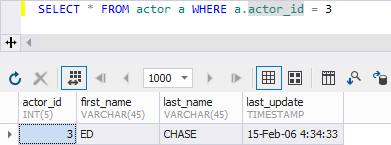
Another and the most reliable way to export filtered data is to filter it directly in the query. Execute the SELECT * FROM statement with the WHERE condition, where you can specify the required filter. And then implement already filtered data export with the Data Export wizard, calling it on the filtered grid shortcut menu.
Follow the Data Export wizard steps, click the Export button. If the data export is finished successfully, the Data export complete message appears.