Configure a connection in Devart MCP Server
You can configure a connection to your data source in one of these ways:
Prerequisites
1. Install and activate Devart ODBC Driver.
2. Configure an ODBC DSN for the target data source.
For instructions on configuring the DSN connection, see the corresponding driver documentation:
Database data sources
Cloud data sources
Use the connection manager
To configure the ODBC connection to the data source:
1. Open Devart MCP Server and click New.
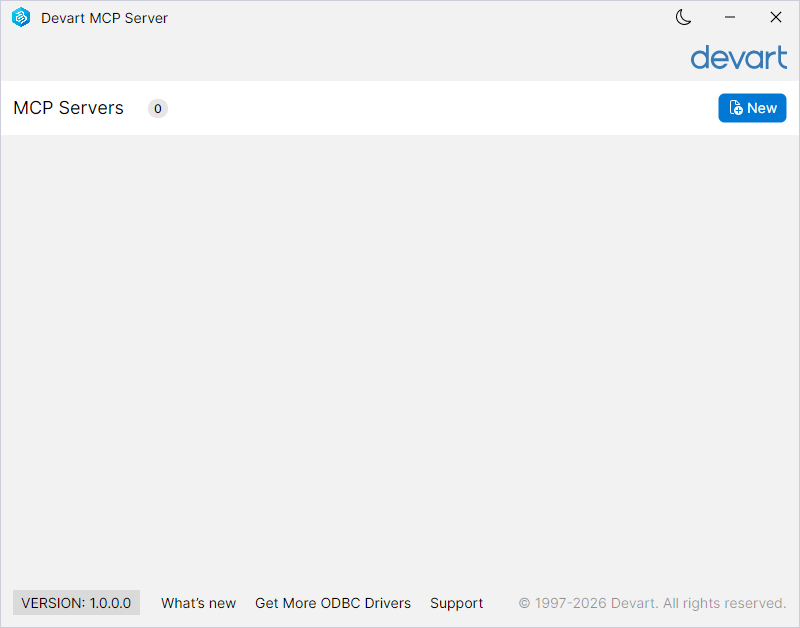
2. On the ODBC Settings tab, specify the connection details:
2.1. Under NAME, enter a name for your connection.
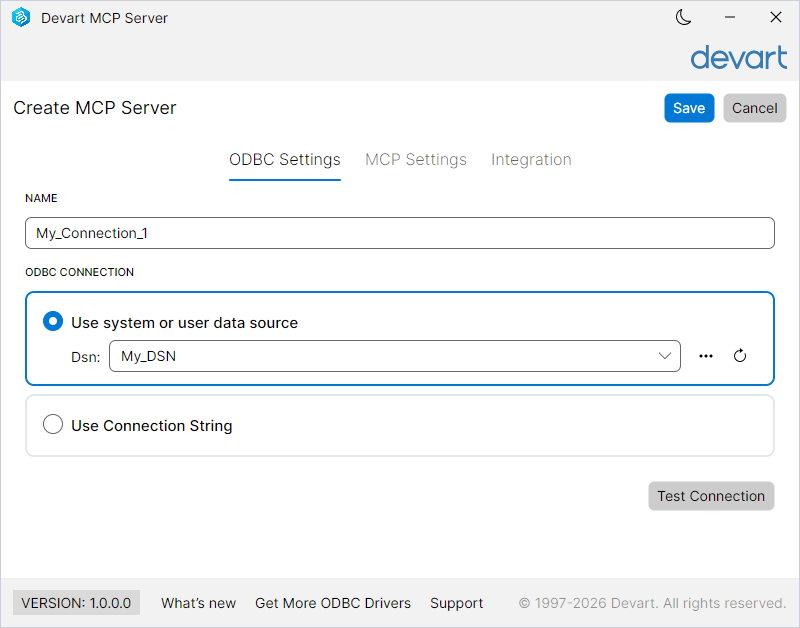
2.2. Under ODBC CONNECTION, select one of these options:
-
Use a preconfigured DSN:
1. Select Use system or user data source.
2. In Dsn, select your data source.
-
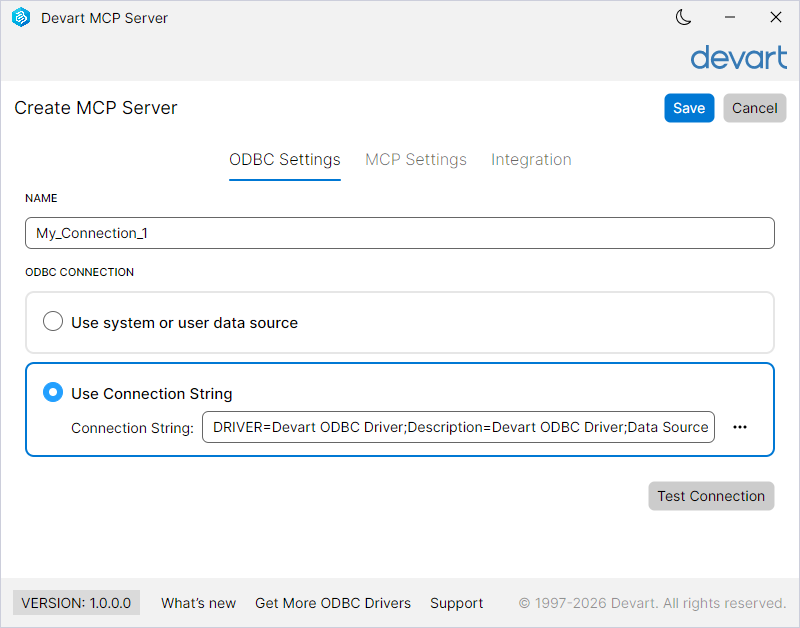
Use a connection string:
1. Select Use Connection String.
2. In Connection String, click the ellipsis (…).
3. On the Machine Data Source tab, select your data source name in the list or click New and follow the wizard instructions to create a new DSN, then click OK.
4. Verify your DSN settings in the configuration dialog, then click OK.
If the connection succeeds, the connection string appears in the Connection String box.
Note
To create a connection string manually, see the Connection options topic in your driver documentation.
3. Optional: Click Test Connection to verify your connection settings.
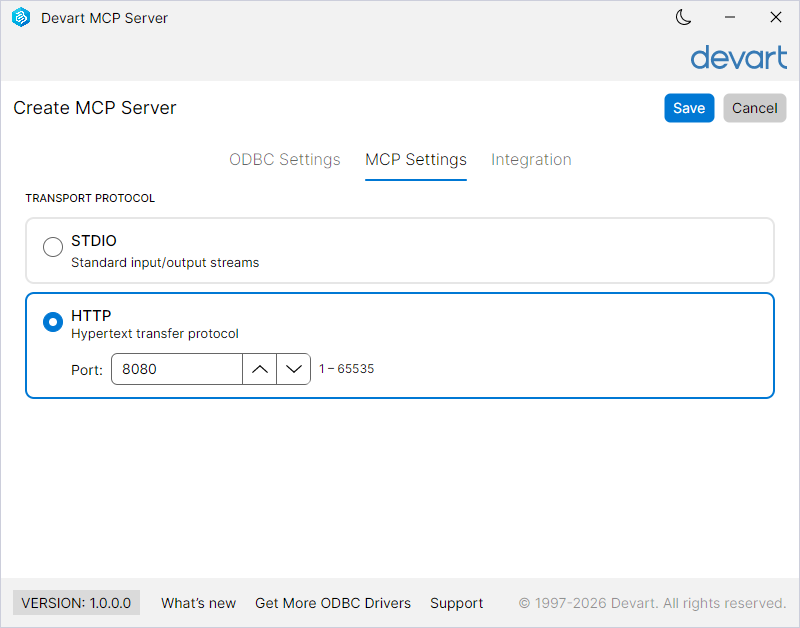
4. On the MCP Settings tab, select the transport protocol:
-
STDIO – Uses the standard input/output streams.
-
HTTP – Uses the Hypertext Transfer Protocol. Specify the host, port number, and optionally a path prefix to use.
5. Click Save.
6. In the connection list, click the ellipsis (…) next to your connection and select Start.
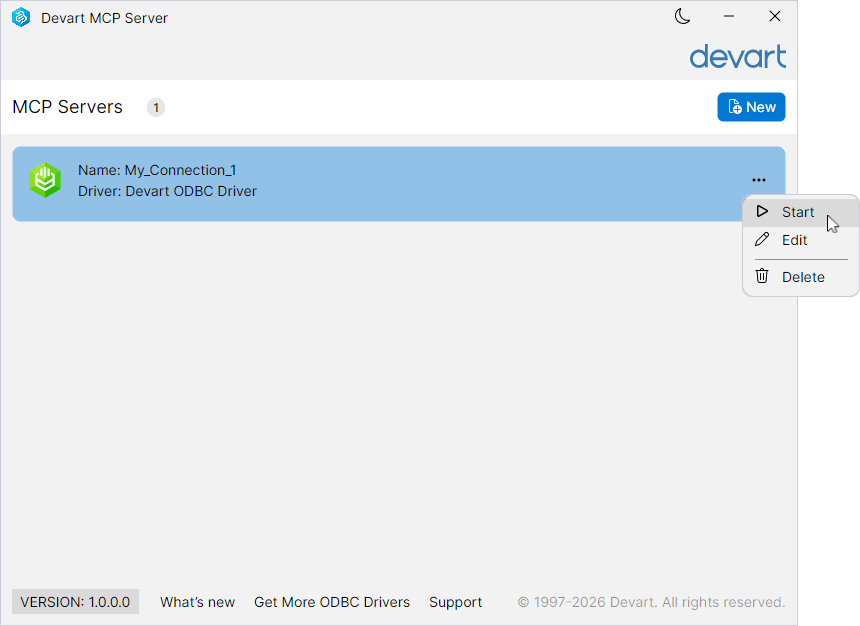
Devart MCP Server starts.
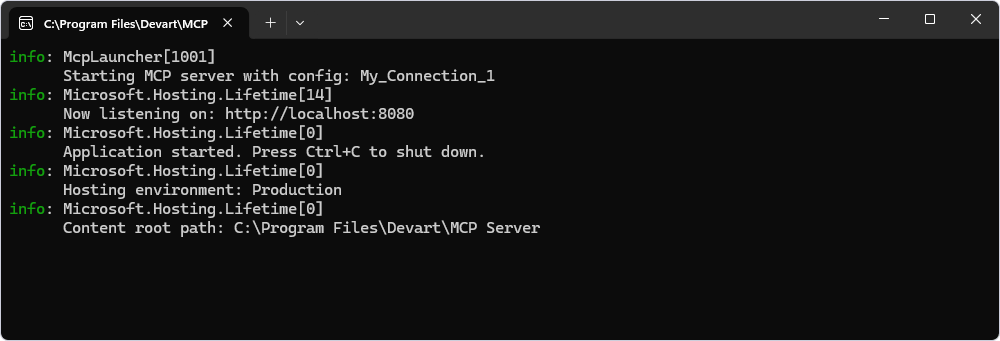
Tip
When Devart MCP Server is running, Start changes to Stop.
To stop the server, select Stop.
To access your data source from an AI tool, register the connection with the AI tool. For instructions, see AI integration.
Edit a data source connection
To edit a connection:
1. Double-click the connection to open it. Alternatively, click the ellipsis (…) and select Edit.
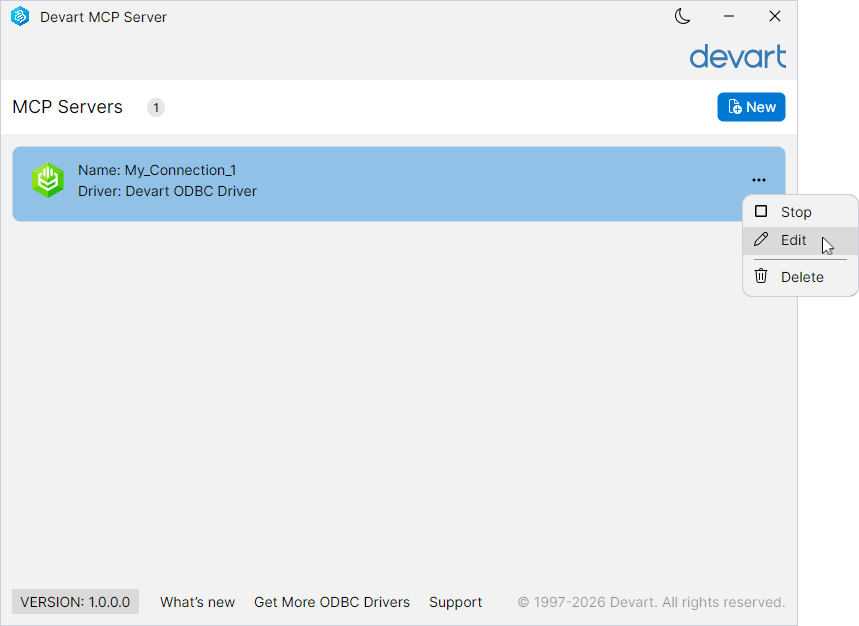
2. On the Edit MCP Server page, update the connection settings as needed.
3. If you’ve already integrated Devart MCP Server with an AI tool, on the Integration tab, click Unregister, then click Register.
4. Click Save.
5. Click the ellipsis (…), select Stop, then select Start.
Delete a data source connection
To delete a connection:
1. Click the ellipsis (…) next to the required connection and select Delete.
2. In the confirmation dialog, click Yes.
The connection is removed from the MCP Servers page.
Use the configuration file
To configure a connection manually:
1. Create an mcpserver.json file in one of these locations:
-
The MCP Server installation folder.
-
C:\ProgramData\Devart\<MCP Server for ...>, where<MCP Server for ...>is the name of the specific MCP Server, for example,C:\ProgramData\Devart\MCP Server for PostgreSQL.
2. Configure the parameters, depending on the transport protocol used by the MCP Server:
- STDIO
{
  "Connections": [
    {
      "Name": "My_Connection_1",
      "Driver": "Devart ODBC Driver",
      "DsnName": "My_DSN",
      "ConnectionString": null,
      "ProtocolType": "Stdio"
    }
  ]

}
where:
Nameis the name of the ODBC connection.Driveris the name of the specific ODBC Driver.DsnNameis the name of your data source.ConnectionStringis set tonullbecauseDsnNameis used.ProtocolTypespecifies the transport protocol.
Note
To use
ConnectionStringinstead ofDsnName, specify the connection string for the specific driver and setDsnNametonull.For more information on connection string configuration, see the Connection options topic in your driver documentation.
- HTTP
{
  "Connections": [
    {
      "Name": "My_Connection_1",
      "Driver": "Devart ODBC Driver",
      "DsnName": "My_DSN",
      "ConnectionString": null,
      "ProtocolType": "Http",
      "HttpPort": 8080,
      "HttpAddress": "localhost",
      "HttpRoutePrefix": "/prefix"
    }
  ]

}
where:
Nameis the name of the ODBC connection.Driveris the name of the specific ODBC Driver.DsnNameis the name of your data source.ConnectionStringis set tonullbecauseDsnNameis in use.ProtocolTypespecifies the transport protocol.HttpPortspecifies the HTTP port.HttpAddress(optional) specifies the HTTP binding address. If you don’t specify this parameter, the MCP Server useslocalhost.HttpRoutePrefix(optional) specifies the HTTP route prefix.
3. Save the file.
4. Start the MCP Server.
Use the command line
You can use the config command to create and manage connections without opening the connection manager or editing the mcpserver.json file manually. You can also use the command in automated deployments, because it requires no user interaction.
The config command reads and writes the same mcpserver.json file that’s described in Use the configuration file. The command uses the first file it finds:
-
mcpserver.jsonin the MCP Server installation folder. -
mcpserver.jsoninC:\ProgramData\Devart\<MCP Server for ...>, where<MCP Server for ...>is the name of the specific MCP Server, for example,C:\ProgramData\Devart\MCP Server for PostgreSQL.
If neither file exists, the command creates mcpserver.json in C:\ProgramData\Devart\<MCP Server for ...>.
Tip
To open the connection manager instead, run the
configcommand without a subcommand. For instructions on using the connection manager, see Use the connection manager.
In the following examples, <mcpserver> is the MCP Server executable, for example, Devart.AI.McpServer.Odbc.PostgreSQL.exe.
Note
Run the command from the MCP Server installation folder, or specify the full path to the executable.
View the list of connections
To view the configured connections, run the following command:
<mcpserver> config list
The command displays the path to the configuration file and the connections it contains.
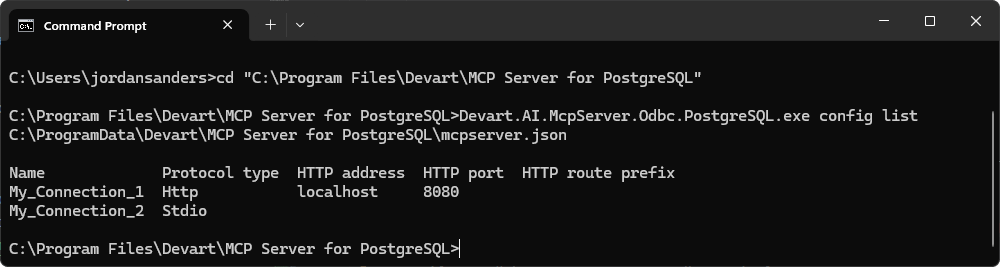
The HTTP columns contain values only for connections that use the HTTP transport protocol.
Add a connection
To add a connection, run the following command:
<mcpserver> config add <name> [options]
where <name> is the name of the connection. It must be unique within the configuration file. Pass the same name to the run command to start the MCP Server with this connection.
The table describes the available options.
| Option | Description |
|---|---|
--protocol-type or -p |
Specifies the transport protocol: stdio or http. If omitted, stdio is used. |
--connection-string or -c |
Specifies the connection string for the specific driver. |
The following options apply only when --protocol-type is set to http.
| Option | Description |
|---|---|
--http-address or -ha |
Specifies the address that the MCP Server listens on. |
--http-port or -hp |
Specifies the HTTP port, from 0 to 65535. If omitted, 8080 is used. |
--http-route-prefix or -hr |
Specifies the route prefix that the MCP Server is served under, for example, /mcp. |
Examples
Add a connection that uses the STDIO transport protocol.
<mcpserver> config add My_Postgresql -c "DRIVER=Devart ODBC Driver for PostgreSQL;Server=127.0.0.1;Database=test;User ID=postgres;Password=mypassword"
Add a connection that uses the HTTP transport protocol.
<mcpserver> config add My_Postgresql_HTTP -p http -ha localhost -hp 8080 -hr /mcp -c "DRIVER=Devart ODBC Driver for PostgreSQL;Server=127.0.0.1;Database=test;User ID=postgres;Password=mypassword"
Note
The
configcommand sets theConnectionStringparameter. To useDsnNameinstead, add the connection in the connection manager, or edit themcpserver.jsonfile manually.
Start the MCP Server with a connection
After you configure a connection, you can start the MCP Server with it.
<mcpserver> run <name>
Edit a connection
To change the settings of an existing connection, run the following command:
<mcpserver> config edit <name> [options]
The options are the same as for adding a connection. Specify at least one option. The options that you omit keep their current values.
For example, you can change the port of a connection that uses the HTTP transport protocol.
<mcpserver> config edit My_Postgresql_HTTP -hp 5500
Delete a connection
To delete a connection, run the following command:
<mcpserver> config delete <name>
Note
If a command can’t be completed, the MCP Server displays the reason and returns a non-zero exit code. In automated deployments, you can use the exit code to detect failures.