Export SQL Server data to ODBC
ODBC (Open Database Connectivity) is a standardized API that enables communication between applications and various database management systems (DBMS). It decouples the application from any specific DBMS by using an ODBC driver as a middleware layer, translating calls from the application into DBMS-specific queries.
The application interfaces with ODBC functions through a driver manager, which dynamically loads the appropriate driver, enabling the execution of queries on the target DBMS.
Note
The guide describes how to export data from SQL Server to PostgreSQL using the ODBC driver. For instructions on how to start working with Devart ODBC drivers, see Configure Devart ODBC drivers.
Prerequisites
-
Configure ODBC Driver for PostgreSQL and connect to the PostgreSQL database.
Export data to a PostgreSQL database
1. Open the Data Export wizard in one of these ways:
-
On the Start Page, select Data Pump > Export Data.
-
In Database Explorer, right-click the required database or server connection and select Tasks > Export Data.
-
In Database Explorer, right-click the required table or view and select Export Data.
-
On the menu bar, select Database > Tasks > Export Data.
-
In Data Editor, click
 or right-click in the grid and select Export Data. You can export either the selected rows or the entire table.
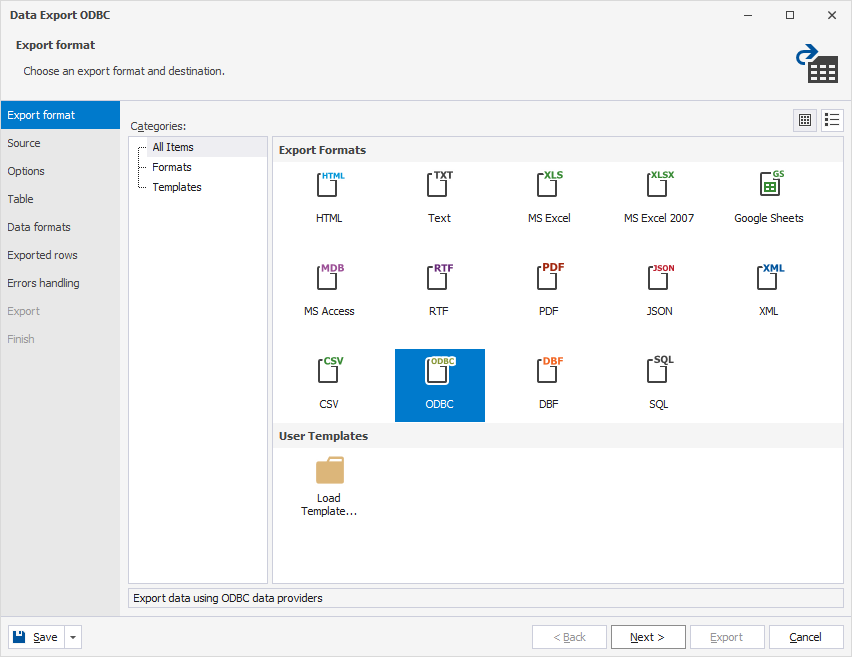
2. On the Export format page, select ODBC, then click Next.
Tip
Click Load Template to load export options from a template file if you saved it previously.
Note
To move between pages, click Next or select a page directly from the navigation pane on the left.
To return to the previous step and review or change your settings, click Back.
To close the wizard without saving your changes, click Cancel.
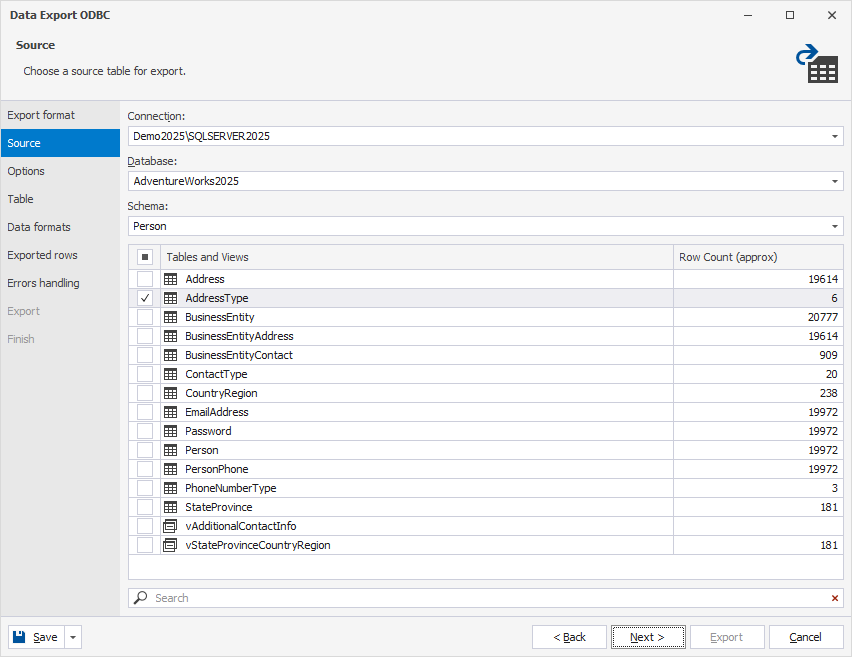
3. On the Source page, specify the connection details and select tables and/or views that you want to export, then click Next.
Note
The Source page is unavailable if you open the Data Export wizard from Data Editor.
3.1. In Connection, select a server connection for the database. You can also create a new connection or update an existing one.
Tip
To create or update a server connection:
1. In Connection, select Manage.
2. In the Connection Manager dialog, click New to create a connection or Edit to modify an existing one.
3. In the Database Connection Properties dialog, configure connection settings.
4. In the Connection Manager dialog, click OK to use the connection for the export.
3.2. In Database, select the database.
3.3. In Schema, select the appropriate database schema.
3.4. In the grid, select the required tables and/or views.
Tip
To export all tables and views, select Tables and Views.
To search for tables and views, enter a search query in the search box.
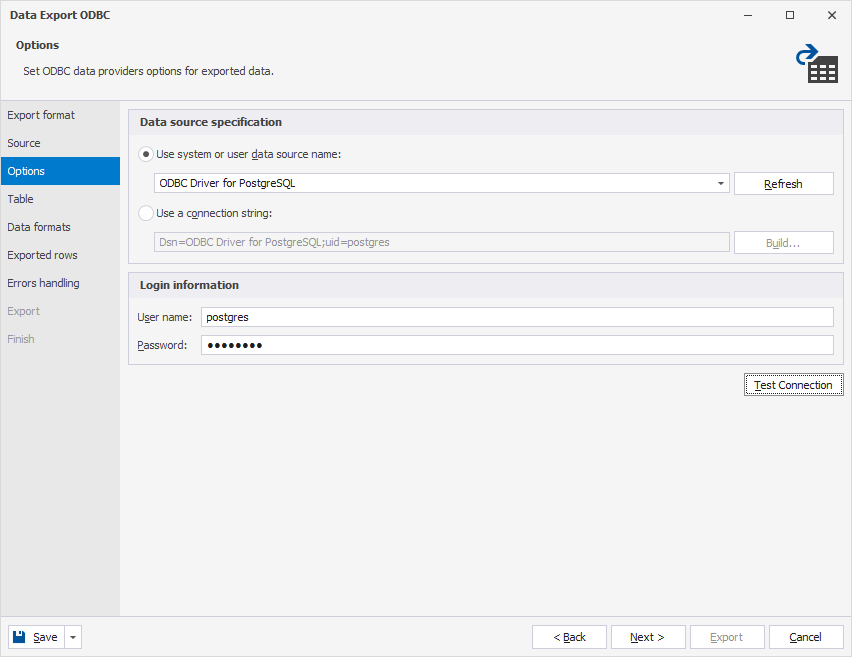
4. On the Options page, specify the system or user Data Source Name (DSN), then click Next.
-
If you already have a DSN:
1. Under Data source specification, select Use system or user data source name.
2. Select ODBC Driver for PostgreSQL.
-
If you don’t have a DSN:
1. In Use a connection string, click Build.
2. In the Select Data Source dialog, click New for DSN Name.
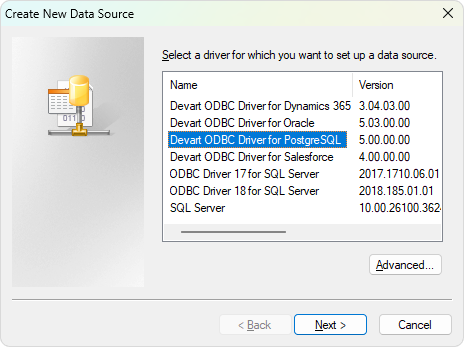
3. In the Create New Data Source dialog, select Devart ODBC Driver for PostgreSQL, then click Next.
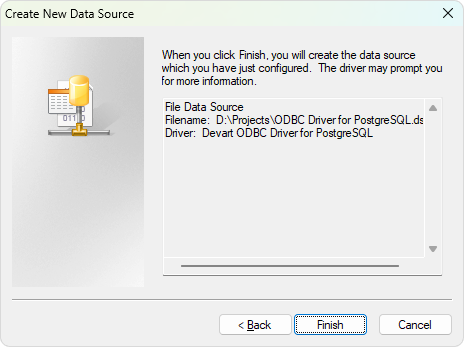
4. Specify the full path to the file to save the connection settings, then click Next.
5. Click Finish to create a data source.
6. In the Devart ODBC Driver for PostgreSQL Configuration dialog, configure the PostgreSQL connection settings, then click OK.
Tip
To verify the connection, click Test Connection.
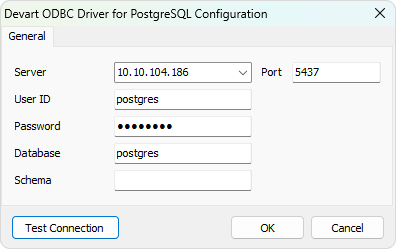
7. Click OK to close the Select Data Source dialog.
5. Optional: If you didn’t save the login and password during the DSN configuration, under Login information, enter your database credentials.
6. Optional: Click Test Connection to verify the connection settings.
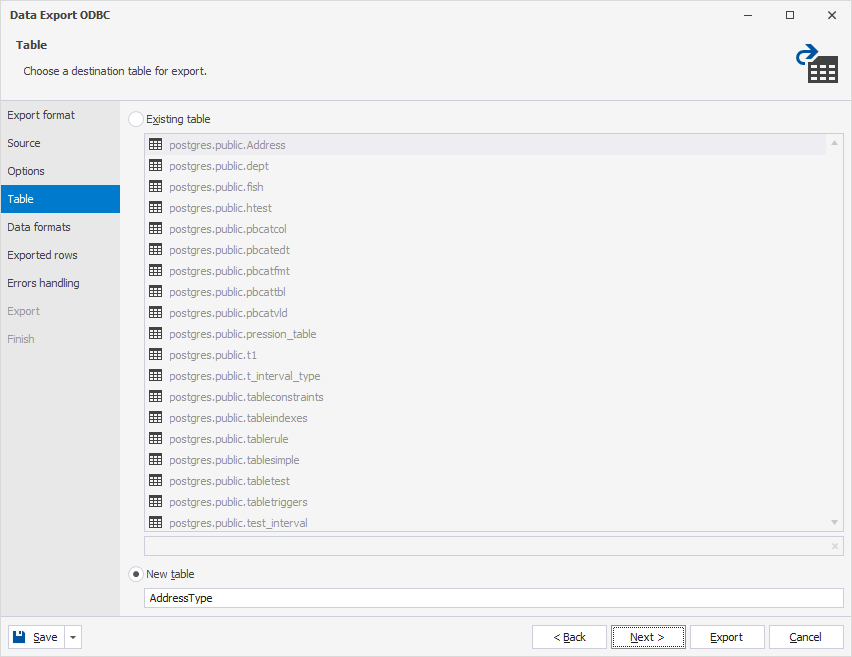
7. On the Table page, select the destination table for export, then click Next.
-
Existing table – Exports data to the selected table.
-
New table – Exports data to a new table.
Tip
When exporting to an existing table:
Ensure each column in the source table has a corresponding column in the destination table with the same name and a compatible data type.
Use the search box to find the required table.
Note
The Table page is available in the wizard only when exporting data from a single table.
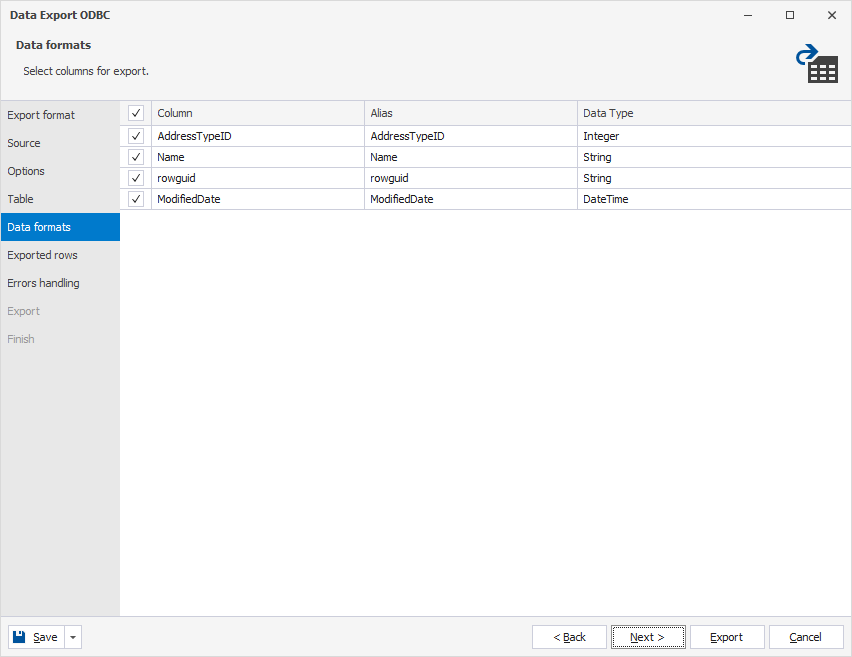
8. On the Data formats page, select the columns for export and check or edit their aliases and data types, then click Next.
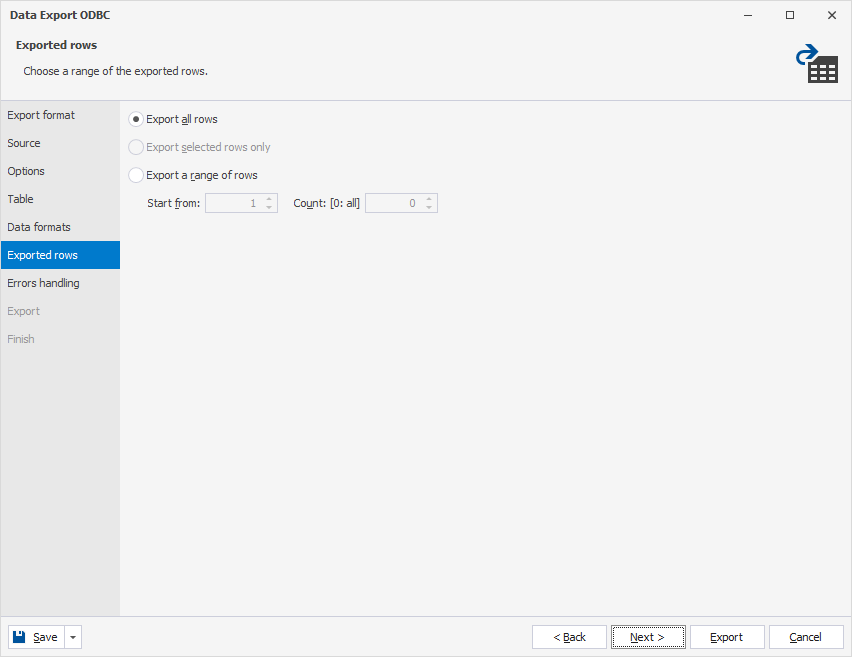
9. On the Exported rows page, specify the rows to export, then click Next.
-
Export all rows – Exports all rows in the table.
-
Export selected rows only – Exports only the rows selected in Data Editor.
-
Export a range of rows – Exports a specified range of rows. Enter the starting row and the number of rows to include in the export. To export all rows following the specified starting row, set Count to 0.
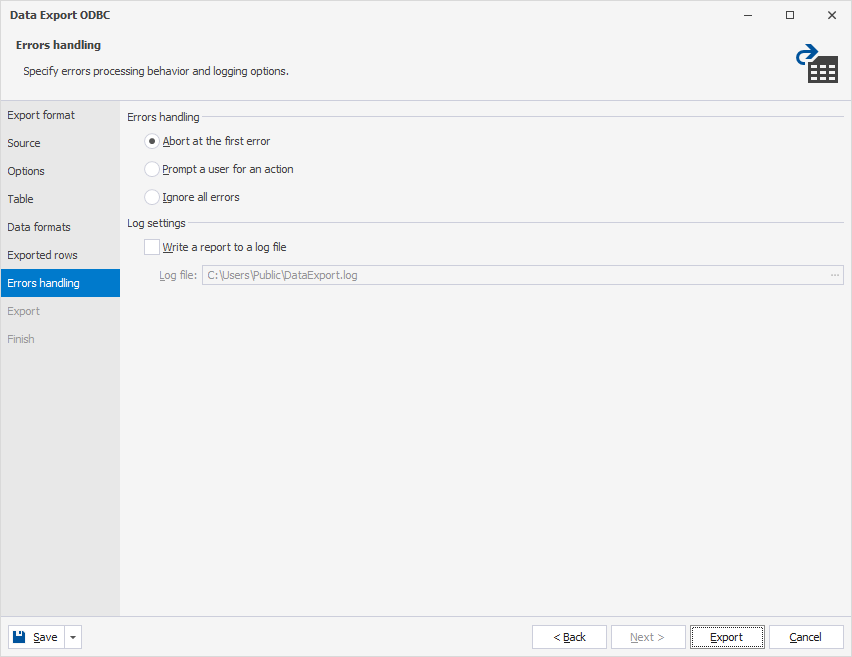
10. On the Errors handling page, choose how to process errors and how they should be logged.
10.1. Select one of the following error handling options:
-
Abort at the first error – Stops the export immediately when the first error occurs.
-
Prompt a user for an action – Stops the export when an error occurs and prompts the user to choose an action.
-
Ignore all errors – Continues the data export, skipping any errors without interruption.
10.2. Optional: To create a log file, select Write a report to a log file, then click the ellipsis (…) and select the folder where you want to save the file.
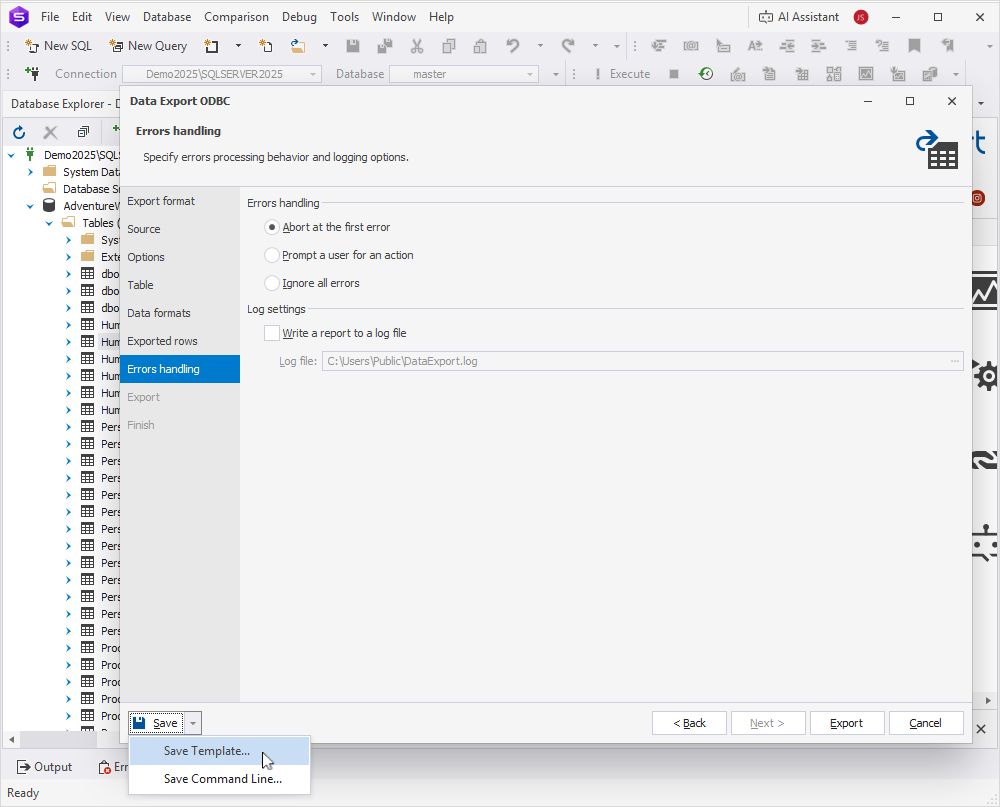
Note
To save your export settings as templates for recurring scenarios, expand the Save menu and select Save Template. You can then use the templates to export data from the command line.
11. Click Export.
12. On the Finish page, select one of the following actions:
-
Show log file – Opens the log file.
-
Open result file – Opens the exported file.
-
Open result folder – Opens the folder containing the exported file.
-
Export more – Starts another export.
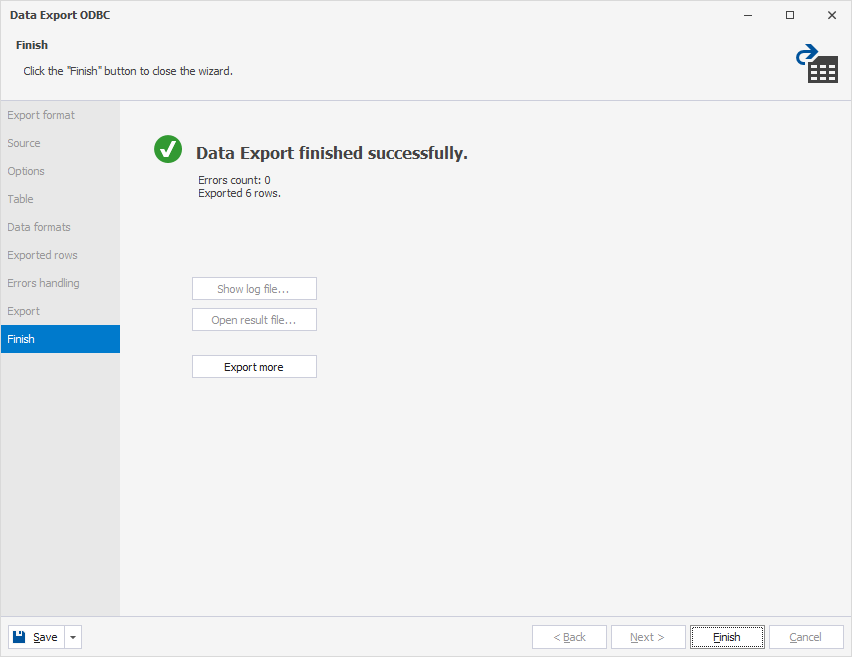
13. Click Finish.