View differences in rows
The Row Differences grid in the Data Comparison document lets you view data differences between tables or views, and include or exclude them from synchronization.
The bottom grid displays the records for the object you select in the upper Data Comparison grid.
The records are grouped by their status and displayed on separate tabs:
| Name | Description |
|---|---|
| All | All records from the source and target databases. |
| Only in Source | Records that exist only in the source database. |
| Different | All records and those rows that differ between the source and target. |
| Only in Target | Records that exist only in the target database. |
| Identical | Records that match exactly in both databases. |
| Conflict | Rows with the same non-unique key value in both the source and target. |
Warning
Conflict records cannot be synchronized.
The status bar of each tab shows the number of differences per column.
Each tab (except Identical) contains a grid with the following columns:
- A column with checkboxes
- A comparison status indicator
- A comparison key column
- Other table columns
The source and target columns are grouped in pairs. When the values of the Source and Target columns are different, they are highlighted.
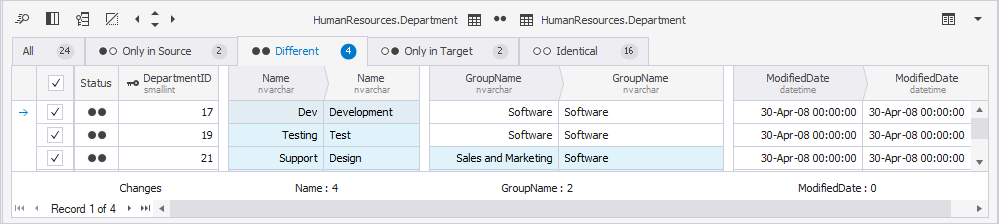
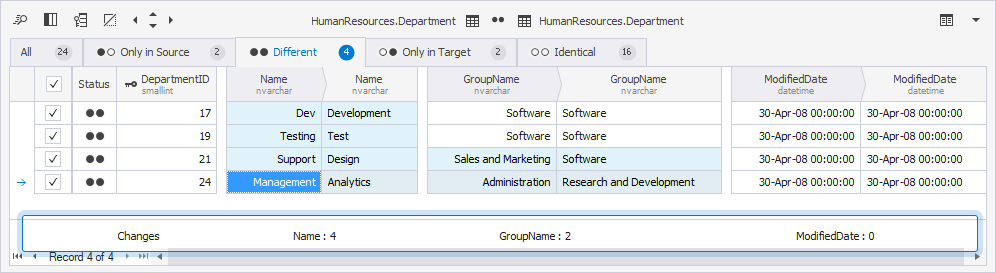
The pane below the grid shows a summary of differences for each column. For example:
- Name: 4 – The Name column differs in 4 records.
- GroupName: 2 – The GroupName column differs in 2 records.
- ModifiedDate: 0 – No differences were found in the ModifiedDate column.
Navigate between records
You can move through records by using the First, Next, Previous, or Last navigation options.

Include or exclude rows
By default, all rows with differences are selected for synchronization. Use checkboxes in the grid to include or exclude the rows.
Row Differences grid toolbar
The toolbar above the grid provides the following options:
| Icon | Name | Description |
|---|---|---|
 |
Find | Opens the Find and Replace dialog to find the required text. Shortcut: Ctrl+F |
 |
Visible Columns | Opens the Visible Columns dialog to show or hide columns in the bottom grid. |
 |
Lock Key Columns | Keeps the comparison key columns fixed so they remain visible. |
 |
Hide Unmodified Columns | Hides columns with identical values in source and target. |
 |
Hide Empty Columns | Hides columns that contain no data. |
 |
Go to the previous difference | Moves to the previous row with differences. Shortcut: Ctrl+Shift+Left |
 |
Go to the previous difference for the selected column | Moves to the previous difference in the selected column. Shortcut: Ctrl+Shift+Up |
 |
Go to the next difference | Moves to the next row with differences. Shortcut: Ctrl+Shift+Right |
 |
Go to the next difference for the selected column | Moves to the next difference in the selected column. Shortcut: Ctrl+Shift+Down |
 |
Show comparison results in detached window | Opens the grid in a separate floating window. |
Note
- dbForge Studio for SQL Server doesn’t display values for tables or views that can not be compared.
- If you clear the Identical records checkbox on the Options page of the New Data Comparison wizard, dbForge Studio hides identical rows and displays a corresponding notification:
'Identical Records' rows were excluded from the comparison.
Comparison status indicators
The table explains the indicators of comparison statuses.
| Icon | Name | Description |
|---|---|---|
 |
Identical | Rows that match exactly in all compared columns. |
 |
Different | Rows with the same key but at least one different value. |
 |
Only in Source | Rows that exist only in the source. |
 |
Only in Target | Rows that exist only in the target. |
Row and cell indicators
When working with the data, you may see special indicators for the selected row.
The table describes the indicators shown in the results grid.
| Icon | Name | Description |
|---|---|---|
 |
Active row | The current row. |
 |
Editing row | A row that is being edited. |
 |
Edited row | A row that has been modified. |
Shortcut menu options
Right-click the bottom grid to access shortcut menu options.
Note
The shortcut menu options may differ depending on the tab of the Row Differences grid.
